We use cookies for personalizing content and ads and providing social media features. Your usage information on our website will be used for social media, advertising, and traffic analytics, or shared with our partners. Clicking "Accept" means you agree to use our cookies .
Are you tired of the default color of the taskbar and window border in your computer? Or do you want to change their color for a brand-new view? In this article, you can learn the detailed method to change the color of taskbar and window border on Windows 10.
Change Window Border Color and Taskbar Color in Win 10 Newer Version
Step 1: Right-click on the desktop and select Personalize from the context menu.
Step 2: Go to the Colors tab.
Step 3: Scroll down and go to Show accent color on the following surfaces section. Then check the two options: Start, taskbar, and action center; Title bars and window borders.
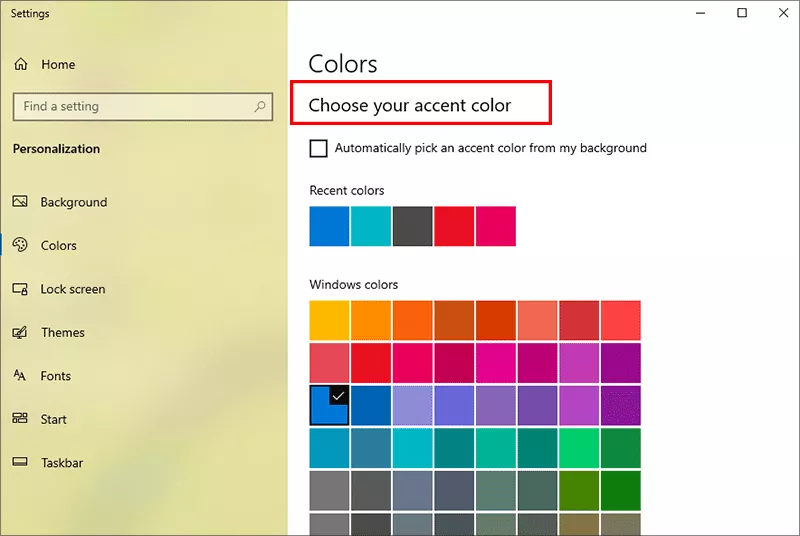
Step 4: Go to select your accent color. After that, borders and title bars will instantly reflect the selected color.
Change the color of taskbar and window border in Win 10 Older Version
Step 1: Open Color and Appearance settings.
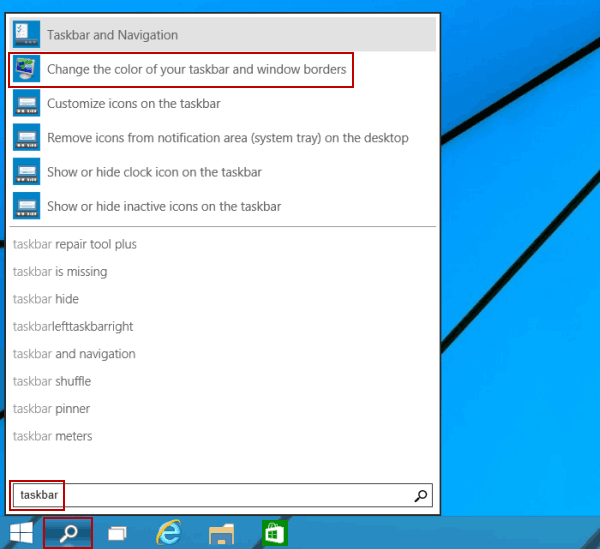
More specifically speaking, click the Search button on the taskbar, type taskbar in the empty box and select Change the color of your taskbar and window borders in the results.
Step 2: Change the color.
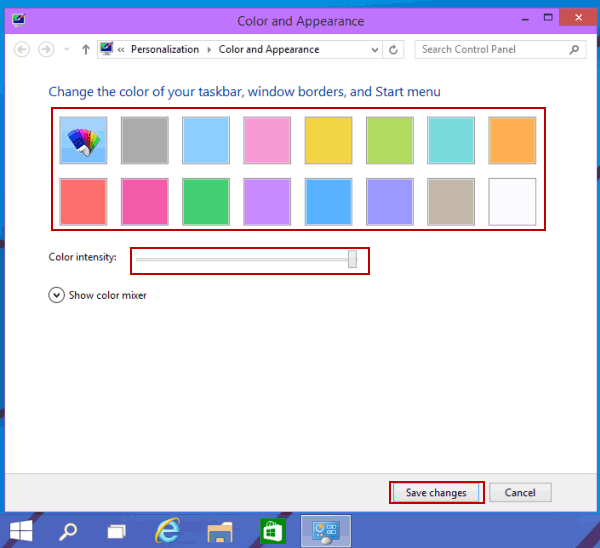
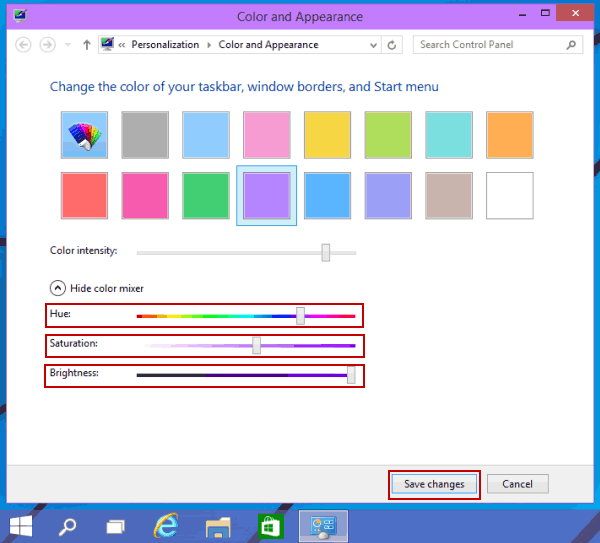
In the Color and Appearance window, choose a color you like from the list, decide the color intensity if you want to and tap Save changes button.
Tip: You can also change the color by use of the color mixer, following the two procedures below.
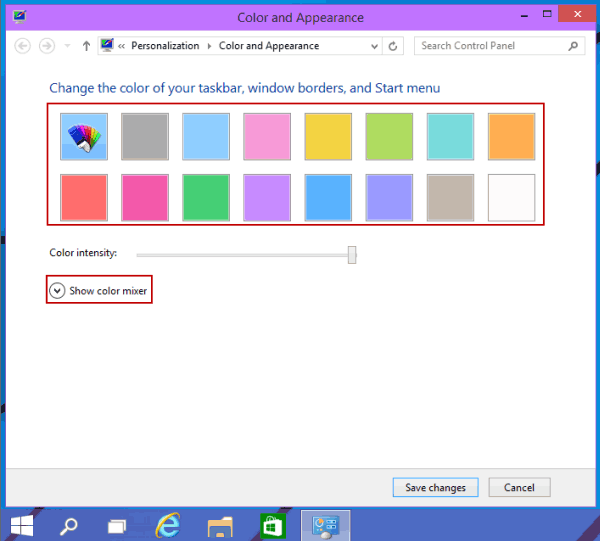
1. Select a color and click Show color mixer in the Color and Appearance window.
2. Adjust Hue, Saturation and Brightness according to your need. After that, tap Save changes.
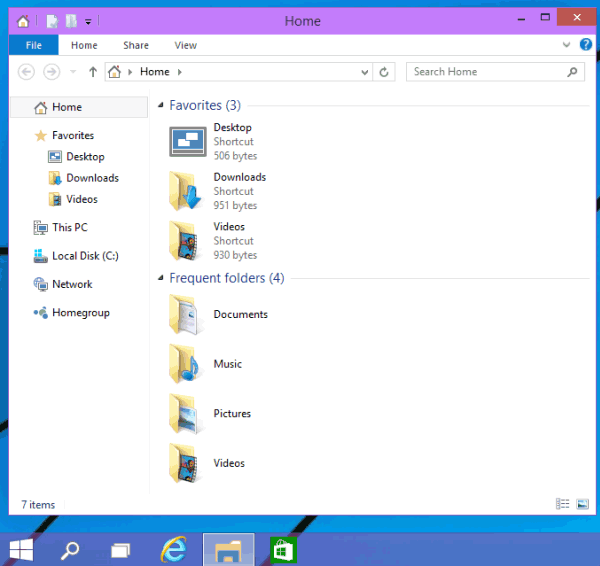
From the following screen shot, you can see that the color of taskbar and window border has been changed successfully.