We use cookies for personalizing content and ads and providing social media features. Your usage information on our website will be used for social media, advertising, and traffic analytics, or shared with our partners. Clicking "Accept" means you agree to use our cookies .
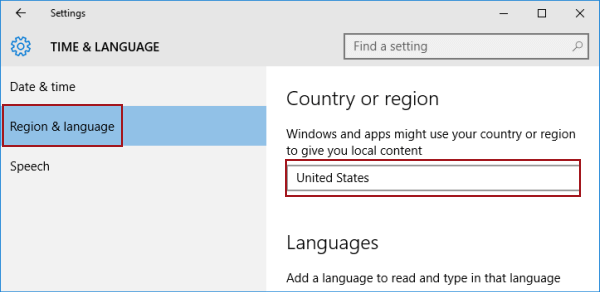
Region settings determine your PC's locale—affecting date formatting, measurements, local content, and Store availability. This guide covers two primary methods to adjust your region, plus a bonus for quick access.
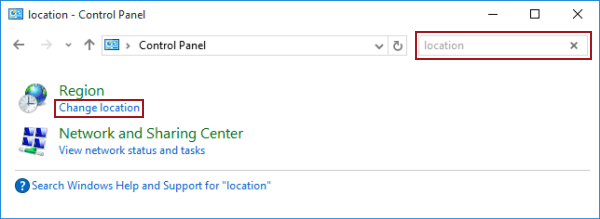
Step 2: Type location in the top-right box, and tap Change location.
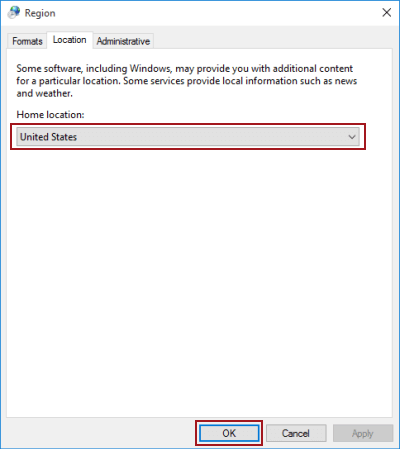
Step 3: Select a home location and hit OK.
Tips: How to Create Shortcut for Region on Windows 10 Desktop
In the Region settings, you can change date and time formats, modify home location and complete other settings, referring to the picture below. To directly open the Region window, you can create a shortcut for it on the desktop. Just read on to find the method.
Step 1: Right-click blank space on the desktop, point at New in the menu and choose Shortcut in the options.
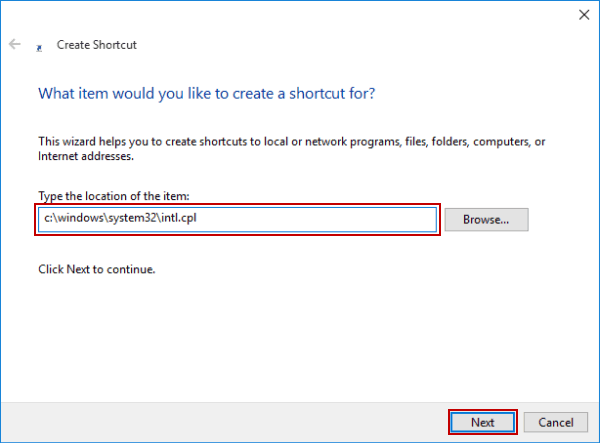
Step 2: In the Create Shortcut window, type c:\windows\system32\intl.cpl and tap Next.
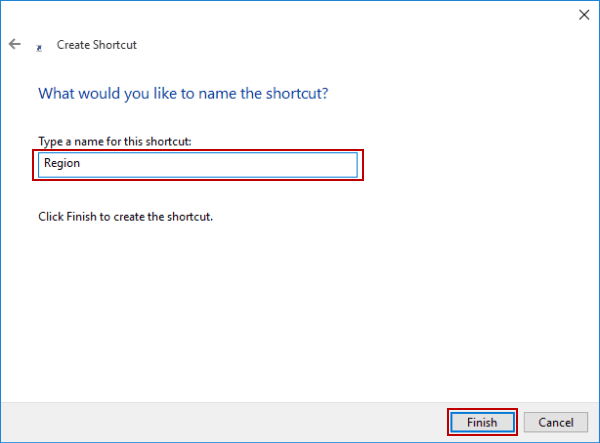
Step 3: Enter Region to name the shortcut and hit Finish.
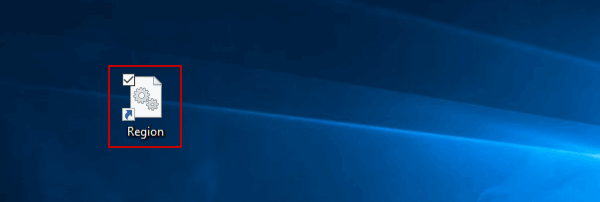
By use of this method, a shortcut called Region is created on the desktop.
Troubleshooting Tips
Tips 1: If you see a blank region dropdown, it may be due to registry issues in:
HKEY_CURRENT_USER\Control Panel\International – fix permissions or reapply locale defaults
Tips 2: After region change, sign out/in or restart to apply changes system-wide
Tips 3: If region options are locked/greyed out, your PC might be managed by group policy. Use registry or PowerShell overrides to unblock it