We use cookies for personalizing content and ads and providing social media features. Your usage information on our website will be used for social media, advertising, and traffic analytics, or shared with our partners. Clicking "Accept" means you agree to use our cookies .
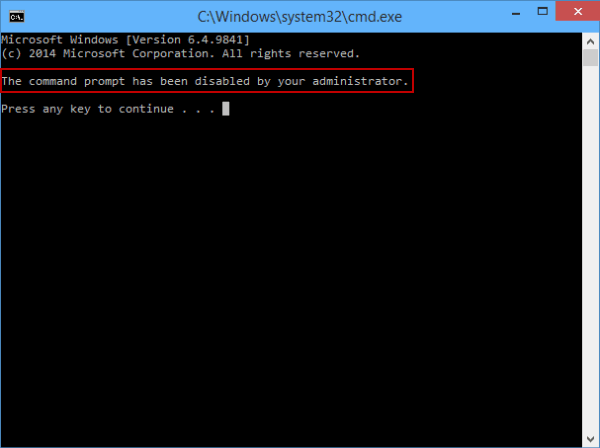
"When I open Command Prompt on a Windows 10 computer, a message pops up in the window, explaining that the command prompt has been disabled by administrator. Can anyone kindly tell me what I can do to solve this problem?"
If you're seeing the error "The command prompt has been disabled by your administrator", it usually means access has been blocked via Group Policy or the registry. Here's how to solve Command Prompt has been disabled issue.
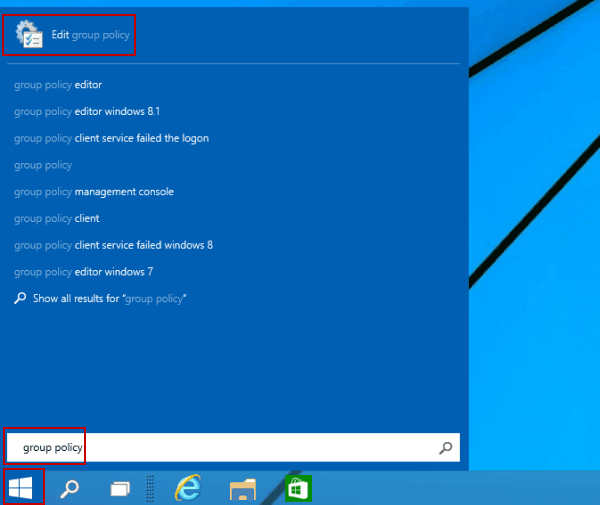
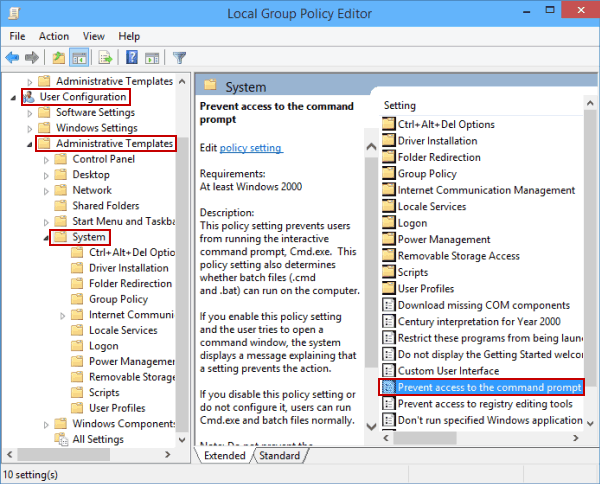
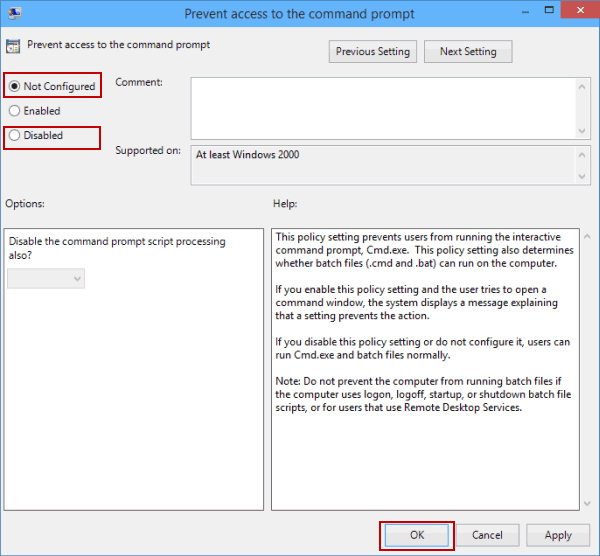
Method 1: Enable Command Prompt in Windows 10 Using Group Policy Editor