We use cookies for personalizing content and ads and providing social media features. Your usage information on our website will be used for social media, advertising, and traffic analytics, or shared with our partners. Clicking "Accept" means you agree to use our cookies .
The Command Prompt (CMD) is a powerful tool in Windows 10 and Windows 11, but its default look can feel outdated. The good news is you can customize Command Prompt to improve readability, appearance, and usability. From changing fonts and colors to adjusting window size and enabling legacy console mode, this guide covers all the ways you can make CMD work better for you.
All the Command Prompt settings can be changed under its Properties. Thus, you need to access Command Prompt Properties firstly.
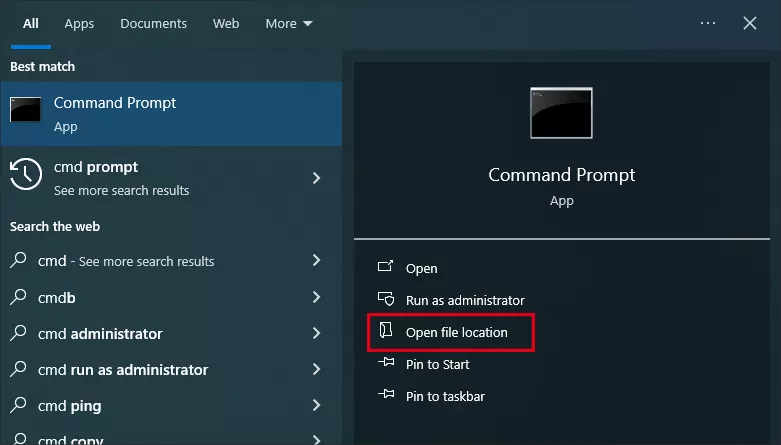
Step 1: Type cmd in the search box on taskbar.
Step 2: Click Open File Location from the Command Prompt.
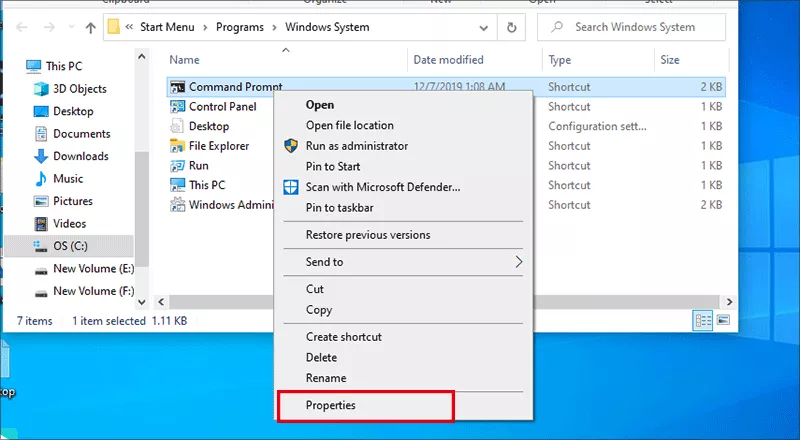
Step 3: Right-click Command Prompt and choose Properties to open.
Part 2: How to Change Command Prompt Layout
You can customize the Command Prompt appearance from the three aspects:
1. Change the Screen Buffer Size
The buffer size controls how much text CMD stores for scrolling back. You can click the Layout tab in Command Prompt Properties window. After that, under Screen Buffer Size section, set the Height and Width. If the option—Wrap text output on resize is checked, you can only change the Height.
2. Change the Window Size
You can make the CMD window larger or smaller according to your preference. Just click the Layout tab and set the Width and Height under Window Size. It helps when you want more text visible at once.
3. Move the Windows Position
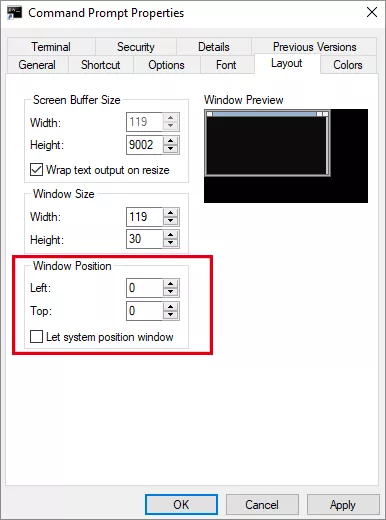
If you want CMD to always open in a specific location on your screen, you can change the numerical values of Left and Top under Window position. This allows you to move where CMD opens by default. If you do not want to self-define it, check the option—Let system position window.
Part 3: How to Define Command Prompt Font
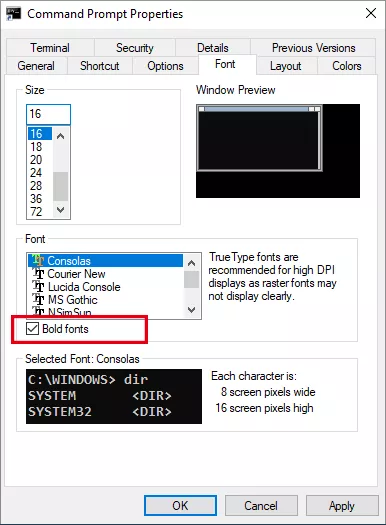
To improve readability, you can set the font size and font type in Command Prompt. At the same time, you can enable bold font in CMD to make the text more visible.
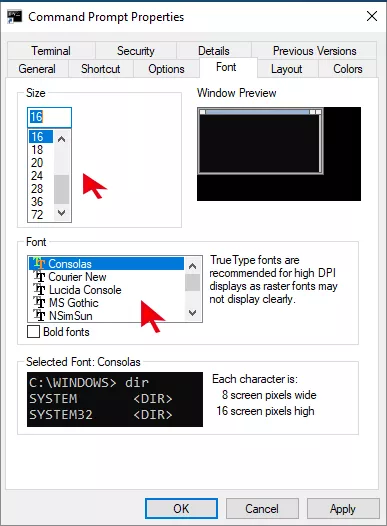
Go to the Font tab of your Command Prompt Properties window. Then pick your preferred font (eg. Consolas, Lucida Console), and set the proper size for your font.
You can also tick the Bold fonts option in the Font section to make the text easier to distinguish, especially on small screens.
Part 4: How to Change Color in Command Prompt
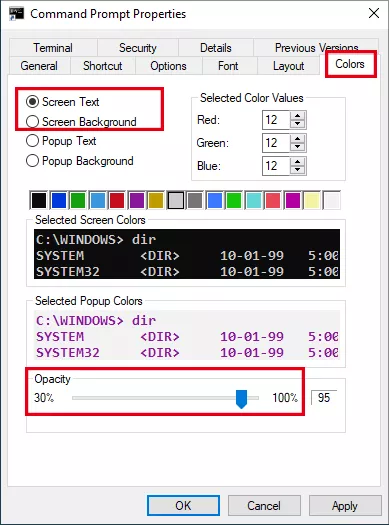
Want a dark theme or a colorful CMD? You can set it yourself.
Go to click the Colors tab in Command Prompt Properties window, then you can choose Screen text and pick a color from the palette. After that, do the same to the Screen Background. At last, at the bottom of the window, adjust the Opacity slider.
Part 5: How to Change the Options in Command Prompt
There are multiple options for you to customize the Command Prompt, including the Cursor Size, Command History, Eidt Options, and Text Selection.
1. Change Cursor Size
The blinking cursor in CMD can be hard to see. You can make it larger when you spend long hours typing commands. Just hit the Options tab on Command Prompt Properties window, then choose one from Small, Medium and Large. Finally, click OK.
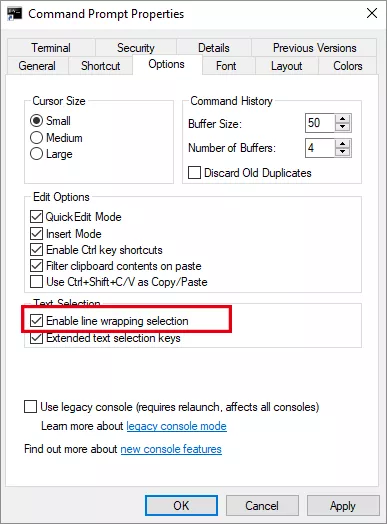
2. Enable Line Wrapping Selection
Line wrapping selection helps you select multiple lines in Command Prompt on your Windows 10 PC. How to enable this setting? In the Command Prompt Properties dialog, hit Options, select Enable line wrapping selection under Text Selection, and then tap OK.
3. Enable or Disable Ctrl Key Shortcuts
In Command Prompt on Windows 10 computer, you can use Ctrl key shortcuts (i.e. Ctrl+C, Ctrl+A and Ctrl+V) to copy and paste the selected text. You just need to deselect or select Enable Ctrl key shortcuts under Options tab in Command Prompt Properties window.
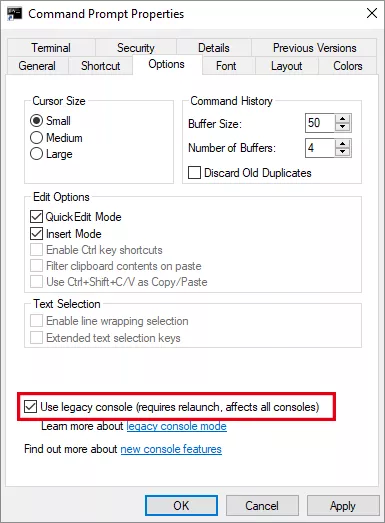
4. Enable Legacy Console Mode
If you run older scripts or want compatibility, you can enable Legacy Console Mode. When you open Command Prompt Properties window, click Options tab and check Use legacy console. After that, you are unable to use line wrapping selection, use Ctrl key shortcuts and realize other new features.
Conclusion
By tweaking these settings, you can fully customize Command Prompt in Windows 10 and 11. Whether it's changing fonts, colors, opacity, or enabling advanced options like legacy console mode and line wrapping, these adjustments make CMD both more powerful and user-friendly.