We use cookies for personalizing content and ads and providing social media features. Your usage information on our website will be used for social media, advertising, and traffic analytics, or shared with our partners. Clicking "Accept" means you agree to use our cookies .
"How do I clean registry in Windows 10? I'm looking forward a professional tool to delete registry entries. Is there any suggestion for a reliable registry cleaner for Windows 10?"
What is the registry cleaner? The registry cleaner refers to a class of software designed to remove redundant items from the Windows registry for Windows operating system. Although there are already a lot of registry cleaners in the market, many people are still quite afraid that it is risky to use a third party tool to clean registries for their computer. If you still have that concern now, it must be that you haven't found the right choice.
The fact is that an appropriate and trustworthy registry cleaner can help you delete problematic and useless registries effectively. Here we highly recommend iSunshare System Genius to you. Actually, iSunshare System Genius is a professional and multifunctional junk file remover and a registry cleaner, as well as a system optimizer. You can use it to delete registry entries in Windows 10 in order to make your computer more stable.
Preparation: Back Up the Registry First
The registry keys and files play a significant role in Windows OS. Before removing the invalid registry files from your computer, it is necessary to back up the registry.
Go to open registry editor and click File > Export. Then choose All in Export Range. After that, name the file and choose a destination folder to save it.
Besides, it is important to create a system restore point which allows you to roll back your system in case of accidental registry damage.
Steps to Delete Registries in Windows 10 with iSunshare System Genius
We believe that technology is most powerful when everyone can use it. Now you can follow the below instructions to learn how to delete program registry files in Windows 10 by using iSunshare System Genius. You'll see what it's worth instantly after you have tried this software.
Step 1: Download iSunshare System Genius and install it on your computer.
iSunshare Reliable Windows System Optimizer
Delete registry files on Windows computer
Remove junk files from your Windows PC
Fix Windows computer takes a long time to open issue
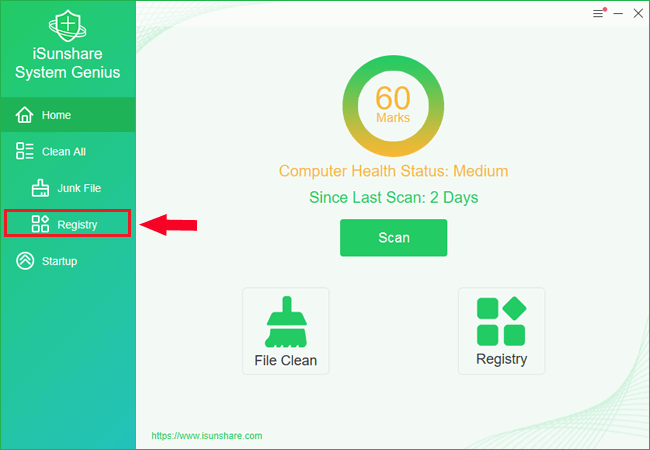
Step 2: Run the software and you will come to the Home page. Select the function of Registry on the left to proceed.
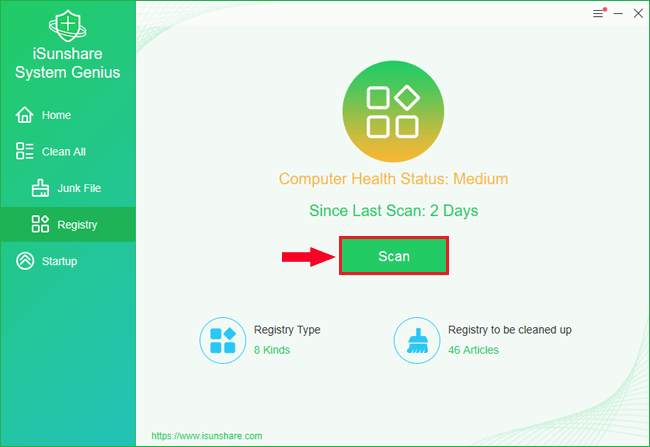
Step 3: Click the button of Scan at the center of the interface in order to make a scanning of registries for your computer.
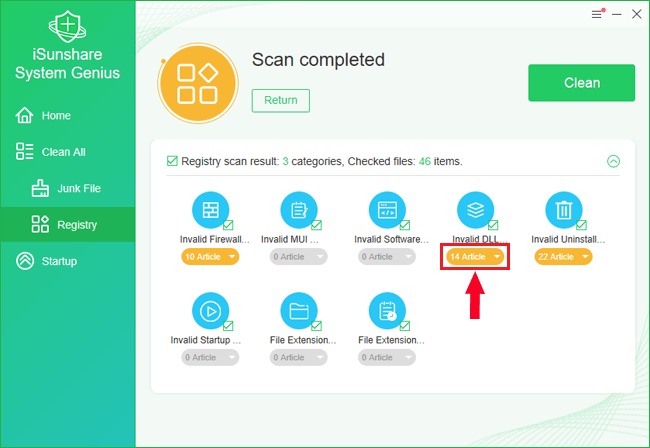
Then it will begin the process to detect all the problematic or invalid registries in your computer. The scanning process won't take long time. After it is finished, the registry scan result will show up.
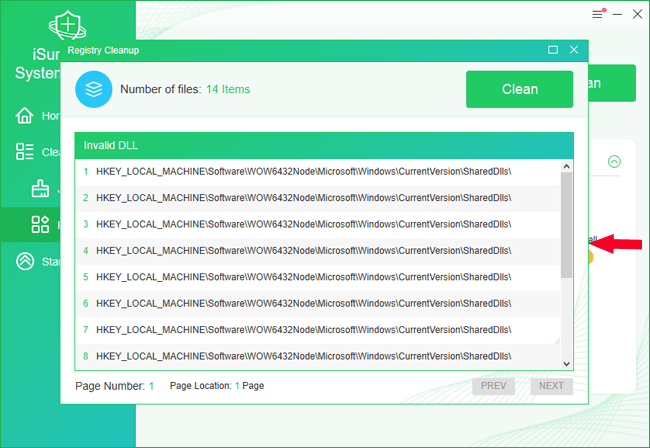
You can click the More button, the buttons highlighted in yellow, to get more details about the particular scan result.
Then the item details page will be opened, from which you can get more information about this result.
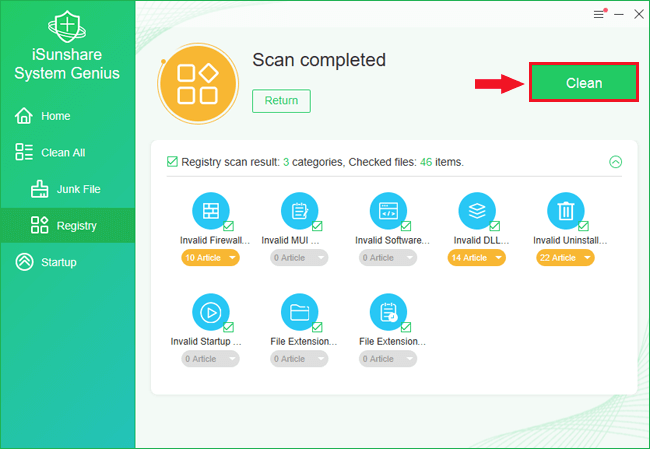
Step 4: Hit the button of Clean to delete all the selected registry scan results.
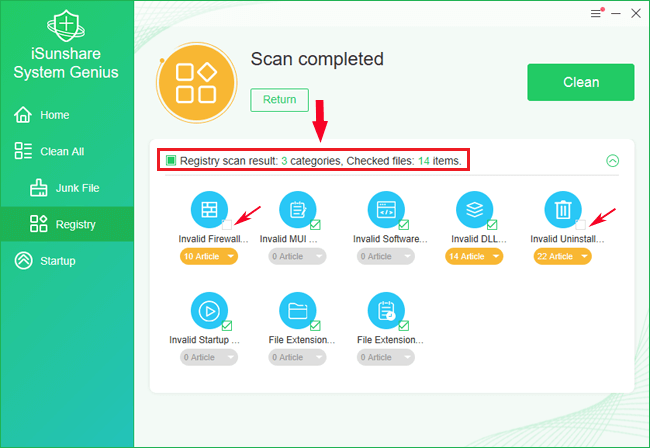
There is one point deserves your attention here. By default, all the scan results are selected to be deleted. If you notice some files that you don't want to remove, you can untick the box next to the scan result. Then you can continue to clean those selected registries.
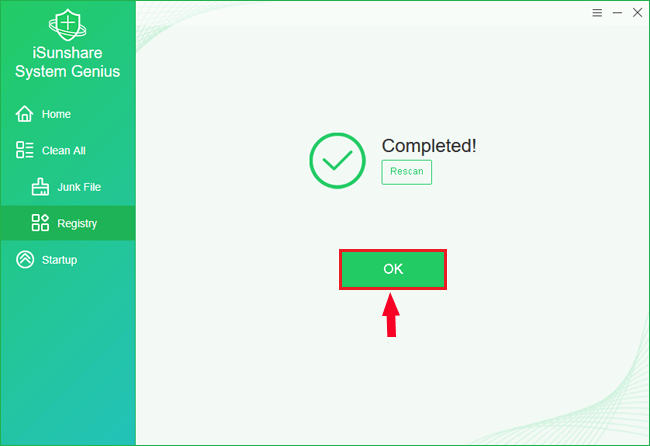
Step 5: Tap the OK button to exit when you are prompted cleanup is completed. Now you can close the software.
FAQs: Deleting Registry Entries in Windows 10
Q1: What happens if I delete the wrong registry entry?
It can cause software malfunction or Windows errors. Always back up before editing. But with iSunshare System Genius, it will never happen.
Q2: Can a registry cleaner improve performance?
In some cases, yes—especially when cleaning up leftovers from uninstalled software.
Q3: Should I regularly clean the registry?
Only when needed. Constant cleaning isn't necessary and can sometimes do more harm than good.
Conclusions
It is not recommended to clean the invalid resgitry entries in Windows 10 manually. Thus, you need a relaible registry cleaner. iSunshare System Genius will be of great help to you. With the above steps, you can easily remove unwanted registry entires in Windows 10.