By Hally | Last Updated
There are 4 power saving modes (i.e. Maximum Performance and Low/Medium /Maximum Power Saving) of wireless adapter in Windows 10 computer for your option. In more detail, Maximum Performance helps achieve maximum wireless performance with no power savings, Low Power Saving realizes minimum power savings, Medium Power Saving helps balance between performance and power savings based on network traffic, and Maximum Power Saving can achieve maximum power savings. To choose the most appropriate one, you can use the following method.
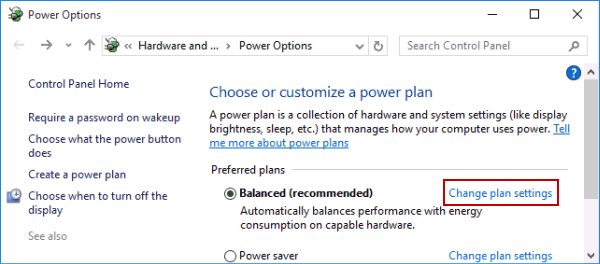
Step 1: Turn on Power Options.
Step 2: Choose the first Change plan settings.

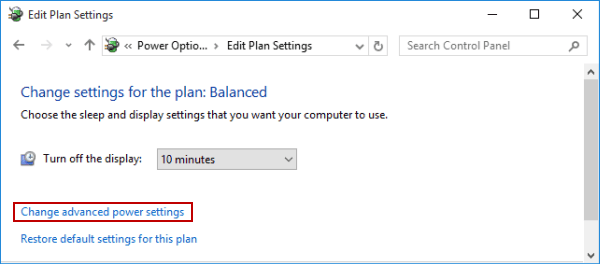
Step 3: Click Change advanced power settings in the Edit Plan Settings window.

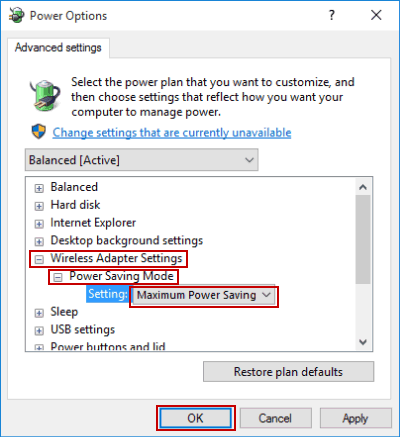
Step 4: Open Wireless Adapter Settings, expand Power Saving Mode, select Maximum Performance/Low Power Saving/Medium Power Saving/Maximum Power Saving, and then hit OK.

Related Articles:
How to Reset Windows 10 Forgotten Password
How to Bypass Windows 10 Password Login with/without Password
Easy Guide to Reset Windows 10 Admin Password Like an Expert
4 Tips to Change Windows 10 Password without Knowing Current Password
Can't Sign into Microsoft Account Windows 10 | Account Locked/Blocked