logo
Windows 10Open Power Options in Windows 10

3 Ways to Open Power Options in Windows 10

By Michael | Last Updated

In Power Options, you are able to choose when to turn off display, add Hibernate to the Power Options Menu and complete other power settings. Need quick access to power settings like your power plan or what your power buttons do? Here are three efficient methods to open Power Options on Windows 10.

Way 1: Open Power Options from Quick Access Menu.

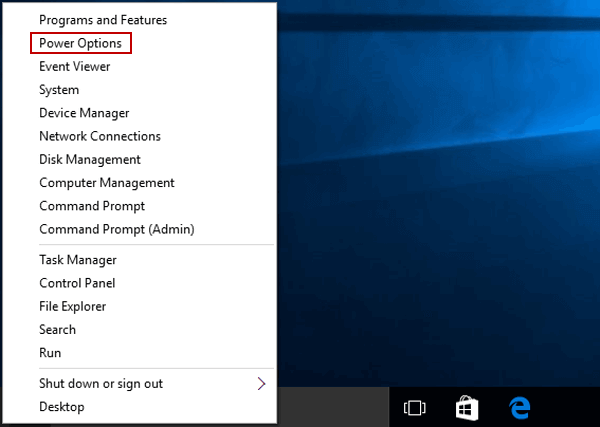
Press Windows+X to show the menu, and choose Power Options on it. This is a speedy route, especially if you navigate the Power User Menu often.

open power options by quick access menu

Way 2: Access via Settings App.

This method is great if you're already adjusting system-level settings.

Step 1: Open Settings and choose System > Power& Sleep.

Step 2: Click Additional power settings to open the classic Power Options control panel.

open power options via settings

Way 3: Open Power Options in Control Panel.

Step 1: Access Control Panel.

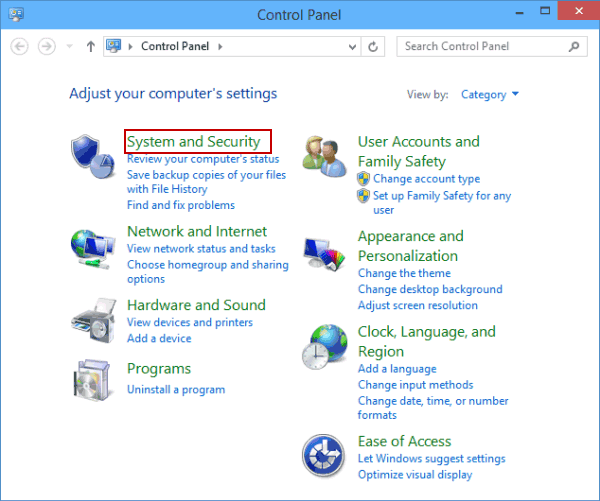
Step 2: Click System and Security.

choose system and security

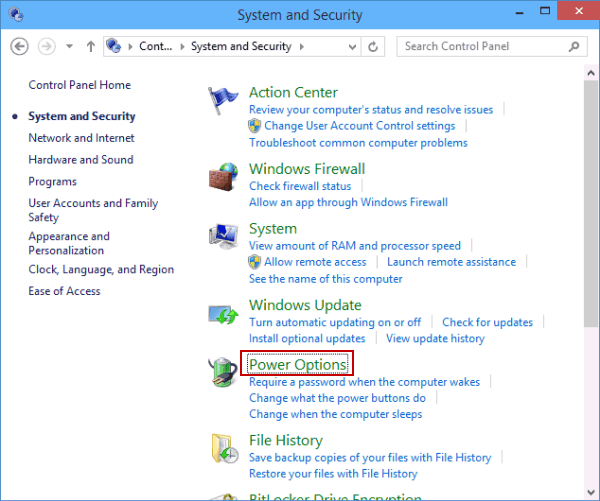
Step 3: Tap Power Options.

tap power options

Related Articles: