logo
Windows 10 How to Change Windows SmartScreen Settings in Windows 10

How to Change Windows SmartScreen Settings in Windows 10

By Hally | Last Updated

Windows SmartScreen helps you protect your PC through requiring administrator approval before running unrecognized apps and files downloaded from the Internet, or warning you before running them without asking administrator approval. For your better understanding, this article will illustrate how to change Windows SmartScreen settings on Windows 10 computer.

Method 1: Adjust Windows SmartScreen Settings via Windows Security

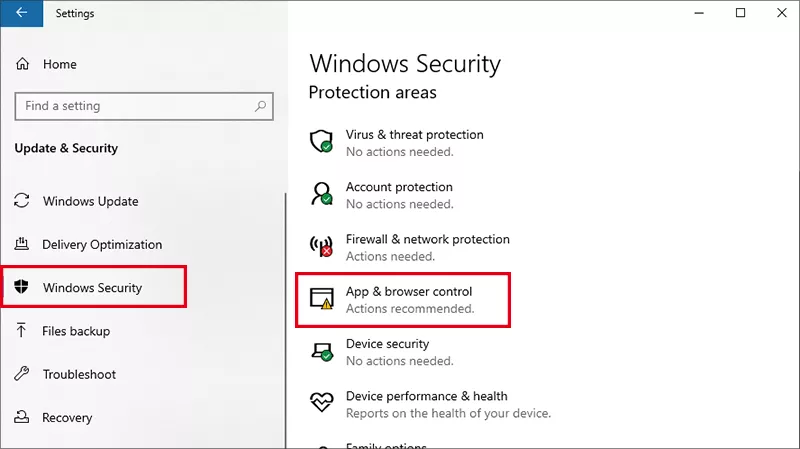
Step 1: Open Settings> Update & Security > Windows Security> App & browser control.

click App browser control

Step 2: Here, you can turn Microsoft Defender SmartScreen on or off. You can turn on to check apps and files. Besides, you can enable SmartScreen for Microsoft Edge or Microsoft Store apps.

choose windows smartscreen setting

Method 2: Change SmartScreen Settings via Group Policy

This method can only apply to Windows 10 Pro or Enterprise environments.

Step 1: Open Local Group Policy.

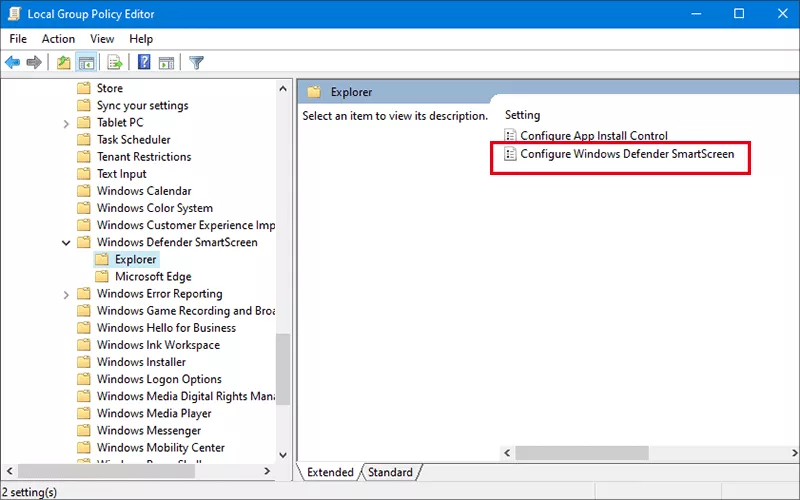
Step 2: Click Administrative Templates > Windows Components > Windows Defender SmartScreen > Explorer. On the right panel, you can find the Configure Windows Defender SmartScreen settings. Double-click to open it.

click Configure Windows Defender SmartScreen

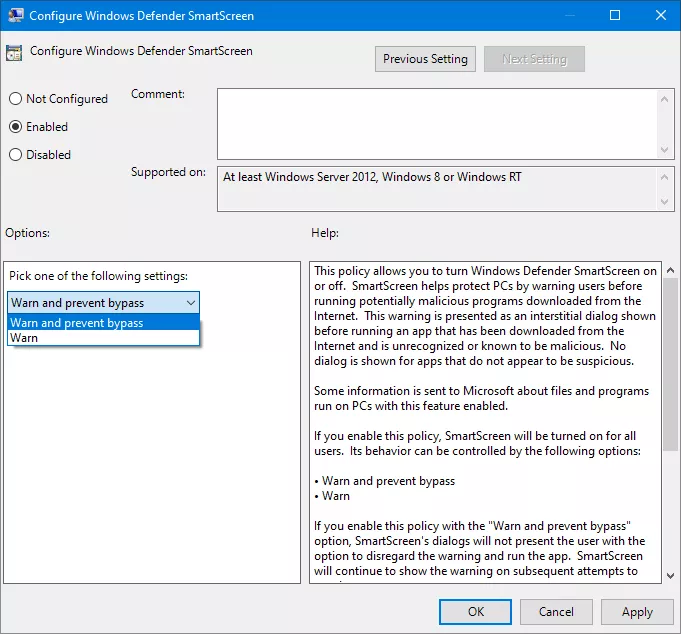
Step 3: Configure the SmartScreen behavior:

  • Enabled (Select mode: Warn or Warn and prevent bypass)
  • Disabled to turn SmartScreen off completely
  • Not configured to let users decide

Configure Windows Defender SmartScreen

Related Articles: