By Jennifer | Last Updated
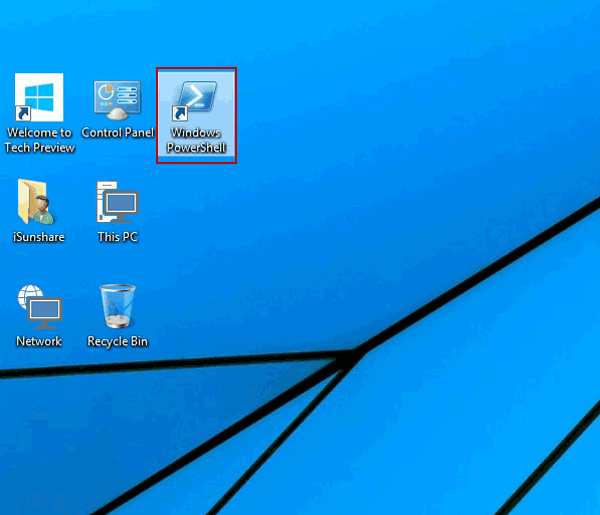
Creating a shortcut for Windows PowerShell (see the following picture) on the computer desktop will exempt you from the inconvenience of finding the app. Meanwhile, for your better reference, this article illustrates the method to make such a shortcut on Windows 10 desktop step by step.

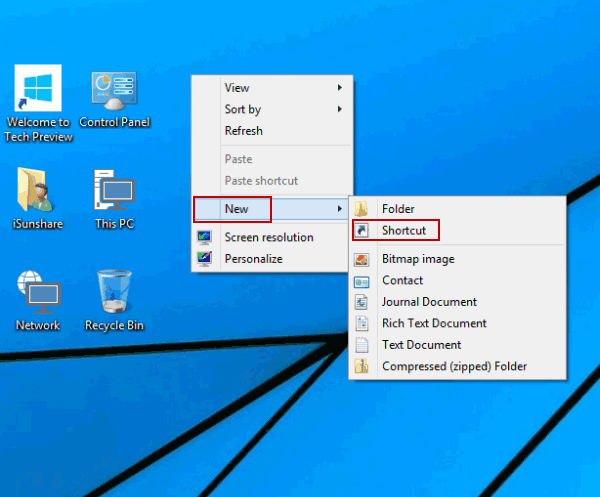
Step 1: Right-click any blank area on the desktop, point at New on the context menu and choose Shortcut in the sub-menu.

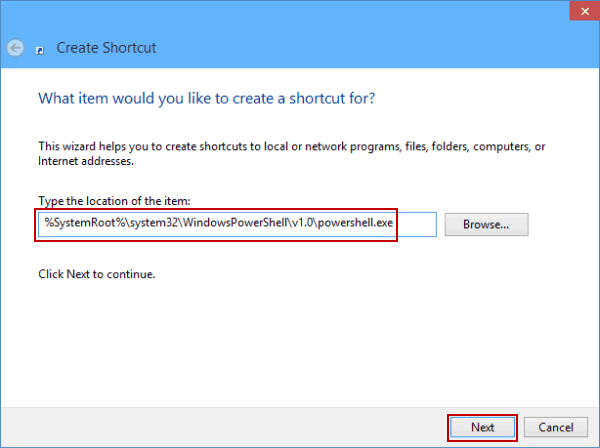
Step 2: Type the following location of Windows PowerShell, and tap Next to move on.
%SystemRoot%\system32\WindowsPowerShell\v1.0\powershell.exe

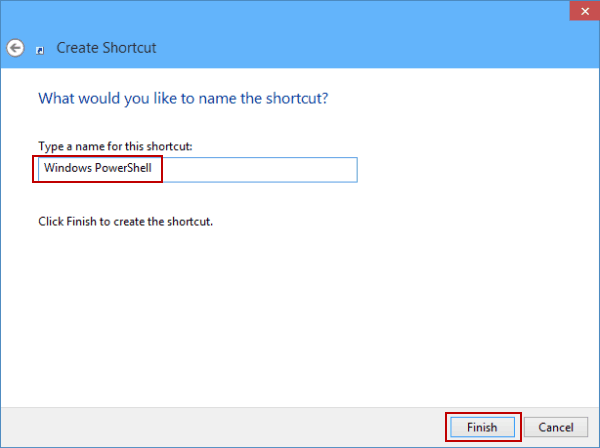
Step 3: Enter Windows PowerShell as the shortcut's name, and click Finish to complete creating this shortcut.

Related Articles:
How to Reset Windows 10 Forgotten Password
How to Bypass Windows 10 Password Login with/without Password
Easy Guide to Reset Windows 10 Admin Password Like an Expert
4 Tips to Change Windows 10 Password without Knowing Current Password
Can't Sign into Microsoft Account Windows 10 | Account Locked/Blocked