By Jennifer | Last Updated
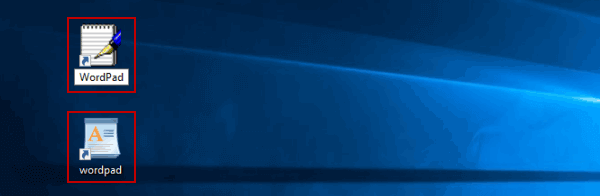
The article illustrates how to create two kinds of WordPad shortcuts (see the following pic.) on Windows 10 computer.

Video guide on how to create WordPad shortcut in Windows 10:
Step 1: Right-tap blank area, open New on the menu and choose Shortcut in the sub-list.
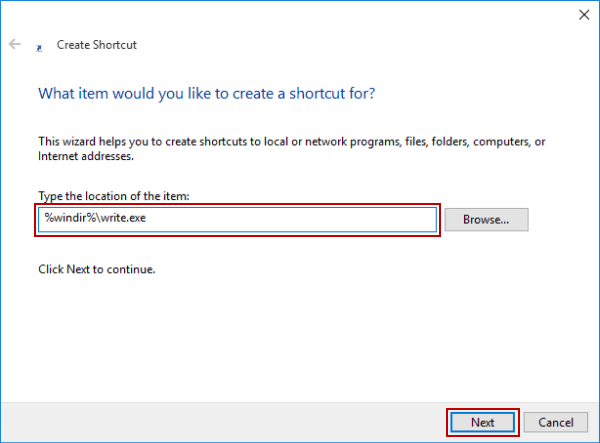
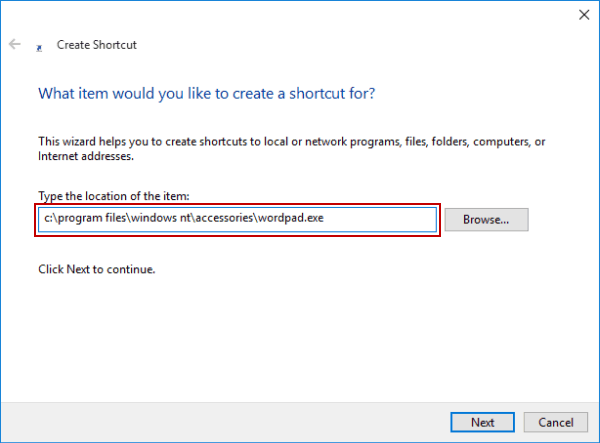
Step 2: In the Create Shortcut window, type %windir%\write.exe or c:\program files\windows nt\accessories\wordpad.exe, and then click Next, as shown in the photos below.

Pic. 1 Type Write File Location

Pic. 2 Type WordPad File Location
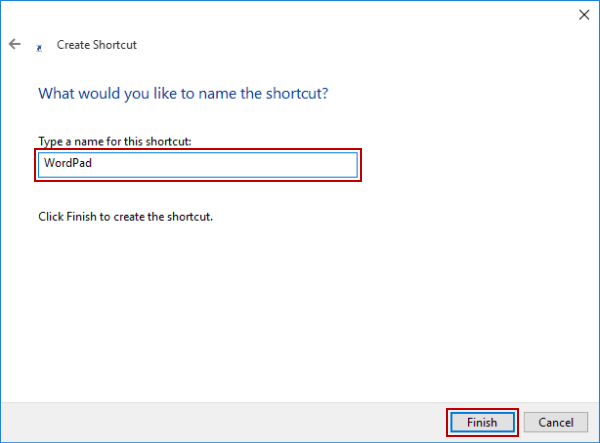
Step 3: Enter WordPad to name the shortcut, or keep wordpad as its name, and select Finish.

Related Articles:
How to Reset Windows 10 Forgotten Password
How to Bypass Windows 10 Password Login with/without Password
Easy Guide to Reset Windows 10 Admin Password Like an Expert
4 Tips to Change Windows 10 Password without Knowing Current Password
Can't Sign into Microsoft Account Windows 10 | Account Locked/Blocked