We use cookies for personalizing content and ads and providing social media features. Your usage information on our website will be used for social media, advertising, and traffic analytics, or shared with our partners. Clicking "Accept" means you agree to use our cookies .
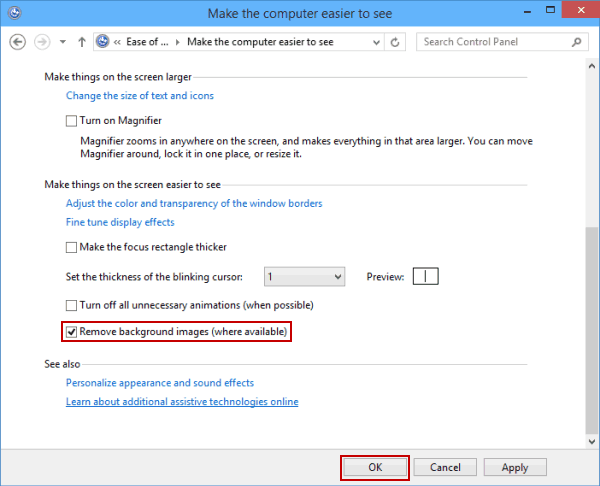
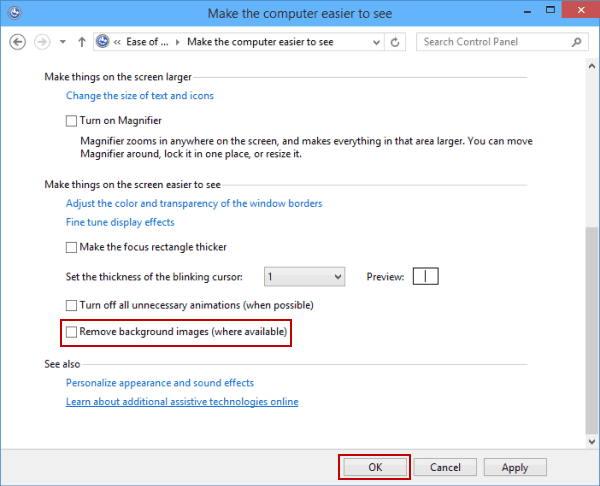
By hiding desktop background on your computer, you can make things on the screen easier to see, as shown in the following screen shot. As for how to realize it, this article introduces two methods to hide and show desktop background on Windows 10 computer.
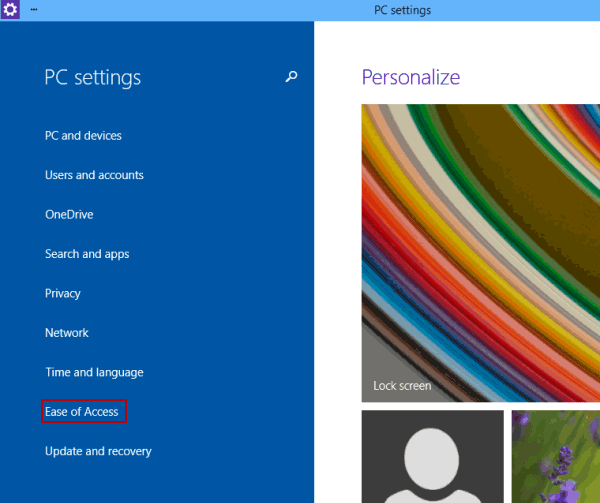
Way 1: Hide or show desktop background in PC settings.
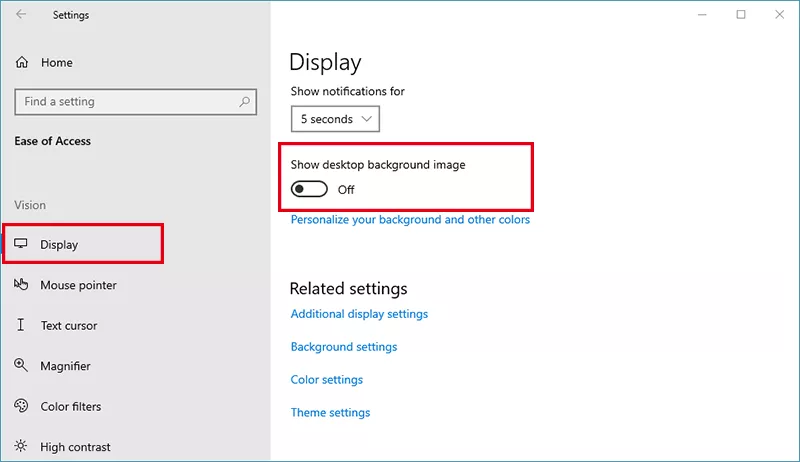
To hide desktop background image, click the Display option on the left panel. After that, scroll down and toggle off the switch under Show desktop background image.
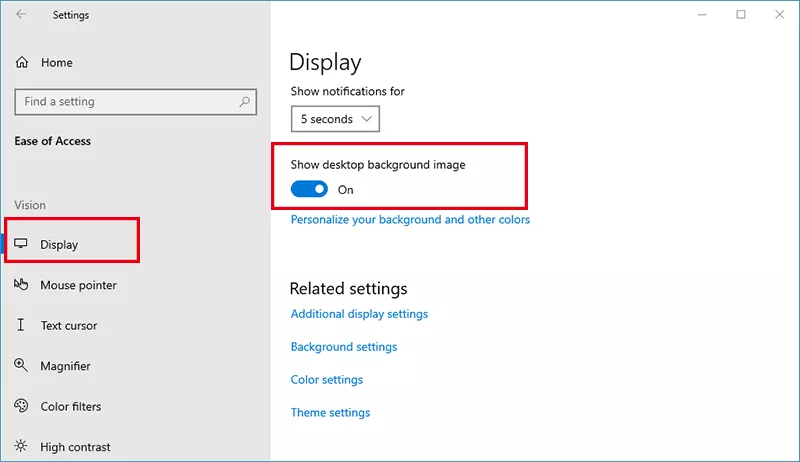
To show the desktop background image, you can toggle on the switch.
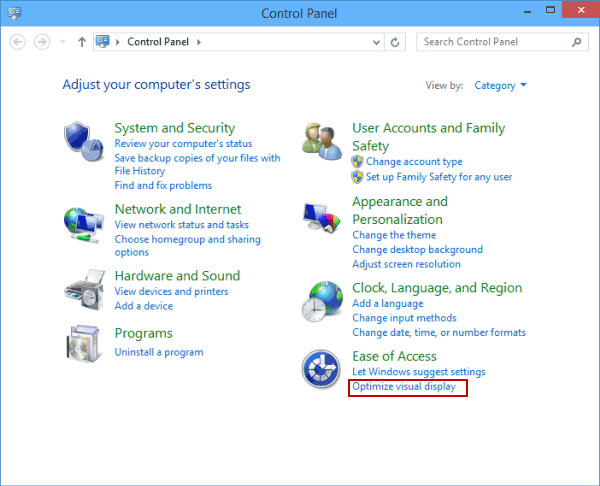
Way 2: Hide or show desktop background in Control Panel.