Windows 10 How to Restore Desktop Icons in Windows 10

How to Restore Desktop Icons in Windows 10

By Sophia | Last Updated

After changing the desktop icons (as shown in the Pic. 1) in your Windows 10 computer, you are able to restore them to the default icons (see the Pic. 2). For your better understanding, this text illustrates the steps to restore desktop icons at length.

change desktop icons

Pic. 1

default desktop icons on Windows 10

Pic. 2

Steps to restore desktop icons in Windows 10:

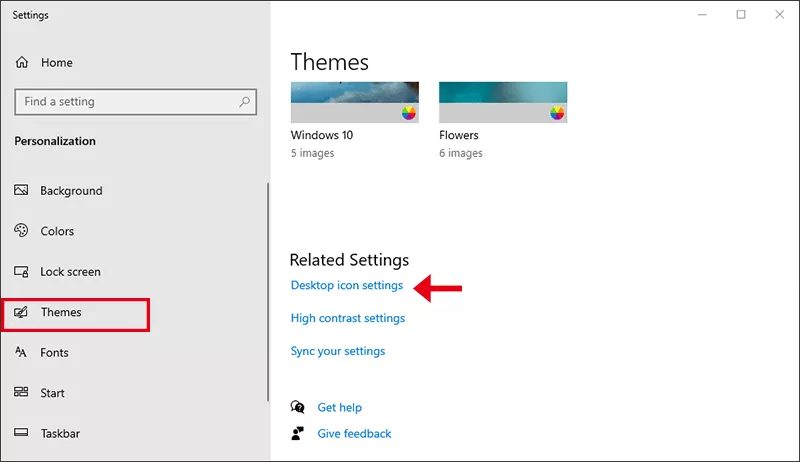
Step 1: Right-click any empty place on your Windows 10 desktop and choose Personalize from the context menu. After that, hit Theme on the left side. Then click Desktop icon setting on the right panel.

hit Desktop icon settings

Step 2: Restore the changed desktop icons to the default one.

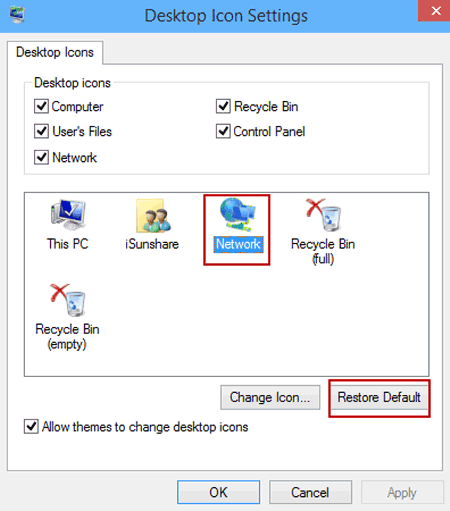
Choose a changed desktop icon (e.g. Network), and tap Restore Default button. After that, follow suit to restore other desktop icons.

select network icon and tap restore default

Step 3: Bring the changes into effect.

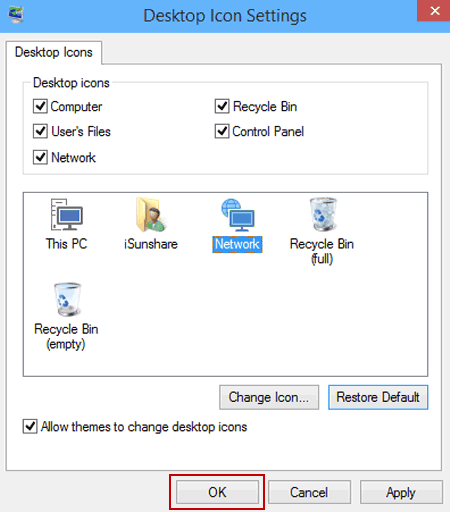
Tap OK to make the changes effective.

choose OK

Related Articles: