We use cookies for personalizing content and ads and providing social media features. Your usage information on our website will be used for social media, advertising, and traffic analytics, or shared with our partners. Clicking "Accept" means you agree to use our cookies .
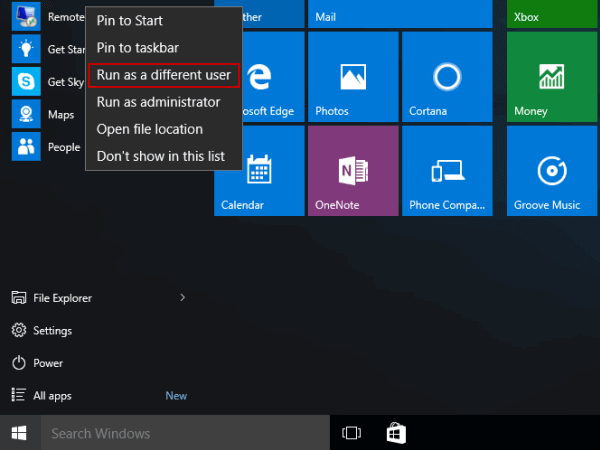
By default, you can not see the Run as different user option in the Start menu for the app context menu. But you can make it shown using Group Policy or the Registry. This feature is helpful in environments where you need to launch apps under alternate accounts without switching user sessions.In this article, you can learn the detailed guide to enable Run as different user in Start in Windows 10.
Method 1: Show Run as Different User via Group Policy
This method can only be used in Windows 10 Pro/Education/Enterprise computer.
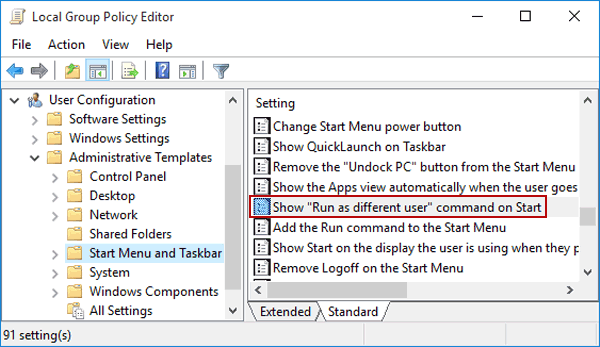
Step 2: Open Show "Run as different user" command on Start in User Configuration/Administrative Templates/Start Menu and Taskbar.
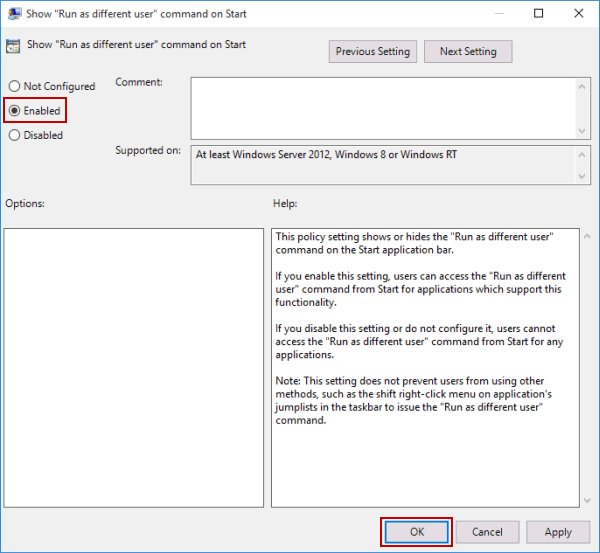
Step 3: Enable the setting by selecting Enabled and clicking OK.
After these procedures, the "Run as a different user" command will appear on the list when you right-click a program which supports this functionality in the Start Menu.
Method 2: Enable Run as Different User via Windows Registry
You can apply this method in all Windows 10 editions computer.
Step 2: Go to HKEY_CURRENT_USER\Software\Policies\Microsoft\Windows\Explorer and create a Create a DWORD (32-bit) Value.
Step 3: Name the value as ShowRunAsDifferentUserInStart and set its value to 1. After that, you can close the Registry Editor and check whether this option appears or not.
FAQs on Run as Different User Option in Windows 10
Q1: Why run as different user not showing in my Windows 10?
By default, Windows disables this command for simplicity. You can enable it with the steps listed in this article.
Q2: Does this work for UWP (Microsoft Store) apps?
No. UWP app tiles generally don't support this context menu. Typically, this command appears for desktop apps or shortcuts.
Q3: Can I enable this across all user accounts on the PC?
Yes. Use the HKEY_LOCAL_MACHINE path with the same DWORD to apply it system-wide.