We use cookies for personalizing content and ads and providing social media features. Your usage information on our website will be used for social media, advertising, and traffic analytics, or shared with our partners. Clicking "Accept" means you agree to use our cookies .
The Windows startup sound—those familiar chimes when your PC boots up—is disabled by default in Windows 10. Want to bring it back or silence it completely? Here's your step-by-step guide. Follow the guidance below to quickly turn on or off Windows Startup sound in your Windows 10 PC.
Steps to turn on Windows Startup sound in Windows 10:
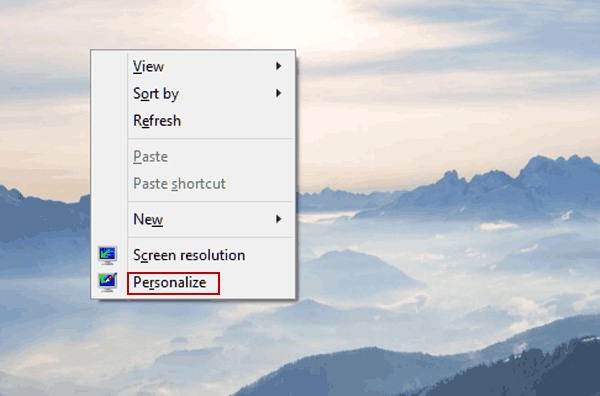
Step 1: Right-click blank area on the desktop and choose Personalize in the menu.
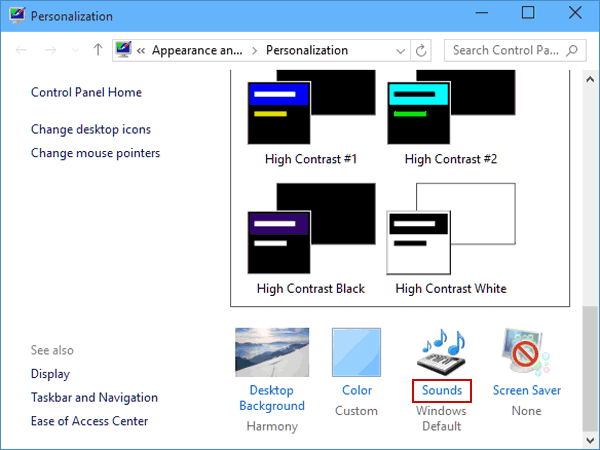
Step 2: Click Sounds in the Personalization window.
Note:
If you can't open Sound settings according to the above two procedures, realize your goal by a right-click. In detail, right-click the Sound icon in the bottom right corner and choose Sounds.
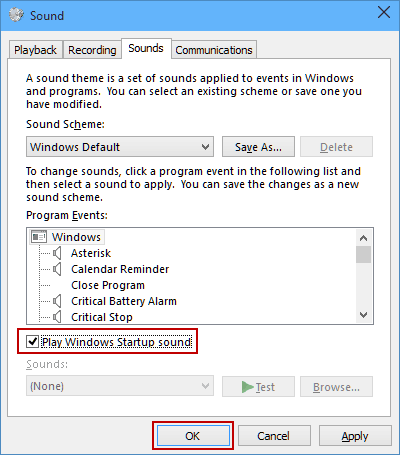
Step 3: As the Sound window appears, select Play Windows Startup sound in the Sounds settings and click OK.
Tip: To turn off Windows Startup sound, deselect Play Windows Startup sound and hit OK.
What if Startup Sound not Working?
You should make sure the Fast Startup is disabled. Because Fast Startup bypasses the traditional boot process, which includes playing the startup sound.
Step 1: Open Control Panel and navigate to Power Options (use "Large icons" or "Small icons" view if needed).
Step 2: Select Choose what the power buttons do.
Step 3: Click Change settings that are currently unavailable.
Step 4: Do not check the option-- Turn on fast startup (recommended) and save changes.