We use cookies for personalizing content and ads and providing social media features. Your usage information on our website will be used for social media, advertising, and traffic analytics, or shared with our partners. Clicking "Accept" means you agree to use our cookies .
An HP EliteBook can lock you out in three different places: the BIOS setup screen (F10), the Windows sign-in screen, and an administrator account you need before you can change anything. Each lock has its own fix. Using the wrong one wastes time, and some of them wipe your files.
This guide splits the problem into five scenarios. It starts with methods that keep your data, tells you plainly where HP offers no software shortcut, and points you to the right section for the screen you are looking at. It covers older G-series laptops as well as HP’s current EliteBook X, 8, 6 and Ultra families, where newer behavior such as automatic drive encryption changes what works.
Ultra
X
8
6
EliteBook Ultra G1i 14"
EliteBook X G1i 14"
EliteBook 8 G1i 14"
EliteBook 6 G1i 14"
EliteBook Ultra G1q 14"
EliteBook X G1a 14"
EliteBook 8 G1i 16"
EliteBook 6 G1i 16"
EliteBook X Flip G1i 14"
EliteBook 8 Flip G1i 13"
EliteBook 6 G2i 14"
EliteBook X G2i 14"
EliteBook 8 G2i 13"
EliteBook 6 G2i 16"
EliteBook X G2a 14"
EliteBook 8 G2i 14"
EliteBook 6 G2a 14"
EliteBook X G2q 14"
EliteBook 8 G2i 16"
EliteBook 6 G2a 16"
EliteBook X Flip G2i 14"
EliteBook 8 Flip G2i 13"
EliteBook 6 G2q 14"
EliteBook 8 G2a 14"
EliteBook 8 G2a 16"
EliteBook 8 G2iW 14"
Short Answer:
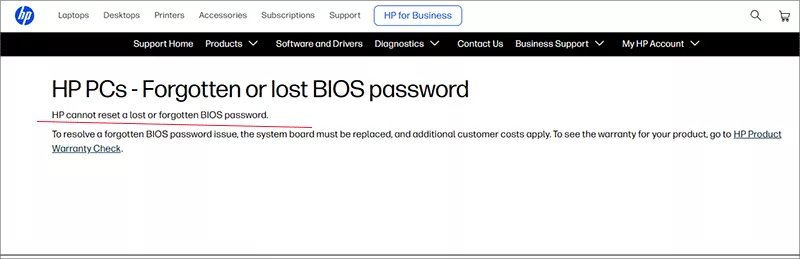
BIOS password: HP states that it cannot reset a forgotten BIOS password on business notebooks; the official fix is a system board replacement at the customer’s cost. Removing the CMOS battery does not clear it.
Windows passwords: these are separate from the BIOS and can usually be reset without touching the BIOS at all. Work through the details below.
A prompt for a BIOS Administrator password after pressing Esc, then F10
BIOS administrator password
Part 2
A password prompt before Windows starts to load
Power-on (BIOS user) password
Part 2
Windows sign-in screen showing an email address
Microsoft account password
Part 3
Windows sign-in screen showing a plain user name, no email
Local account password
Part 3 and Part 4
You can sign in, but Windows asks for administrator approval
Administrator account password
Part 4
Part 2: Forgotten HP EliteBook BIOS password
The BIOS (HP Computer Setup) password protects firmware settings such as boot order, Secure Boot and virtualization. It is stored in the laptop’s firmware, not in Windows, which is why no Windows tool can reset it. There are three variants you may run into:
BIOS administrator password: asked when you press F10 to open Computer Setup.
Power-on password: asked before Windows starts loading.
DriveLock password: locks the drive itself. HP’s documentation says the BIOS administrator password can unlock a DriveLock drive if the DriveLock password is forgotten.
What HP officially offers
HP’s support document for business PCs says a forgotten BIOS password cannot be reset by HP and that the fix is a system board replacement with additional customer cost. HP community staff also report that HP stopped issuing the SMC.bin unlock files on March 1, 2019, which older guides still recommend. So in practice, HP support is a repair route rather than a reset route.
Step 1: Collect the serial number, product number and proof of purchase. Both are on the bottom label or under Esc → System Information if the laptop still starts.
Step 2: Check the warranty status on HP’s product warranty checker so you know whether the board replacement may be covered.
Step 3: Open HP Support, pick your product and choose Contact HP. Explain that the BIOS administrator password is lost and ask for the replacement quote.
Step 4: Decide between the repair cost and the alternatives below (a workaround or replacing the laptop).
Newer method: HP Sure Admin (only if it was enabled before)
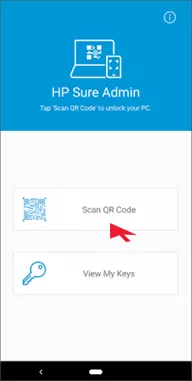
Many newer business notebooks can use HP Sure Admin, an optional feature that replaces the BIOS password with a cryptographic key. HP describes the phone app as swapping the password for a one-time PIN, which you get by scanning a QR code shown by the laptop. Once a laptop is managed this way, HP says, a BIOS password can no longer be used for local BIOS access. This is the route for company-managed EliteBooks, and it only helps if the key was provisioned earlier and you are an authorized key holder.
Step 1: Restart the EliteBook and open BIOS setup (Esc, then F10). A QR code is shown instead of a password box.
Step 2:Install the HP Sure Admin app on your phone (Google Play or the App Store) and sign in or import the key as your IT administrator instructs.
Step 3: Choose Scan QR Code in the app and scan the QR code on the laptop screen.
Step 4: Type the one-time PIN into the Enter Response Code box on the laptop.
IT-managed fleets: ask your administrator first
Administrators who set the BIOS password with HP’s management tools (HP BIOS Configuration Utility or HP Manageability Integration Kit) can change or remove it remotely, as long as they have the current credential or key. If this is a work laptop, this is the fastest legitimate path.
Older models only: HP SpareKey
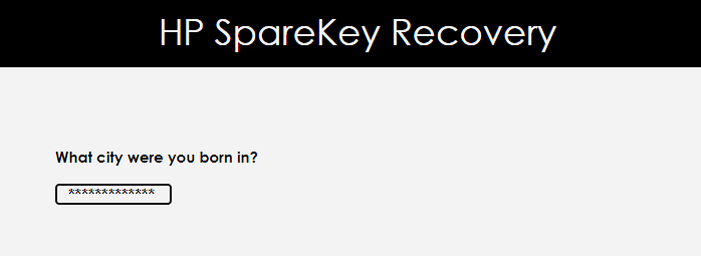
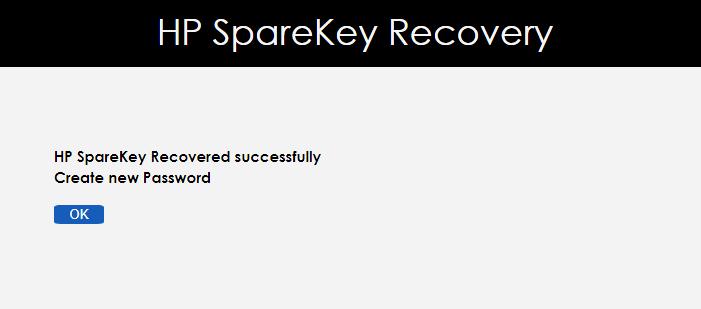
HP SpareKey is a legacy recovery feature. You answer three personal questions you enrolled earlier, and the BIOS lets you set a new password. HP’s technical white paper describes it that way, and it only works if you enrolled before the lockout. One EliteBook 8470p owner reported that the tool said the laptop was not enrolled. If you own a newer EliteBook, do not expect a SpareKey screen.
Step 1: Before forgot BIOS password, you have set answers to three predetermined personal identification questions.
Step 2: Write down the answers to these questions and put them in a safe place, away from the computer, so that you can always access them.
Step 3: When you cannot remember the password to access the BIOS on your computer, turn on the computer and immediately press the ESC key to display the Startup Menu. And then press the F7 key.
Step 4: HP SpareKey wizard pops up and prompts you for the answers to the three personal identification questions. If you successfully answer the questions, you are granted access and you can reset the password.
Part 3: Forgotten Windows login password
A Windows password has nothing to do with the BIOS. Look at the sign-in screen to see which kind of account you have.
If you sign in with a Microsoft account
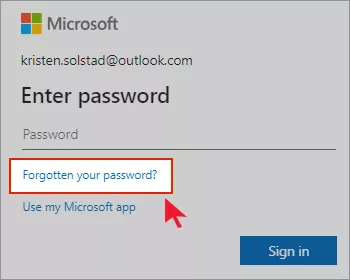
Step 1: On another phone or computer, open Microsoft’s account recovery page and choose Forgotten your password.
Step 2: Verify your identity with the email address, phone number or authenticator method on the account, then set a new password.
Step 3: Connect the EliteBook to the internet, return to the sign-in screen and sign in with the new password.
If you only forgot your PIN, select I forgot my PIN under the PIN box and follow the prompts; it uses the same Microsoft account verification. Newer EliteBooks also have an infrared camera and fingerprint reader for Windows Hello. If face or fingerprint sign-in stops working, use the PIN or password instead, then re-enroll the biometric in Settings.
If you sign in with a local account
Microsoft’s support pages say the built-in route is the security questions you created during setup, available on Windows 11 and on Windows 10 version 1803 or later. Earlier Windows 10 builds have no security questions, so a local password there cannot be reset this way.
Step 1: Type any wrong password and press Enter, then select OK.
Step 2: Select Reset password under the password box. If it is missing, Microsoft notes that the device name must not be identical to the local user name.
Step 3: Answer the three security questions, enter a new password and sign in.
If you made a password reset disk earlier, the same screen offers Use a password reset disk instead. Plug in the USB drive and follow the wizard.
What Microsoft can and cannot do
Microsoft says its support engineers cannot retrieve or bypass a forgotten Windows password. If the security questions, a reset disk and a second administrator account are all unavailable, Microsoft’s own remaining option is to reset the PC, which can remove apps and data. Part 3 shows a way to avoid that.
Part 4: Forgotten administrator password
Method 1: Remove the Administrator Password with Windows Password Genius
When there is no second administrator, no reset disk and no usable security questions, a bootable reset tool is the safest way to keep your data. You need a working computer and a blank USB drive (or a CD/DVD). iSunshare Windows Password Genius is recommended here to remove the forgotten administrator password, which causes no data loss in your HP EliteBook.
iSunshare Reliable Windows Password Reset Software
Unlock Windows computer when forgot login password
Bypass Windows login screen without data loss
Create administrator account for your locked computer
Step 1: On the working computer, download and install Windows Password from iSunshare.
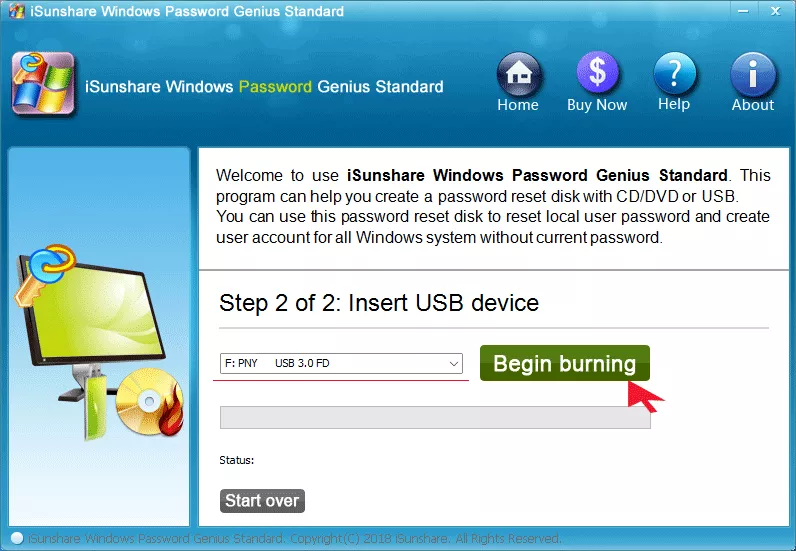
Step 2: Insert the USB drive and let the program burn the password reset disk.
Step 3: Put the USB drive into the locked EliteBook, power on and tap Esc, then F9 to open Boot Device Options.
Step 4: Choose the USB drive and press Enter. The reset tool loads before Windows does.
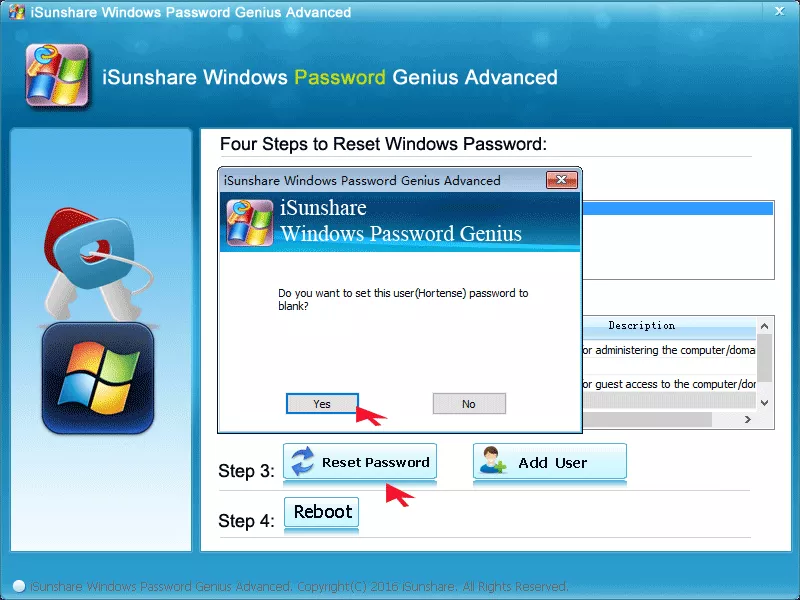
Step 5: Select the Windows installation and the administrator account, then click Reset Password.
Step 6: Confirm the reset operation. Then click the Reboot button, remove the USB drive, restart the laptop and sign in with the blank password.
Method 2: Reset the PC
Resetting Windows is Microsoft’s fallback when nothing else works. Choose Reset this PC from the recovery environment (Part 4). The “Keep my files” option may be offered, but apps and settings are removed, and you should still treat this as data-destructive. Back up first wherever possible.
Part 5: Which method should you choose?
Scenario
Best Method
Keeps Your Files?
Needs
Forgot BIOS administrator password
HP Sure Admin (if enabled), otherwise contact HP Support
Yes (board replacement keeps the drive)
Phone app and key, or serial number and proof of purchase
Forgot Microsoft account password
Online account recovery
Yes
Another device and your recovery contact
Forgot local password, security questions set
Reset password link
Yes
Answers to the security questions
Forgot local admin password, no security questions
Other admin account, reset disk, or Windows Password Genius
Yes
A second PC and a USB drive for the tool
Windows will not start
WinRE: Startup Repair or System Restore
Yes
None
New EliteBook, drive encrypted, password lost
Get the recovery key, then follow Part 2 or Part 3
Yes
Microsoft account or IT access to the key
Every option failed
Reset this PC
Not guaranteed
Backup if possible
Part 6: Troubleshooting HP EliteBook Forgot Password Issues
Problem
Likely Cause
What to Try
No “Reset password” link on the sign-in screen
Security questions were never set, or the device name matches the user name
Use a Microsoft account reset, a reset disk, or another administrator account.
No unlock code after three wrong BIOS passwords
HP business notebooks do not produce halt codes
Do not search for generators; use the HP support route.
Sure Admin PIN is rejected
The key is not on your phone, or your account is not in the authorized group
Ask the administrator to re-share the key. HP error codes 203 and 305 point to group membership.
The USB drive is not listed under F9
USB boot or the boot menu is locked, or the drive was not made bootable
Recreate the drive. If the menu asks for a password, see Part 1.
BitLocker asks for a recovery key
Firmware or boot changes were detected, or device encryption is on
Use HP Sure Recover (F11) instead, or have the BIOS administrator switch it off.
A reset USB will not boot on an EliteBook Ultra G1q
Arm-based laptop and an x64-only boot tool
Check the tool’s Arm64 support, or use HP recovery (F11) or HP Cloud Recovery media.
Windows Password Genius cannot see the account
Wrong Windows installation selected, or a Microsoft account
Pick the correct installation; use Part 2 for Microsoft accounts.
Part 7: FAQs on HP EliteBook Forgot Password
Q1: Can HP reset a forgotten BIOS password on an EliteBook?
HP states it cannot reset a forgotten BIOS password on business notebooks. The official fix is a system board replacement, and customer costs apply.
Q2: Does removing the CMOS battery clear the BIOS password?
No. On HP business notebooks the password is stored in non-volatile firmware memory, so removing the CMOS battery does not clear it.
Q3: What is HP Sure Admin, and can it help me unlock my laptop?
HP Sure Admin is an optional feature that replaces the BIOS password with a key held by an administrator. If it was enabled, an authorized key holder scans the QR code on the laptop with the HP Sure Admin app and enters the one-time PIN. It cannot be set up after you are locked out.
Q4: Is HP SpareKey available on newer EliteBooks?
SpareKey is a legacy feature associated with older HP business notebooks, and it only works if you enrolled before the lockout. Do not rely on it for a newer EliteBook.
Q5: How can I reset an administrator password without losing data?
Use another administrator account, a password reset disk, or a bootable reset tool such as Windows Password Genius before considering Reset this PC.