We use cookies for personalizing content and ads and providing social media features. Your usage information on our website will be used for social media, advertising, and traffic analytics, or shared with our partners. Clicking "Accept" means you agree to use our cookies .
Trying to reset your iPhone but "Erase All Content and Settings" won't work? Whether you're preparing to sell your device, troubleshooting performance issues, or starting fresh, running into this reset error can be frustrating. Fortunately, there are several reliable methods to solve the problem and get your iPhone reset properly. Here's a step-by-step guide to help you fix this issue quickly and safely.
Several factors can prevent your iPhone from performing a full reset:
Screen Time restrictions or device management profiles
Corrupted system files
iCloud backup issues or activation lock
Insufficient battery power
Outdated iOS version
System bugs or software glitches
How to Fix "Erase All Content and Settings" Not Working on iPhone
1. Turn Off Screen Time First
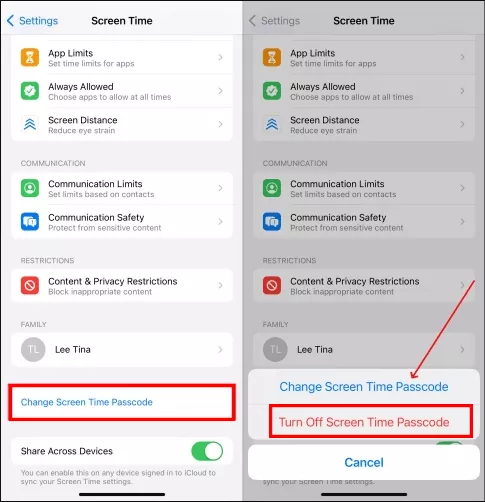
If Screen Time is enabled, it can block factory reset options. Thus, you can disable screen time restrictions at first.
Step 1: Tap Settings and choose Screen Time.
Step 2: Tap Change Screen Time Passcode > Turn Off Screen Time and enter the passcode to confirm. If you forgot the screen time passcode, check this article.
2. Disable Find My iPhone & iCloud
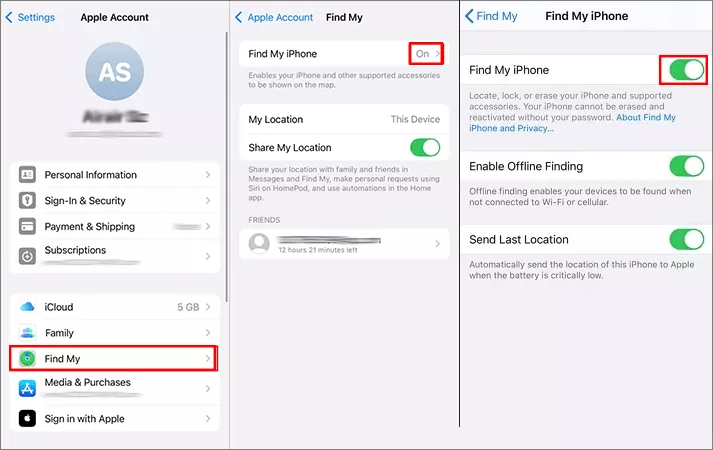
If Find My iPhone or iCloud activation lock is enabled, it might stop you from erasing your iPhone. Thus, it is better to turn off Find My iPhone and sign out of iCloud.
Step 1: Tap Settings and you can find your name at the top. Tap your name and choose Find My > Find My iPhone.
Step 2: Toggle Find My iPhone off. It requires your Apple ID password to proceed. Enter it to disable Find My iPhone.
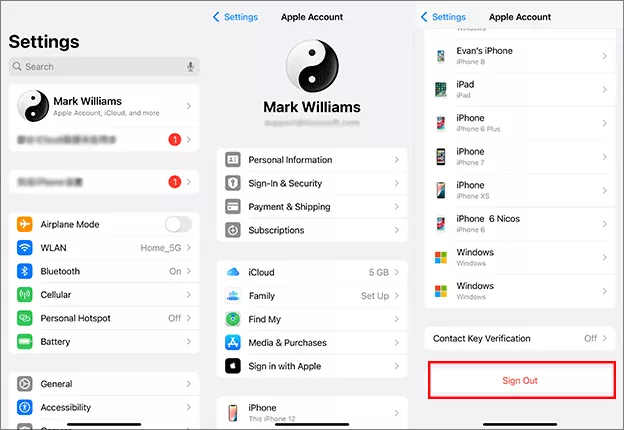
Step 3: On your Apple ID screen, go down and tap Sign Out. Enter the Apple ID password and tap Sign Out again. After that, you can access Settings > General > Transfer or Reset iPhone > Erase All Content and Settings to see whether it works nor not.
3. Charge Your iPhone and Perform a Restart
If your battery is low, the reset process might not complete. Thus, you can plug the iPhone into a power source and let it charge to at least 50%. Then force restart your iPhone and attempt the reset again.
4. Reset Network Settings on iPhone
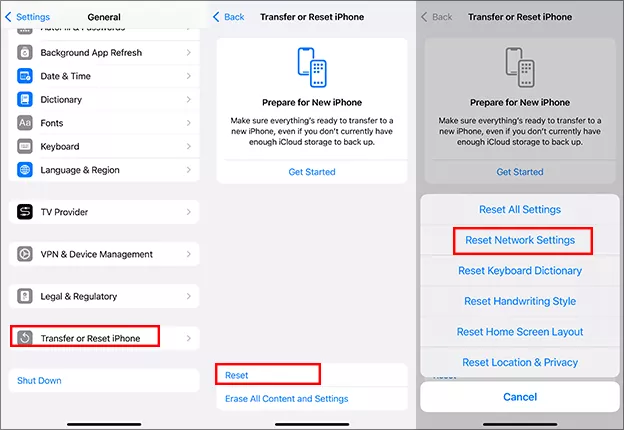
If you fail to reset iPhone via the feature--Erase All Content and Settings, go to reset your network settings: access Settings > General > Transfer or Reset iPhone > Reset > Reset Network Settings.
5. Update the iOS Version
Software bugs in older versions of iOS can lead to iPhone Erase All Content and Settings taking so long or not working. You can access Settings > General > Software Update to update the iOS to newest version.
Alternative Ways to Reset iPhone If Erase All Content and Settings Not Work
If your iPhone Erase All Content and Settings greyed out, is there any way to reset your iPhone to factory settings? Yes, of course. You can restore your iPhone via iTunes/Finder or third-party tool with a computer.
Way 1: Reset iPhone via iTunes/Finder
If you have a computer on hand, no matter it is PC or Mac, it is easy to erase iPhone without third-party tool. iTunes or Finder on Mac can help restore iPhone to factory settings in minutes.
Step 1: Connect your iPhone to the computer and launch iTunes (Finder on Mac).
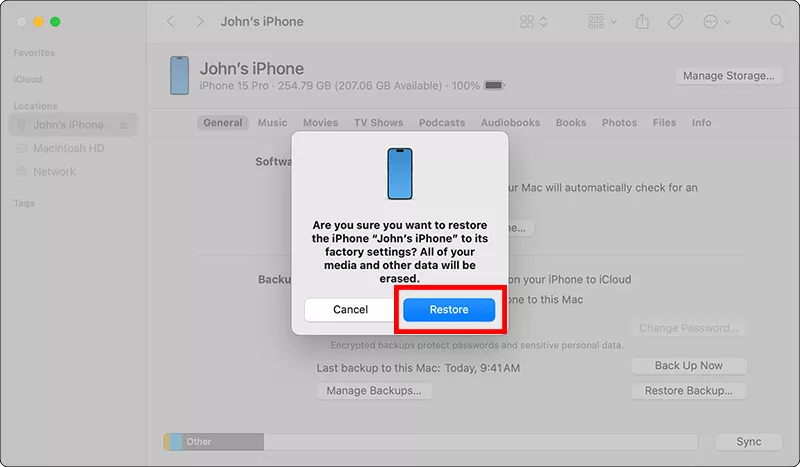
Step 2: Open iTunes/Finder and head to your iPhone. Click General > Restore iPhone.
Step 3: Hit the Restore button on the pop-out. After that, all the data and media on your iPhone will be erased.
Way 2: Erase iPhone with iSunshare iOS Repair Genius
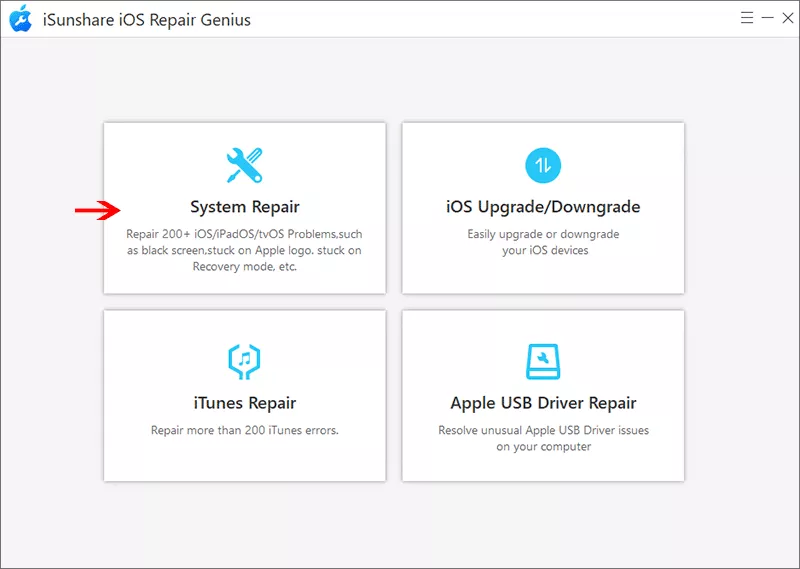
iSunshare iOS Repair Genius is the professional iOS system recovery software which can get your iPhone back to normal with or without data loss. You can choose the Advanced Mode to perform a system recovery with all your data and settings erased.
Step 1: Get your iPhone connected to the computer. Then open iSunshare iOS Repair Genius and select System Repair on the software interface.
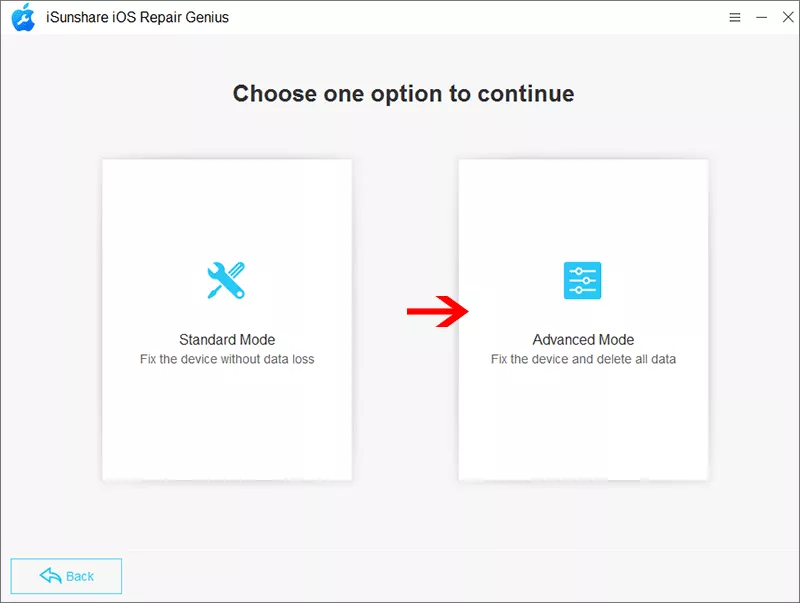
Step 2: There are two modes displayed on the software. As you want to erase all content and settings on the iPhone, click the Advanced Mode to continue.
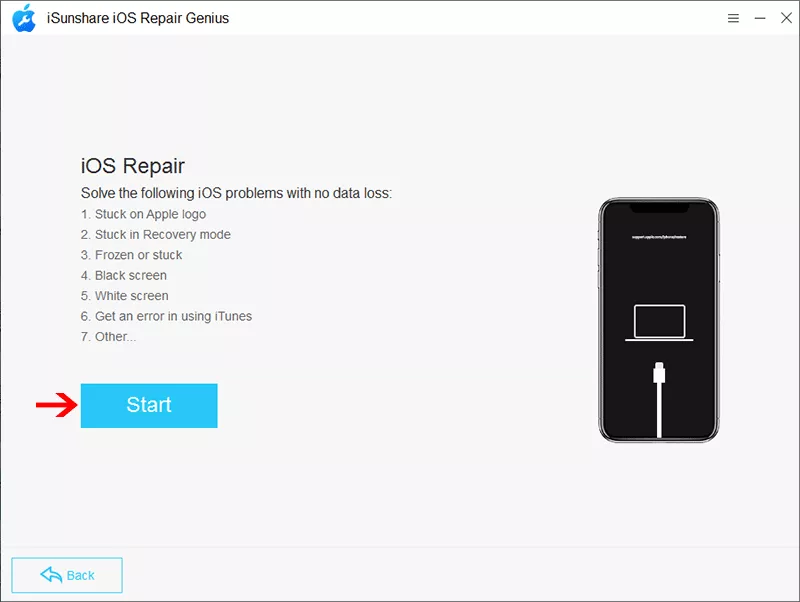
Step 3: Click the Start button and then the Next button to load your iPhone details.
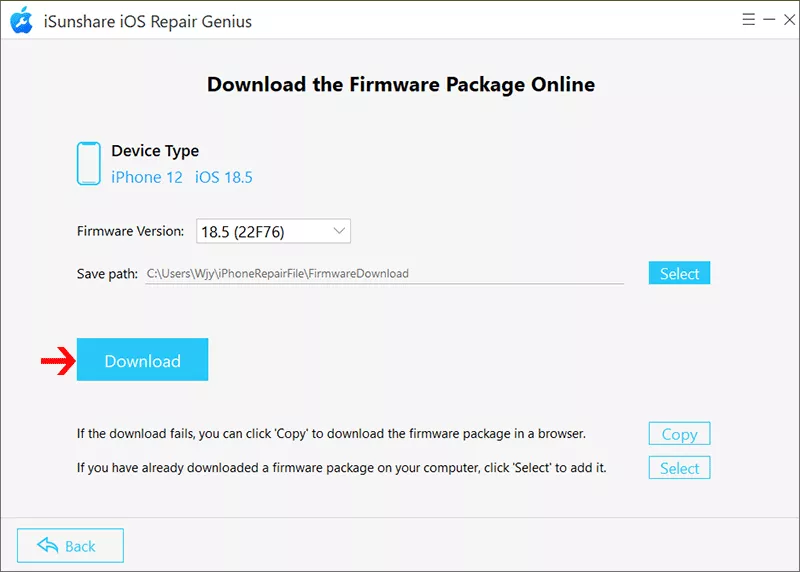
Step 4: Now you can check the iPhone information on the software interface and click the Download button to download the firmware package for your iPhone.
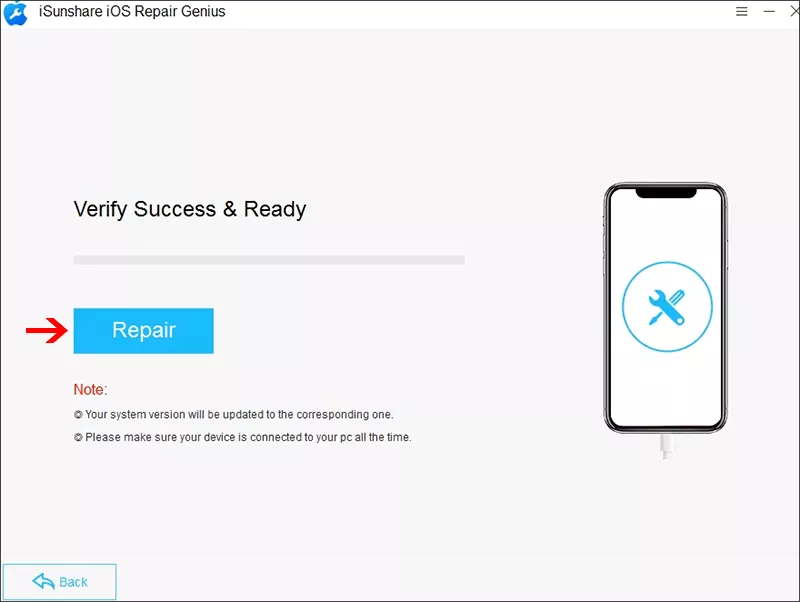
Step 5: Minutes later, you can click the Repair button to reset your iPhone to the factory status and update it to the newest version.
FAQs about iPhone Erase All Content and Settings
Q1: Why is my iPhone taking so long to erase all content and settings?
If your iPhone is taking a long time to erase all content and settings, it could be due to several common reasons: large amount of data, iCloud activation lock, software glitch or iOS bug, poor internet connection and hardware issues.
Q2: iPhone Erase all Content and Settings greyed out, what to do?
In this situation, your iPhone might be restricted to reset. If your iPhone is under supervision or parental control, it is not allowed to reset your iPhone via Setting. You can resort to iTunes/Finder or third-party tool to reset iPhone.
Q3: Can't erase iPhone because of Apple ID, how to fix it?
If you can't erase your iPhone because of an Apple ID, it's likely due to Activation Lock, a security feature tied to Find My iPhone. You can disable Find My iPhone and sign out of iCloud before erasing iPhone. If you forgot the Apple ID password, you can remove Apple ID and Erase iPhone with iSunshare iPhone Passcode Genius.
Conclusions
If "Erase All Content and Settings" isn't working on your iPhone, don't panic. The issue is usually tied to restrictions, account settings, or software problems. By following the steps above—from disabling Find My to using iTunes or Recovery Mode—you'll be able to fully reset your iPhone in no time.