By Jennifer | Last Updated
Want quick access to the time on your desktop? This guide shows you how to add or customize the clock on your Windows 11/10 taskbar using two simple approaches.
Step 1: Access Control Panel.
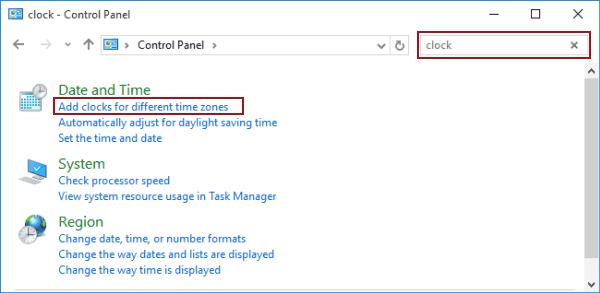
Step 2: Type clock in the top-right box, and tap Add clocks for different time zones in the search result.

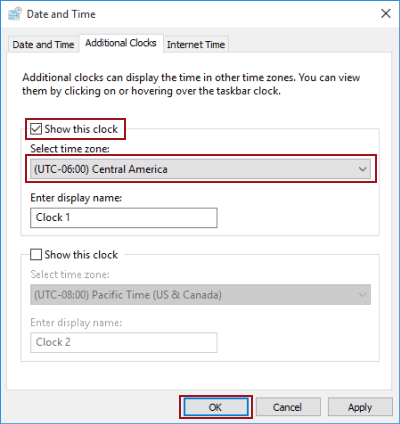
Step 3: In the Additional Clocks settings, choose Show this clock, select your desired time zone and hit OK.

Tip: You can create a new display name for the clock during this procedure.
Step 1: Open Settings.
Step 2: Choose Time & language.
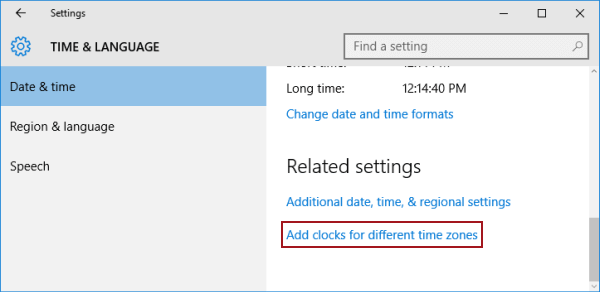
Step 3: In the Date & time settings, click Add clocks for different time zones.

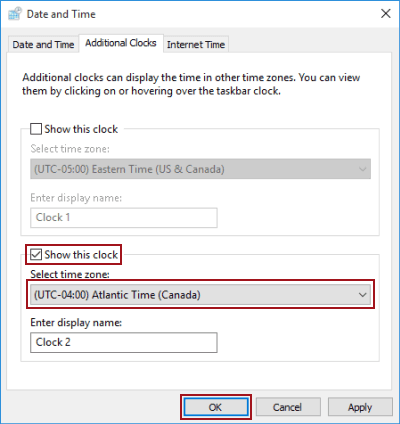
Step 4: Select Show this clock, choose a new time zone and hit OK.

Related Articles:
How to Reset Windows 10 Forgotten Password
How to Bypass Windows 10 Password Login with/without Password
Easy Guide to Reset Windows 10 Admin Password Like an Expert
4 Tips to Change Windows 10 Password without Knowing Current Password
Can't Sign into Microsoft Account Windows 10 | Account Locked/Blocked