By Jennifer | Last Updated
Voice Recorder, also called Sound Recorder previously, is a built-in application which can help to record lectures, conversations and other sounds. In this article, you can learn how to open it in Windows 10.
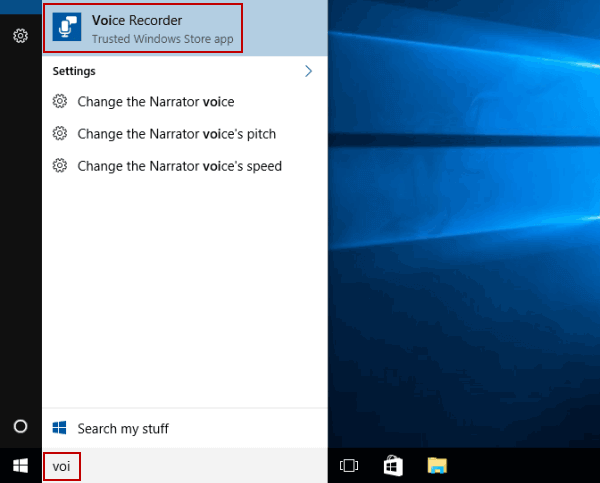
Enter voi in the search box on the bottom left, and choose Voice Recorder from the result.

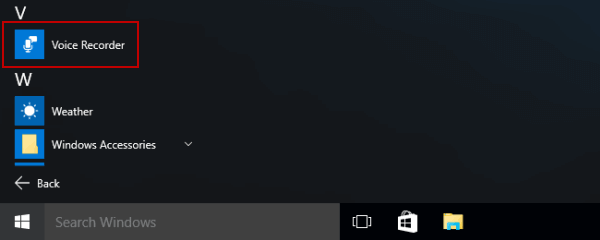
Access Start Menu, expand All apps and click Voice Recorder.

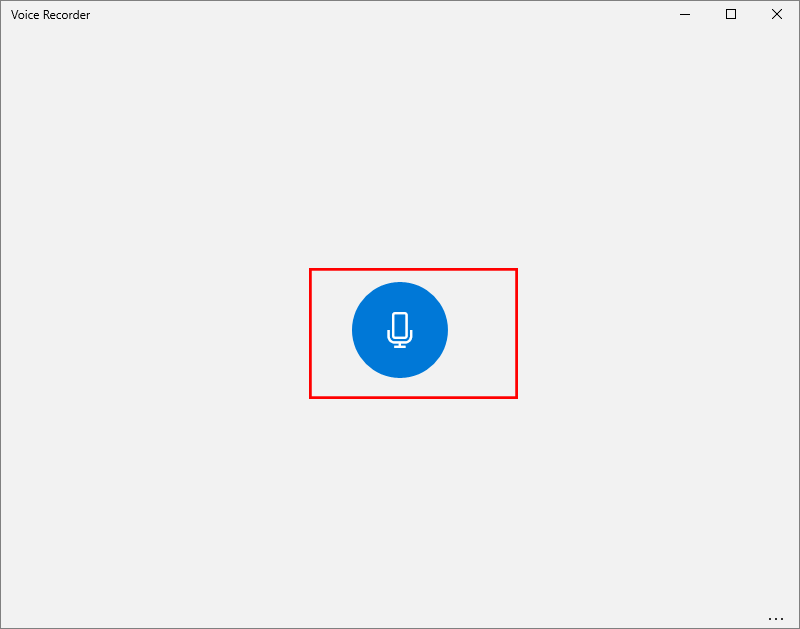
After you open the voice recorder, you can click the Record icon to start recording.

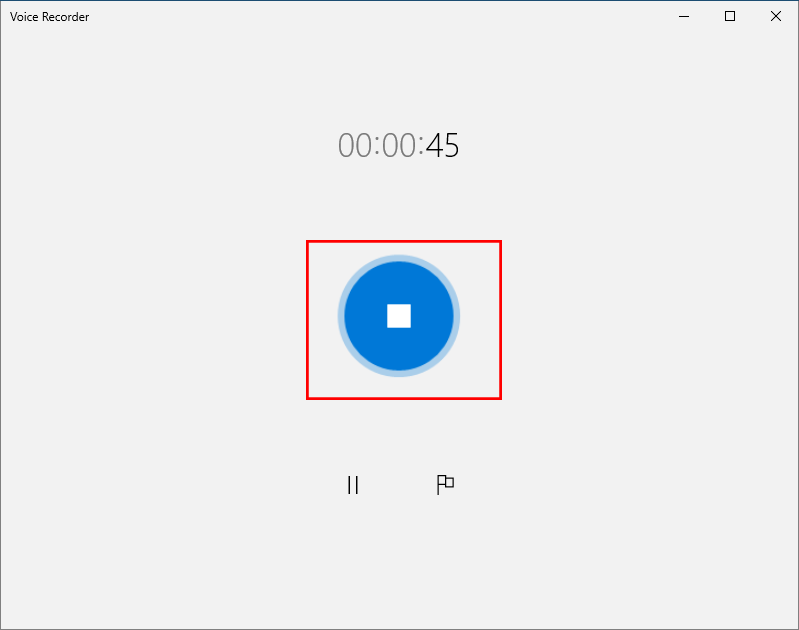
If you want to stop recording, press the Stop icon at the center of the interface.

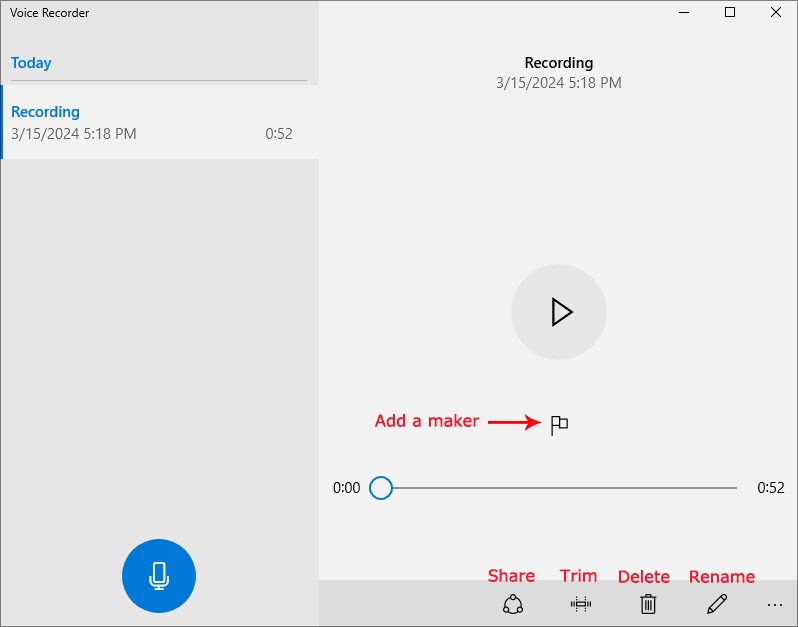
Finally, you can get the below screen of the recording. You can see there are many options on Voice Recorder: Add a maker, Share, Trim, Rename, and Delete.

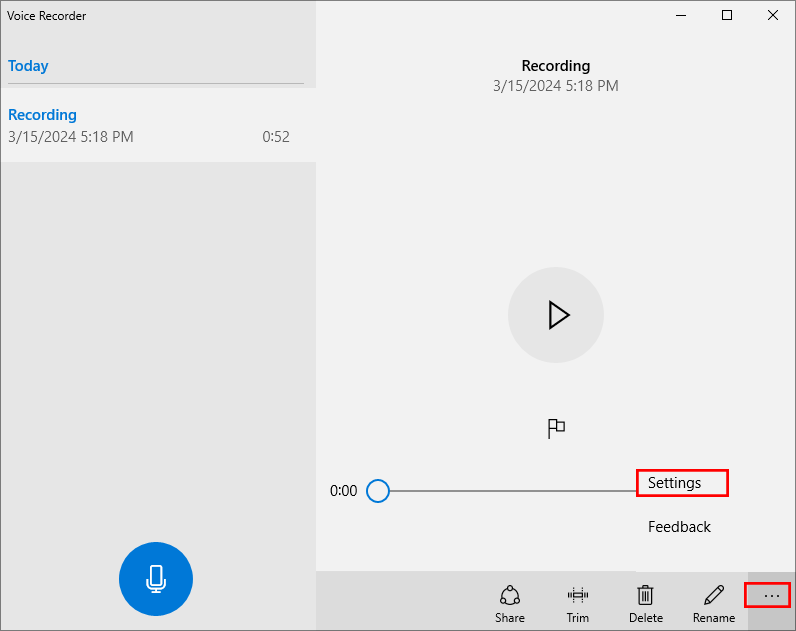
If you want to check the Voice Recorder version, click the three dots and then theSettings option.

Related Articles:
How to Reset Windows 10 Forgotten Password
How to Bypass Windows 10 Password Login with/without Password
Easy Guide to Reset Windows 10 Admin Password Like an Expert
4 Tips to Change Windows 10 Password without Knowing Current Password
Can't Sign into Microsoft Account Windows 10 | Account Locked/Blocked