We use cookies for personalizing content and ads and providing social media features. Your usage information on our website will be used for social media, advertising, and traffic analytics, or shared with our partners. Clicking "Accept" means you agree to use our cookies .
Windows Journal is a stylus-friendly note-taking app originally included in early versions of Windows 10—until it was removed in the Anniversary Update (2016) due to security concerns. If it's still available on your system, here are five ways to turn on Windows 10 Windows Journal.
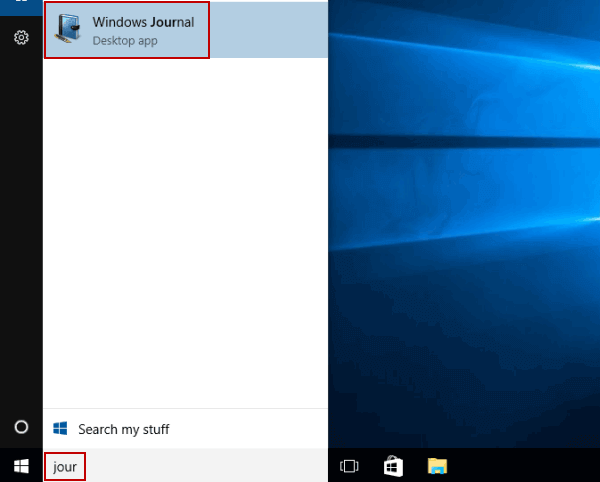
Way 1: Turn Windows Journal on by searching.
Type jour in the search box on taskbar, and choose Windows Journal in the result.
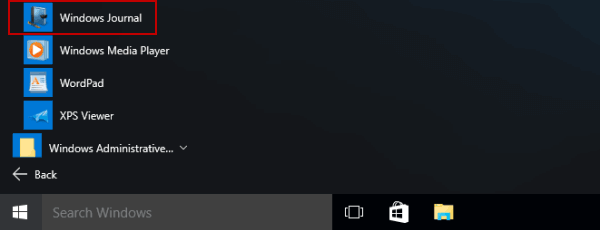
Way 2: Open Windows Journal in Start Menu.
Access Start Menu, click All apps, open Windows Accessories and select Windows Journal.
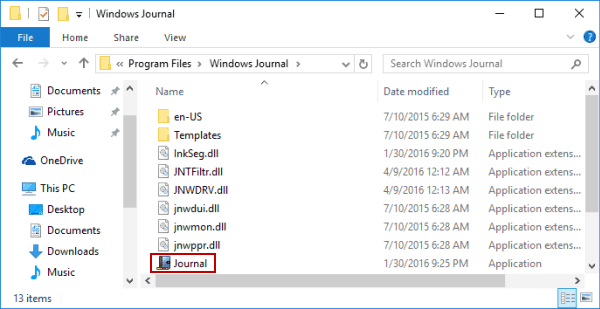
Way 3: Launch Windows Journal in This PC.
Open This PC/Local Disk (C:)/Program Files/Windows Journal, and then double-tap Journal.
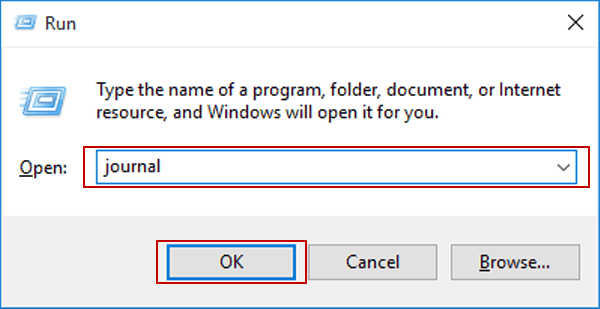
Way 4: Turn Windows Journal on via Run.
Press Windows+R to display Run, input journal and hit OK.
Way 5: Open Windows Journal via Command Prompt.
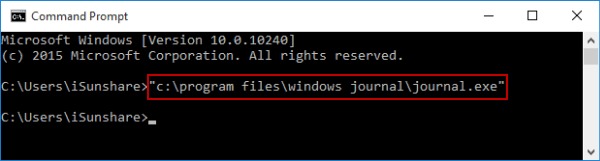
Start Command Prompt, type "c:\program files\windows journal\journal.exe" and press Enter.
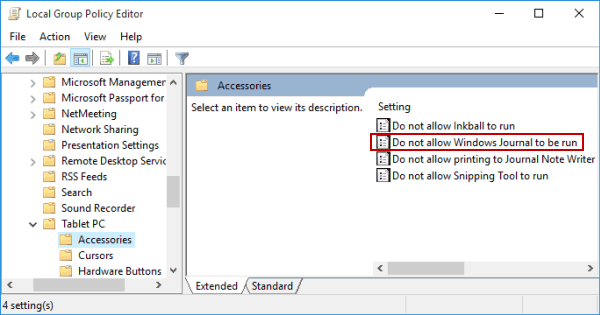
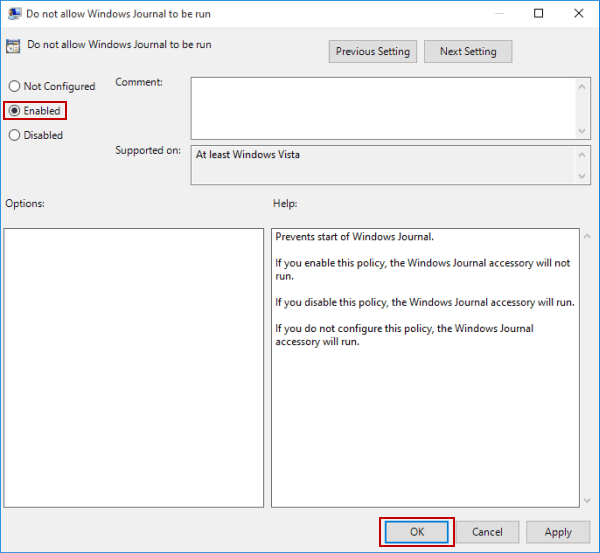
If Windows Journal is Blocked by Policy--What to Do?
If the Windows Journal is blocked, you can re-enable it in Local Group Policy.