We use cookies for personalizing content and ads and providing social media features. Your usage information on our website will be used for social media, advertising, and traffic analytics, or shared with our partners. Clicking "Accept" means you agree to use our cookies .
Adding a new keyboard layout lets you type in different languages or use alternate key mappings for your current language. In Windows 10 computer, you can add new keyboards or remove it from the Settings.
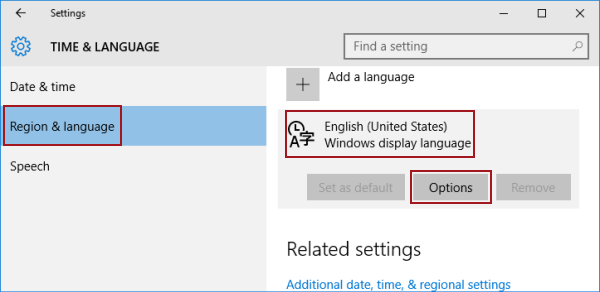
Step 3: Select Region & language or Language , click a language and tap Options.
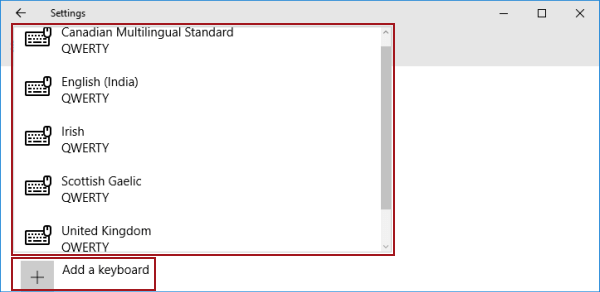
Step 4: Hit Add a keyboard and choose a keyboard layout from the list.
If you want to remove the keyboard, find the keyboard you wish to delete from the list of options and click on Remove.
FAQs on Adding Keyboard Layout in Windows 10
Q1: Can I add multiple keyboard layouts for one language?
Yes. You can install several layouts under the same language (e.g., “English (United States)” might have US, US-International, etc.). Then switch between them as needed.
Q2: Will installing a keyboard layout change my system display language?
No — the keyboard layout only affects input. Display language remains separate unless you explicitly change it via Windows display language settings.
Q3: What if the Remove button is greyed out when I want to delete the language keyboard.
If there is only one keyboard in your computer, you can not remove it. Thus, you can install one or more desired keyboard firstly.