We use cookies for personalizing content and ads and providing social media features. Your usage information on our website will be used for social media, advertising, and traffic analytics, or shared with our partners. Clicking "Accept" means you agree to use our cookies .
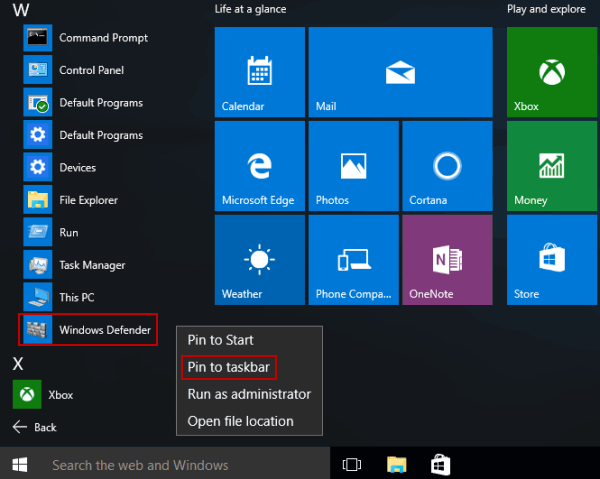
Want quick access to your antivirus status from the taskbar? Below are two easy ways to show the Windows Defender (Windows Security) icon on your taskbar or system tray for peace of mind and handy access.
1. After restarting or signing in, Windows Defender will automatically start.
2. When you click the up arrow on the taskbar, you'll find the hidden Windows Defender icon, referring to the following picture.
What to do if windows defender icon not showing in taskbar
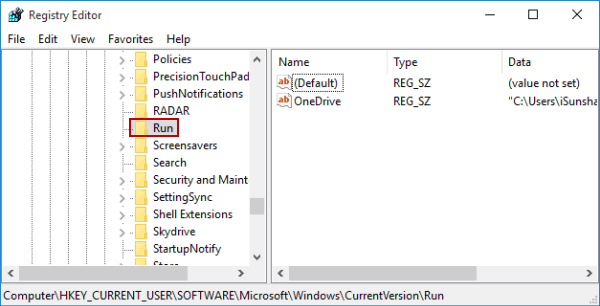
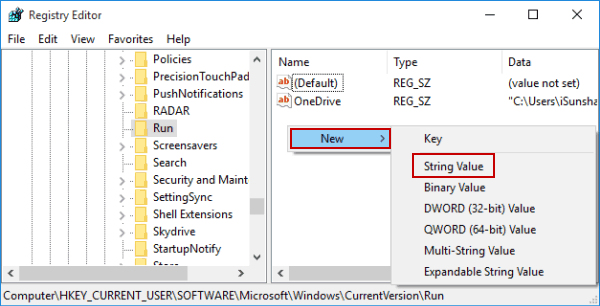
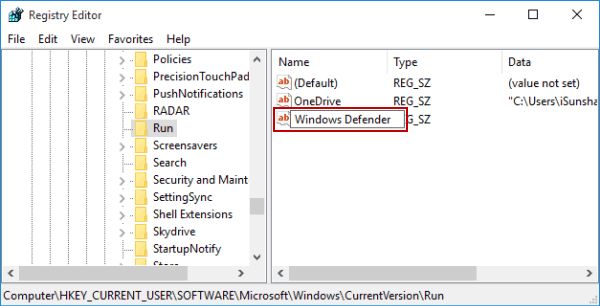
If the SecurityHealthSystray.exe isn't launched automatically, your Windows Defender (Windows Security) icon would be missing from the taskbar or system tray. The following method can help you make it show up automatically.
Step 1: Press Win + R, type shell:startup, and press Enter to open your startup folder.
Step 2: Right-click inside the folder, choose New and then the Shortcut option.
Step 3: Enter the target: C:\Windows\System32\SecurityHealthSystray.exe .
Step 4: Name it e.g., Windows Security Tray.
Step 5: Click Finish. Restart your computer. The icon should now consistently appear in the system tray.