logo
Windows 10 Change Touch Feedback Settings in Windows 10

Change Touch Feedback Settings in Windows 10

By Hally | Last Updated

To enable darker and larger visual touch feedback or hide visual touch feedback in Windows 10 computer, you can go to change the touch feedback settings. For detailed operation, please go on reading.

Steps to Turn on or off Touch Visual Feedback in Windows 10:

Step 1: Open Start Menu and click Settings.

Step 2: Choose Ease of Access in the settings.

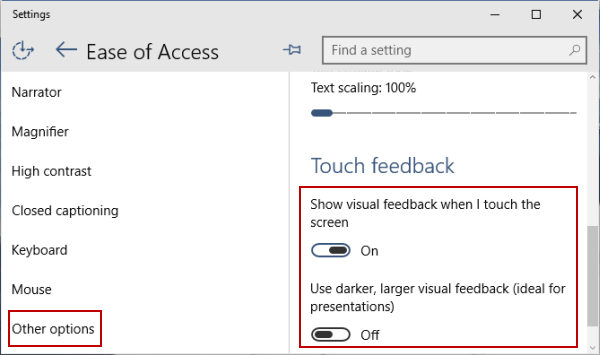
Step 3: Select Other options, turn on or off Use darker, larger visual feedback (ideal for presentations), or turn off or on Show visual feedback when I touch the screen.

change touch feedback settings

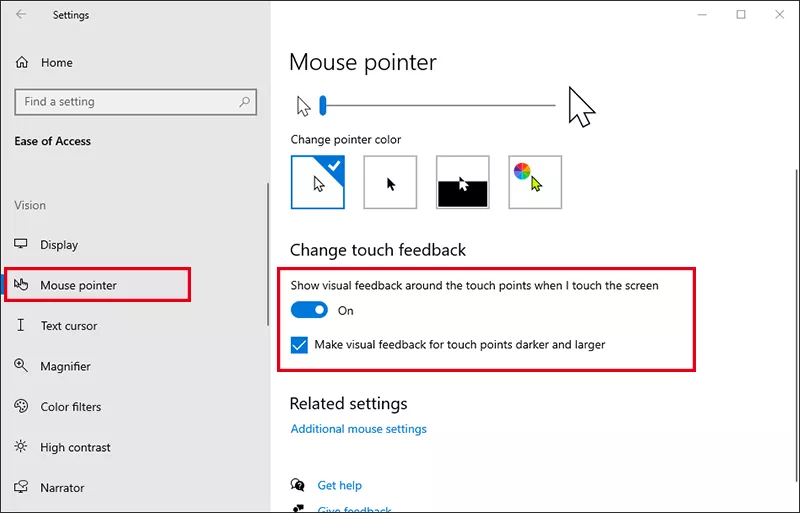
In the newer Windows 10 versions, you can select Mouse pointer option on the left sidebar. After that, go to Change Touch Feedback section to check or uncheck the two options: Show visual feedback around the touch points when I touch the screen; Make visual feedback for touch points darker and larger.

enable touch visual feedback

Related Articles: