Windows 10 5 Ways to Open Touch Keyboard in Windows 10

5 Ways to Open Touch Keyboard in Windows 10

By Achilles Hill | Last Updated

In this article, you can learn five methods to open Touch Keyboard on Windows 10 computer. Besides, you can learn how to create a desktop shortcut for Touch Keyboard

Way 1: Open Touch Keyboard via the Touch Keyboard icon on taskbar.

Click the Touch Keyboard button on the taskbar.

open touch keyboard on taskbar

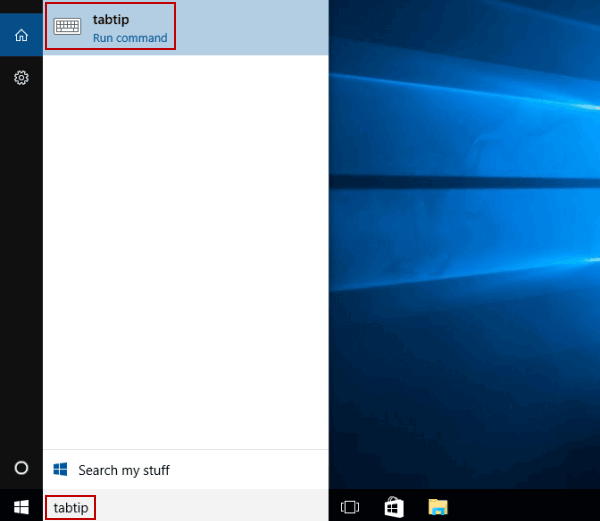
Way 2: Turn Touch Keyboard on by searching.

Type tabtip in the search box on taskbar, and choose tabtip in the result.

open touch keyboard via search

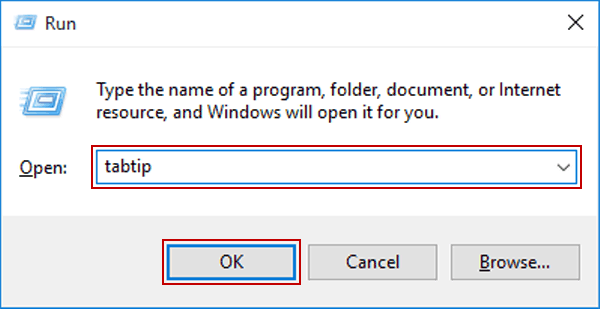
Way 3: Open Touch Keyboard via Run.

Step 1: Access Run.

Step 2: Input tabtip and hit OK.

open touch keyboard via run

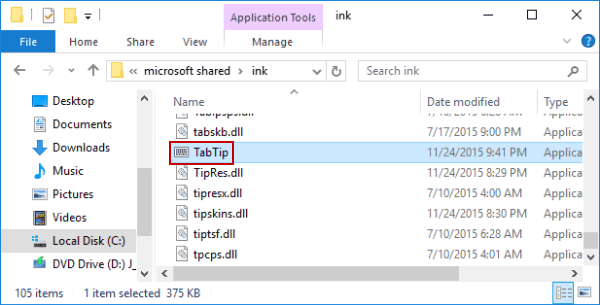
Way 4: Turn on Touch Keyboard in This PC.

Open This PC/Local Disk (C:)/Program Files/Common Files/microsoft shared/ink, and double-click TabTip.

open touch keyboard in this pc

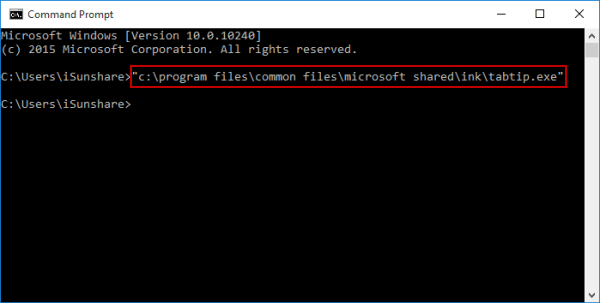
Way 5: Open Touch Keyboard via Command Prompt.

Step 1: Launch Command Prompt.

Step 2: Type "c:\program files\common files\microsoft shared\ink\tabtip.exe", and press Enter.

open touch keyboard via cmd

How to Create a Desktop Shortcut for Touch Keyboard

Step 1: Right-click blank area, point at New on the menu and select Shortcut in the sub-list.

open new shortcut

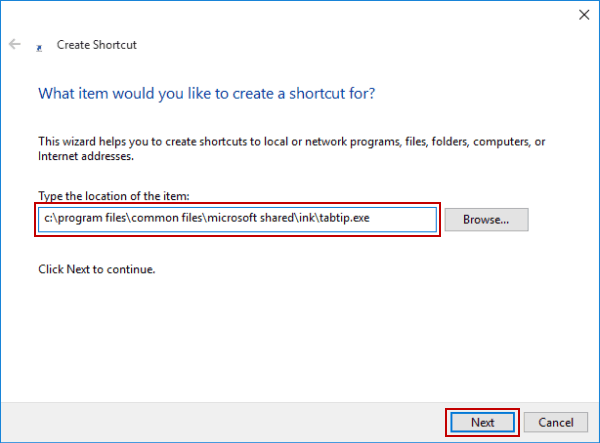
Step 2: Type c:\program files\common files\microsoft shared\ink\tabtip.exe in empty box, and then choose Next.

input touch keyboard location

Step 3: Change the shortcut name according to your need, and tap Finish.

name touch keyboard shortcut

Related Articles: