By Jennifer | Last Updated
Windows Speech Recognition is a powerful accessibility feature that allows users to control their PC using voice commands. Instead of navigating through menus, you can create a desktop shortcut to quickly launch Speech Recognition.The article shows you how to create a Windows Speech Recognition shortcut on Windows 10 desktop by means of three simple steps.
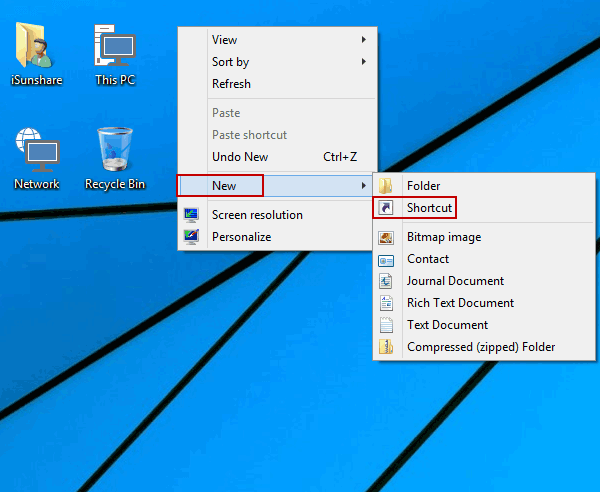
Step 1: Open a new shortcut on desktop.
Right-click any empty area on the desktop, point at New in the context menu and select Shortcut in the sub-list.

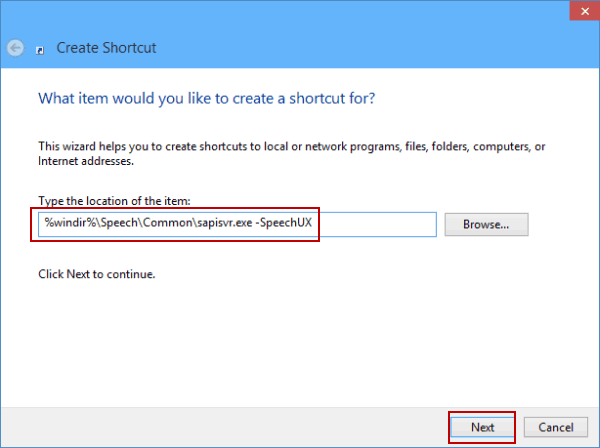
Step 2: Enter the path of Windows Speech Recognition and move on.
Type "%windir%\Speech\Common\sapisvr.exe –SpeechUX" in the empty box, and then click Next.

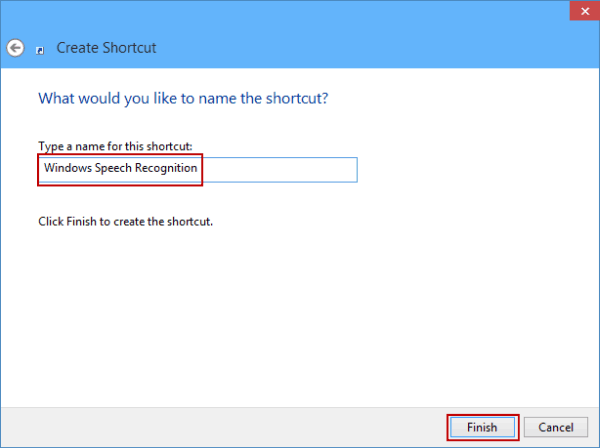
Step 3: Name this shortcut and complete the creating process.
Enter Windows Speech Recognition as the shortcut's name and tap Finish.

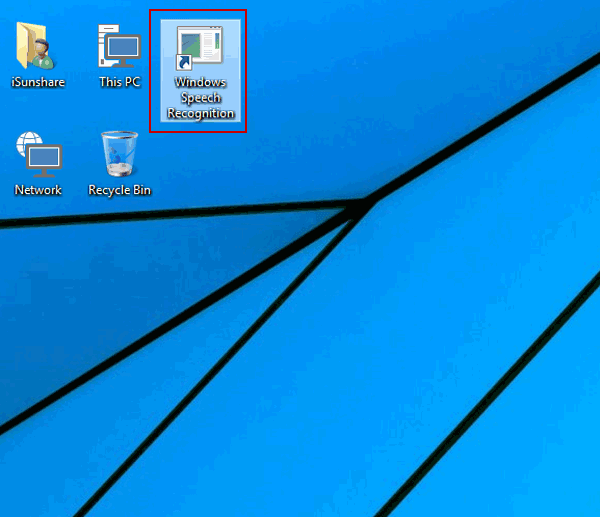
After these procedures, a shortcut named Windows Speech Recognition will show up on the desktop in Windows 10 computer, as exhibited in the following screen shot.

Related Articles:
How to Reset Windows 10 Forgotten Password
How to Bypass Windows 10 Password Login with/without Password
Easy Guide to Reset Windows 10 Admin Password Like an Expert
4 Tips to Change Windows 10 Password without Knowing Current Password
Can't Sign into Microsoft Account Windows 10 | Account Locked/Blocked