By Michael | Last Updated
How can you disallow others to change the taskbar and Start Menu settings in your Windows PC? If you would like to directly stop any user from opening Taskbar Properties to make any changes, you can enable related setting in the Local Group Policy Editor. The following operations can apply to Windows 11/10/8/7 computer.
Step 1: Access Local Group Policy Editor.
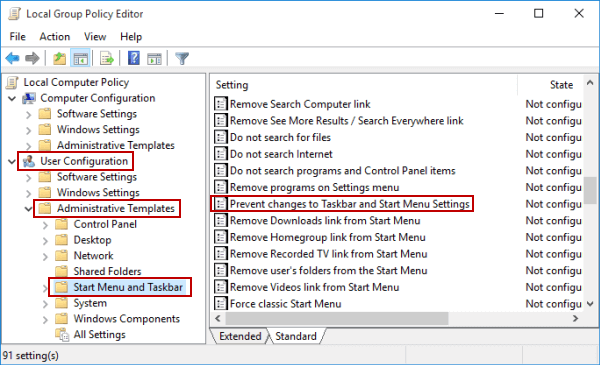
Step 2: Open User Configuration/Administrative Templates/Start Menu and Taskbar/Prevent changes to Taskbar and Start Menu Settings.

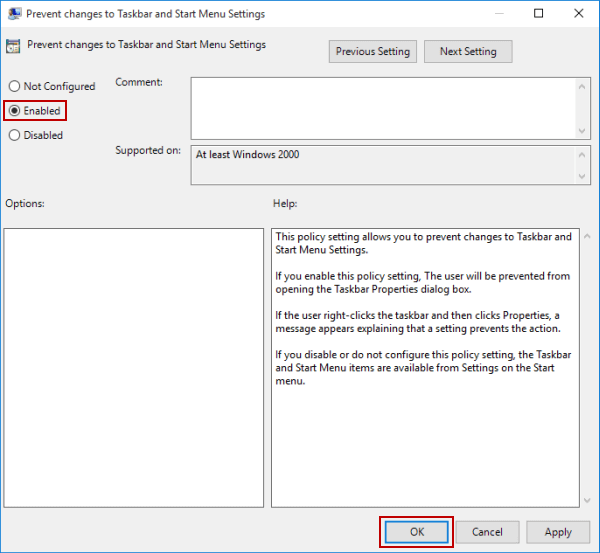
Step 3: Choose Enabled and click OK to enable this setting.

From now on, when you open the Taskbar Properties, a Restrictions window will appear, with a message that reads, "This operation has been cancelled due to restrictions in effect on this computer. Please contact your system administrator."
Related Articles:
How to Reset Windows 10 Forgotten Password
How to Bypass Windows 10 Password Login with/without Password
Easy Guide to Reset Windows 10 Admin Password Like an Expert
4 Tips to Change Windows 10 Password without Knowing Current Password
Can't Sign into Microsoft Account Windows 10 | Account Locked/Blocked