We use cookies for personalizing content and ads and providing social media features. Your usage information on our website will be used for social media, advertising, and traffic analytics, or shared with our partners. Clicking "Accept" means you agree to use our cookies .
"My hard drive installed with Windows 10 is extremely slow to respond! When I open a big file like the video, I have to wait too much time before I can access it. Is there any way to improve the hard drive performance?"
A slow hard drive commonly has the sluggish file read/write/transfer speed and cannot react to your operation in time, which could decrease your using experience and work efficiency. But luckily, it's possible to fix hard drive running slow issue in Windows 10 and the following part will show you 5 ways in detail.
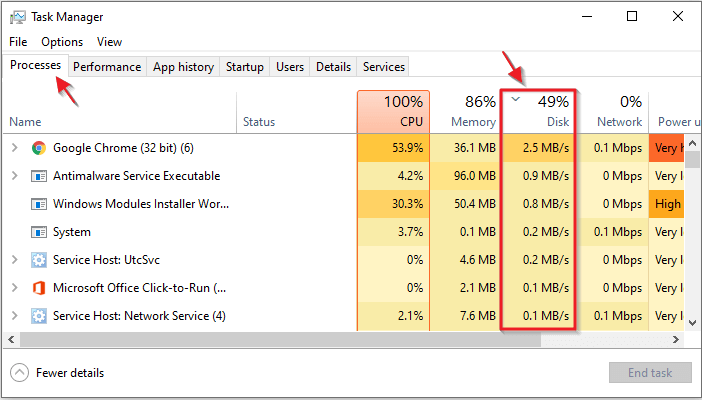
Running programs can easily occupy the disk space and then slow down the hard drive, especially the one taking up high disk usage. To check whether there is a program that drags your hard drive, you can execute the steps below.
Step 2: Locate to Disk option under Processes tab and find out the program showing a high disk usage rate. If there is such an app, you can restart or directly close it. After that, your hard drive might work smoothly.
2. Scan Your Hard Drive for Malware
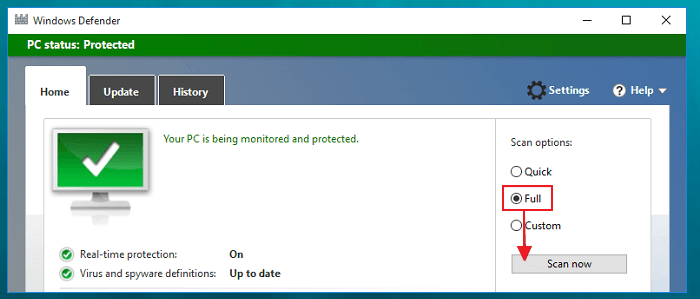
Virus or malware could also lead to the issue hard drive running slow, so it's suggested to use the antivirus program to fully scan your hard drive. You can choose the online program like Avast to complete the scanning task or apply Windows inbuilt security program named Windows Defender for virus scanning.
3. Clean up the Hard Drive
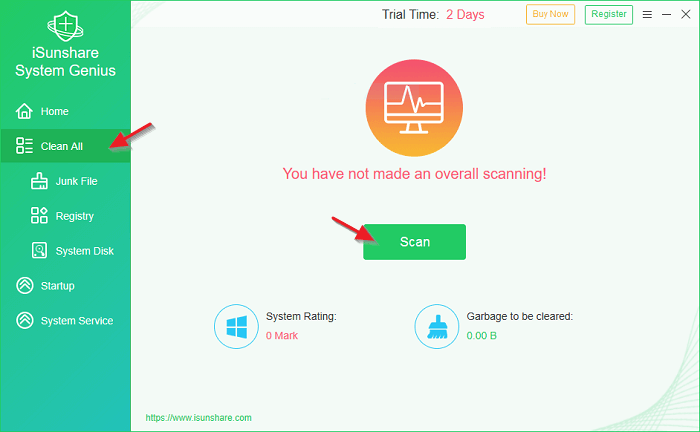
If the hard drive is installed with Windows 10, then the system junk files could be the cause for the problem. In this case, you need to remove these useless files to speed up the hard drive. For thoroughly and easily deleting the system junks, here iSunshare System Genius, an excellent Windows optimizer will be taken as the assistant tool.
iSunshare Reliable Windows System Optimizer
Clean up hard drive junk files on Windows computer
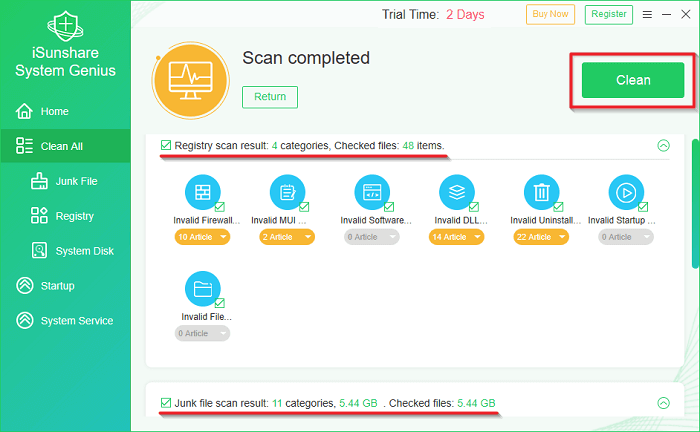
Step 1: Launch the tool, click Clean All mode in the left menu and hit Scan button to begin scanning out system junks and invalid Registry entries.
Step 2: Hit Clean button to wipe all found junks from your system. Certainly, you can only check the unwanted items to erase.
Besides, if there are many useless duplicate files on the Windows 10 hard drive, which can also cause the hard drive to run slower, I recommend using iSunshare DupFiles Genius to find and clean up these extraneous duplicate files.
4. Check Your Hard Drive for Errors
Windows provides the Error Checking function to detect the disk problems and even could help to fix the errors sometimes. To apply this function, 3 steps are needed.
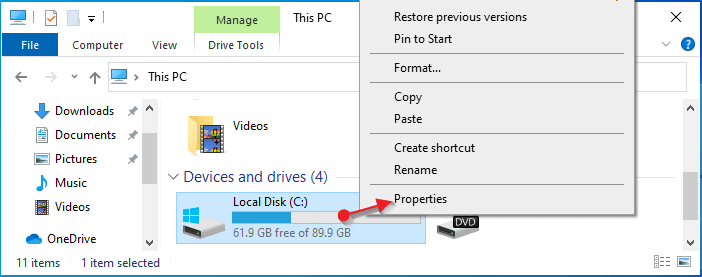
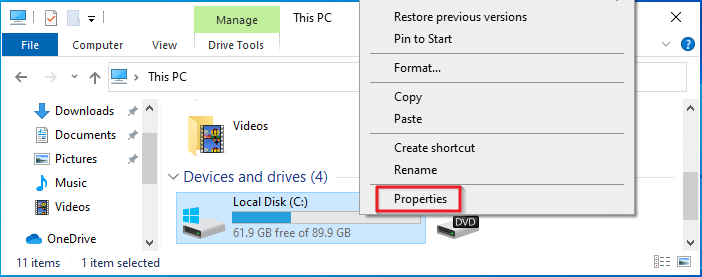
Step 2: Right-click the volume of the slow hard drive and select Properties option in the context menu.
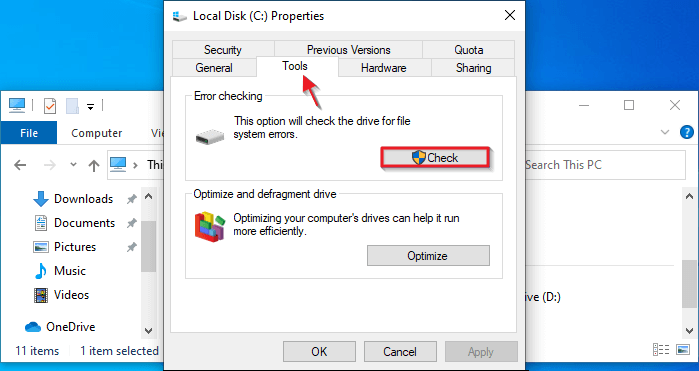
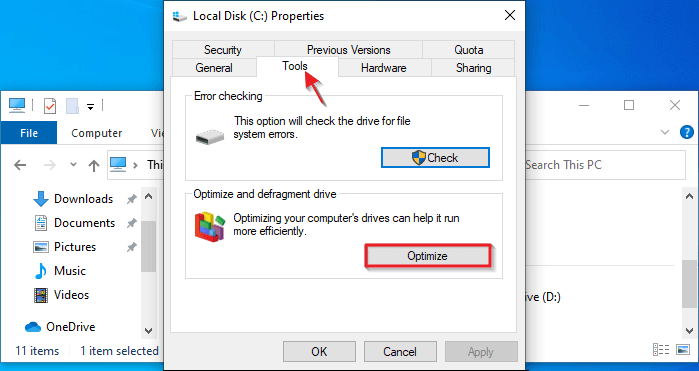
Step 3: Switch to Tools tab and click Check button under Error checking. Then a box will be popped out to guide you for the remaining operation.
Tips: You can check the necessary volume in your hard drive or check all partitions so that the whole drive is detected.
5. Defrag the Hard Drive
Defragging the hard drive is an effective way to speed up your slow hard drive so that the hard drive running slow issue is resolved. But similar to way 4 above, you have to repeat the steps below if you plan to optimize your entire hard drive that contains more than one partition.
Step 1: In File Explorer, choose Properties option in the right-click menu of the disk that you want to defragment.
Step 2: Click Tools option in the upper pane and hit Optimize button.
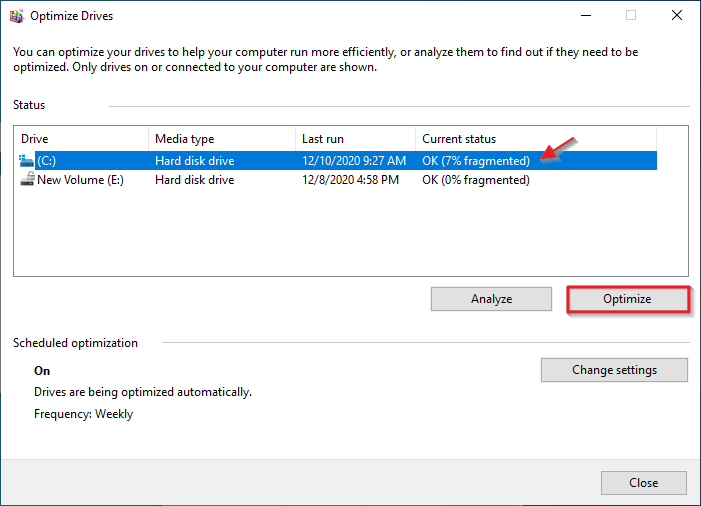
Step 3: Choose the target disk again and hit Optimize button to defragment the chosen disk.
6. Update Hard Drive Driver
Outdated or corrupted drivers slow down hardware performance. Thus, it is necessary to update hard drive driver when it runs slowly.
Step 1: Right-click Start > Device Manager.
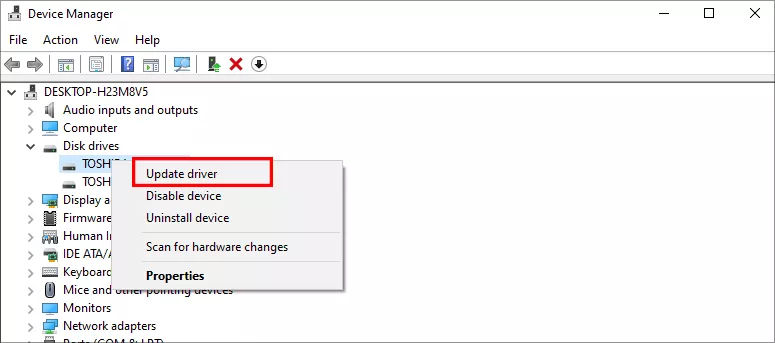
Step 2: Expand Disk drives , then right-click your HDD and choose Update driver.
7. Disable Superfetch/ SysMain
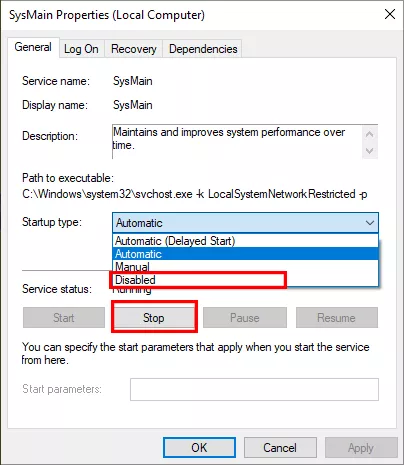
SysMain can overuse HDD resources, which lead to the HDD slow speed. You can press Windows +R, type services.msc and click OK. After that, find SysMain, right-click it and choose Properties. In the Service status section, click the Stop button. Finally, change the Startup type to Disabled.
8. Consider Upgrading to SSD
If your HDD is still slow, it may be time for an upgrade. An SSD improves speed by 5–10x. But you need to make sure that your computer supports the SSD. And in case of data loss, it is recommended to clone the hard drive to new SSD using the third-party tool, such as iSunshare CloneGo.
Conclusion
A slow hard drive doesn't always mean it's dead—often, it just needs maintenance. With the above fixes, you can improve HDD performance in Windows 10 significantly. If all else fails, switching to an SSD can give your system a new lease on life.