We use cookies for personalizing content and ads and providing social media features. Your usage information on our website will be used for social media, advertising, and traffic analytics, or shared with our partners. Clicking "Accept" means you agree to use our cookies .
Is your Windows 10 hard drive failing? Don't wait until it dies. Cloning your failing HDD to an external hard drive is one of the fastest and safest ways to back up your system and data before it's too late. In this passage, we are going to study how to clone failing hard drive to an external hard drive in Windows 10.
If your disk is failing but still readable, cloning it sector-by-sector to an external hard drive can help you avoid complete data loss, retain bootable system, easily restore to a new drive later.
Note:
Don't install or update software on a failing drive before cloning. The less it's used, the better your chances of saving data.
Part 2: Preparations for Cloning a Failing Hard Drive
What do you need to prepare for cloning failing hard drive to an external hard drive in Windows 10? To clone a failing hard drive to an external hard drive, you need to do the following necessary preparation jobs in advance so that you can execute the operations smoothly.
1. A new or an empty external hard drive. As what you want to do is to clone a failing hard drive to an external hard drive, first of all, of course you have to prepare a new external hard drive to receive all the data from the failing hard drive. And the hard drive you prepare must have bigger space than your current failing hard drive. However, if you want to use a hard drive that is used before, you should back up all the data in it as the cloning process will format the target drive.
2. The Windows computer with a failing hard drive. If you want to clone the failing hard drive, make sure you have the Windows computer around you. During the cloning process, you need to use the failed hard drive in the Windows computer as the source disk, so that you can transfer all the data from the hard disk (the failing hard disk) to the target disk (the external hard disk).
3. A Windows disk cloning software. How to clone a failing hard drive in Windows 10? To clone a failing hard drive to an external hard drive, it means to transfer everything to that drive, including the Windows OS, installed applications and other personal files. To avoid data loss, it is a good idea to use a reliable disk clone software to help you. To save you time, iSunshare CloneGo is strongly recommended to you. You can use it to clone a failing hard drive to another hard drive successfully.
iSunshare Reliable Disk/Partition Clone Software
Safely clone disk or partition without entering Windows
Create WinPE to clone OS from your computer to SSD/HDD
4. A USB disk to make a bootable disk. If your Windows computer couldn't boot up and you can't access the computer due to the failing hard drive, how can you clone the failing hard drive? In this situation, you cannot directly download iSunshare CloneGo and complete the cloning process in your Windows computer. But you could clone a failing hard drive in WinPE with a bootable disk with iSunshare CloneGo. To create a bootable disk, you need a USB disk.
5. Another accessible Windows computer. We have mentioned that if the failing hard drive is the system disk and your computer can't boot, you need clone the failed hard drive in WinPE with bootable disk. To create bootable disk, you need insert the USB disk to another available Windows computer running the same Windows OS. So you also need to prepare an accessible Windows computer before you start.
Note:
If your failing hard drive is a non-system disk and you can boot your computer without problems, you can directly download iSunshare CloneGo on you current and use it to clone the failing hard to an external hard drive. In that case, you don't have the need to prepare Point 4 and Point 5 mentioned above as you don't have to rely on another computer to create a boot disk and clone the failing hard in WinPE.
Part 3: How to Clone Failing Hard Drive to an External Hard Drive
Here comes to the point! In this part, you will learn how to clone failing hard drive to an external hard drive in Windows 10. Depending on the degree of your hard disk failing, you are illustrated with two different solutions to clone a failing hard drive in Windows 10. As you can see in the following content, we will discuss this problem according to different situations: Situation 1 and Situation 2. You should apply different solution according to different situations. Anyway, no matter which situation, iSunshare CloneGo will help you solve all your problems. So download and install it on your Windows computer without hesitation!
Situation 1: The Failing Hard Drive Is a System Disk (Computer Can Not Boot)
If the failing hard drive is the system disk of your computer and your computer fails to boot up, you can use iSunshare CloneGo to help you create a boot disk with a USB disk in another accessible Windows computer. In that way you can clone a failing hard drive to an external hard drive in WinPE. Now follow the below steps to learn how to do it:
Step 1: Create a USB bootable disk with the "Make Boot Disk" function.
1. Insert the USB disk to an available Windows computer.
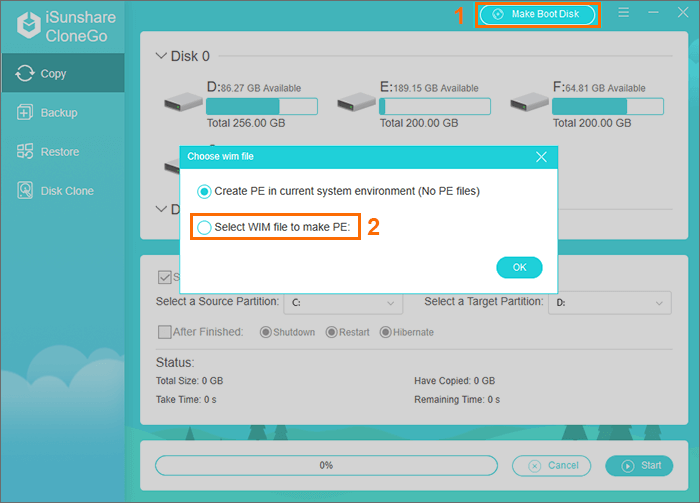
2. Run iSunshare CloneGo and click the button of "Make Boot Disk" on the top right of the interface.
3. Click the option of "Select WIM file to make PE" to proceed.
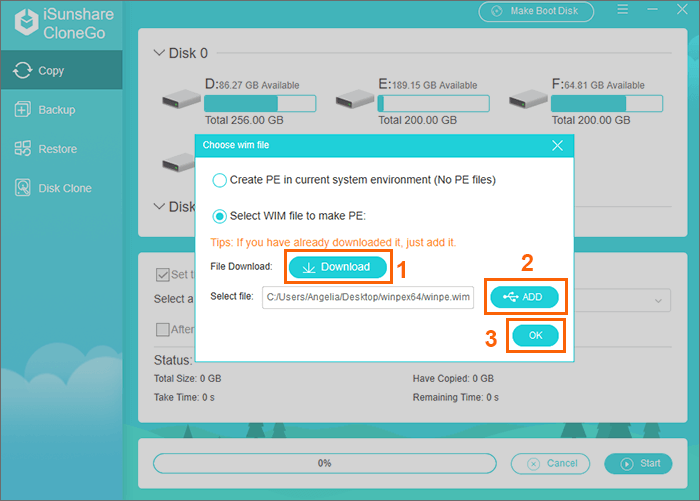
4. Tap the "Download" button to download the WIM file online, and then extract the WIM compressed file to a local path and click the "Add" button to select the winpe.wim file. After that, hit "OK" to continue.
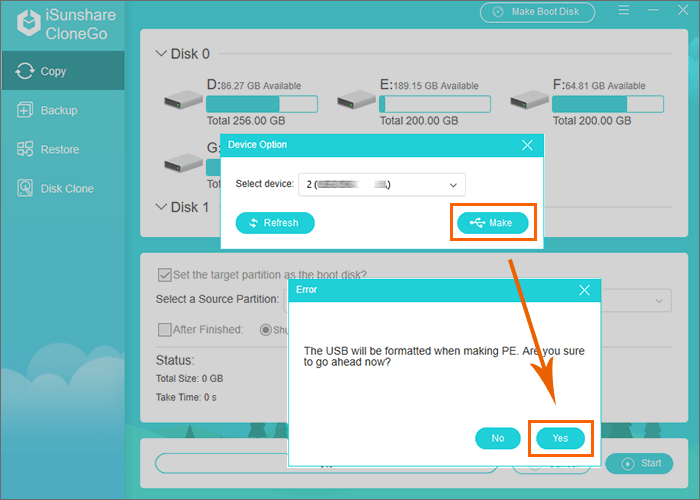
5. Select your USB disk and click the "Make" button in order to make a boot disk. Then click "Yes" to confirm".
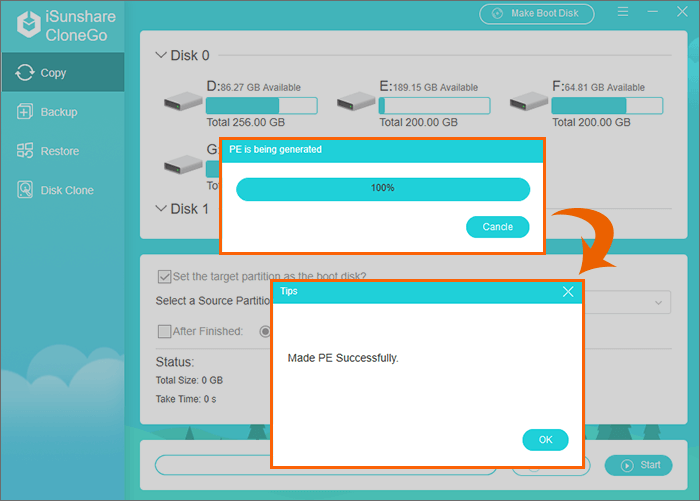
6. Wait for the process to complete and you will get the WinPE bootable USB disk created successfully.
Step 2: Connect the external hard drive to your PC and make it recognized.
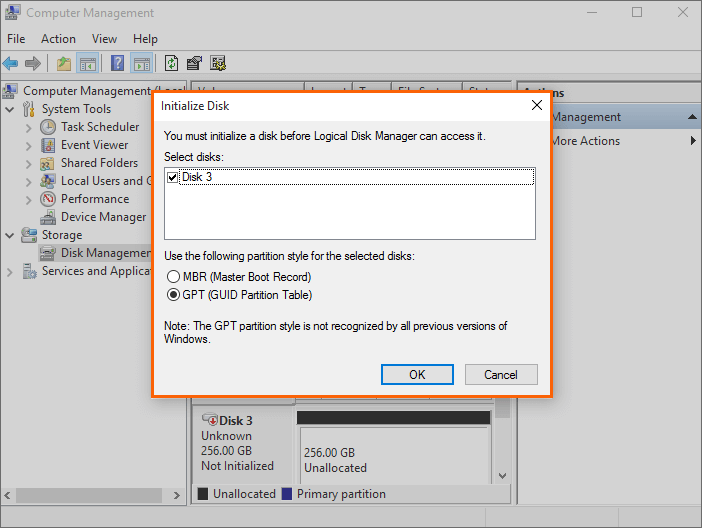
Connect the new external hard drive to the accessible Windows computer and go to Disk Management and initialize the external hard drive. Then right click the unallocated space and choose New Simple Volume to create at least one volume for the external hard drive.
Step 3: Boot your computer with the failing hard drive from the USB boot disk.
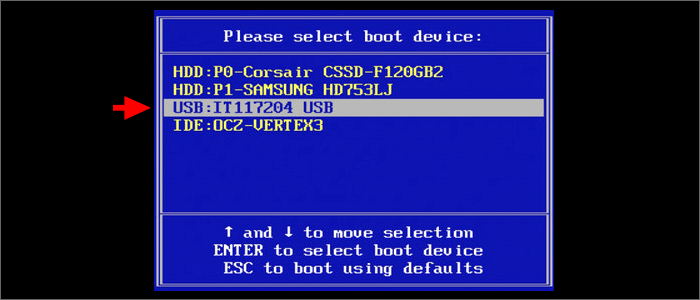
In this step, you need connect the USB boot disk and the initialized external hard drive to the unbootable Windows computer. Then boot your computer from the USB boot disk. If you don't know how to boot your computer from the USB boot disk, you can refer to this passage. After you boot successfully, the user interface of iSunshare CloneGo will show up automatically.
Step 4: Clone the failing hard drive to external hard drive in WinPE.
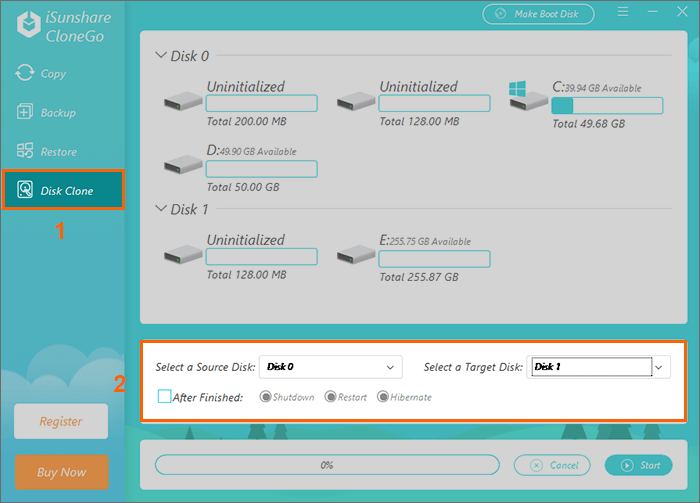
1. Select the function of "Disk Clone" and then choose the failing hard drive as the source disk and then external hard drive as the target disk.
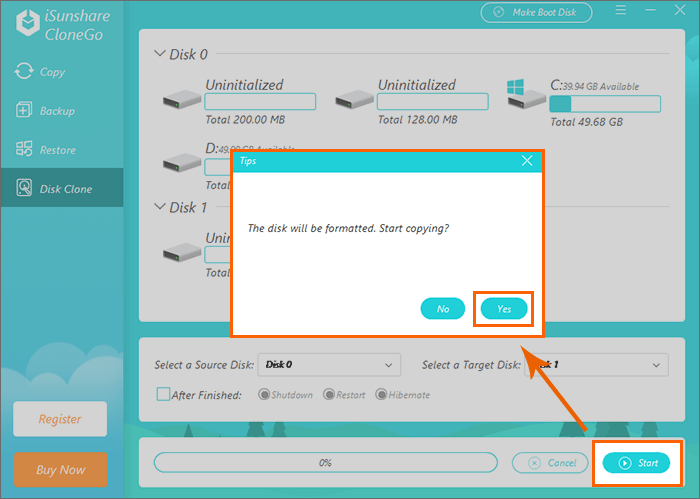
2. Click "Start" and "Yes" to make sure to clone the failing hard drive to external hard drive.
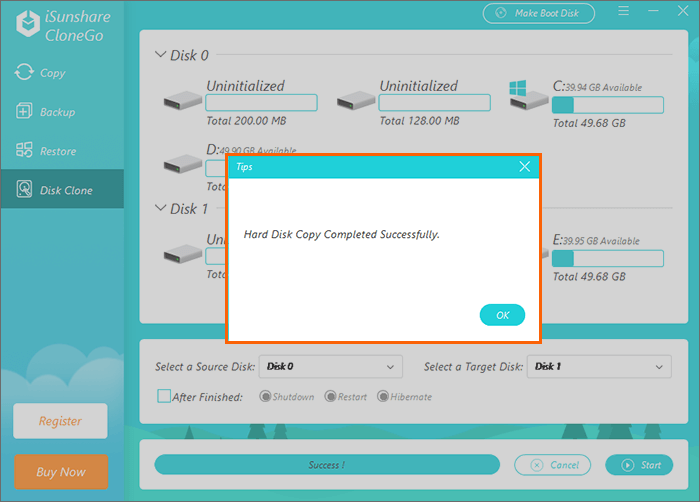
3. Finally, you will get the failing hard drive cloned to the external hard drive successfully.
Situation 2: The Failing Hard Drive Is a Non-System Disk (Computer Can Boot)
If the failing hard drive is a non-system disk and you have no problems in booting your computer, you can clone the failing hard drive to an external with the help of iSunshare CloneGo directly in your current computer. Below are the instructions:
1. Connect the new external hard drive to your current computer, initialize and allocate it.
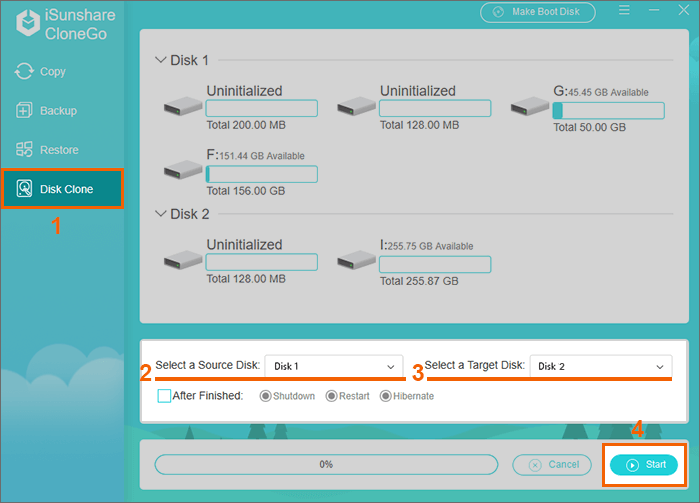
2. After you have iSunshare CloneGo installed on your PC, open it and choose "Disk Clone".
3. Select the failing hard drive as the source disk and the external hard drive as the target disk.
4. Click the button of "Start" > "Yes" to clone the failing hard drive to the external hard drive.
5. Wait for the process to finish and then you will get the failing hard drive cloned successfully.
Conclusion
Cloning a failing hard drive is the best way to secure your data before total failure. Tools like Macrium Reflect or AOMEI Backupper make the process safe and efficient. Always act fast once you notice symptoms of a failing disk—your data might not get another chance.