logo
Windows 10 How to Group Similar Icons on Taskbar in Windows 10

How to Group Similar Icons on Taskbar in Windows 10

By Achilles Hill | Last Updated

Windows 10 automatically groups taskbar icons, consolidating multiple windows of the same app into a single button to save space. You can easily customize this behavior—or use workarounds to visually organize your taskbar apps in personalized groups.

Steps to group similar icons on taskbar in Windows 10:

Step 1: Access Taskbar settings.

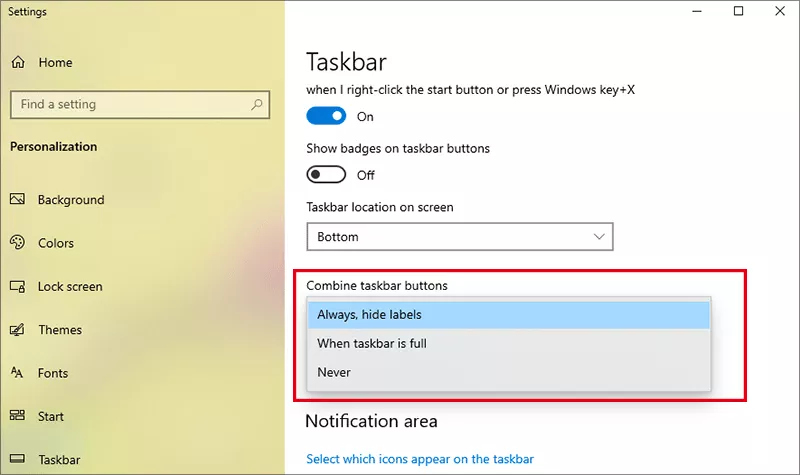
Step 2: In the Taskbar settings, scroll to Combine taskbar buttons. Then choose from the dropdown:

  • Always, hide labels – Default setting where similar icons are combined into one button without text labels.
  • When taskbar is full – Icons combine only when your taskbar runs out of space.
  • Never – Keeps every window separate and labeled.

choose how to group taskbar buttons

FAQs on Group Similar Icons on Taskbar in Windows 10

Q1: What's the default grouping behavior?

By default, Windows groups icons with “Always, hide labels”, combining all similar windows to declutter your taskbar.

Q2: What if I prefer individual icons for each window?

Select “Never” under Combine taskbar buttons. This lets every window appear separately, labeled.

Q3: Can I group icons for different apps into a folder-like group?

Not natively. Windows doesn't support folder-like grouping on the taskbar. Toolbars or third-party apps like Bins make this possible.

Related Articles: