We use cookies for personalizing content and ads and providing social media features. Your usage information on our website will be used for social media, advertising, and traffic analytics, or shared with our partners. Clicking "Accept" means you agree to use our cookies .
The .exe file extension is the most common extension and stands for executable programs. If you are unable to launch an executable file, then you can't benefit from the functionality of that program, service or game. This problem is mainly caused by incorrect file associations, registry errors, and malware corruption. In this step-by-step tutorial, I will share with you the most effective ways to fix .exe files not opening in Windows 10 & 11.
Step 1: Use Windows+R keys to open the Run dialog box, type regedit, click OK to open the Registry Editor.
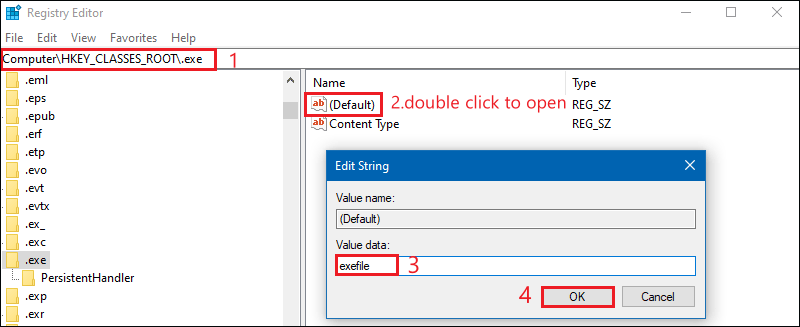
Step 2: Locate the following path in the registry, double-click on the Default registry in the right pane and set Value data to exefile. Click OK to finish the change.
HKEY_CLASSES_ROOT\.exe
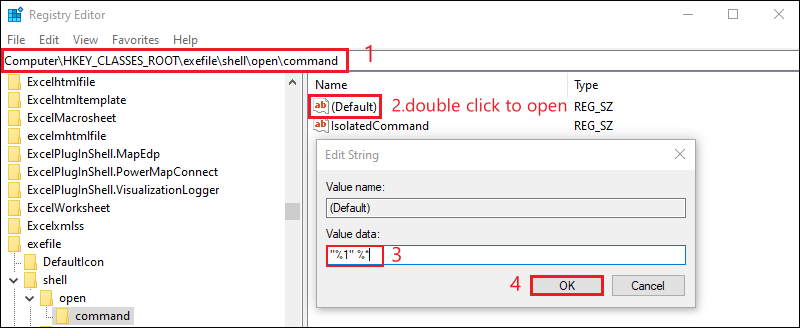
Step 3: Now locate the following location in the registry address bar. On the right window, double click Default registry to open, set Value data to "%1" %*, and then click on OK to finish the settings.
HKEY_CLASSES_ROOT\exefile\shell\open\command
Step 4: Restart your PC and try to run an .exe file. Check if the problem still exists.
2: Alter sound scheme and switch off user account control
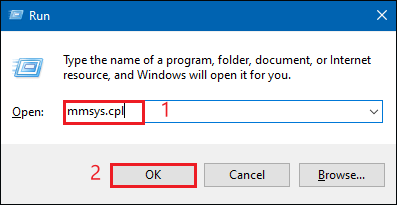
Step 1: Use Windows+R keys to open Run dialogue box, type mmsys.cpl, then click on OK to open Sound settings.
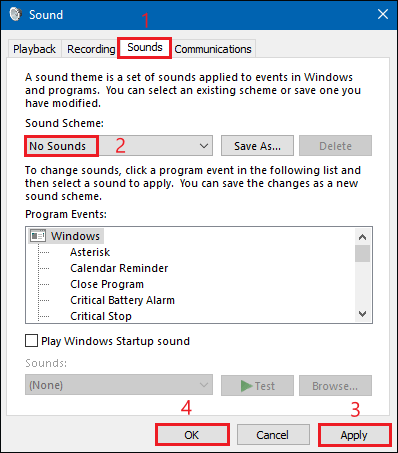
Step 2: Move to the Sounds tab, change the Sound Scheme to No Sounds, click Apply and OK to save the changes.
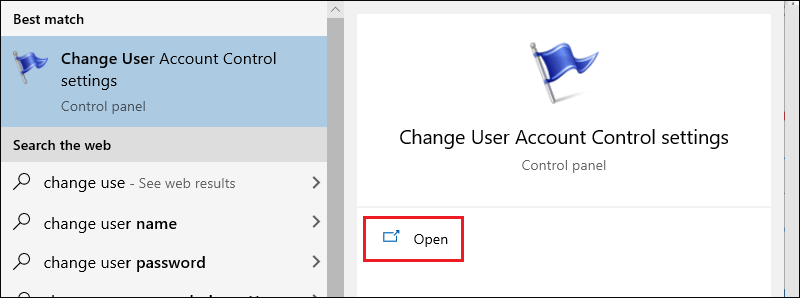
Step 3: Use Windows+Q to type change user account control settings in the search bar and click open.
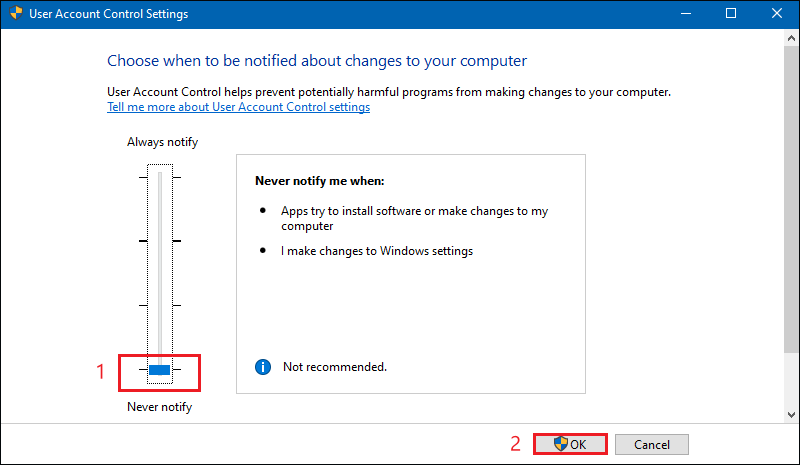
Step 4: In the UAC window, slide the blue slider to Never notify at the bottom. Click OK. If User Account Control prompts you, click Yes.
Step 5: Reboot your PC and try to run the .exe file. Check if the problem still exists. If the problem persists, proceed to the next fix.
3: Disable Windows Firewall
Some users claim that they fix the issue by turning off the Windows Firewall. Below are the steps to disable the firewall.
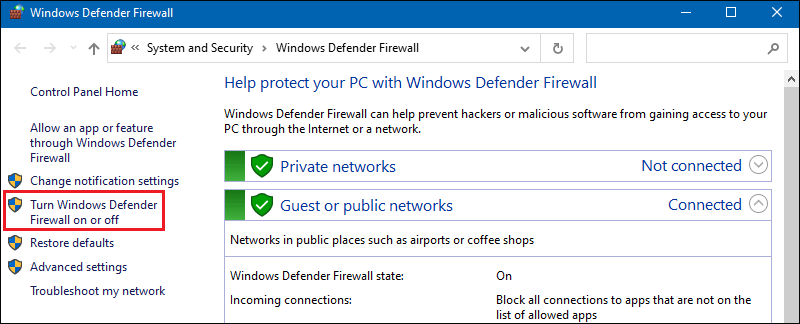
Step 1: Type windows defender firewall in the search bar, and then click open.
Step 2: In the left menu, click on Turn Windows Defender Firewall on or off.
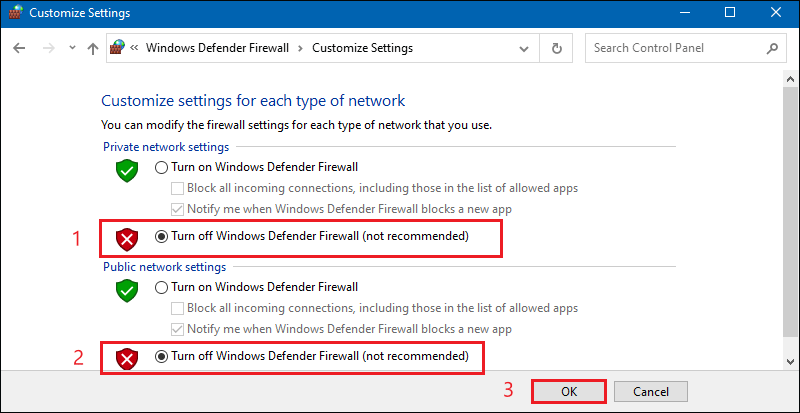
Step 3: In the Private and Public network settings, select Turn off Windows Defender Firewall (not recommended). Click OK to complete the setting.
Note:
It is generally not recommended to disable the firewall because its purpose is to protect you from malicious programs trying to access the Internet, but in some cases, disabling the firewall can solve the problem with .exe files.
4: Repair file associations from CMD
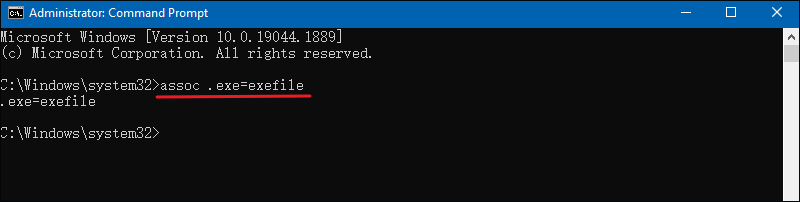
Step 1: Type CMD in the Start menu bar, and click Run as administrator.
Step 2: Type the following command and press the Enter key to execute it. Restart your PC and see if the problem is fixed.
assoc .exe=exefile
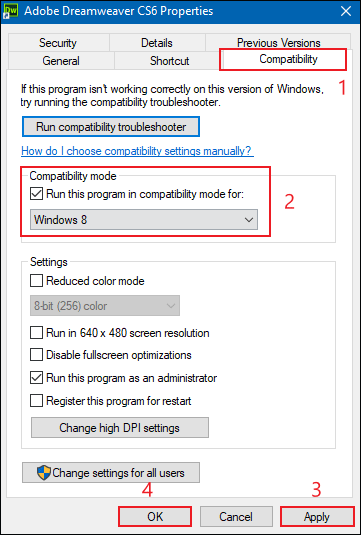
5: Run program in compatibility mode
Step 1: Right-click on the program and select Properties.
Step 2: Move to the Compatibility tab and check Run this program in compatibility mode for Windows 8 or 7. Click Apply and OK to complete the changes.
6: Run SFC Scan
You can run SFC scan to detect and fix system file corruption.
Step 2: Enter sfc /scannow command line and press Enter and wait for Windows to detect and fix system file corruption.
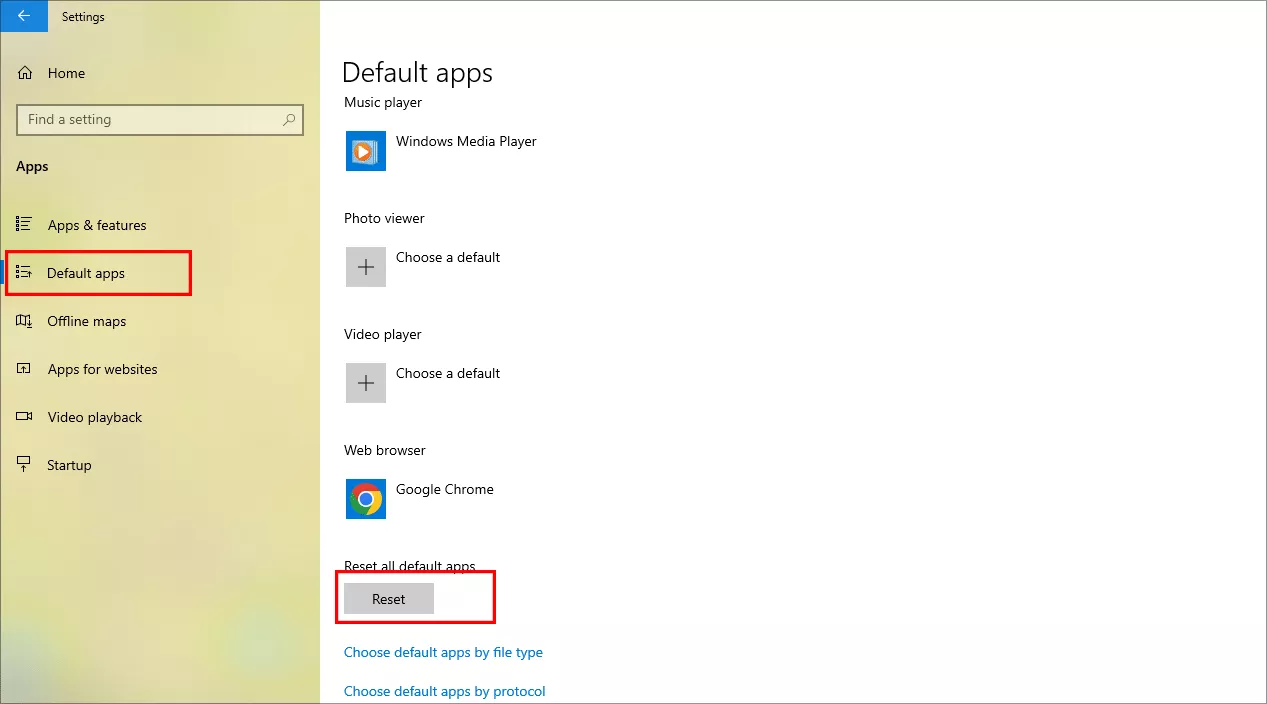
7: Reset Default App Settings
Incorrect default program settings can also make the EXE file fail to open. You can reset the app settings to fix the issue.
Step 1: Open Settings > Apps > Default Apps
Step 2: Scroll down and click Reset under Reset all default apps.
Step 3: Restart your PC.
Final Word
If the issue persists, then you can try logging into your PC with another user account and check if you can run the .exe file from that user account.
When EXE files won't open in Windows 10 or 11, it's often due to corrupted registry settings or malware. Use the registry repair, SFC/DISM scans, and default reset methods to restore functionality without reinstalling Windows. Stay safe by keeping your system updated and scanned for viruses.