We use cookies for personalizing content and ads and providing social media features. Your usage information on our website will be used for social media, advertising, and traffic analytics, or shared with our partners. Clicking "Accept" means you agree to use our cookies .
HEIC (High Efficiency Image Coding) is a modern image format developed to store high-quality images in smaller file sizes, which is commonly used by iPhones and modern cameras. However, on Windows 11, they don’t always open by default—so you may need a quick setup. Here’s exactly how to open and view HEIC files on your PC.
Best Solution to Open and View HEIC Files on Windows 11
The easiest way to open HEIC files is by installing Microsoft’s official extension. Once installed, you can directly open and view HEIC/HEIF files.
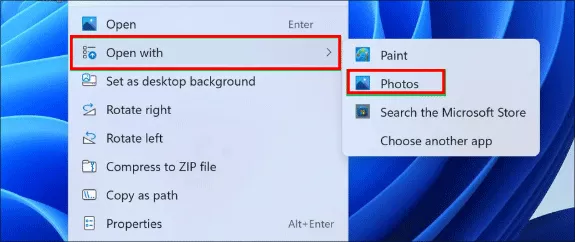
Step 1: Right-click your HEIC file and choose Open with. From the context menu, choose Photos app option.
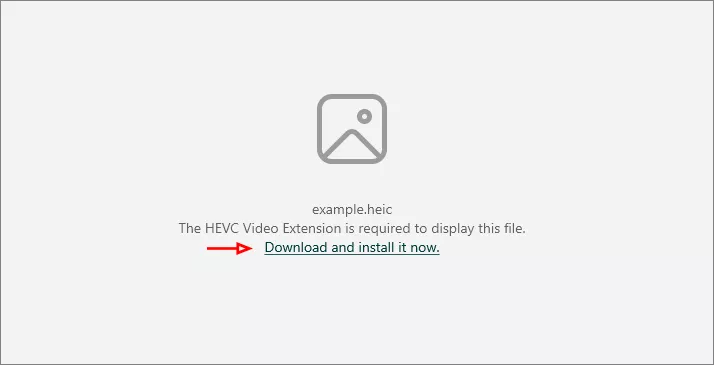
Step 2: In Photos, it informs you that the HEVC Video Extension is required to display this file. Just click Download and Install it now to get the extension in Microsoft Store.
Step 3: Click Download to download and install the extension on your Windows 11 computer.
Step 4: Finally, go back to the folder where your HEIC files are saved. Double -click to open HEIC file and view it normally as JPG image does.
Bonus Tip: Convert HEIC to JPG for Easy Access
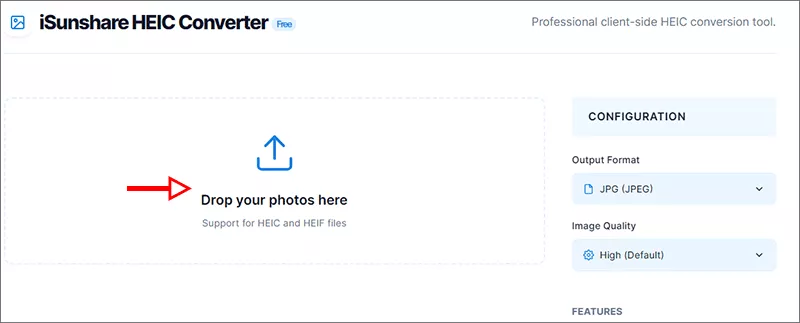
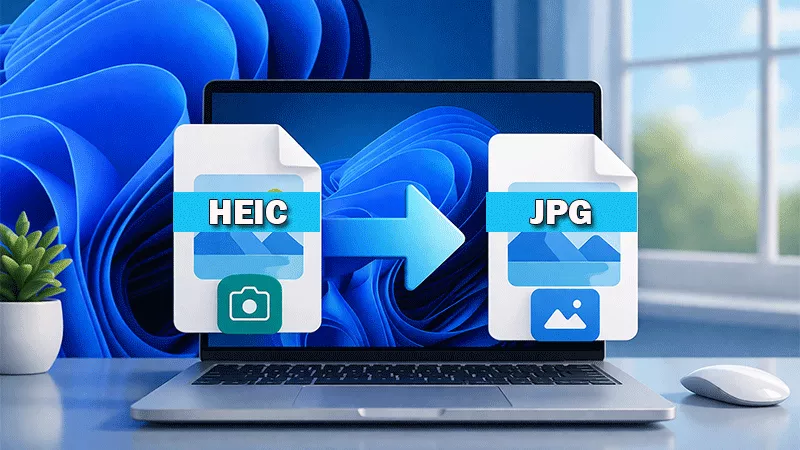
If you frequently run into compatibility issues, converting HEIC to JPG is a smart option as JPG files open on all devices without extra setup. How can you convert HEIC to JPG? iSunshare HEIC Converter can help you. This is the free online HEIC/HEIF to JPG/PNG converter, which enables users to convert HEIC to JPG in bulk.
Step 1: Open a browser on your device and head to https://www.isunshare.com/tools/isunshare-heic-converter.html .
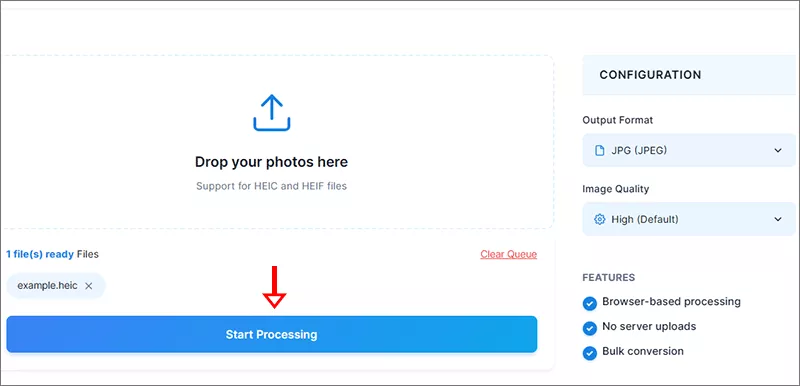
Step 2: On the left side, click to import your HEIC/HEIF files.
Step 3: Set the output format as JPG and then click the Start Processing button.
Step 4: Hit the Download button to save the JPG file on your Windows 11. After that, you can easily open and view it at any time.
FAQs on Opening HEIC File in Windows 11
1. Why can’t I open HEIC files on Windows 11?
Because Windows 11 doesn’t fully support HEIC by default. You need to install HEIF Image Extensions from the Microsoft Store.
2. Is HEIF Image Extensions free?
Yes, in most cases it’s free, but some systems may require an additional codec depending on your setup.
3. Can Windows 11 Photos app open HEIC files?
Yes, but only after installing the HEIF Image Extensions.
4. Should I convert HEIC to JPG?
If you need better compatibility across devices and apps, converting to JPG is recommended.
Final Thoughts
Opening HEIC files on Windows 11 is simple once you install the right tools. The HEIF Image Extensions method is the fastest and most reliable solution, while online HEIC converter offer additional flexibility.