We use cookies for personalizing content and ads and providing social media features. Your usage information on our website will be used for social media, advertising, and traffic analytics, or shared with our partners. Clicking "Accept" means you agree to use our cookies .
"When I was setting up my iPhone 16 Pro Max, it stuck at Hello screen after update. It is so annoying and what should I do?"
Setting up your iPhone should be quick and easy — but sometimes, you might find your device stuck on the "Hello" screen, unable to proceed. This can happen on brand-new iPhones, after a reset, or even following a software update. The good news is, in most cases, you can fix this problem yourself without heading straight to the Apple Store.
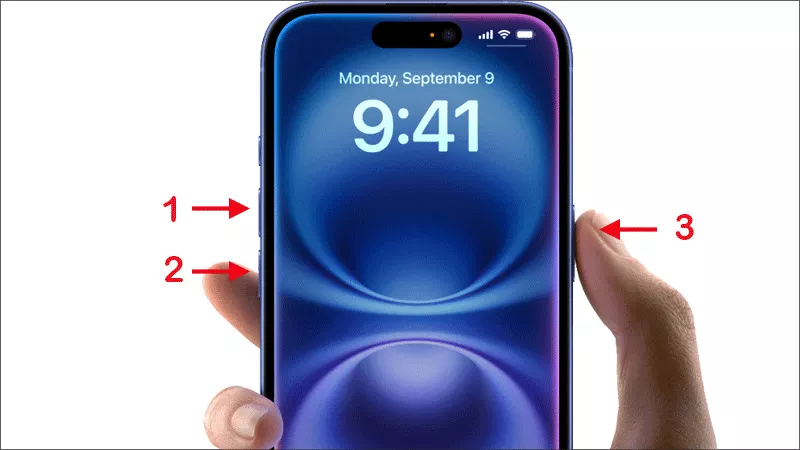
First of all, to save your iPhone, you can try to force restart the iPhone 16. Sometimes, it can solve the problem. Just quickly press and release Volume up. Do the same to the volume down button. Then press and hold the side button, when you see the Apple logo, release the button.
Solution 2: Check Your SIM Card
If first restart makes no sense to your iPhone stuck on hello screen, you can remove the SIM card from your iPhone. Minutes later, insert it back to the iPhone. If your iPhone is carrier-licked or needs SIM verification, make sure a valid SIM card is inserted. If the SIM tray is empty or damaged, insert a working SIM card and restart setup.
Solution 3: Fix the System with iSunshare iOS Repair Genius
If the iPhone stuck issues are caused by the iOS system, you can fix it iPhone stuck on halo screen no home button with iSunshare iOS Repair Genius. This iOS system recovery software can help you fix more than 100 iOS issues in minutes without data loss. You can use it on both Windows and Mac computer.
iSunshare Reliable iOS System Repair Software
Easily fix iPhone stuck issues without losing data.
Repair iOS issues, such as black screen, in clicks.
Step 1: Run iSunshare iOS Repair Genius on your computer and select System Repair on the main interface.
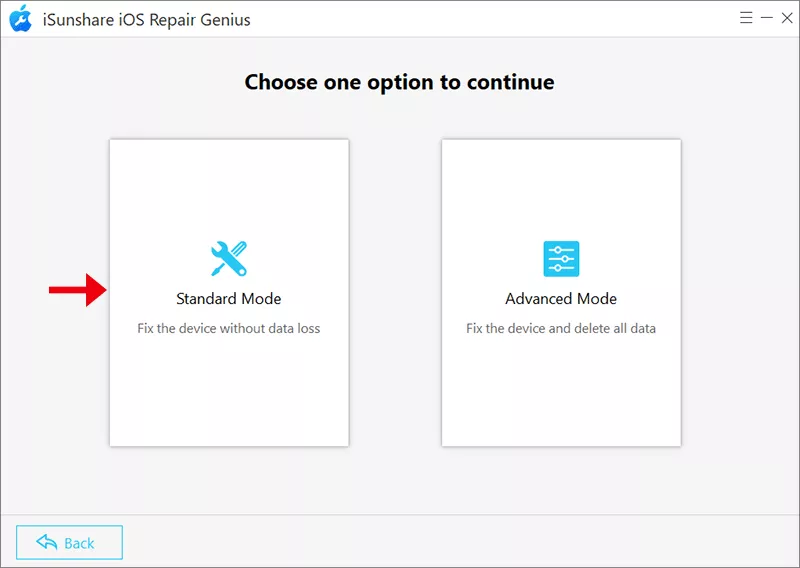
Step 2: Choose Standard Mode to fix the iPhone hello screen stuck issue. If this fails, you can try the Advanced mode which will erase all iPhone data.
Step 3: Connect the iPhone to your computer. It is better to put the iPhone into recovery mode. Then hit the Start and the Next button on the software interface.
Step 4: When the iPhone details are shown on the software interface, hit the Download button to get the firmware package.
Step 5: After the firmware is downloaded, you can click the Repair button to fix the hello screen stuck on iPhone issue.
Finally, your iPhone will restart on the Hello screen. And you can tap to set up the iPhone now.
Solution 4: Use iTunes or Finder to Activate
A stuck hello screen might mean the iPhone isn't activating over Wi-Fi. Thus, there might be something wrong with the network connection. You can try to activate the iPhone via iTunes/Finder.
Here is the process to use iSunshare iOS Repair Genius:
Step 1: Get the USB cable and connect the iPhone to your Windows PC or Mac.
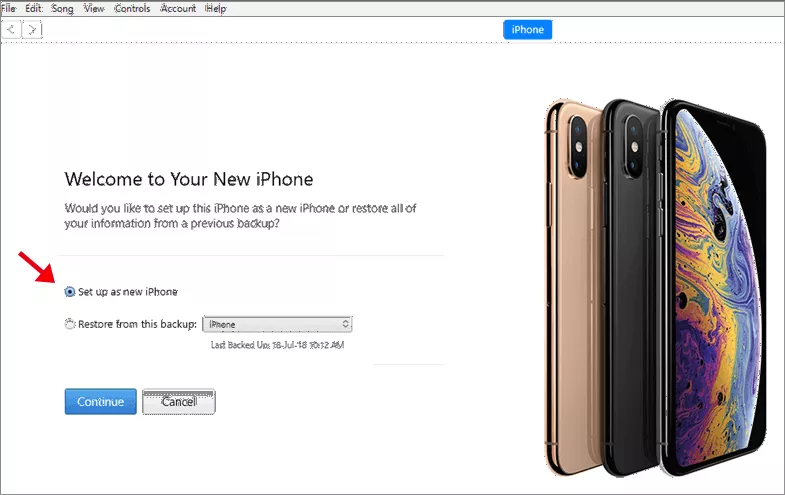
Step 2:Open iTunes/Finder. If prompted, choose Set up as New iPhone or Restore from Backup.
Step 3: Follow the on-screen steps to complete the activation.
Solution 5: Restore iPhone in Recovery/DFU Mode
Many iPhone users said the Recovery/DFU mode has saved their bricked iPhone and brought them back to life after a few tries. It definitely deserves a try!
Step 1: Connect iPhone to the computer.
Step 2: Make the iPhone boot into DFU mode or Recovery mode.
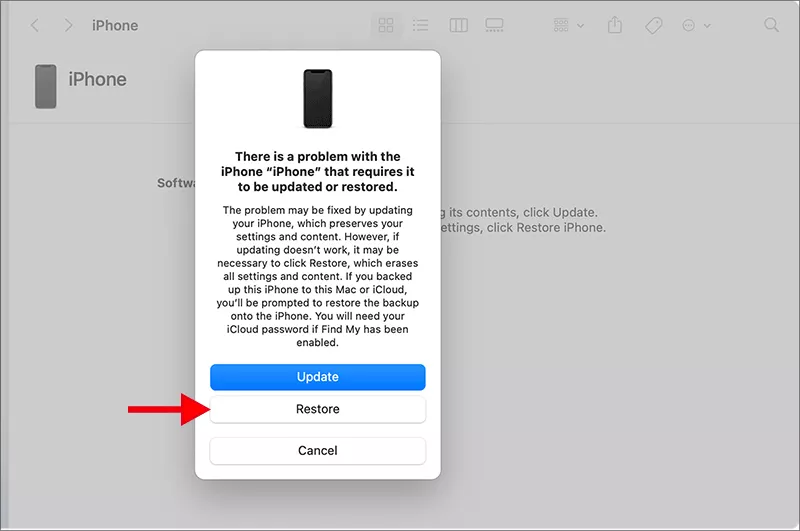
Step 3: Hit the Restore button on the prompt to fix your iPhone.
FAQs about iPhone Stuck on Hello Screen
1. How long should the Hello screen last on iPhone?
Usually, you should get past the Hello screen in a few minutes. If it stays stuck for more than 10–15 minutes, try restarting or connecting to iTunes/Finder.
2. Can I fix the Hello screen without a SIM card?
Yes, only if the iPhone is connected to the Wi-Fi network. However, some carriers and activation processes require a SIM card.
3. Why does my iPhone keep returning to the Hello screen after restart?
This may indicate an incomplete iOS installation, activation lock, or hardware failure. A full restore is recommended.
Conclusions:
An iPhone stuck on the Hello screen can be frustrating, but in most cases, it's a fixable problem. Start with simple solutions like force restarting and checking your SIM card, then move on to iOS system recovery software, iTunes activation or Recovery Mode if needed. If all else fails, Apple Support can help get your device working again.