We use cookies for personalizing content and ads and providing social media features. Your usage information on our website will be used for social media, advertising, and traffic analytics, or shared with our partners. Clicking "Accept" means you agree to use our cookies .
Many iPhone users experience a frustrating issue during calls: an echo. This happens when you hear your own voice or background sounds repeated back to you. Not only is it distracting, but it can also make conversations nearly impossible. Understanding why iPhone echo occurs and how to fix it is essential for a smooth calling experience. In this guide, we’ll explore the causes, solutions, and preventive tips for iPhone echo issues.
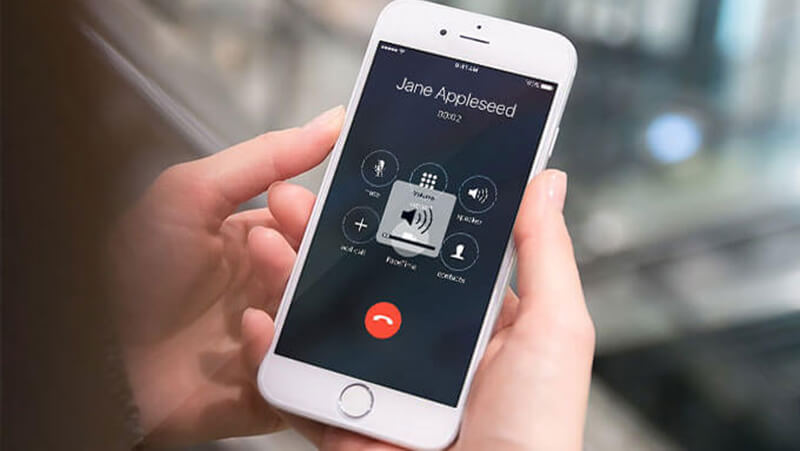
An iPhone echo happens when you hear your own voice or background sounds repeated back during a call. It can make conversations difficult and frustrating. Common symptoms include:
Your voice repeating shortly after you speak
Background noises amplified and returned
Distorted audio during FaceTime or regular calls
Echo can occur on iPhone-to-iPhone calls, group calls, or when using Bluetooth headsets.
Why Does My iPhone Echo When I talk
What causes your iPhone to echo? You should know the reasons behind iPhone echo so that the echo problem can be perfectly fixed. The reasons for iPhone echo is listed below:
1. Protective Cases or Covers
Some iPhone cases block microphones or speakers, worsening echo or creating muffled audio.
2. Microphone and Speaker Interference
When your iPhone’s microphone picks up sound from the speaker, it can create a feedback loop that results in echo.
3. Bluetooth or Headset Problems
Faulty or low-quality Bluetooth headphones can amplify your voice, producing echo.
4. Software Glitches
Outdated iOS or third-party apps may interfere with audio processing, causing echo effects.
Network or Carrier Issues
Poor cellular or Wi-Fi connections can create audio delays, causing your voice to be echoed back.
How to Solve iPhone Echo Problem
To troubleshoot the iPhone echo problem, you can start a quick initial check to identify where the problem is:
Step 1: Turn off Speaker, make a regular earpiece call and check if the echo remains.
Step 2: Try to make a call with wired earphones or AirPods connected.
If there is no echo with earphones, the issue is lied in your iPhone’s speaker, microphone or noise cancellation. If the echo still presents with earphones, there might be problem in carrier network or the other person’s device.
Solution 1: Have a Basic Check of Your iPhone
This basic self-check can help you to solve the problems in the basic settings which will lead to iPhone echo. Besides, it is easy to conduct with no technical requirement.
Step 1: Remove the phone case and screen protector. Then check if they block the bottom microphone, top earpiece, or rear microphone.
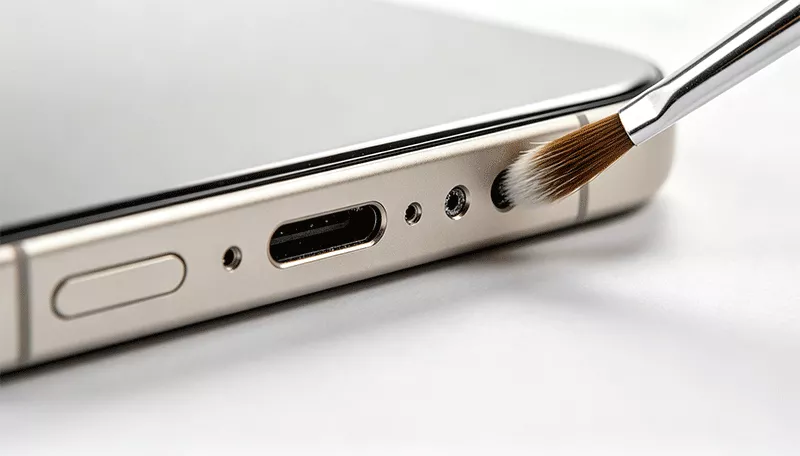
Step 2: Gently clean dust from the earpiece and microphone holes with a soft brush.
Step 3: Speaker increases the chance of microphone feedback. Switch to earpiece mode to reduce echo.
Step 4: Turn down the call volume to avoid full volume.
Step 5: Move to another room or outdoor area to rule out sound reflection from empty walls. You should select a quieter environment to minimize echo.
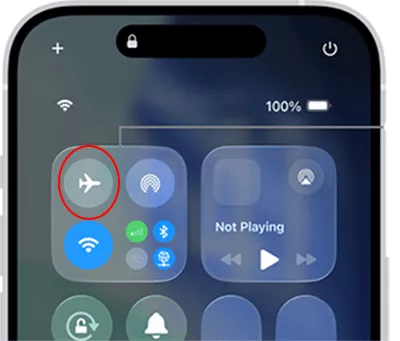
Step 6: Turn Airplane Mode on, wait 10 seconds, then turn it off to reconnect the network.
Solution 2: Change the Related Settings
After the basic check, you can adjust the related settings to get iPhone echo problem solved.
Step 1: Restart your iPhone. It is the most effective operation to fix iPhone issues.
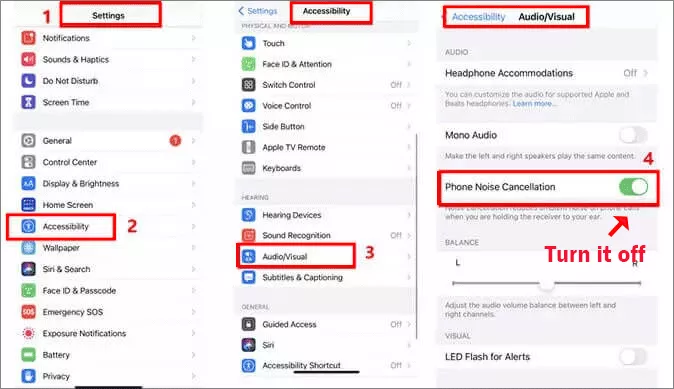
Step 2: Tap Settings> Acccessibility> Audio/Visual, then turn off Phone Noise Cancellation.
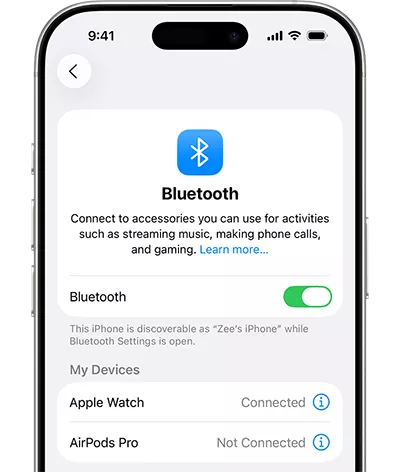
Step 3: Open Settings > Bluetooth and disconnect your headset. Then reconnect or try a different device.
Solution 3: Reset Network Settings
If echo is due to network issues, resetting network settings can help.
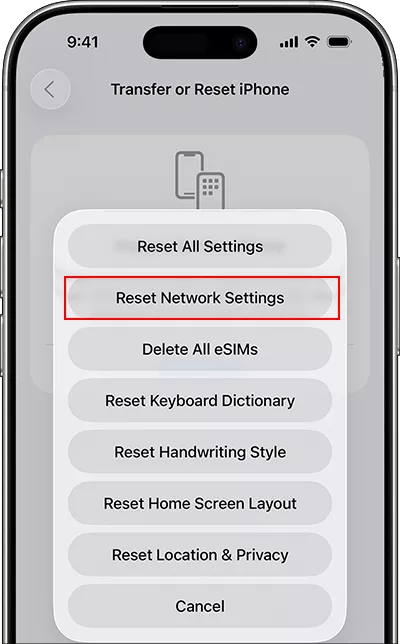
You can access Settings > General > Transfer or Reset iPhone > Reset, and choose Reset Network Settings to reset network settings. If the problem is not fixed, choose the Reset All Settings option. Then reconnect to Wi-Fi and test calls again.
Solution 4: Use iSunshare iOS Repair Genius to Fix iPhone Echo Problems
If iPhone echo issue is caused by the system glitch, iSunshare iOS Repair Genius can help to recover the system and get your iPhone back to normal when making calls.
iSunshare Reliable iOS Repair Software
Fix iOS system issues in simple clicks.
Easy to use and no data loss in the entire process.
Support all iPhone models.
Compatible with the latest Windows and Mac version.
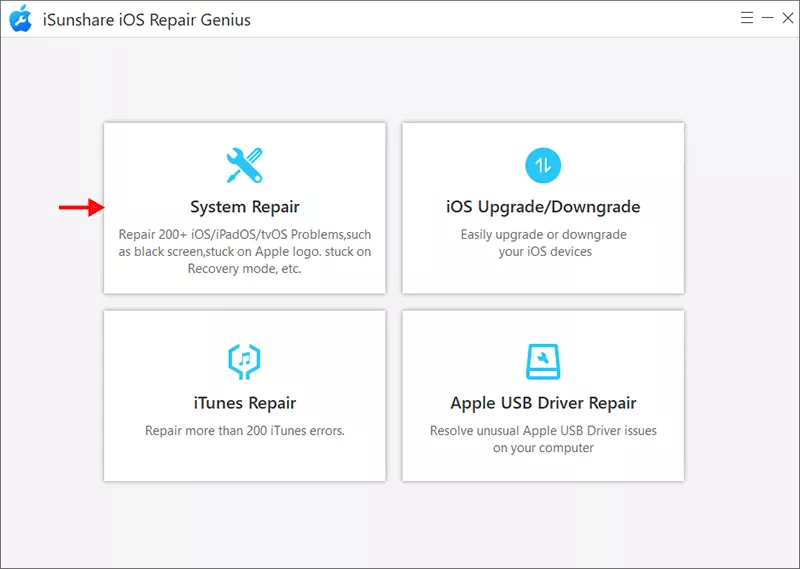
Step 1: Download, install and launch iSunshare iOS Repair Genius on your PC. From the home interface, click System Repair.
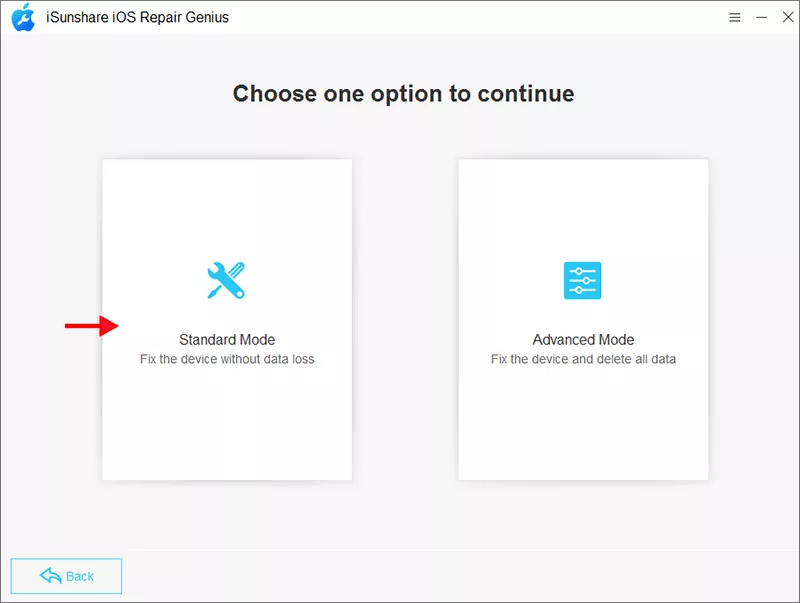
Step 2: Have your iPhone connected to the PC. Then choose the repair mode to continue. It is recommended to select the Standard Mode for the first time.
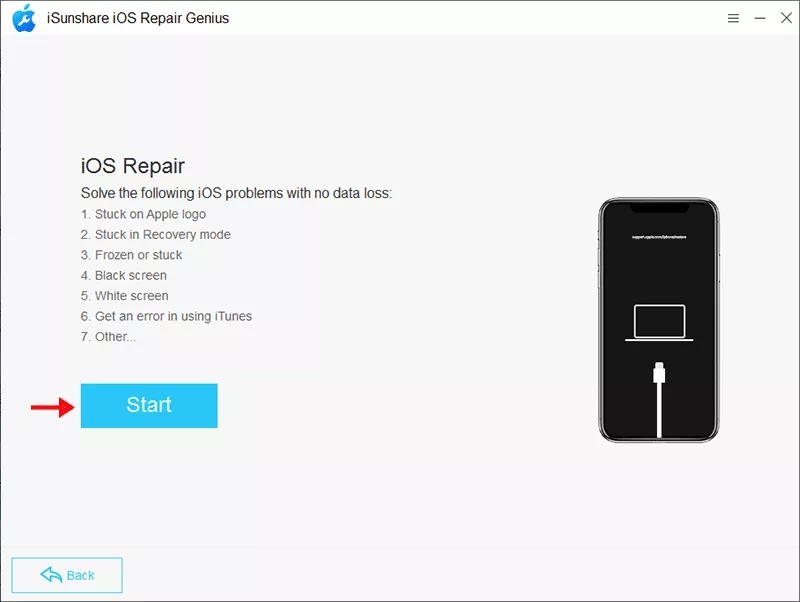
Step 3: Hit the Start and then Next button on the software to proceed.
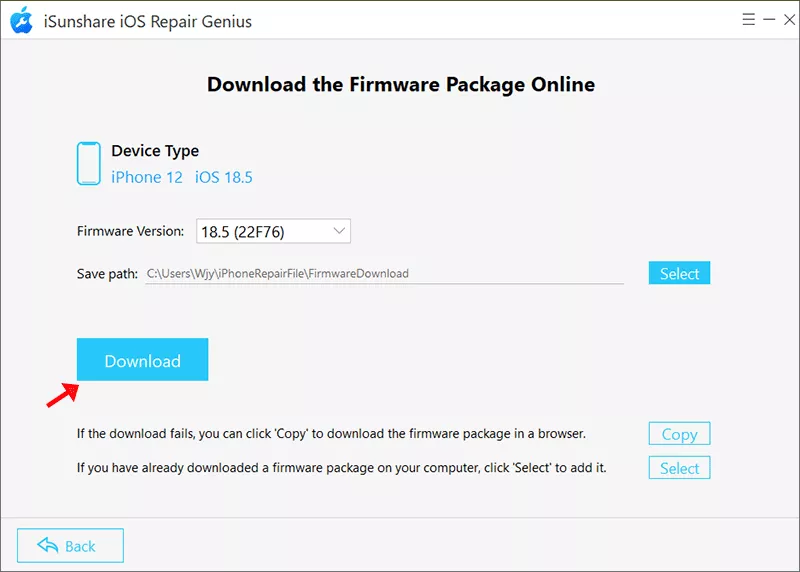
Step 4: Your iPhone is detected and you can click Download to download the firmware for your iPhone.
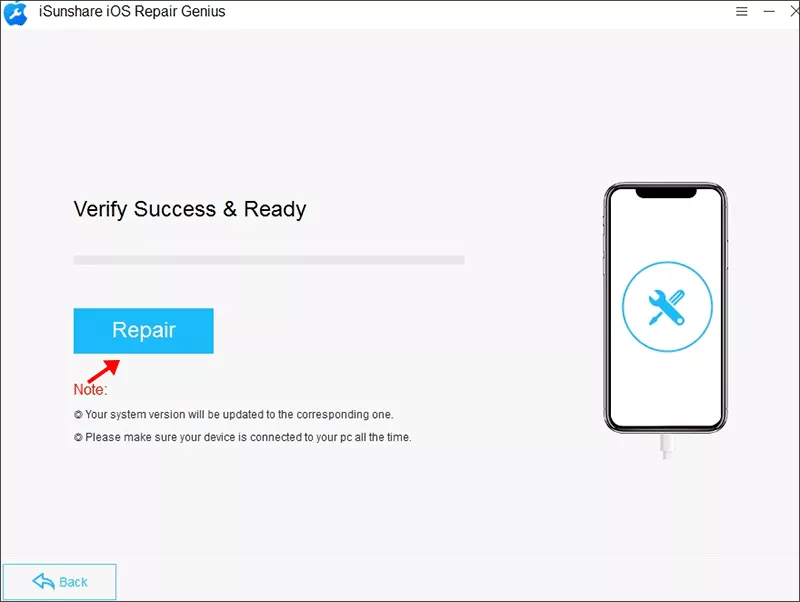
Step 5: After downloading, iSunshare iOS Repair Genius automatically verify your firmware package. Now you can click the Repair button to fix the iPhone echo problem.
Step 6: Minutes later, your iPhone is repaired successfully and you can check the echo problem.
Solution 5: Troubleshoot Hardware Issues
If the above methods cannot solve the iPhone echo issues, you can do a advanced troubleshooting:
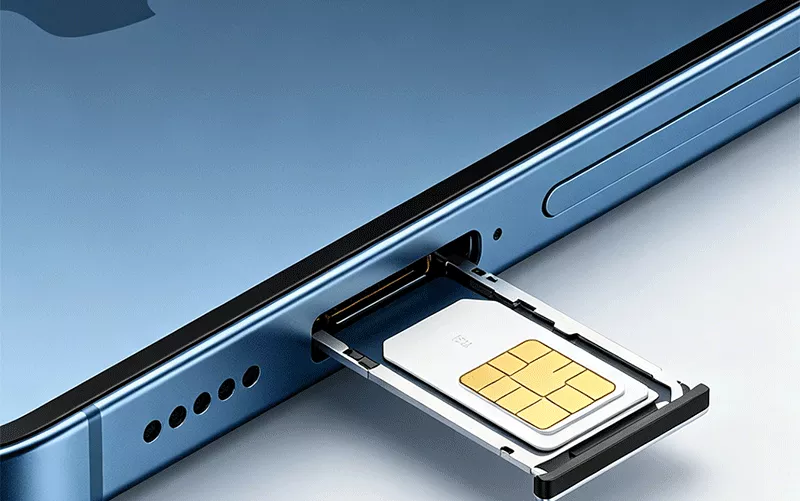
Step 1: Take out your iPhone SIM card and then reinsert the SIM card or try a different SIM card.
Step 2: Make a video call and check whether echo occurs or not. If yes, it is likely a hardware microphone fault.
Step 3: Call different contacts to confirm if the echo only happens with one person. If echo exists on all calls and all modes, you need to contact Apple Support or visit an authorized repair center to inspect dual microphones and noise cancellation modules.
Preventing iPhone Echo in the Future
It is often easier to prevent echo before it happens than fixing it. Here are simple tips to ensure clear, echo-free calls on your iPhone:
Keep iOS and Apps Updated
Regularly updating iOS and your apps ensures you have the latest bug fixed and audio improvements that help prevent echo.
Use High-Quality Headsets
Invest in reliable Bluetooth or wired headphones. Poor-quality headsets can amplify feedback and create echo during calls.
Avoid Using Speaker in Noisy Environments
Echo often worsens in loud surroundings. Using the earpiece or headphones minimizes the chance of microphone feedback.
Test Calls on Different Networks
Echo can be caused by poor cellular or Wi-Fi connections. Testing calls across networks helps ensure stable audio quality.
By following these tips, you can significantly reduce the chances of encountering echo and enjoy smoother, crystal-clear conversations on your iPhone.
What to Do If iPhone Echo During FaceTime
FaceTime calls can also produce echo, especially in noisy environments or when using speaker. Fortunately, there are simple ways to reduce or eliminate echo during FaceTime calls:
Use Headphones Instead of Speaker
Headphones help prevent your microphone from picking up sound from your speakers, reducing feedback loops.
Move to a Quieter Space
Background noise can contribute to echo. It can keep your audio clear in a quiet environment.
Restart FaceTime or Your iPhone
Temporary software glitches can cause echo. You just need a simple restart to solve the issue.
Update iOS and FaceTime
Keeping your iPhone and FaceTime app updated ensures you have the latest audio improvements and bug fixes.
FAQs on iPhone Echo
Q1: Why do I hear an echo during iPhone calls?
Echo usually occurs due to microphone feedback, Bluetooth issues, network delays, or software glitches.
Q2: How can I stop echo on my iPhone?
You can turn off speaker, use headphones, update iOS, restart your iPhone, check call app settings, or remove obstructive cases.
Q3: Does using FaceTime cause more echo?
FaceTime can produce echo if the environment is noisy, speakerphone is used, or software is outdated.
Summary
iPhone echo is usually caused by network delays, software glitches, microphone feedback, or Bluetooth issues. By following the solutions in this article, you can easily fix the iPhone echo problems. By understanding causes and solutions, you can enjoy clear, echo-free calls on your iPhone.