We use cookies for personalizing content and ads and providing social media features. Your usage information on our website will be used for social media, advertising, and traffic analytics, or shared with our partners. Clicking "Accept" means you agree to use our cookies .
If your iPhone GPS is not working, showing the wrong location, or failing in apps like Maps, Uber, Life360, or Skout, you're not alone. GPS issues are common and usually easy to fix—no technical skills required. Generally, most GPS problems on iPhone are software or settings related, not hardware damage. This guide explains what causes GPS issues and how to fix them step by step.
Several factors can interfere with GPS accuracy, including:
Location access disabled in system settings
Apps restricted from using precise location
Poor signal due to buildings or indoor use
Temporary iOS glitches
Corrupted network or location data
Step-by-Step Solutions to Fix iPhone GPS Not Working Issue
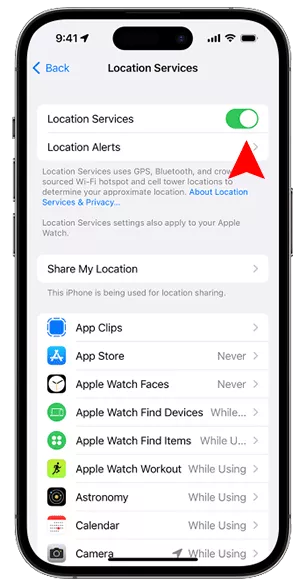
1. Make Sure Location Services Are Enabled
If this is off, GPS will not work at all. You can have a check now: Tap Settings > Privacy & Security, then choose Location Services and ensure the switch is turned on.
2. Allow Full Location Access for Affected Apps
Apps need permission to use GPS correctly. You can turn on precise location for the affected apps. Just access Settings > Privacy & Security > Location Services, then choose the app that isn't working. Finally, choose the option-- While Using the App or Always and toggle off Precise Location.
3. Avoid Using GPS without Internet
While GPS uses satellites, iPhones rely on Wi-Fi and cellular data to improve accuracy. You should make sure: Wi-Fi is turned on, cellular data is enabled, Airplane Mode is off.
4. Restart your iPhone
Minor system bugs can disrupt GPS temporarily. Here is a quick fix: power off your iPhone, wait 20–30 seconds, and turn it back on. This refreshes background services, including location tracking.
5. Reset Location and Network Data
If GPS issues persist, resetting location data often resolves the problem. This won't erase photos or apps.
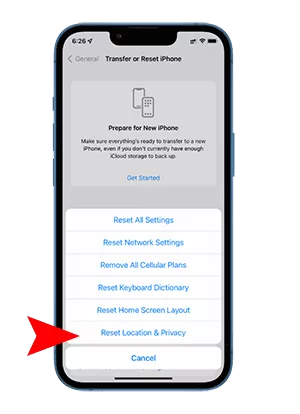
Step 1: Go to Settings > General.
Step 2: Tap Transfer or Reset iPhone. Then choose Reset.
Step 3: Tap Reset Location & Privacy. You can also reset Network Settings if needed.
6. Fix iPhone GPS not Working with iOS Repair Genius
If above solutions cannot solve the iPhone GPS not working issue, there can be a system glitch on the iPhone. To make the iPhone run normally, you can try the iOS system repair software—iSunshare iOS Repair Genius. This tool makes you easily solve the iOS issues with no data loss. It is compatible with the newest iOS system and iPhone models.
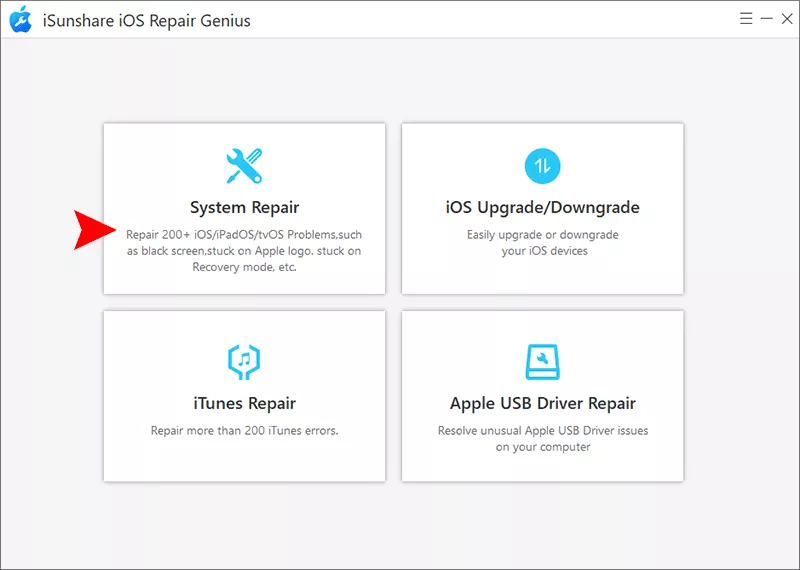
Step 1: Open the software and select System Repair on the main interface.
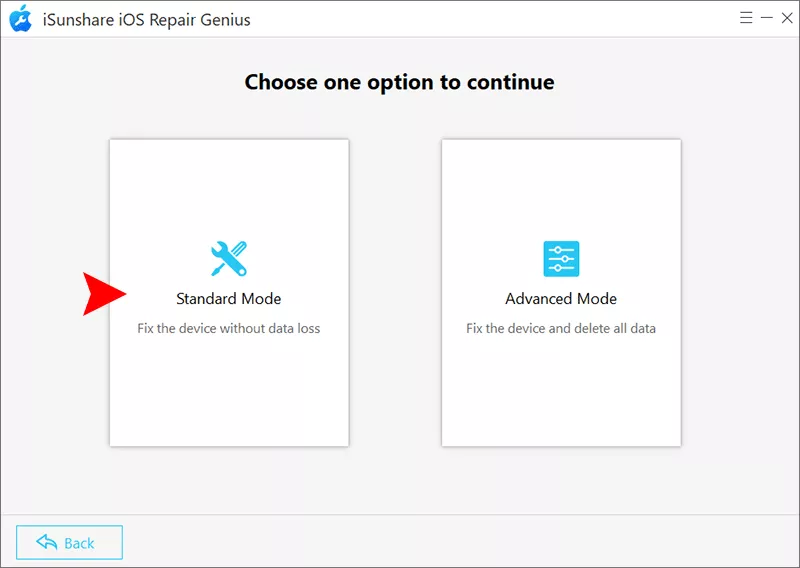
Step 2: Here, you can see two repair modes. To avoid the data loss, you can choose the Standard Mode to begin.
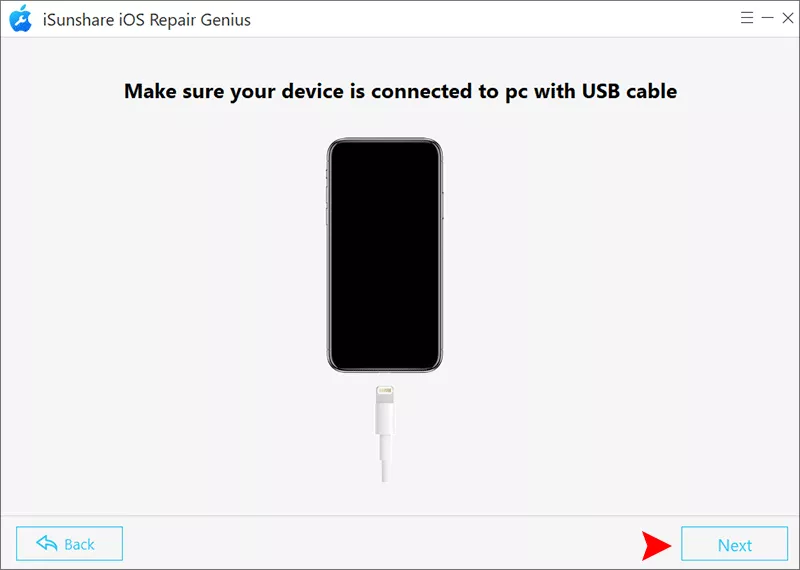
Step 3: To get the GPS issue fixed, hit the Start button. You should make the iPhone connected to your computer, then hit the Next button on the software interface.
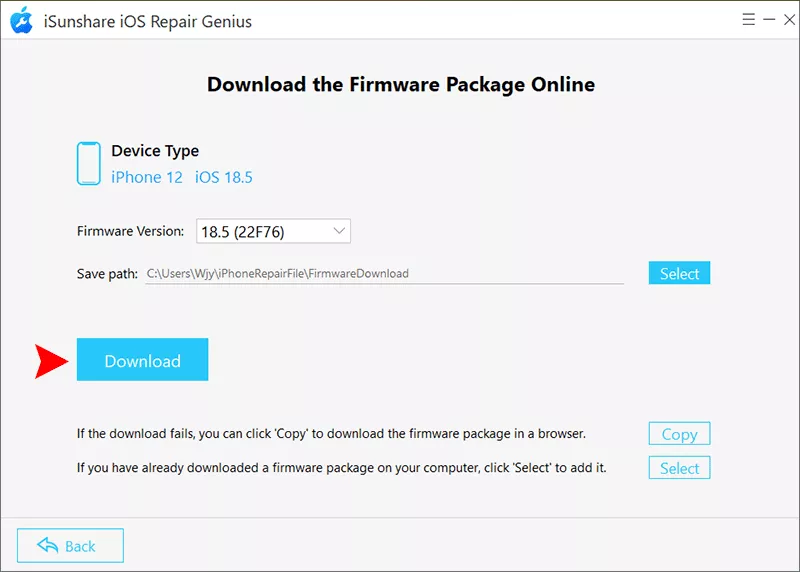
Step 4: Immediately, iOS Repair Genius detects your iPhone models and firmware versions. You can set a path to save the firmware package. Afterwards, hit the Download button.
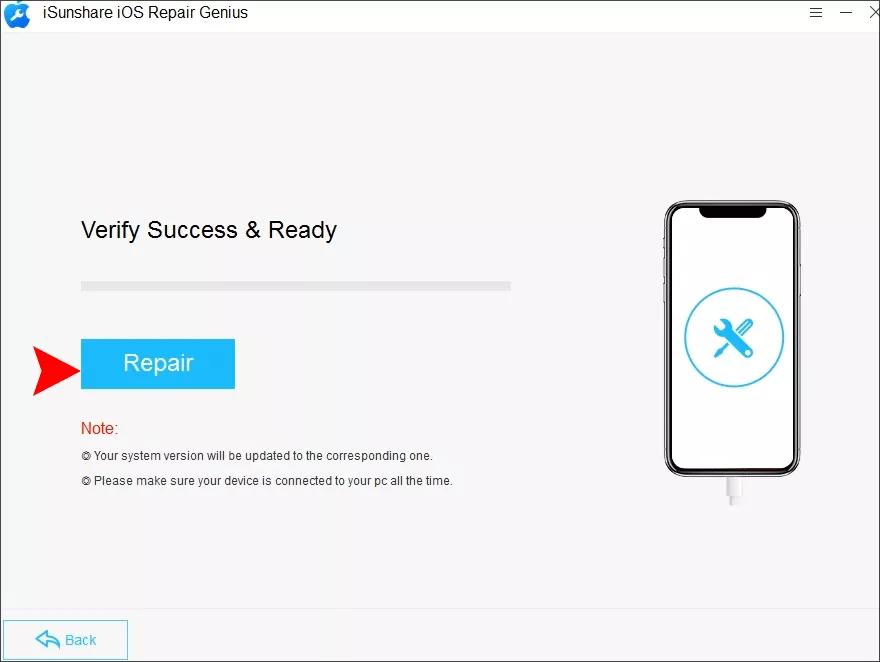
Step 5: After downloading, you can see the firmware package will be verified automatically. Finally, you can hit the Repair button to initiate the system repair process on your iPhone.
Tips: How to Change Your iPhone GPS Location
If you want to hide the iPhone location to protect your privacy, it is necessary to change your iPhone location with the iPhone location changer. iSunshare AnyLoca is a good choice for you to change the iPhone location in clicks.
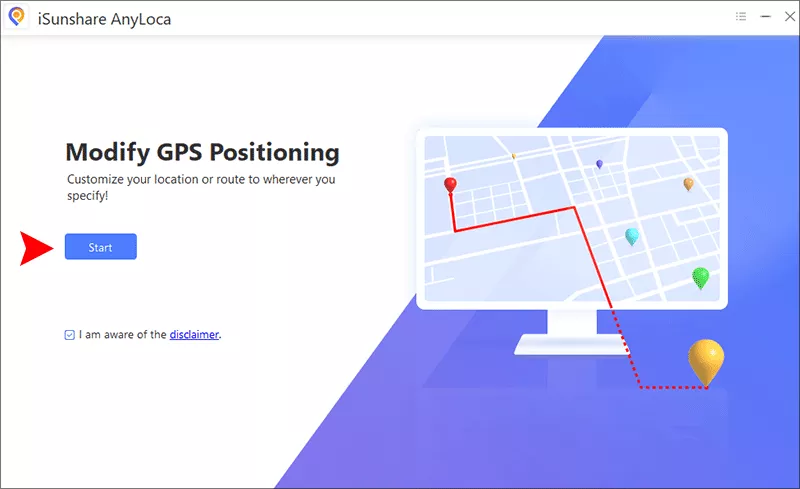
Step 1: Run the software and connect your iPhone to the computer. Then click the Start button on the software interface.
Step 2: Now you can select the connected iPhone and hit the Next button to begin.
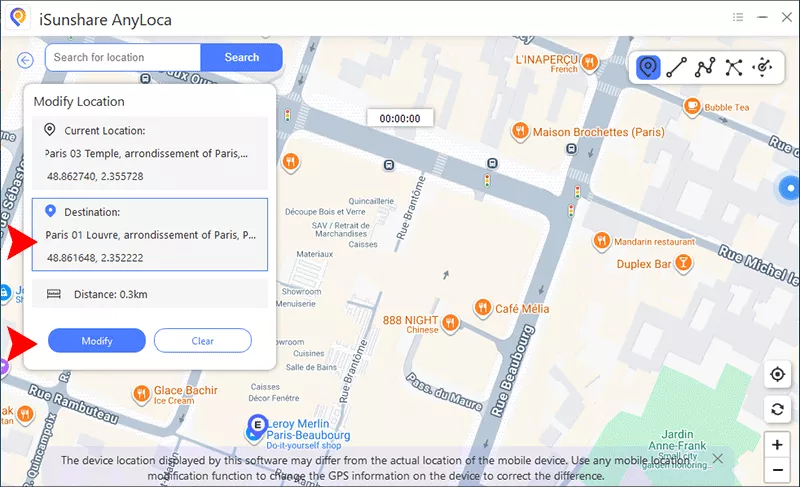
Step 3: Soon, you are in the Modify location interface. Search the desired location from the search box on the top. Then select your location. Finally, click the Modify button and confirm to change the iPhone GPS location.
FAQs on iPhone GPS Problems
1. Why does my iPhone 15 GPS keep drifting?
Weak signals, disabled precise location, or background restrictions can cause drifting.
2. Can GPS fail after an iOS update?
Yes, but updates usually fix GPS issues rather than cause them.
3. Why does GPS work in Maps but not other apps?
Each app has separate location permissions that must be enabled.
Conclusions
If your iPhone GPS isn't working, it is always fixable by adjusting settings, updating iOS, or resetting location data. Start with simple checks before assuming the worst. With the right steps, your location services should return to normal quickly.