We use cookies for personalizing content and ads and providing social media features. Your usage information on our website will be used for social media, advertising, and traffic analytics, or shared with our partners. Clicking "Accept" means you agree to use our cookies .
If Life360 is showing the wrong location, delayed updates, or inaccurate movement, you’re not alone. Many users experience location problems due to GPS settings, battery optimization, weak signals, or app permissions. The good news? Most Life360 location issues can be fixed in just a few minutes. In this guide, you’ll learn the most common reasons why Life360 shows the wrong location and how to fix it safely.
First, you should know how Life360 detects your location. Life360 relies on GPS signals, Wi-Fi networks, cellular data, device permissions and background app activity. If any of these are interrupted, the app may display incorrect location, delayed updates, location paused, random jumps on the map or offline status. Thus, if you find the wrong address is displayed on Life360, you can go to check those settings.
Solutions to Life360 Showing Wrong Location
1. Check GPS & Location Services
If Life360 location does not update or is incorrect, the most common issue is disabled or inaccurate GPS settings. It is necessary to check GPS & Location Services.
On iPhone:
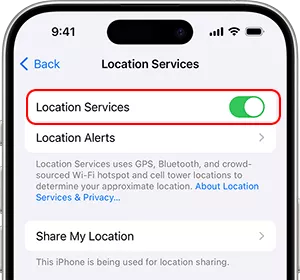
Step 1: Open Settings > Privacy & Security > Location Services. Then make sure Location Services are enabled.
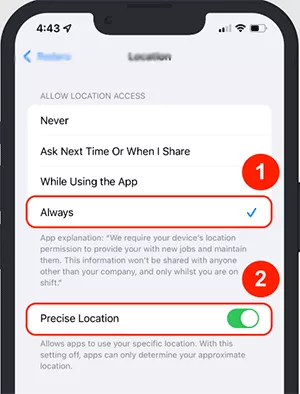
Step 2: After that, scroll to Life360 and set access to Always. You should also enable Precise Location for Life360 to get the accurate location.
On Android:
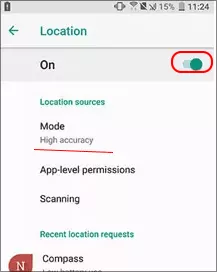
Step 1: Access Settings > Location. You should turn Location on.
Step 2: Set accuracy to High Accuracy and allow Life360 location access all the time.
2. Disable Battery Saver Mode
Battery optimization can stop Life360 from updating properly in the background.
For iPhone users:
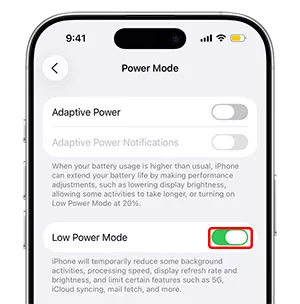
Tap Settings > Battery > Power Mode and then toggle off the Low Power Mode.
On Android:
Go to Settings > Battery. Then turn off Battery Saver and Adaptive Battery (for Life360). Meanwhile, you should allow unrestricted background usage for Life360.
3. Check Internet Connection
Life360 requires a stable internet connection to update the location. Therefore, the weak Wi-Fi and poor cellular signal can lead to the wrong location in Life360. Now, switch the internet between Wi-Fi and mobile data. Besides, restart your router. Also, you should turn off the Airplane mode and VPN to get an accurate location.
4. Re-enable Background App Refresh
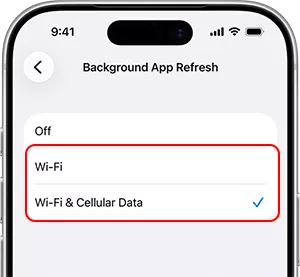
If background activity is disabled, Life360 may freeze location updates. For iPhone users, you can access Settings> General > Background App Refresh to enable it for Life360.
For Android users, go to Settings > Apps > Life360 > Battery to allow background activity.
Can You Fake the Location in Life360?
Yes, of course. The GPS spoofing tool can help set a fake location in Life360, which will interfere with location accuracy. Sometimes, the wrong location is made intentionally to prevent from tracking.
How to fake the location in Life360? iSunshare AnyLoca makes it easier for users to fake the iPhone location without notifying anyone. You can also simulate the GPS movement with the customized route.
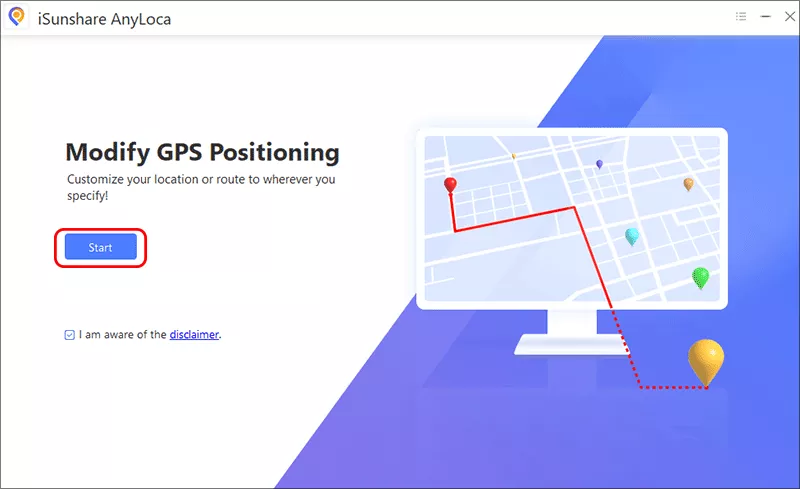
Step 1: Connect your iPhone to the computer and open iSunshare AnyLoca program. Then click the Start button from the main interface.
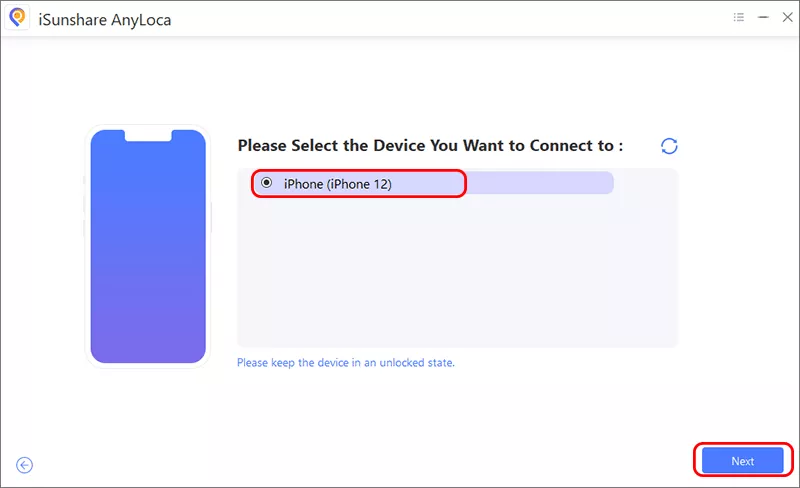
Step 2: Choose your iPhone and click the Next button. Then follow the instructions to open developer mode on your iPhone.
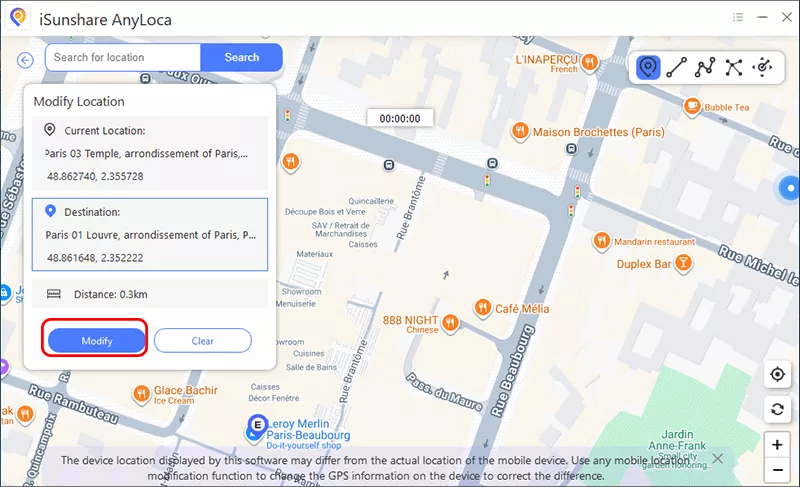
Step 3: Soon, a map appears and you can see the current location. Here, you can pick a spot from the map as the destination. Then click the Modify button to change your iPhone location.
FAQs on Life360 Location
Q1: How accurate is Life360 location in feet?
Under normal conditions, Life360 is usually accurate within 10–50 feet outdoors while less accurate indoors or underground. The accuracy depends on GPS signal strength, nearby Wi-Fi networks, cellular coverage and device hardware.
Q2: Why is Life360 showing me the wrong address?
This issue stems from a few common causes: poor signal, multiple logins or VPN issues, temporary app glitch, or phone settings interfere.
Q3: Why is Life360 not updating location?
Battery saver mode or disabled background permissions might stop your Life360 from updating.
Q4: How to tell if someone is faking their locations on Life360?
You can't know for sure, but strong signs include:
1. No "battery saving" movement – location stays fixed for hours, then jumps unrealistically (e.g., home → school instantly).
2. GPS "inaccuracy" icon – a yellow dot with a slash appears on their location bubble, indicating poor signal—common with fake GPS apps.
3. Unrealistic speed or path – they "travel" faster than possible (e.g., 500 mph) or move in straight lines ignoring roads.
Frequent "no network" or "location unavailable" – especially at times they'd be somewhere they shouldn't.
4. Circle of uncertainty – a large grey/blue circle around their dot means low precision; fake GPS often creates unnaturally large or small circles.
Conclusions
When Life360 shows the wrong location, the issue is usually related to GPS permissions, battery settings, or internet connectivity—not the app itself. By checking location access, disabling battery restrictions, and ensuring the stable internet, most users can restore accurate tracking in just a few minutes.