We use cookies for personalizing content and ads and providing social media features. Your usage information on our website will be used for social media, advertising, and traffic analytics, or shared with our partners. Clicking "Accept" means you agree to use our cookies .
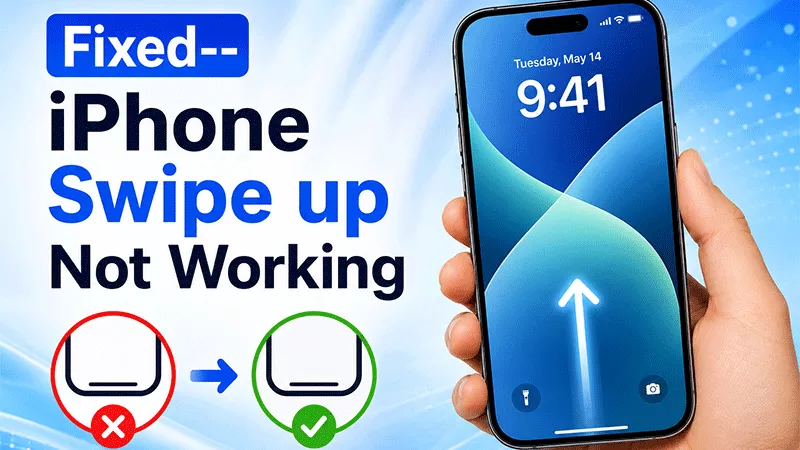
Swipe up to unlock iPhone or open Control Center, your iPhone makes no response? There might be settings or software issue in your iPhone. How can you fix it back to normal? The fix depends on exactly where the gesture fails: at the lock screen, inside apps, or everywhere at once.
This guide walks through the most common causes in the order worth checking them, then covers what to do if none of the quick settings fixes solve it.
Three things account for most cases. First, a Control Center permission — either “Allow Access When Locked” or “Access Within Apps” — can get toggled off, sometimes as a side effect of an iOS update resetting preference.
Second, accessibility features like VoiceOver, Touch Accommodations, or Reduce Motion change how the system interprets touch gestures, and can make swipe-up feel broken even though the screen itself is working.
Third, a software glitch — often appearing right after installing a new iOS version — can affect gesture recognition system-wide.
A worn case or low-quality screen protector covering the very bottom edge of the display is also worth ruling out, since that's where the gesture starts.
Fix 1: Check Control Center Access Settings
Start here if swipe-up only fails at the lock screen or inside specific apps — that pattern points straight at a permissions toggle rather than a deeper issue.
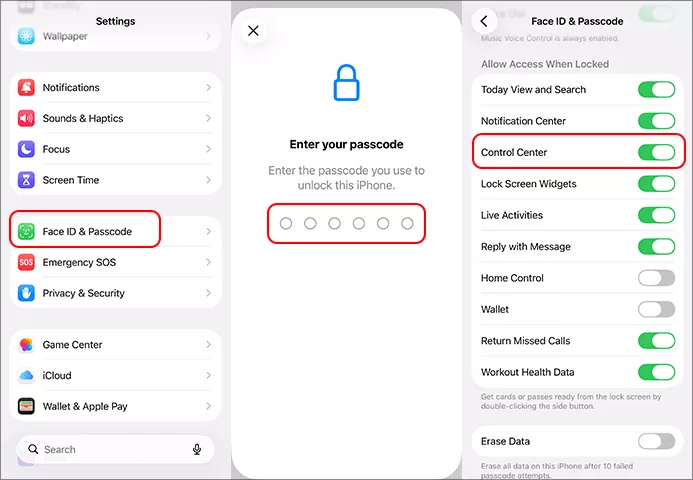
Step 1. Open Settings and go to Face ID & Passcode (or Touch ID & Passcode on Home-button models). Enter your passcode.
Step 2. Under Allow Access When Locked, make sure Control Center is switched on.
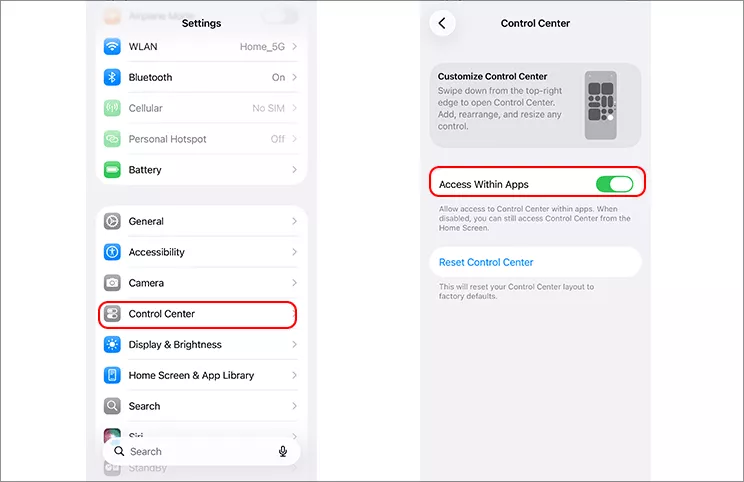
Step 3. Separately, go to Settings > Control Center and confirm Access Within Apps is enabled if the gesture fails specifically while an app is open.
Fix 2: Review Accessibility Settings
If the gesture feels sluggish, only partially registers, or behaves inconsistently rather than doing nothing at all, an accessibility setting is a likely culprit.
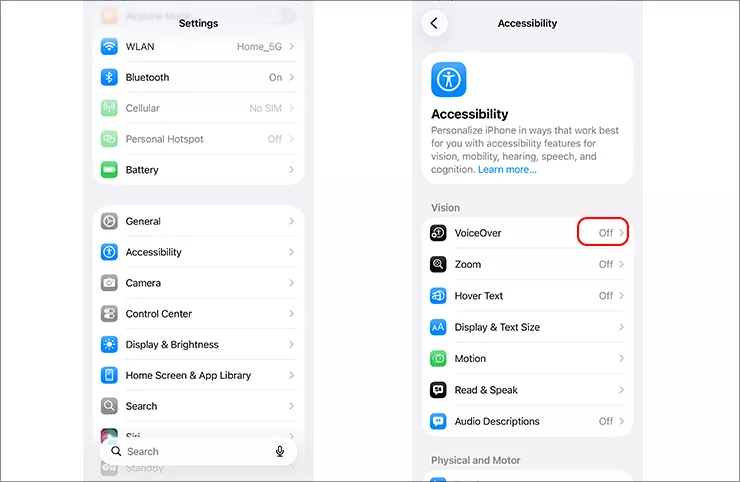
Step 1: Go to Settings > Accessibility > VoiceOver, and turn it off if enabled — VoiceOver remaps most standard gestures.
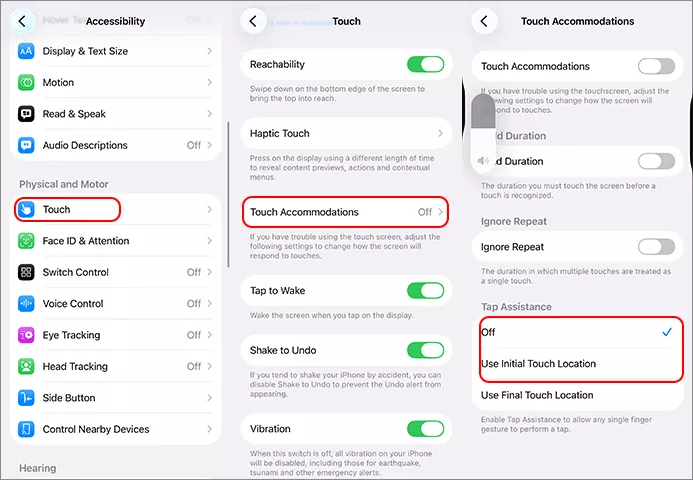
Step 2: Go to Settings > Accessibility > Touch > Touch Accommodations, and set Tap Assistance to “Use Initial Touch Location” (or disable Touch Accommodations entirely if you don't need it).
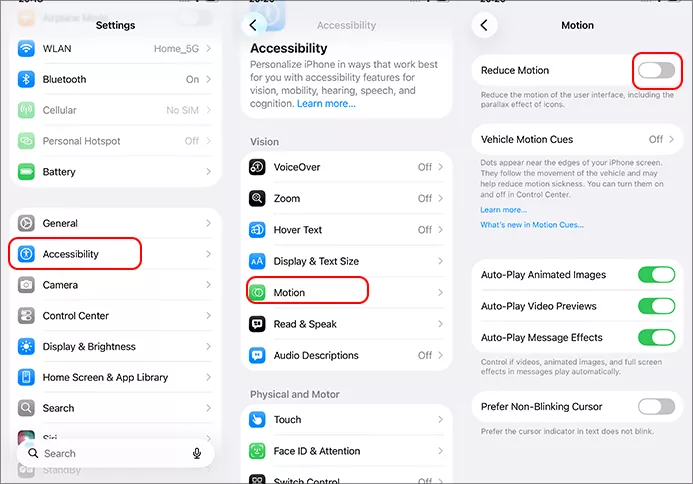
Step 3. Go to Settings > Accessibility > Motion, and turn off Reduce Motion to rule out interference with gesture animations.
Fix 3: Basic Resets
Step 1: Force restart the iPhone: press Volume Up, then Volume Down, then hold the Side button until the Apple logo appears.
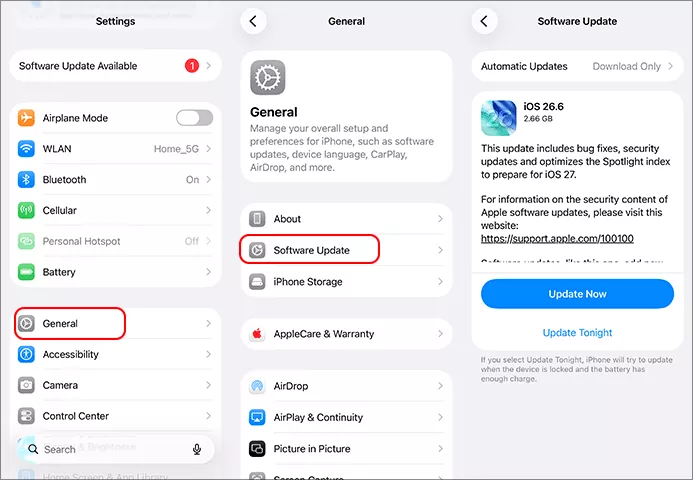
Step 2: Check for a pending iOS update under Settings > General > Software Update — Apple frequently patches gesture bugs shortly after a major release.
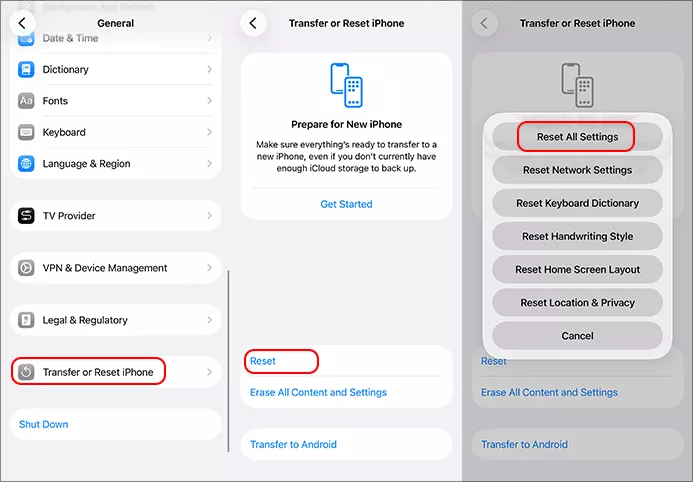
Step 3: If the issue started after changing settings and you can't pin down which one, back up first, then go to Settings > General > Transfer or Reset iPhone > Reset > Reset All Settings. This restores preferences to default without erasing your photos, messages, or apps.
Fix 4: Repair the Software With iSunshare iOS Repair Genius
When the gesture still fails after checking settings and resetting, especially if the problem started right after an update, the underlying cause is usually a deeper software glitch rather than a single misconfigured toggle. iSunshare iOS Repair Genius is built to resolve this kind of issue in Standard Mode without erasing your data.
iSunshare Reliable iOS Repair Software
Fix iPhone system issues like black screen effortlessly
Step 1: Get iSunshare iOS Repair Genius on your computer. Besides, update your iTunes on the same computer.
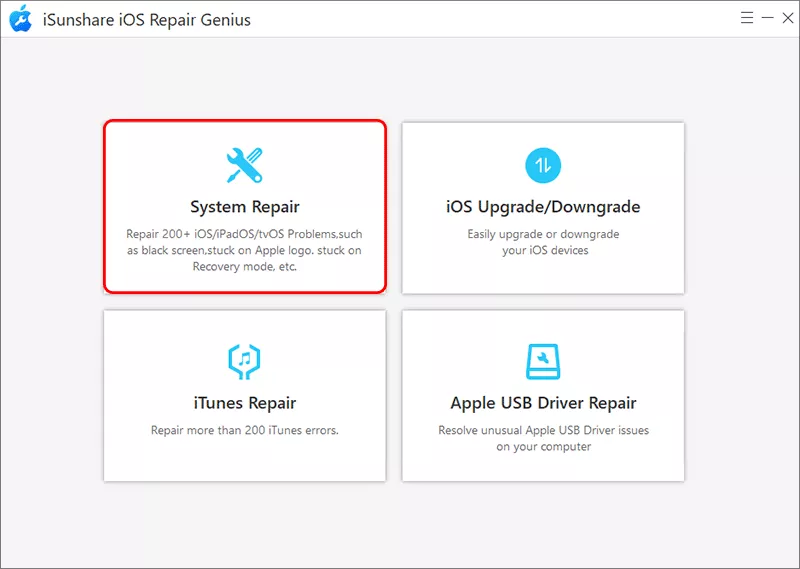
Step 2: Launch the tool and choose System Repair, then select Standard Mode and hit the Start button.
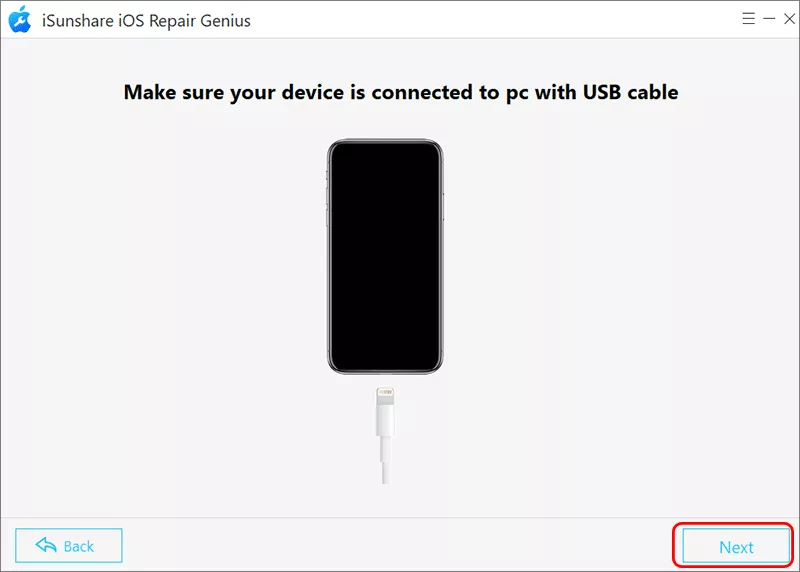
Step 3: Get a USB cable and connect your iPhone to the PC. Then hit the Next button to move on.
Step 4. The tool detects your device automatically — click Download to get the matching firmware package.
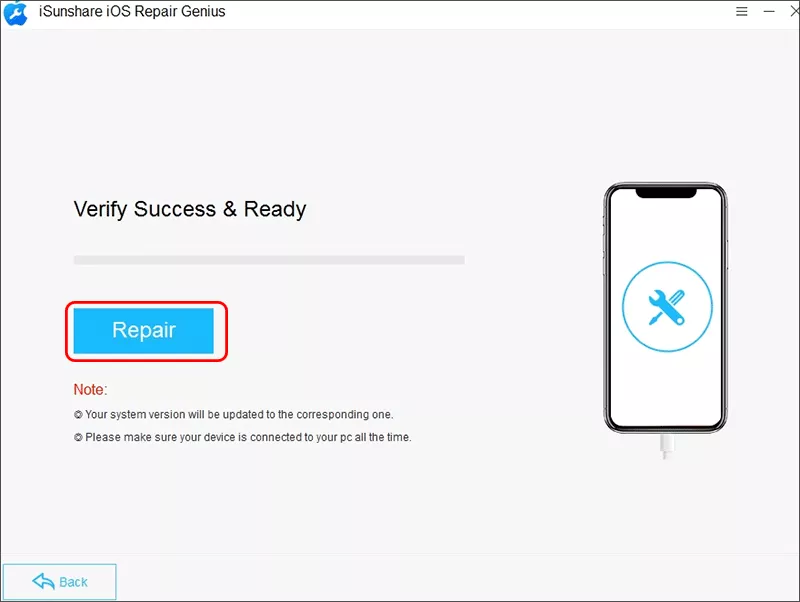
Step 5. Once the package downloads, click Repair. Your iPhone restarts, and the gesture issue should be resolved without affecting your existing data.
Troubleshooting Common Problems in Swiping up iPhone
Issues 1: Swipe‑up gesture completely unresponsive across the whole device
First perform a force restart: press Volume Up, then Volume Down, and hold the Side button until the Apple logo shows. If the problem remains, proceed to the software repair solution below.
Issue 2: Swipe‑up fails solely when trying to launch Control Center
Head to Settings > Face ID & Passcode > Allow Access When Locked and confirm Control Center is enabled. Also verify Settings > Control Center > Access Within Apps is turned on.
Issue 3: Swipe‑up works intermittently, with laggy or incomplete gesture response
Navigate to Settings > Accessibility > Touch > Touch Accommodations and set Tap Assistance to “Use Initial Touch Location”. Additionally, turn off Reduce Motion under Accessibility > Motion.
Issue 4: Swipe‑up broke immediately following an iOS update
Check Settings > General > Software Update to install any available follow‑up bug‑fix patch. If no update exists, run Standard Mode in iSunshare iOS Repair Genius; this fixes most update‑related glitches without deleting your data.
Issue 5: All software troubleshooting steps fail
Take off your phone case and screen protector for another test‑low‑quality screen films often interfere with edge‑based gestures. If the swipe‑up still malfunctions, you are likely facing hardware or digitizer damage and will need professional in‑device repair.
FAQs on iPhone Swiping up Not Working
Q1: Why did my iPhone's swipe-up gesture suddenly stop working?
Most cases trace back to one of three things: a Control Center permission getting toggled off, an accessibility setting (VoiceOver, Touch Accommodations, or Reduce Motion) changing how gestures are read, or a software glitch — often appearing right after an iOS update. A worn screen protector or case can also block the gesture at the very edge of the screen.
Q2: iPhone won't swipe up to unlock, what to do?
If your iPhone won’t swipe up to unlock, try restarting it first and make sure the touchscreen is clean and responsive. If the problem persists, you can use recovery mode or a trusted iPhone unlock tool, such as iPhone Passcode Genius to restore it. It is recommended to back up iPhone before restoring.
Q3: What to do if iPhone gets wet and swipe up not working?
If your iPhone gets wet and swipe up stops working, turn it off immediately, disconnect any cables, and let it dry completely in a well-ventilated place—don’t use heat or rice. Once it’s dry, restart the iPhone and test the touchscreen; if swipe up still doesn’t work, the screen or touch components may need professional repair.
Summary
Phone swipe‑up failures usually stem from fixable causes: disabled Control Center permissions, misconfigured accessibility gesture settings, or post‑update software bugs. Start with quick, safe setting checks that resolve most issues without data loss.
If gestures still fail, use iSunshare iOS Repair Genius’s Standard Mode for deeper software repairs, which preserves your data. Only if all steps fail should you suspect hardware damage — such as a faulty digitizer or liquid damage — and seek in‑person servicing.