We use cookies for personalizing content and ads and providing social media features. Your usage information on our website will be used for social media, advertising, and traffic analytics, or shared with our partners. Clicking "Accept" means you agree to use our cookies .
Trying to back up your iPhone in iTunes, but the "Back Up Now" button is greyed out? You're not alone. This issue can be frustrating—especially when you urgently need to save your data before updating, resetting, or transferring devices.
In this guide, we'll explore the top reasons why the Back Up Now button in iTunes is disabled and show you how to fix it step by step.
When iTunes doesn't let you click "Back Up Now", it's usually caused by one of the following:
iPhone is locked or not trusted.
iTunes doesn't recognize the device properly.
Restrictions are enabled on the iPhone.
Outdated or corrupted iTunes software.
System permissions or drivers are misconfigured.
How to Fix Back Up Now Button Greyed Out in iTunes
If you find iTunes Back Up Now button greyed out in your Windows 10/11, how can you solve the issue and back up iPhone/iPad normally? You can try the below solutions.
Solution 1: Make Sure Your iDevice is Trusted by the Computer
If your iPhone or iPad is locked or not trusted by the computer, iTunes won't allow backups. Thus, reconnect your device to the computer and tap Trust on the Trust This Computer prompt.
Solution 2: Ensure Your iOS/iPadOS and iTunes Version is up-to-date
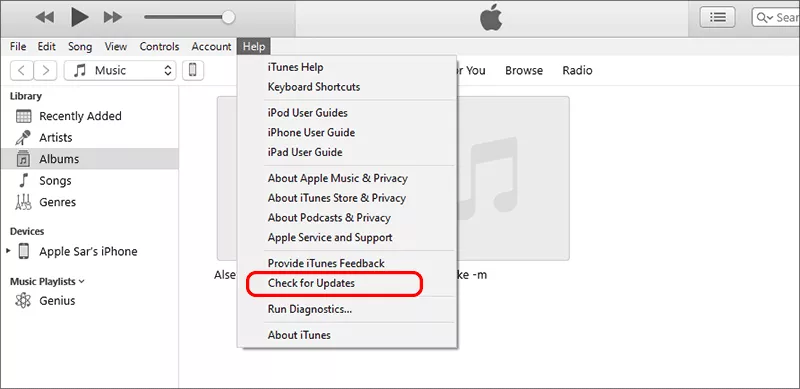
The outdated software may cause syncing and backup issues. So, you can open iTunes, click the Help tab on the top and choose Check for Updates.
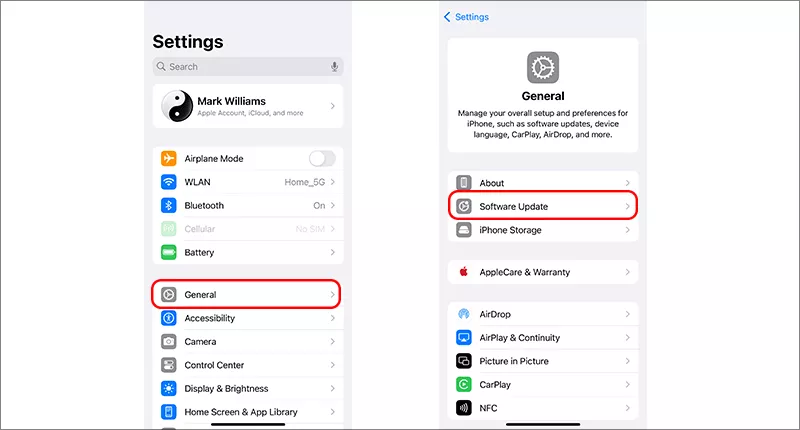
As for the iPhone/iPad, tap Settings > General > Software Update to check whether there is available update.
Solution 3: Restart both Devices
Sometimes a quick restart fixes unexpected bugs. It is better to close the iTunes and restart your computer. At the same time, disconnect the iPhone and reboot the iPhone. After that, reconnect the iPhone with official lighting cable and open iTunes again. Now you can check whether the Back Up Now button works normally or not.
Solution 4: Check Restrictions and Screen Time Settings
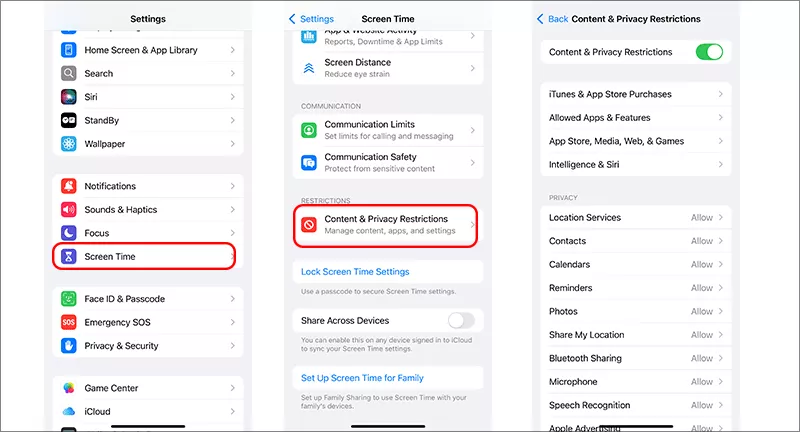
If screen time or content restrictions are enabled, they may block backups. You can go to Settings > Screen Time > Content & Privacy Restrictions to turn off the restrictions temporarily or adjust the iTunes & Apps Store access. But if your iPhone is under supervision, you are restricted to back up the iPhone. In such situation, you can remove iPhone supervision firstly.
Solution 5: Manage the Security Software
If you are using Windows PC, the security software might be the one cause for this issue. The third-party security software, such as Malwarebytes, will stop you from iTunes backup. You can disable or uninstall the security software before opening iTunes.
How to Back up iPhone without iTunes
If you cannot solve the issue of iTunes Back Up Now greyed out issue, how can you back up the iPhone data to your computer? Don't worry, you can choose the alternative software, such as iSunshare iSyncGenius, to transfer data from iPhone/iPad to your computer when iTunes is unavailable. This iOS data backup software makes it extremely to back up videos, photos, contacts, and apps to the target folder.
iSunshare iOS Backup Software
Securely back up iPhone/iPad data to your Windows computer.
Available to choose the destination folder for iPhone backup.
Will not overwrite the previous backup.
Support to back up different iPhones to one computer.
Directly transfer data from one iPhone to another.
Step 1: Unlock your iPhone and connect it to the computer. Then launch iSunshare iSynchGenius and you are in the Back Up interface.
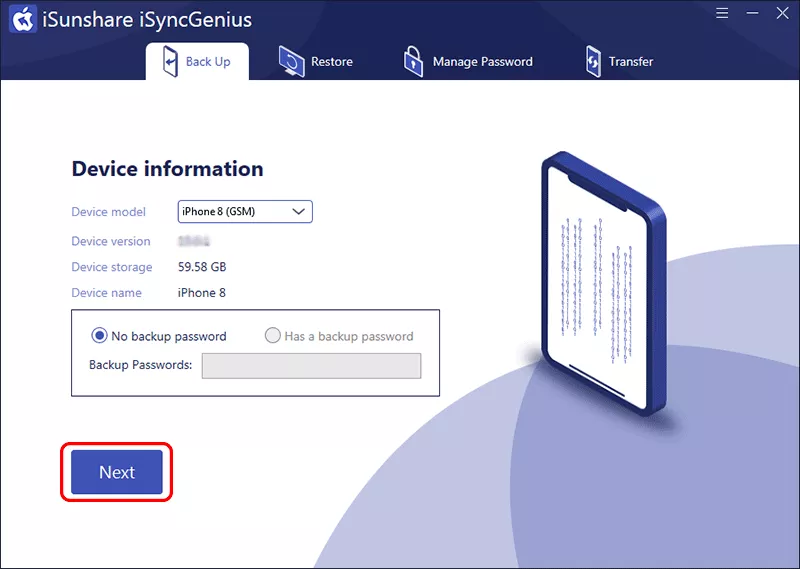
Step 2: Your iPhone model and details are listed on the interface. If there is no backup password, hit the Next button to continue.
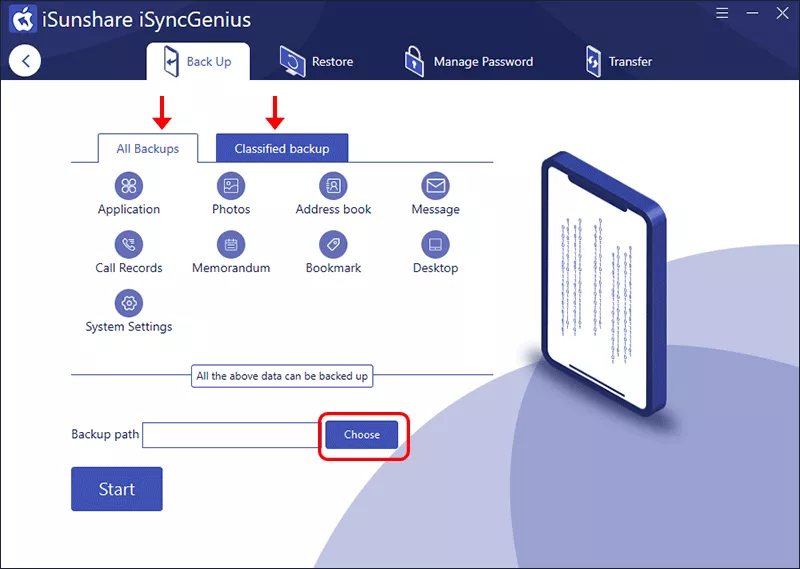
Step 3: You can choose to back up all the iPhone data or selectively backup. After that, click the Choose button behind the Backup path box and define your destination folder to save the backup.
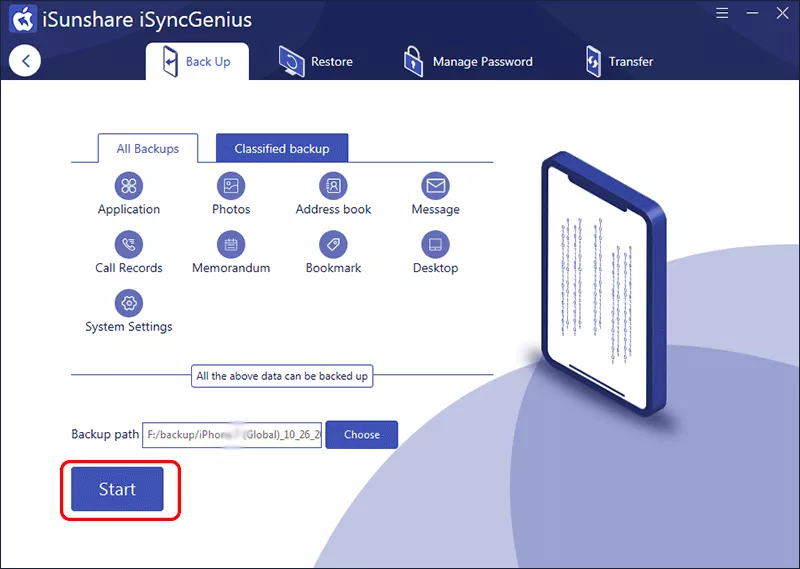
Step 4: Hit the Start button to start the backing up process. Minutes later, you can see the successful message on the interface. If you want to restore the backup, just click the Restore button and select the backup file to continue.
Conclusion
If "Back Up Now" is greyed out in iTunes, it's likely due to a trust issue, or software restrictions. With the fixes above, you can quickly regain access to the backup feature and protect your iPhone data.