We use cookies for personalizing content and ads and providing social media features. Your usage information on our website will be used for social media, advertising, and traffic analytics, or shared with our partners. Clicking "Accept" means you agree to use our cookies .
The Windows taskbar makes it easier to manage apps, settings and system functions. And it will help improve productivity and personalize your experience to customize the taskbar in your preference. Here, you can get the step-by-step guide to define your own taskbar in Windows 10.
Whether you want to resize tiles or group them, this guide will walk you through every customization option available.
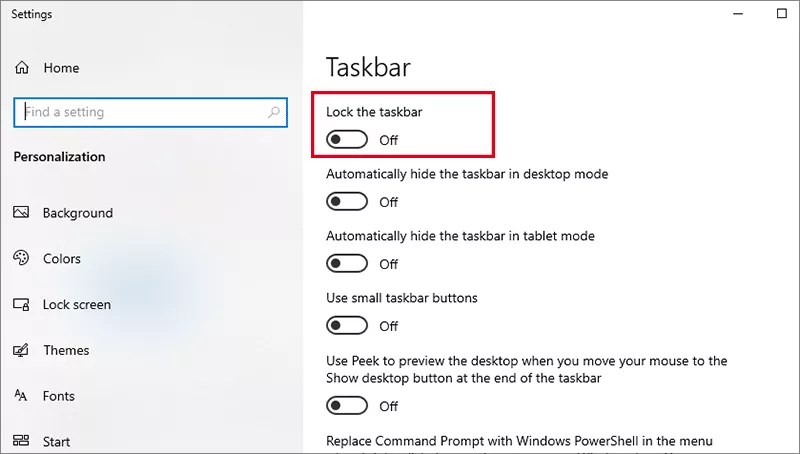
If you want to keep the Taskbar in your preference, just lock the taskbar so that it would not be changed by mistake. And if you want to modify the taskbar later, unlock the taskbar firstly. How can you lock or unlock the taskbar? So easy! Open the taskbar settings and then toggle on or off the Lock the taskbar switch.
Option 2: Hide or Show the Taskbar
No matter you are in desktop mode or tablet mode, it is easy to hide the taskbar. Just right-click the taskbar and choose Taskbar settings. After that, you can enable or disable these two options: Automatically hide the taskbar in desktop mode and Automatically hide the taskbar in tablet mode.
Option 3: Change Taskbar Size
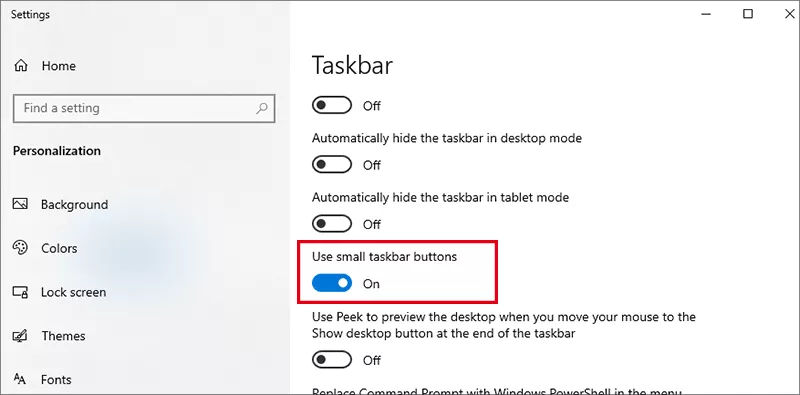
Firstly, you should make sure the taskbar is unlocked before changing the taskbar size. Then on the desktop, move mouse pointer to the top line of the taskbar, click and drag it up to enlarge taskbar height. There is another way to make your taskbar smaller—use smaller taskbar buttons. If you turn on the option—Use small taskbar buttons, the taskbar will become smaller at the same time.
Option 4: Show or Hide the Task View Button
The Task View button on your Windows taskbar is a powerful tool for streamlining multitasking. With just a click, you can effortlessly manage open applications and virtual desktops, helping you stay organized and productive. You can right-click blank area on the taskbar, select or deselect Show Task View button in the context menu.
Option 5: Show or Hide App Badge
App badges on the taskbar are small icons or overlay notifications that appear on running apps. They let you know when action is needed—like a new email in Mail or pending updates in the Microsoft Store. If you prefer a cleaner taskbar—without badges—here's how to toggle them on or off easily.
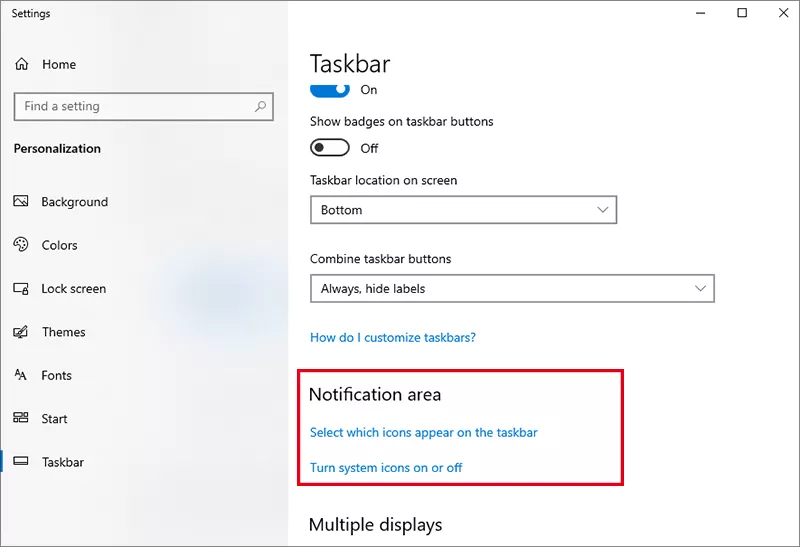
Open Settings and click Personalization. On the left-hand of the Personalization page, click Taskbar. After that, you can scroll down to turn on/off the option—Show badges on taskbar buttons.
Option 6: Choose the Icons to Appear on Taskbar
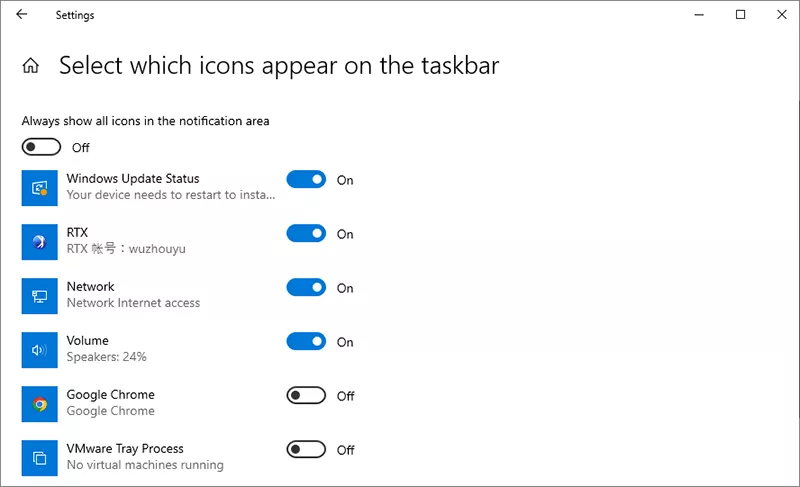
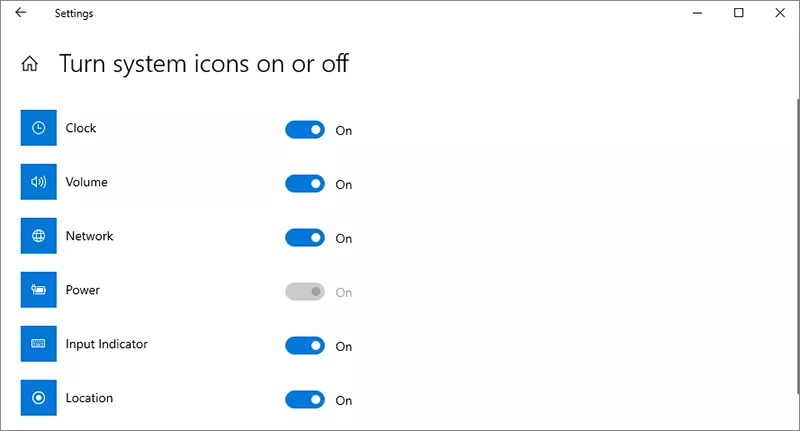
There is the Notification area in Taskbar settings, which allows you to select which icons appear on the taskbar and turn system icons on or off.
You can set to show all icons in the notification area or only several program icons to be displayed. It is up to you.
Or select the system tools to display on notification area.
Option 7: Pin Programs to Taskbar
You can easily pin frequently used programs to taskbar: open the app and right-click its icon on the taskbar. Then choose Pin to taskbar from the context menu.
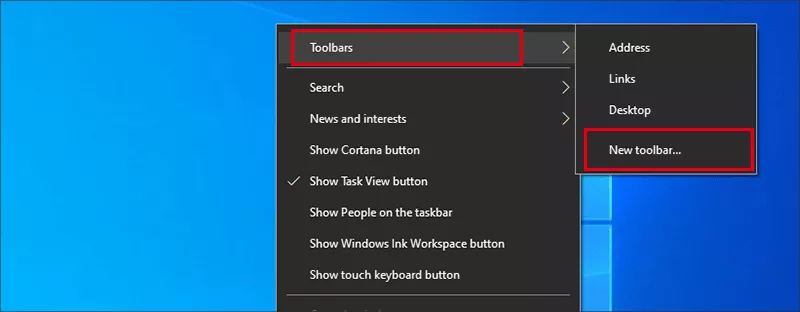
If you want to pin Network/Documents/This PC to taskbar, how to do? Just right-click the taskbar, point at Toolbars on the menu, and select New toolbar… in the items. After that, choose This PC/Documents/Network from the sidebar and tap Select Folder.
Option 8: Replace Command Prompt with Windows Powershell
There is an option in Taskbar settings, which is called "Replace Command Prompt with Windows PowerShell in the menu when I right-click the Start button or press Windows key + X". You can toggle it On to use PowerShell or toggle it Off to restore Command Prompt.
Conclusion
The Windows 10 taskbar is highly customizable, letting you tailor it to your style and workflow. You can follow the guide in this article to make your desktop both beautiful and efficient.