We use cookies for personalizing content and ads and providing social media features. Your usage information on our website will be used for social media, advertising, and traffic analytics, or shared with our partners. Clicking "Accept" means you agree to use our cookies .
Microsoft Paint is a classic image editor included with Windows 10. Whether you're drawing, annotating, or quickly editing, here's access Paint in Windows 10 computer, and the article summarizes five of them for your reference.
Way 1: Turn Paint on by searching.
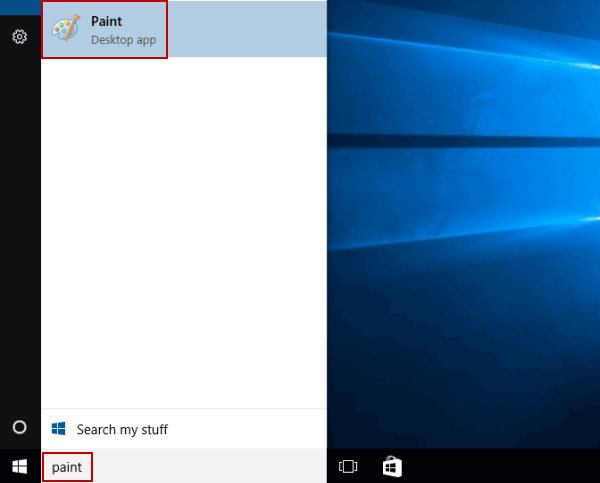
Type paint in the search box on taskbar, and click Paint in the result.
Way 2: Open Paint in Start Menu.
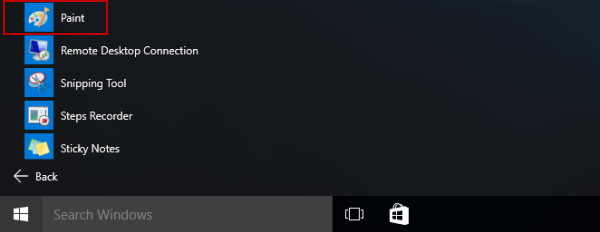
Enter Start Menu, expand All apps, open Windows Accessories and choose Paint.
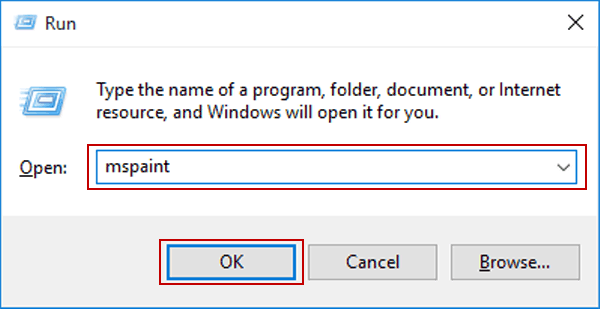
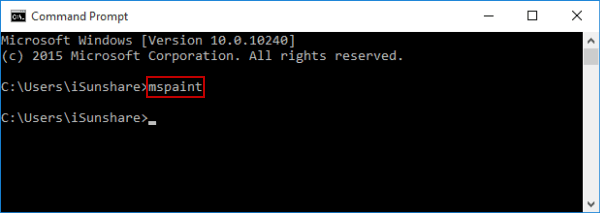
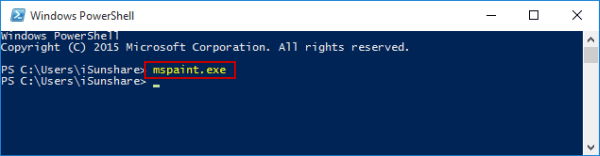
You can find Paint in the Windows Accessories folder from the Start menu. You can also launch it by typing mspaint in the Run dialog or Command Prompt.
Q2: What is the shortcut key to open Paint in Windows 10?
There isn't a direct built-in shortcut, but you can create a desktop shortcut or pin Paint to the taskbar or Start menu for one-click access.
Q3: Why can't I find Paint on my Windows 10 computer?
If Paint is missing, it may have been removed after a system update or disabled. Check C:\Windows\System32\mspaint.exe. If it's gone, reinstall it through Windows Optional Features or update your system.