We use cookies for personalizing content and ads and providing social media features. Your usage information on our website will be used for social media, advertising, and traffic analytics, or shared with our partners. Clicking "Accept" means you agree to use our cookies .
After you successfully clone the original Windows 10 hard drive to the SSD, it's time to boot your Windows computer from the SSD for enjoying the fast and smooth OS environment generally. However, sometimes you might be stopped from getting the improved using experience, because the cloned SSD doesn't boot, which makes the disk clone meaningless. What can you do at this time? Just calm down and follow the 7 fixes below to effectively solve the issue SSD not booting after clone.
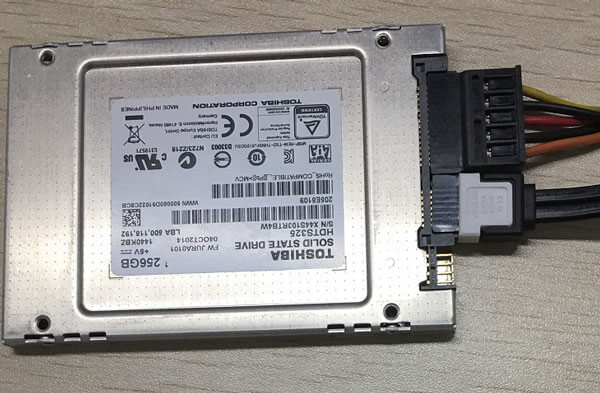
If the cloned SSD is connected to your Windows 10 computer with a USB cable, you are suggested to replace the USB with a SATA cable. When the SSD is already installed into your PC with a SATA cable, you can use another SATA cable to help build the connection between the cloned SSD and Windows computer. Then, check whether the SSD can be booted up. If the cloned SSD still doesn't boot, you can move to Fix 2.
Fix 2: Check the Priority Boot Disk
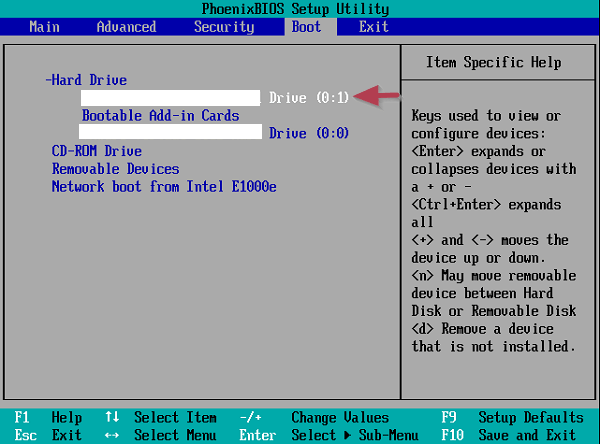
Make sure that the default boot disk is the cloned SSD in BIOS/UEFI. To do this, here are 4 steps.
Step 1: Power on your Windows 10 computer.
Step 2: Press the specific key like Del/Esc/F12 continuously to enter the setup program. In the PC startup screen, you can see the key which is usually located on the lower-left corner.
Step 3: Find the Boot option and set the cloned SSD as the priority disk.
Step 4: Save the settings by referring to the screen instructions. After that, restart your Windows computer and it might successfully boot the cloned SSD.
Fix 3: Confirm the Boot Mode
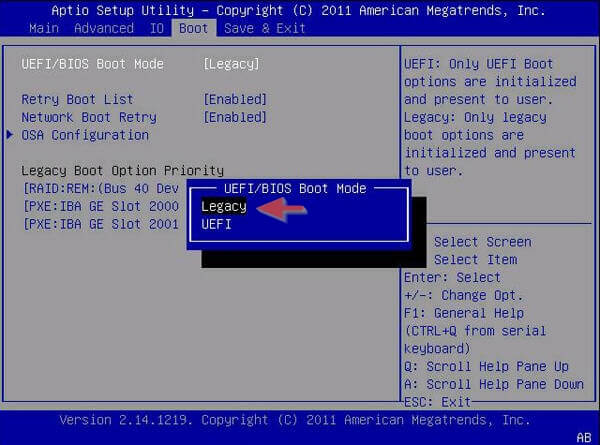
This fix works when the source disk and target disk are in different partition styles. If you clone MBR HHD to GPT SSD or clone GPT HHD to MBR SSD, you need to change the boot mode from Legacy to UEFI or UEFI to Legacy.
Step 1: Start your Windows machine and enter the setup program with the shown key in the vendor logo screen.
Step 2: Locate to the Boot option and change the boot mode to the one that works with the cloned SSD.
Step 3: Save your changes and restart your computer to see if you have fixed the problem - cloned SSD will not boot.
Fix 4: Run WinRE to Repair Windows Startup
What is WinRE? Microsoft says that WinRE (Windows Recovery Environment) is a recovery environment that can repair common causes of unbootable operating systems. With useful functions, WinRE might successfully get rid of the trouble "cloned SSD won't boot" from you.
Step 1: Boot your Windows 10 computer from the Windows (USB/DVD) installation drive whose OS version is the same as that of the current PC.
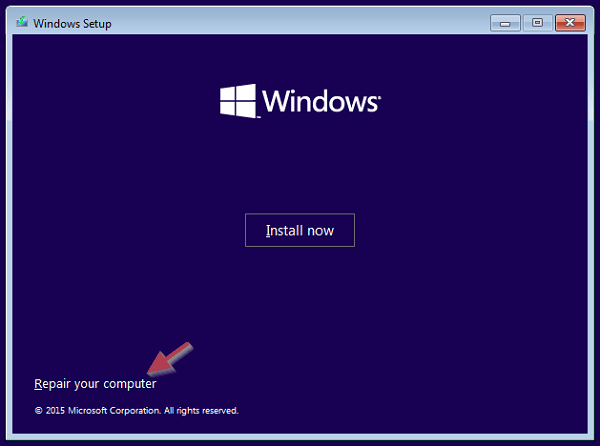
Step 2: Click Next > Repair your computer option in the setup interface.
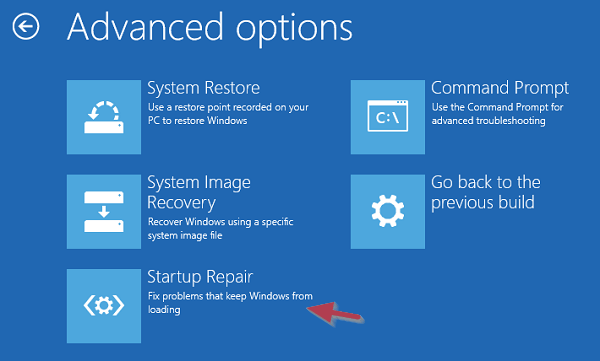
Step 3: In the next screen, choose Troubleshoot > Advanced Options > Startup Repair. Instantly, the repair utility will scan the startup and fix the found issues for you.
Fix 5: Fix Boot Configuration via CMD
Get the Windows installation USB and boot your computer from it. After that, you can run Command Prompt to rebuild the boot records that Windows 10 needs to start from the SSD.
Step 1: Boot your computer from the Windows installation USB.
Step 4: Restart your PC and check whether it can be booted from the SSD or not.
Fix 6: Mark the Correct Partition as Active
Sometimes the system partition is not marked active, which leads to the SSD not bootable after clone.
Step 1: Boot your computer from the Windows installation USB.
Step 2: Run the following commands and reboot your computer.
diskpart
list disk
select disk X (your SSD)
list partition
select partition Y (System Reserved or EFI)
active
exit
Fix 7: Re-clone the Source Disk
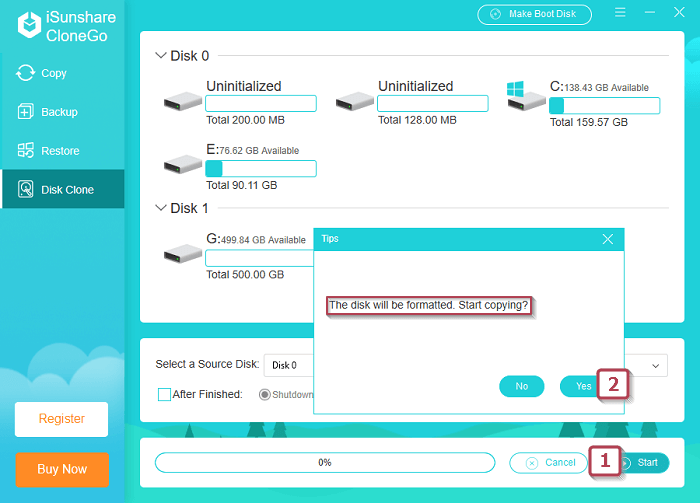
When the 4 ways above don't work on fixing SSD not booting after clone or you want to solve the issue as easily as possible, you can consider cloning the source disk to the SSD with another disk cloning software. Here, iSunshare CloneGo will be used as the disk clone assistant, which can completely clone the Windows hard drive without any boot issue.
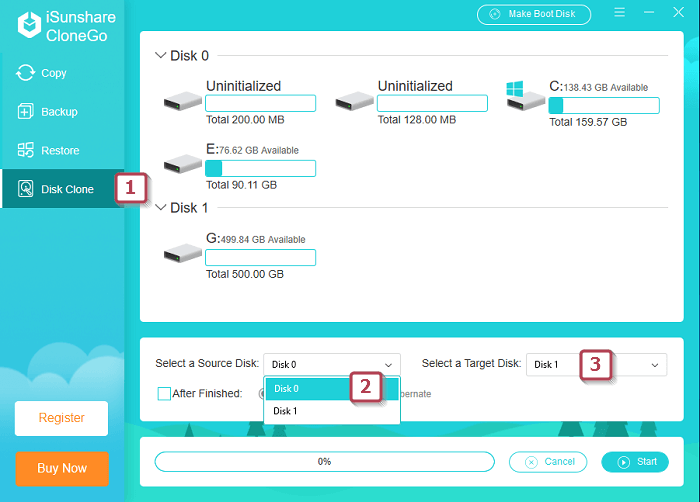
Step 3: Click Disk Clone button in the left pane. Then, pick the original disk to clone in the drop-down menu of Select a Source Disk option and also choose the SSD in Select a Target Disk bar.
Step 4: Begin the disk clone process and please mind that the target SSD will be overwritten before the cloning operation.
FAQs on SSD not Booting after Clone
Q1: Can I boot Windows 10 from a cloned SSD without reinstalling?
Yes, if the clone includes the correct boot partitions and BIOS settings match the disk format (MBR/GPT).
Q2: Why is my cloned SSD missing the EFI partition?
Some cloning tools require you to manually select the EFI/System Reserved partition. If it's missing, you may need to re-clone or repair boot records.
Q3: Is it safe to format the old disk after a successful boot?
Yes, once you confirm the SSD boots fine multiple times, you can safely wipe the old drive or use it as storage.
Conclusion
A cloned SSD not booting in Windows 10 can usually be fixed with a few adjustments in BIOS, boot repair tools, or by re-cloning properly. Follow the steps above carefully and you should boot from SSD successfully—without losing any data.