We use cookies for personalizing content and ads and providing social media features. Your usage information on our website will be used for social media, advertising, and traffic analytics, or shared with our partners. Clicking "Accept" means you agree to use our cookies .
Need to access the Calculator quickly? Here are five reliable and streamlined ways to launch it—perfect for all kinds of workflows. 5 methods are illustrated below to help you open Calculator on Windows 10 computer.
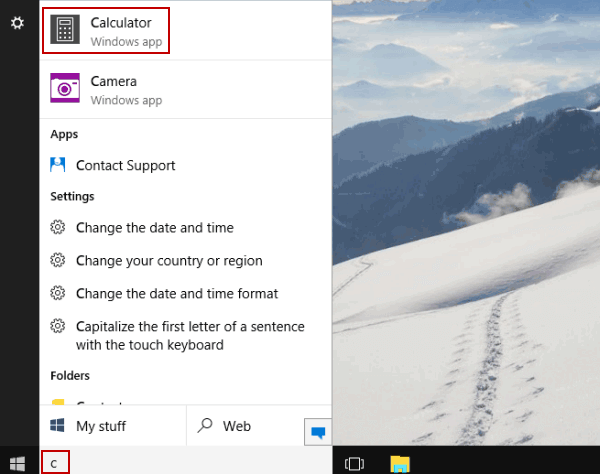
Way 1: Turn Calculator on by searching.
Input c in the search box and choose Calculator from the result.
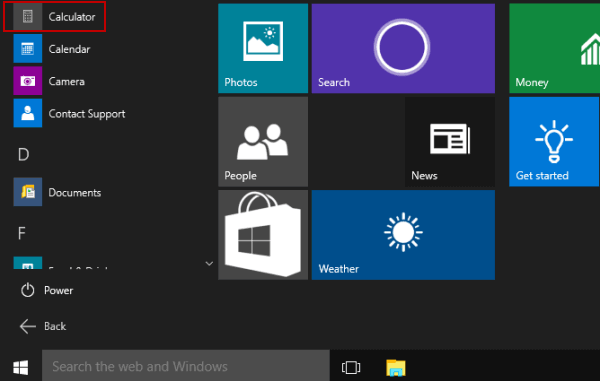
Way 2: Open Calculator from Start Menu.
Tap the lower-left Start button to show the Start Menu, select All apps and click Calculator.
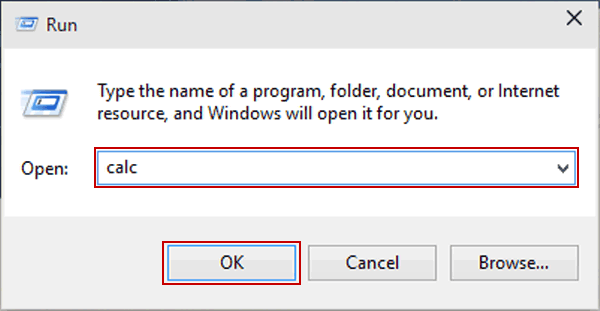
Way 3: Open Calculator via Run.
Display Run using Windows+R, type calc and hit OK.
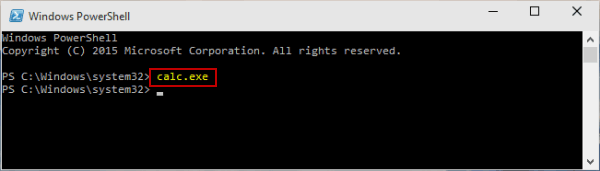
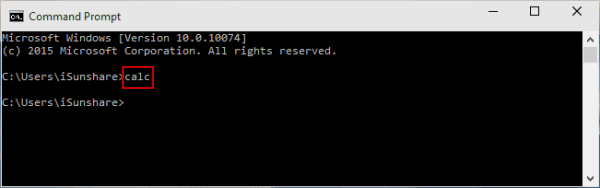
Way 4: Turn Calculator on through Windows PowerShell.
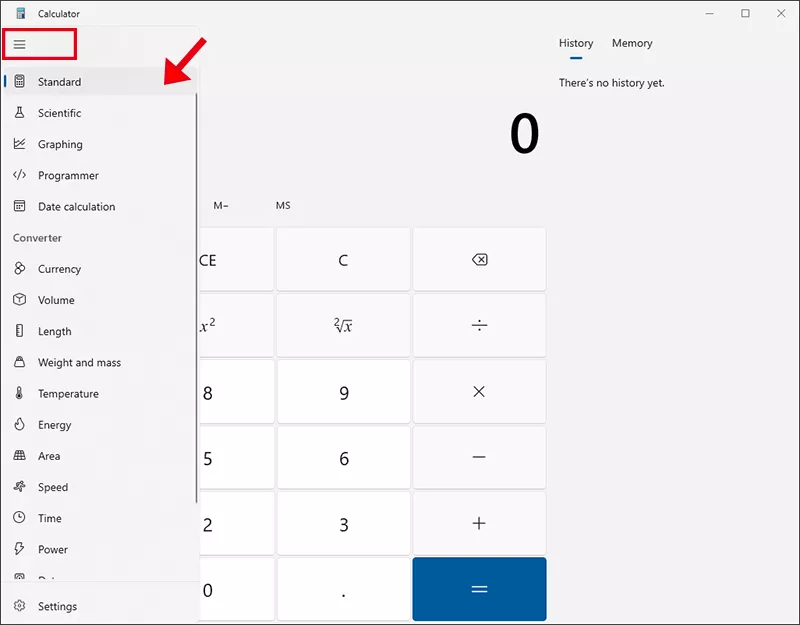
There are multiple calculators in your Windows 10 computer. After your open the calculator, you can switch from Standard, Scientific, Graphing, Programmer, Date Calculation and Converter modes according to your needs.
Also, you can click the Settings option to change the Calculator theme and check its version.
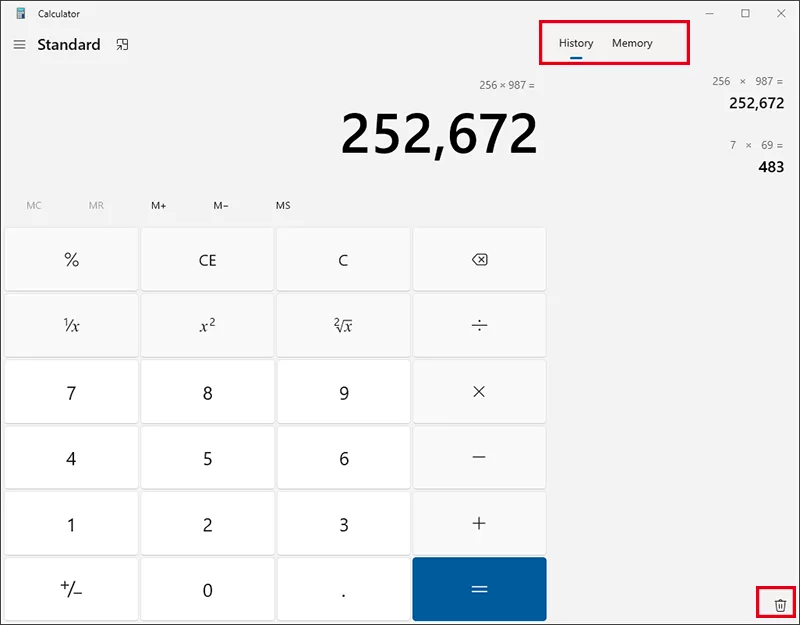
On the right side of the Calculator window, you can see the History and Memory option. You can directly click the Delete icon on the bottom right corner to remove the history or memory of your Calculator.
FAQs about Calculator in Windows 10
Q1: Can I open Calculator using Cortana?
Yes—Cortana supports voice or text command. Just say or type "Open Calculator," and it'll launch.
Q2: Why can't I find Calculator on my PC?
This may happen if Windows settings removed it or if underlying system files are damaged. Reinstalling via the Microsoft Store or resetting Windows defaults can fix this.
Q3: Can I set a custom keyboard shortcut without a desktop shortcut?
No—Windows's shortcut key functionality requires a physical .lnk desktop shortcut.