We use cookies for personalizing content and ads and providing social media features. Your usage information on our website will be used for social media, advertising, and traffic analytics, or shared with our partners. Clicking "Accept" means you agree to use our cookies .
You swipe down from the top-right corner of your iPhone and nothing happens. Or Control Center opens, but the buttons freeze, or it refuses to appear inside apps or on the Lock Screen. Because Control Center holds Wi-Fi, Bluetooth, brightness, the flashlight, and screen recording, it is frustrating when it stops responding.
The good news is that this problem is almost always a settings or software issue, not broken hardware. This guide walks through ten fixes in a safe order, starting with quick checks that change nothing on your iPhone and moving on to system repair and restore only if you need them.
Several different things can stop Control Center from responding:
Swiping from the wrong spot or with too short a swipe
Access Within Apps or lock-screen access turned off in Settings
An accessibility feature such as VoiceOver, Zoom, or Guided Access changing how gestures work
A temporary iOS glitch, or an update that did not install cleanly
Corrupted Control Center settings or a misbehaving control
A screen protector, case, or dirt interfering with touch near the screen edge
Jailbreak tweaks that modify system behavior
Fix 1: Check your swipe gesture
The gesture depends on your iPhone model. Many “not working” cases turn out to be a swipe that starts in the wrong place.
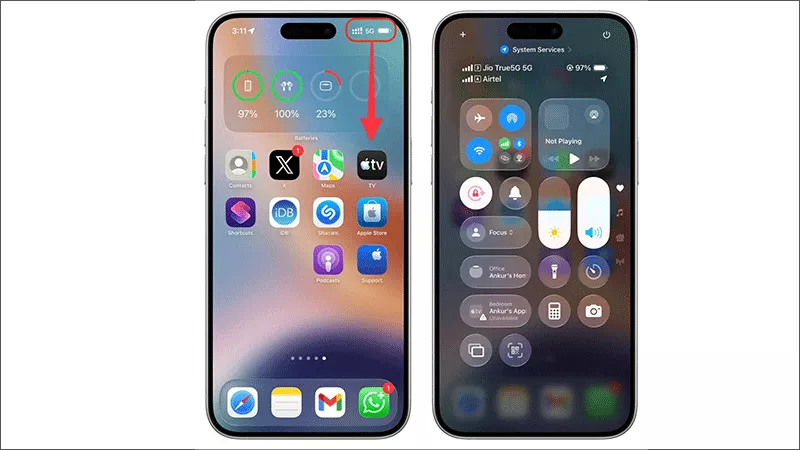
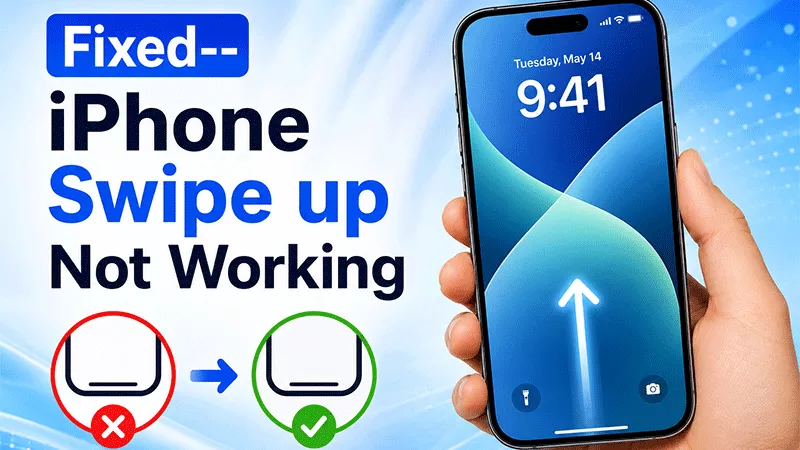
Step 1: On a Face ID iPhone, place your finger at the very top-right corner, over the battery icon, and swipe straight down with a firm, longer stroke.
Step 2: On an iPhone with a Home button, start from the very bottom edge of the screen and swipe up.
Step 3: Try it from the Home Screen first, then inside an app, to see where it fails.
Fix 2: Force restart your iPhone
A restart clears the temporary glitches that most often freeze system gestures.
iPhone 8 and later (including iPhone SE 2nd and 3rd generation): press and release Volume Up, press and release Volume Down, then hold the Side button until the Apple logo appears.
iPhone 7 series: hold Volume Down and the Side button together until the Apple logo appears.
iPhone 6s and iPhone SE (1st generation): hold the Home button and the Side (or Top) button together until the Apple logo appears.
Fix 3: Turn on Access Within Apps and lock-screen access
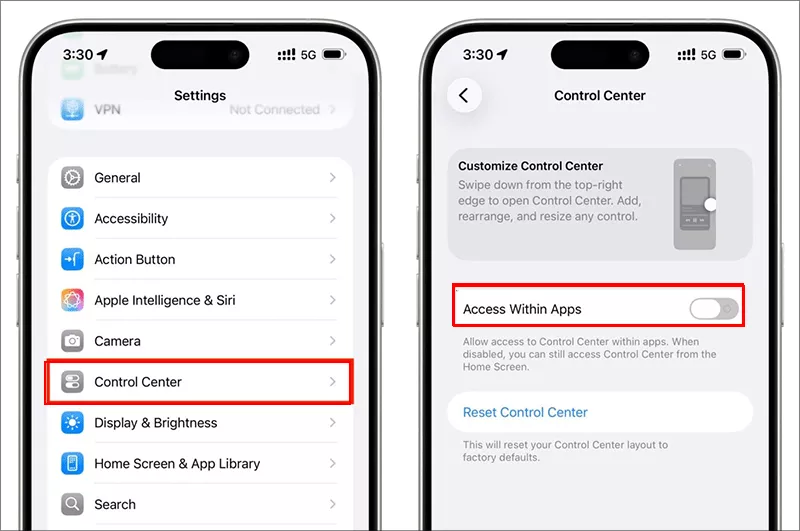
If Control Center opens on the Home Screen but not inside apps, or not on the Lock Screen, one of these two switches is probably off.
Step 1: Open Settings > Control Center and turn on Access Within Apps.
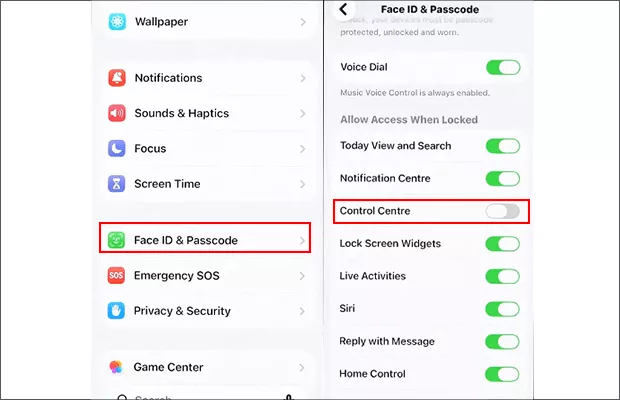
Step 2: Tap Settings and then choose Face ID & Passcde (Touch ID & Passcode on some models). Input your passcode if required.
Step 3: Scroll to Allow Access When Locked and turn on Control Center.
Fix 4: Turn off VoiceOver and check Zoom and Guided Access
Accessibility features can change or block the swipe gesture.
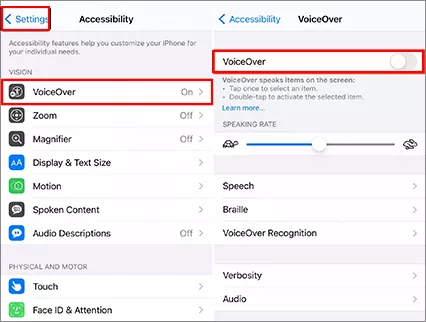
Step 1: Open Settings > Accessibility > VoiceOver and turn it off, then test Control Center.
Step 2: Check Settings > Accessibility > Zoom and turn it off if it is on.
Step 3: If Guided Access is running, triple-click the Side button (or the Home button on older models) and enter your passcode to end the session. Guided Access locks you into one app and blocks Control Center.
Fix 5: Rule out a touch problem
If your swipe does not register at the screen edge, the issue may be physical or environmental rather than software.
Step 1: Remove any case and screen protector, and wipe the screen clean and dry.
Step 2: Swipe down from the top-left or center of a Face ID iPhone to open Notification Center. If that works but the top-right corner does not, the touch problem is localized to that corner.
Step 3: Try dragging or tapping near that corner in another app to see whether the screen responds.
Note:
If the screen ignores touches in one area even after a restart and update, the touch sensor may be faulty. Skip ahead to the note on contacting Apple at the end of this guide.
Fix 6: Remove and re-add Control Center controls
A single misbehaving control can make the whole panel unstable. Removing and re-adding controls resets the layout.
iOS 18 and later: customization happens inside Control Center itself. If you can open it, tap the + button at the top left (or touch and hold an empty area), remove the controls you suspect, then tap Add a Control to add them back. If you cannot open Control Center at all, move on to the next fix.
iOS 17 and earlier:
Step 1: Open Settings > Control Center.
Step 2: Tap the red minus button next to each control and tap Remove.
Step 3: Tap the green plus button next to each control in More Controls to add them back.
Fix 7: Update iOS
Apple often fixes gesture and system bugs in point updates, and a half-installed update can cause them.
Step 1: Connect to Wi-Fi and plug in your iPhone or make sure the battery is well charged.
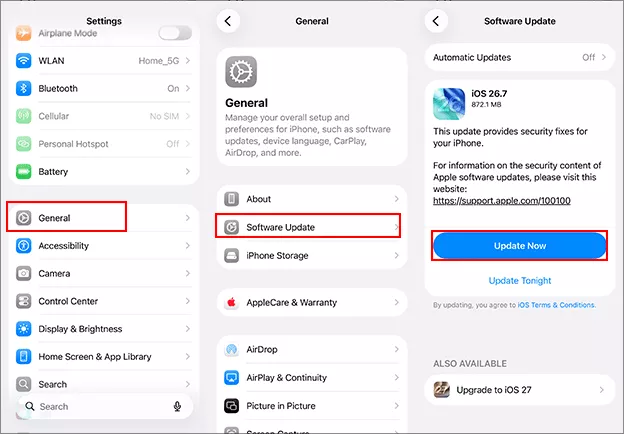
Step 2: Open Settings > General > Software Update.
Step 3: Tap Update Now if an update is available and let the iPhone restart.
Fix 8: Reset All Settings
This resets system settings, including any corrupted Control Center configuration, without deleting your photos, apps, or messages.
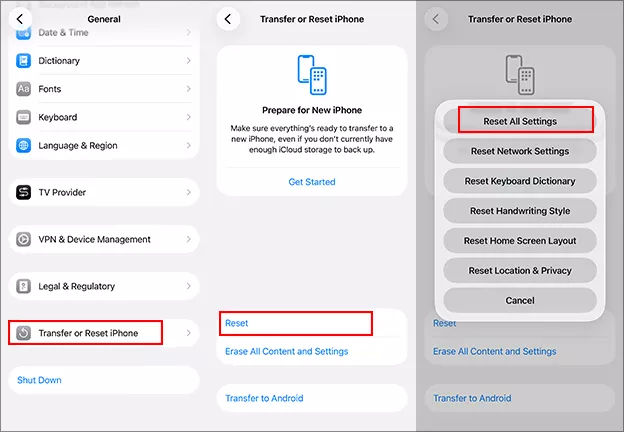
Step 1: Open Settings > General > Transfer or Reset iPhone.
Step 2: Choose Reset > Reset All Settings. Then input the passcode to resets Wi-Fi passwords, wallpaper, and privacy and location preferences from your iPhone.
Step 3: After the iPhone restarts, test Control Center.
Fix 9: Repair iOS with iOS Repair Genius
If Control Center still misbehaves after the settings fixes, the underlying iOS system files may be damaged. iSunshare iOS Repair Genius is designed for this kind of problem, including unresponsive gestures, after-update glitches, and system freezes.
Step 1: Download and install iOS Repair Genius on your computer, then launch it. Then connect your iPhone with a USB cable and tap Trust on the iPhone if asked.
iSunshare Reliable iOS System Recovery Software
Fix iPhone system issues in clicks
Upgrade iOS version to the newest one
Downgrade iOS to the supported version
Compatible with all iOS versions and iPhone models
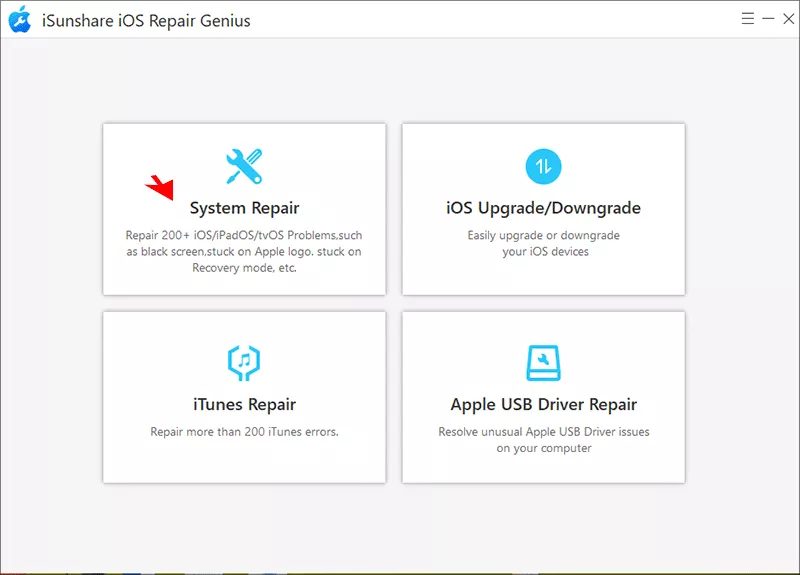
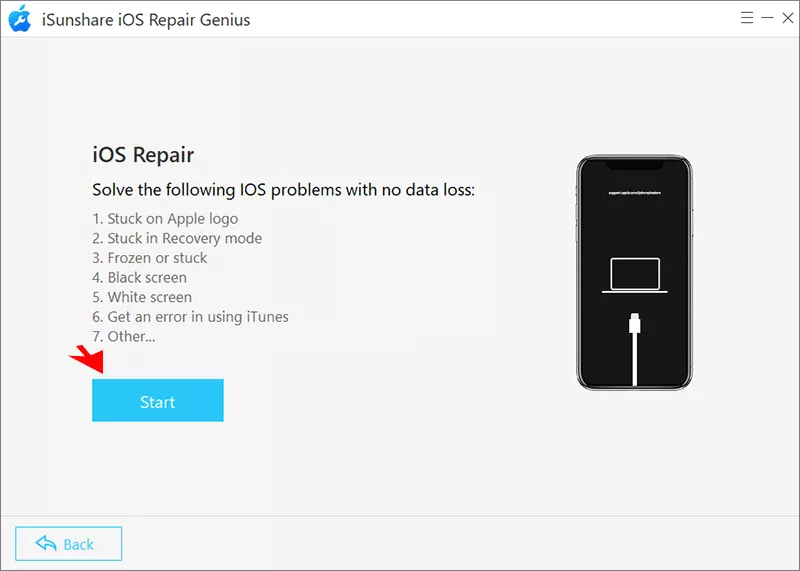
Step 2: Choose System Repair, then select Standard Mode, which fixes common system issues without erasing your data.
Step 3: Hit the Start button and then the Next button to load your iPhone information.
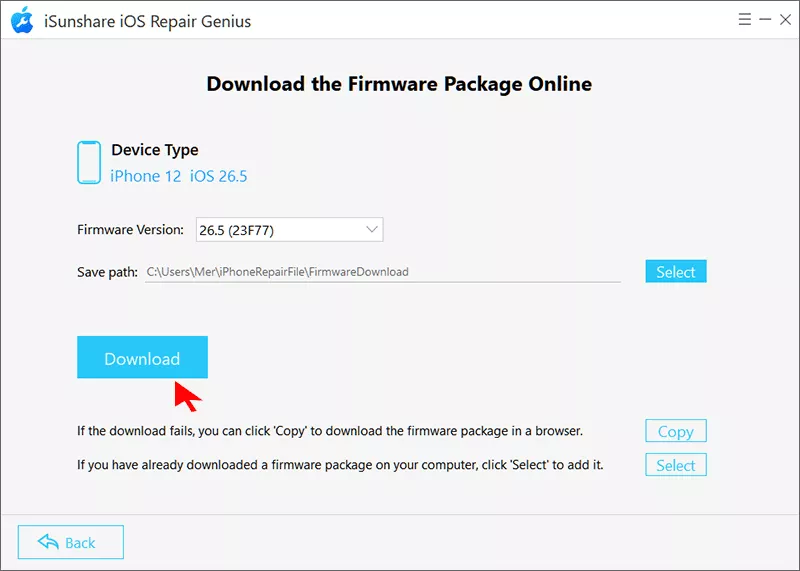
Step 4: When prompted, download the firmware package that matches your iPhone model.
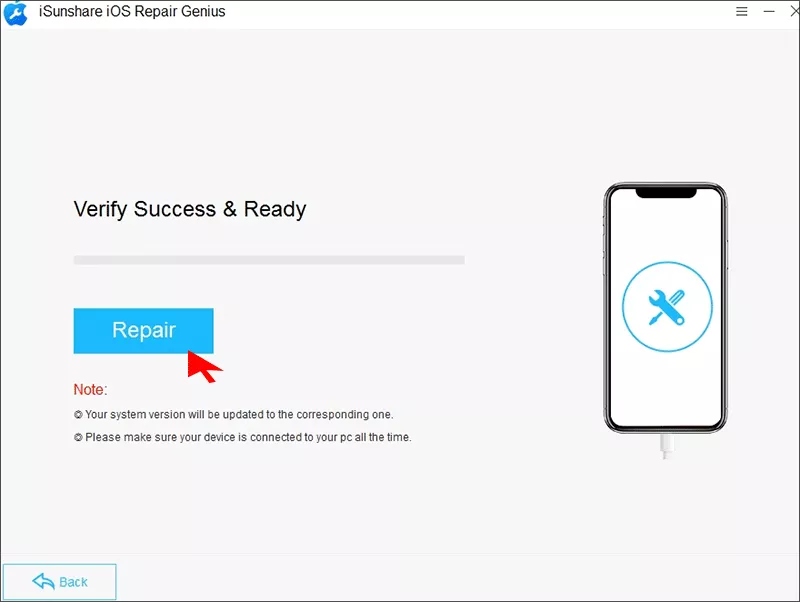
Step 5: Click Repair and keep the iPhone connected until it restarts. Once the iPhone is back on, test Control Center again.
Fix 10: Restore your iPhone with Finder or iTunes
This option will erase your iPhone. If all above fixes failed, you can try it at cost of losing all data.
Step 1: Back up your iPhone to iCloud or to your computer.
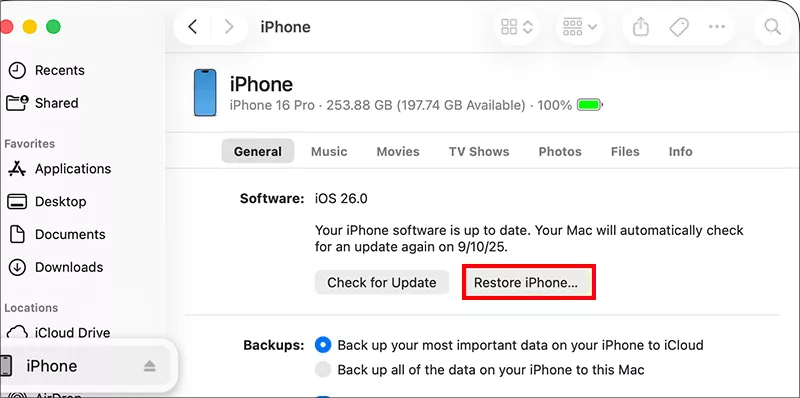
Step 2: Connect the iPhone to your computer. On a Mac with macOS Catalina or later, open Finder. If you are using a Windows PC, run Apple Devices or iTunes.
Step 3: Select your iPhone, click Restore iPhone, and confirm. When the iPhone restarts, set it up as new first to test Control Center before restoring your backup.
Note:
If control center cannot work after restoring, or it won’t open, there might be a hardware problem. Contact Apple Support or an authorized service provider to have the display and touch sensor checked.
FAQs on Control Center Not Working on iPhone
Q1: Why is Control Center not opening on my iPhone?
The most common causes are swiping from the wrong spot, Access Within Apps or lock-screen access being turned off, VoiceOver or Guided Access changing gestures, a temporary iOS glitch, or a touch problem near the screen edge. Work through Fixes 1 to 5 first.
Q2: How do I turn on Control Center inside apps?
Open Settings, tap Control Center, and turn on Access Within Apps. To use it on the Lock Screen, go to Settings, Face ID & Passcode (or Touch ID & Passcode), and turn on Control Center under Allow Access When Locked.
Q3: Can a damaged screen stop Control Center from working?
Yes. If the touch sensor near the top-right corner (or the bottom edge on Home button models) is faulty, the swipe may not register. If software fixes do not help, have the screen checked by Apple or an authorized service provider.
Q4: Why is Control Center missing or different after an iOS update?
In iOS 18 and later, Control Center was redesigned into multiple pages that you swipe through, so controls you customized before may appear on a different page. You can rearrange or re-add them from inside Control Center.
Conclusions:
Control Center usually stops working because of a wrong swipe, a disabled setting, or a temporary iOS glitch. Start with a restart, the Settings checks, and an iOS update. Or you can use the iOS Repair Genius to fix the iOS system issues while retaining the data. If Control Center still fails after a clean restore, have the screen checked by Apple.