We use cookies for personalizing content and ads and providing social media features. Your usage information on our website will be used for social media, advertising, and traffic analytics, or shared with our partners. Clicking "Accept" means you agree to use our cookies .
Want to send a location on WhatsApp that isn’t where you actually are? Maybe you’d rather not share your exact street, you’re planning a surprise, or you just want a harmless prank. Unlike Android, the iPhone has no built-in mock-location setting, so sending a fake location on WhatsApp from an iPhone takes a few workarounds. This guide covers every practical option, from methods that need no software to a location changer that also handles fake live location.
There are two location-sharing features available on WhatsApp, so the right approach will vary based on what you need.
Static location is a single pin sent once. You can send any place you can find on the map, so no tool is required.
Live location updates in real time for a time you choose (15 minutes, 1 hour or 8 hours). It reads your iPhone’s GPS, so faking it means changing the GPS itself.
Method 1: Send a Different Place from WhatsApp’s Location Picker
This is the simplest way to send a fake location on WhatsApp iPhone, and it needs no extra software. It works because WhatsApp lets you pick any place from its map search instead of your current position.
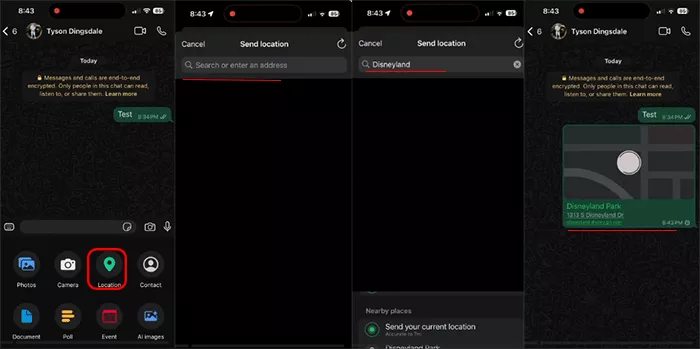
Step 1: Open WhatsApp and the chat where you want to send the location.
Step 2: Tap the + button next to the message box, then tap Location.
Step 3: Use the search field to find a different place, such as a landmark, park or business.
Step 4: Tap the result you want, then tap Send. Don’t tap Send Your Current Location, which uses your real GPS.
Note:
You can only choose from places WhatsApp can search, and it only works for a one-time static location.
Method 2: Forward a Location You Shared Before
If you’ve already sent a location message to someone, you can reuse it. WhatsApp treats a location message like any other message, so it can be forwarded.
Step 1: Find the earlier location message in any chat.
Step 2: Press and hold the message, then tap Forward.
Step 3: Select the contact or group and tap Send.
Note:
It’s a fixed, older pin, and it can’t be used for live location.
Method 3: Turn Off Precise Location for WhatsApp
This doesn’t send a fake place, but it makes WhatsApp share only your approximate area instead of your exact spot. It’s a good privacy option when you don’t want to give away your street.
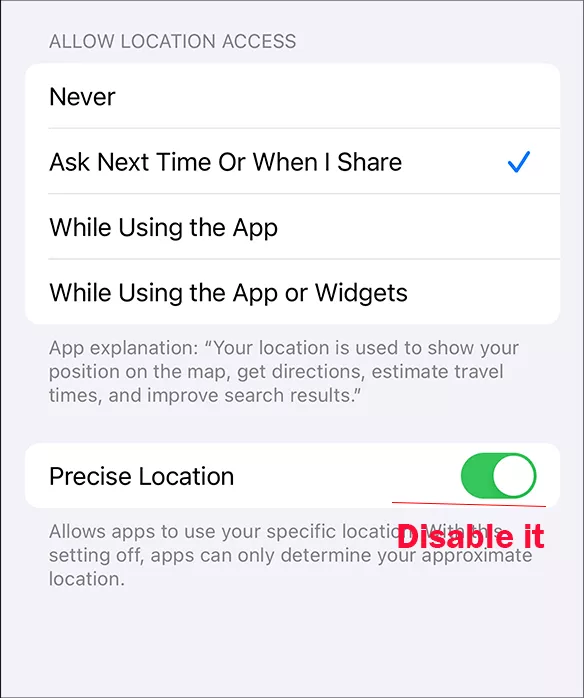
Step 1: Tap Settings and choose Privacy & Security> Location Services.
Step 2: Scroll down and tap WhatsApp.
Step 3: Set access to While Using the App or Ask Next Time Or When I Share.
Step 4: Turn off Precise Location.
Note:
The location is still real, just less exact. Use Method 1 or Method 4 if you need a specific different place.
Method 4: Use AnyLoca to Send a Fake Location or Fake Live Location
If you need an exact spot, or you want a fake live location that moves, a location changer is the reliable route. AnyLoca changes the GPS location of your iPhone from a computer, so every app, including WhatsApp, reads the new position. It does not require a jailbreak.
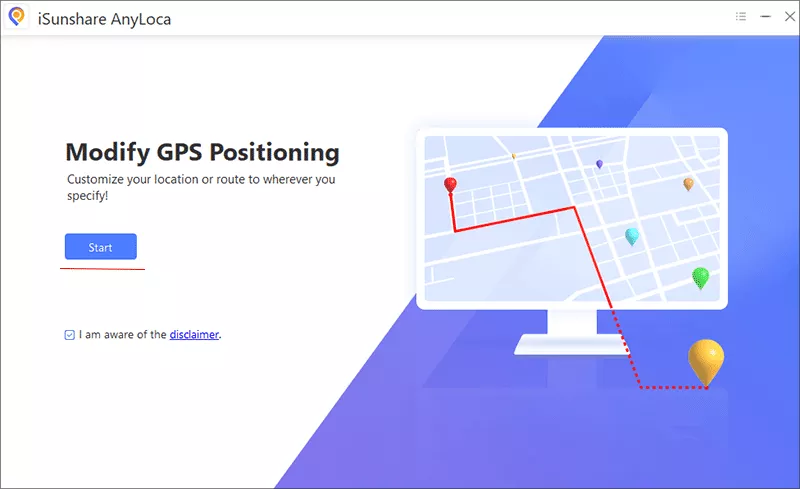
Step 1: : Download and install AnyLoca on your Windows PC or Mac, then launch it. Connect your iPhone with a USB cable and tap Trust This Computer if prompted.
Step 2: On the main interface, hit the Start button to proceed.
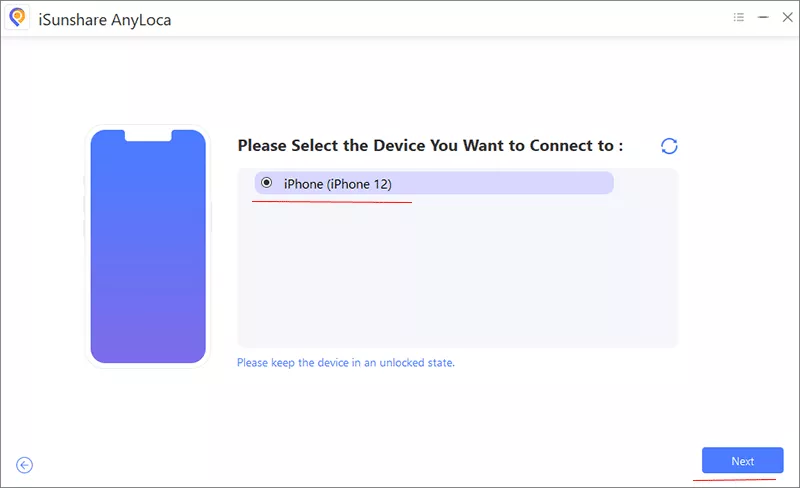
Step 3: Soon, your iPhone is shown on the list. Choose it and click the Next button. If AnyLoca asks you to enable Developer Mode, follow the on-screen prompt to set it up.
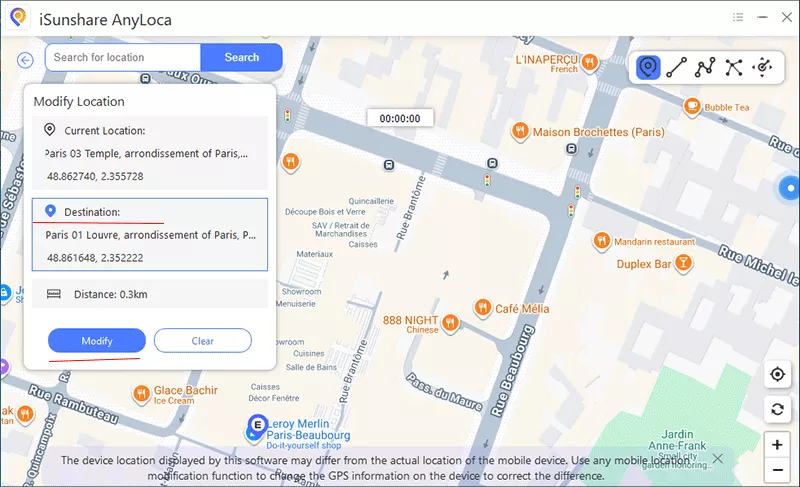
Step 4: A map comes and you can search for or select the place you want on the map. Hit the Modify button to confirm the move. Your iPhone’s GPS now reports the new location.
Step 5: Open WhatsApp, go to the chat, tap + > Location > Send Your Current Location. Now the fake static location is shared to your friends.
Note:
If you want to send a fake live location, you can choose the multi-spot mode and plot the start point and destination (or several stops). Besides, it is available for you to set a realistic speed, such as walking or driving pace, then start the movement.
Which Method Should You Use?
Method
Static Location
Live Location
Needs a Computer
Best For
WhatsApp place search
Yes
No
No
Quick one-off fake pin
Forward an earlier location
Yes (old pin)
No
No
Reusing a place you already sent
Turn off Precise Location
Approximate area only
Approximate area only
No
Privacy without faking a place
AnyLoca
Yes (Teleport mode)
Yes (route mode)
Yes, with USB cable
Exact spots and fake live location
Troubleshooting: Fake Location Not Working on WhatsApp
Problem
Likely Cause
Fix
WhatsApp still sends my real location
You tapped Send Your Current Location with no spoofing active
Use a searched place (Method 1) or confirm the AnyLoca simulation is running before opening WhatsApp.
Location picker is blank or says location is off
WhatsApp has no location permission
Go to Settings > Privacy & Security > Location Services > WhatsApp and choose While Using the App.
Fake location reverts after a while
USB connection dropped or the iPhone locked
Keep the cable connected, keep AnyLoca open, and avoid locking the screen during the simulation.
Live location jumps or doesn’t move
Route speed is unrealistic or the route was interrupted
Restart the route at a steady speed and keep the iPhone connected.
AnyLoca can’t detect the iPhone
Cable, Trust, or Developer Mode issue
Use an original cable, tap Trust on the iPhone, enable Developer Mode if asked, and update AnyLoca.
iPhone stays on the fake location afterwards
The simulation wasn’t stopped properly
Stop the simulation in AnyLoca, disconnect, then restart the iPhone and toggle Location Services off and on.
Wrong place name appears on the pin
A similarly named business was selected
Go back and choose the correct search result before sending.
FAQs on Sending Fake Location on WhatsApp iPhone
Q1: Will others find my shared location is fake?
WhatsApp does not label a location as fake. The recipient only sees a pin or a moving dot, so the main giveaways are context: a place that doesn’t match what you’ve said, or a live location that jumps or moves at an unrealistic speed.
Q2: Can I send live location on WhatsApp without being there?
Yes, but only by changing the iPhone’s GPS with a location changer such as AnyLoca. Use route mode to simulate location movement first, then start sharing your live location on WhatsApp. When you have completed your task, stop the simulation and end the live location share.
Q3: Do I need to jailbreak my iPhone to fake a location on WhatsApp?
No. The methods in this guide work on a standard, non-jailbroken iPhone. The built-in options need nothing extra, and the location changer connects over a USB cable.
Conclusions
You can send a fake location on WhatsApp iPhone in a few ways. For a quick static pin, the WhatsApp place search is enough. To keep your exact position private, turn off Precise Location. For an exact spot or a fake live location that actually moves, a location changer like AnyLoca is the only dependable option. Whichever method you use, keep it on your own device and for honest purposes, and stop the simulation when you’re done.