We use cookies for personalizing content and ads and providing social media features. Your usage information on our website will be used for social media, advertising, and traffic analytics, or shared with our partners. Clicking "Accept" means you agree to use our cookies .
Hinge shows you potential matches based on where your phone's GPS says you are. That sounds simple — but it causes real problems. Maybe you're traveling and your matches keep showing people back home. Maybe you just moved and the app hasn't caught up. Or maybe you want to connect with someone in a specific city before you even get there.
Whatever the reason, this guide covers everything you need to know about how Hinge handles location, how to change it through the app itself, and what to do when the app's built-in controls aren't enough.
Before trying to change anything, it helps to understand what Hinge is actually tracking.
Hinge uses your phone's GPS to determine your location. Unlike some dating apps, it does not let you manually set a city from a dropdown menu. Instead, it reads your real-time GPS coordinates and updates your location automatically — but only when you open the app.
This means: Hinge does not change your location in the background. Your location only refreshes when you actively launch the app.
Hinge does not automatically update your location when you travel. If you fly to another city but don't open Hinge there, your profile still shows your last known location. Besides, new members cannot type in a new city and save it — there's no built-in location override for free users.
Method 1: Use Hinge Preferred to Set Your Location Manually
If you subscribe to Hinge Preferred, you can change your discovery location directly inside the app — no need to physically travel.
Steps to change location on Hinge with a subscription:
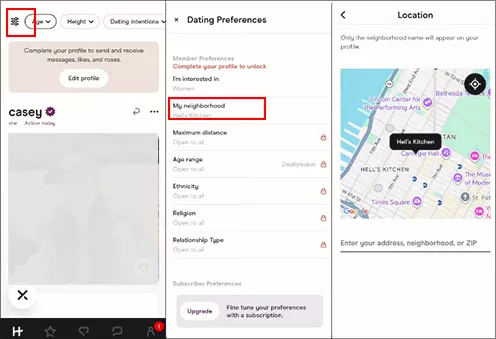
Step 1: Open Hinge and tap the preference icon in the top left corner.
Step 2: Select My neighborhood and use the search bar to enter your target city. Or simply drag the map to the location you want to explore.
Step 3: Soon, Hinge will show you matches from that area.
Method 2: Manually Change Location in Hinge Profile Settings
You can also manually change the Profile location to where you like if you are the Premium member.
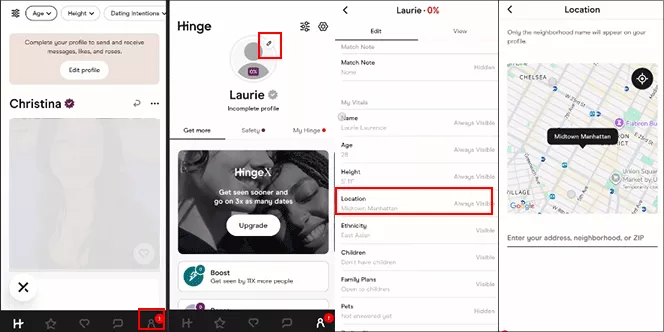
Step 1: Run Hinge and tap the profile photo icon in the bottom right corner.
Step 2: In the first section, you can see an edit icon on top of your profile photo. Tap it to open the edit mode.
Step 3: Go down to My Vitals section and choose the Location option.
Step 4: Now you can set the Hinge location to any spot in the map.
Method 3: Change Your iPhone's GPS Location with iSunshare AnyLoca
If you're on a free Hinge account, or if you want more control than the app allows, changing your iPhone's GPS directly is the most flexible option.
iSunshare AnyLoca is a location changer for iPhone that works without jailbreaking. It runs on your Windows or Mac computer, and lets you set your GPS coordinates to any location in the world. Because it changes the GPS at the system level, Hinge and every other location-based app — sees the new location as real.
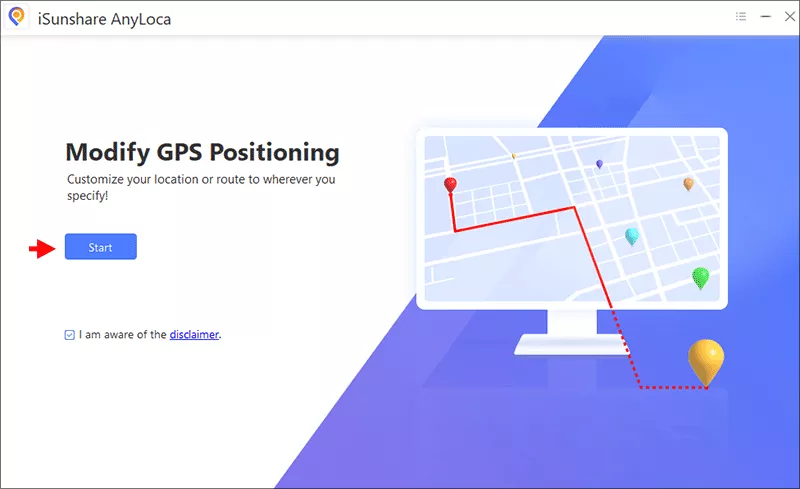
Step 1: Download and install iSunshare AnyLoca on your computer. Launch the program and click Start on the main screen.
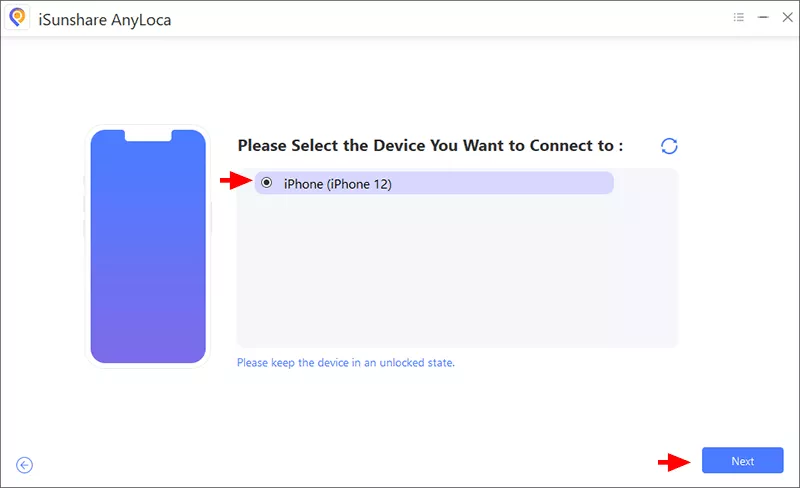
Step 2: Connect your iPhone to the computer with a USB cable. If prompted on your iPhone, tap Trust to allow the connection. Select your device in AnyLoca and click Next.
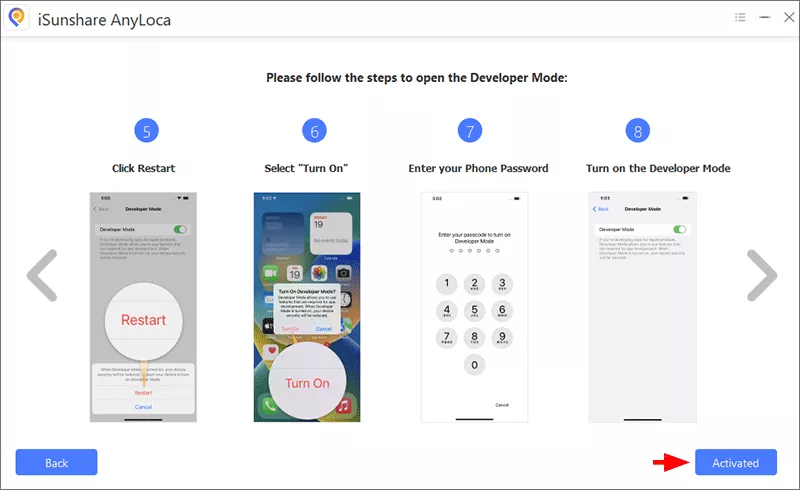
Step 3: Follow the on-screen guide to enable Developer Mode on your iPhone. This is a standard iOS setting — it does not modify your phone in any permanent way.
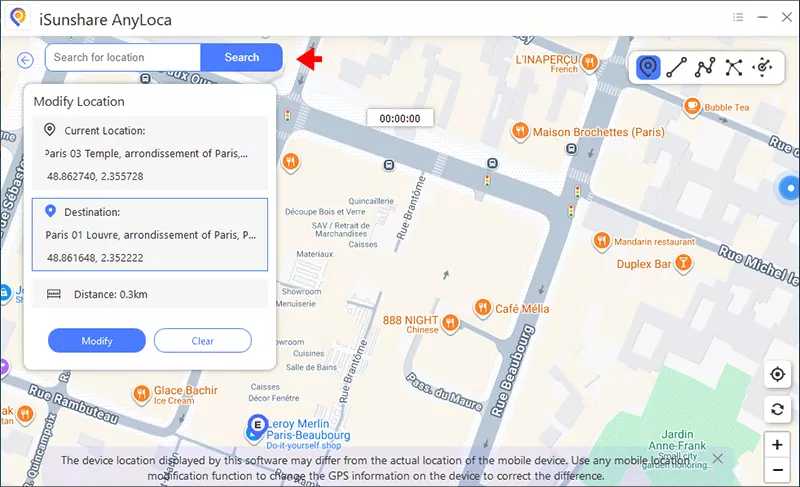
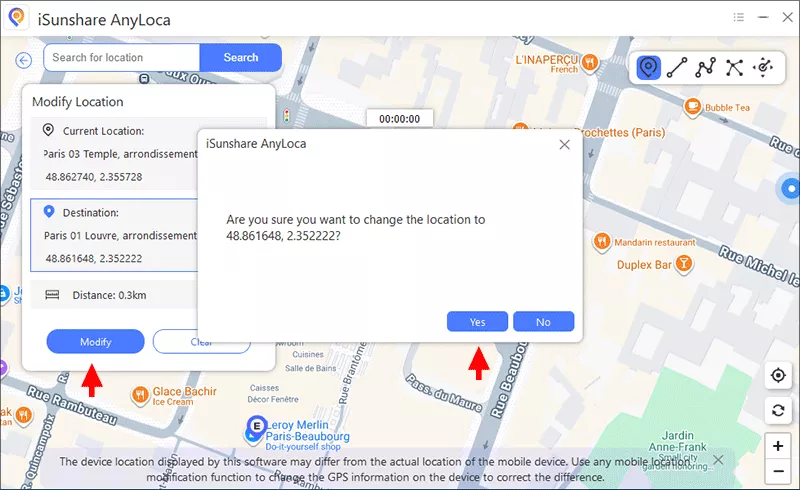
Step 4: Once the map loads, you'll see your current GPS location marked on screen. Use the search bar at the top to type in any city, address, or landmark you want to move to.
Step 5:Click Modify and confirm. AnyLoca will update your iPhone's GPS to the new coordinates.
Step 6: Open Hinge. The app will now detect your new location and show you matches from that area.
Why Hinge Sometimes Won't Let You Change Location
A common frustration: you try to update your location in Hinge and nothing seems to happen. Here's why this occurs and how to fix it.
Your location services are off. Hinge can't read GPS if you haven't granted permission. Go to Settings > Privacy & Security > Location Services and make sure Hinge is enabled.
You're on a free account trying to use paid features. Free users cannot manually set a discovery location inside Hinge. The in-app location control is behind the Preferred subscription paywall.
Your VPN is changing your IP but not your GPS. A VPN changes your apparent network location, but Hinge uses GPS, not your IP address, to determine where you are. A VPN alone won't change your matches. You need to change the actual GPS, which is what AnyLoca does.
FAQs on Hinge Location
Q1: Can I change my location on Hinge?
Yes, of course. You can use the above methods to easily update your location in Hinge. But as a matter of fact, there is no way to change your Hinge location for free.
Q2: Does Hinge Change Your Location Automatically?
No, it doesn’t. If you are in a new city, it is necessary to update the location manually in Hinge.
Q3: How do I set my location on Hinge to another country?
If you have Hinge Preferred, go to Preference > My Neighborhood and search for the city. If you're a free user, use AnyLoca to set your iPhone GPS to a location in that country, then open Hinge.
Q4: How do I change my location on the Hinge app on Android?
The in-app steps are the same on Android. For GPS spoofing on Android, you can use apps like Fake GPS from the Play Store in combination with developer mode. AnyLoca is currently designed for iPhone users.
Conclusions
Hinge gives you limited native control over your location — and only if you pay for Preferred. For free users, or anyone who wants more flexibility, iSunshare AnyLoca is the most reliable way to change your Hinge location on iPhone. It works without jailbreaking, supports all iOS versions, and takes effect across every location-based app on your phone the moment you set it.