We use cookies for personalizing content and ads and providing social media features. Your usage information on our website will be used for social media, advertising, and traffic analytics, or shared with our partners. Clicking "Accept" means you agree to use our cookies .
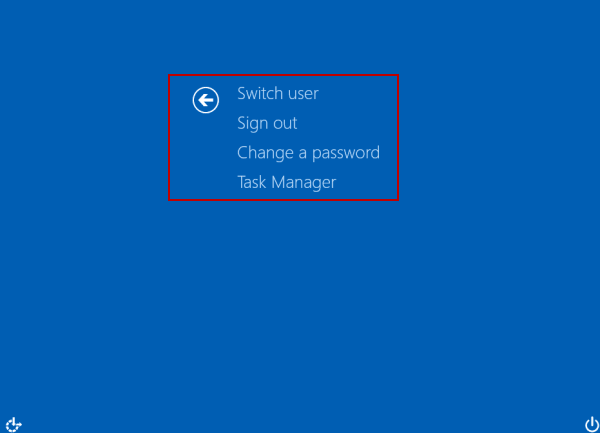
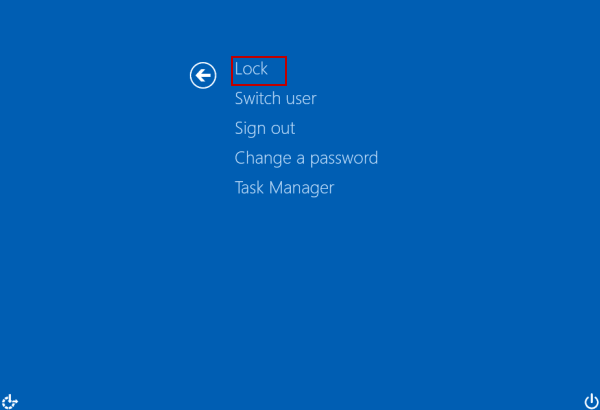
"When locking Windows 10 computer, I often press Ctrl+Alt+Del and choose Lock in the options. But, the Lock option is missing, and I cannot lock computer now. What can I do?"
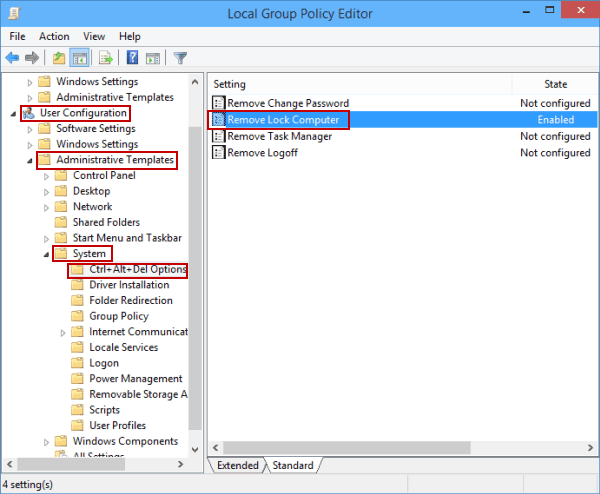
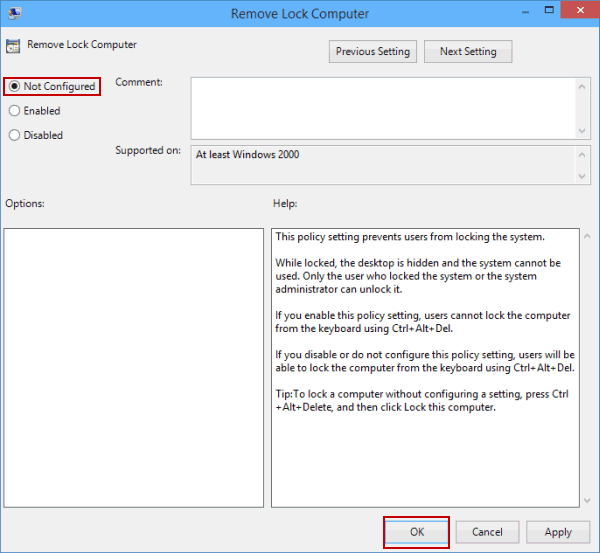
From the following screen shot, you can get through the problem mentioned above. What's more, the reason leading to such a problem could be that someone has changed the group policy setting named "Remove Lock Computer". Thus, try the steps below to settle the problem.
Steps to take if you cannot lock computer in Windows 10: