We use cookies for personalizing content and ads and providing social media features. Your usage information on our website will be used for social media, advertising, and traffic analytics, or shared with our partners. Clicking "Accept" means you agree to use our cookies .
Facebook Marketplace is one of the most popular places to buy and sell items locally. It allows users to find products such as furniture, cars, electronics, and clothing from nearby sellers. However, sometimes the items in your area may be limited. In that case, you might want to change your Marketplace location to view listings in another city or region. Fortunately, this feature is easy to use inside Facebook.
In this guide, you'll learn how to change your Marketplace location on mobile and desktop, why people do it, and how to find better deals by adjusting your search area.
There are several reasons why users change their Marketplace location.
1. Find Better Deals
Some cities have more sellers and lower prices. Expanding your location helps you discover cheaper items and better offers.
2. Browse Items in Nearby Cities
If your town is small, Marketplace listings may be limited. Searching in nearby cities can give you more options and variety.
3. Prepare for Moving
People who are planning to move often browse listings in their future city to look for furniture or household items ahead of time.
4. Search for Rare Items
Certain products like vintage furniture, cars, or collectibles may only be available in specific areas.
How to Change Location on Facebook Marketplace (Mobile)
Most people use Marketplace through the Facebook mobile app. Follow these steps to change your location.
Step 1. Launch the Facebook app on your smartphone.
Step 2. Look for the Marketplace icon, which usually appears as a small storefront.
Step 3. At the top of the Marketplace page, you will see your current location or city name.
Step 4. Tap the location field and type the city, region, or ZIP code where you want to browse listings.
Step 5: You can change the distance radius (for example 10 miles, 50 miles, or 100 miles).
Step 6: Tap Apply, and Marketplace will update to show listings from the new location.
How to Change Marketplace Location on Desktop
If you use Facebook on a computer, you can also change your Marketplace location easily.
Step 1. Go to Facebook in your web browser and log in to your account.
Step 2. Find Marketplace in the left sidebar.
Step 3. On the left side of the Marketplace page, look for the Location section.
Step 4. Type the location where you want to see listings.
Step 5: Use the distance slider to expand or reduce the search area.
Step 6: Click Apply, and the listings will refresh based on your selected location.
Easily Change Location on Facebook Marketplace with AnyLoca
Can't change the location on Facebook Marketplace? You can try the location changer to set a new GPS location for the phone. Thus, these location-based app will show the different content based on your new location. iSunshare AnyLoca is a reliable location changer for iPhone users. You can download to have a try.
iSunshare Reliable iOS Location Spoofer
Easy to modify the location no matter where you are.
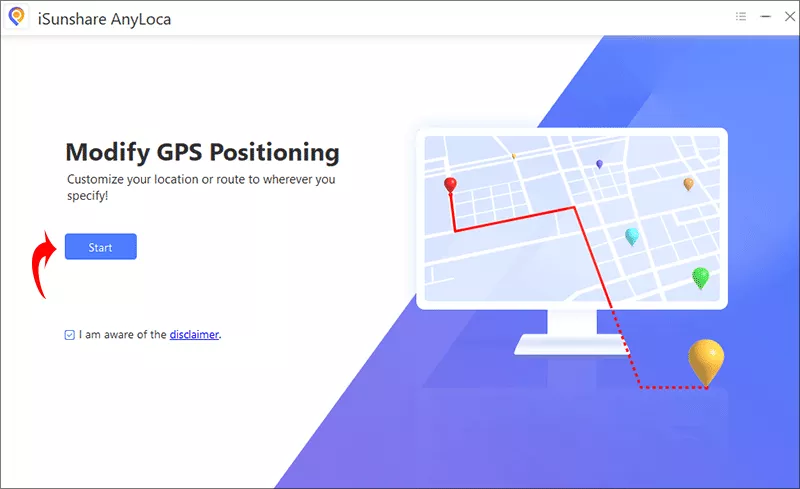
Step 1: Connect the iPhone to your computer and open AnyLoca. Then click the Start button to proceed.
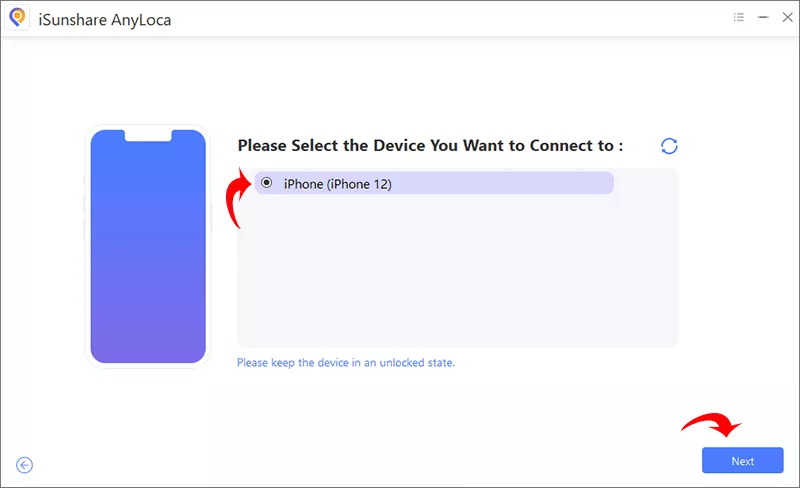
Step 2: In the listing interface, select your iPhone and click the Next button on the bottom right corner.
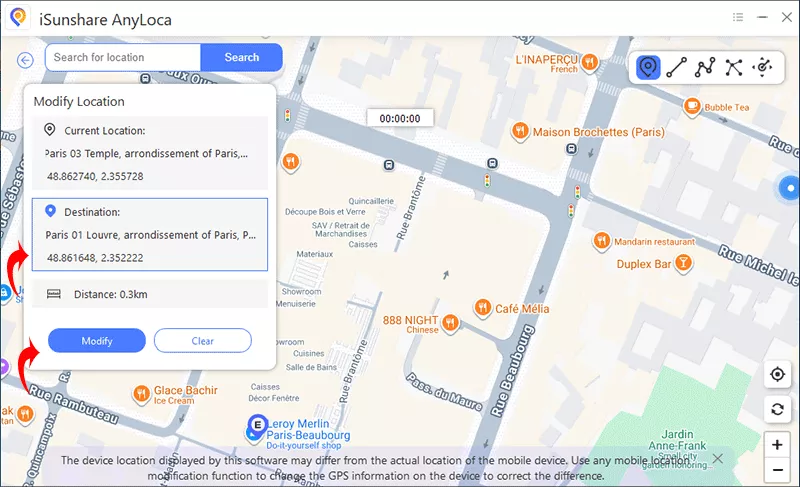
Step 3: Now the Map comes. And you can choose a new location. Afterward, hit the Modify button to save the changes.
Common Problems When Changing Marketplace Location
Sometimes users experience issues when adjusting their location. Here are some common problems and solutions.
Location Won't Update: Try refreshing the app or logging out and back in to your account.
Listings Still Show Nearby Items: Check your distance radius settings, as they may still be limited to a small area.
Marketplace Not Showing in Menu: Marketplace may not appear if your account is new.
Marketplace is not available in your region: You previously violated Marketplace policies
FAQs on Changing Location on Your Facebook Marketplace
1. Can I change my Marketplace location anytime?
Yes. You can change your browsing location anytime using the Marketplace location settings.
2. Does changing Marketplace location change my Facebook profile location?
No. It only affects the listings you see on Marketplace.
3. Can I search multiple locations?
You can only set one main location at a time, but you can change it whenever you want.
Conclusion
Changing your location on Facebook Marketplace is a simple way to expand your search and find better deals. By adjusting your location settings in Facebook, you can browse listings in other cities, discover rare items, and access a wider range of sellers. Whether you're searching for furniture, electronics, or vehicles, changing your Marketplace location can help you find more options and save money.