We use cookies for personalizing content and ads and providing social media features. Your usage information on our website will be used for social media, advertising, and traffic analytics, or shared with our partners. Clicking "Accept" means you agree to use our cookies .
Changing your location on an iPhone can be useful for many reasons—whether you want to maintain privacy, access region-specific content, or test location-based features for app development. In this comprehensive guide, we'll walk you through the various methods for changing your location on an iPhone, from adjusting location settings to using third-party apps.
Before starting, it's good to know why someone might want to change their location on an iPhone. Here are some common reasons:
Privacy: Hiding your real location to protect your personal information.
Access to Local Content: Some apps and services vary based on location, such as different shows on Netflix or availability of apps on the App Store.
Testing: Developers might want to change their location to test how apps work in different areas.
Bypassing Restrictions: Some users might want to access services or websites that aren't available in their area.
Let's look at different methods to change your iPhone's location.
Method 1: Adjust Location Settings on iPhone
Although the iPhone doesn't let you change your actual location, you can manage location settings to control how apps use your location information.
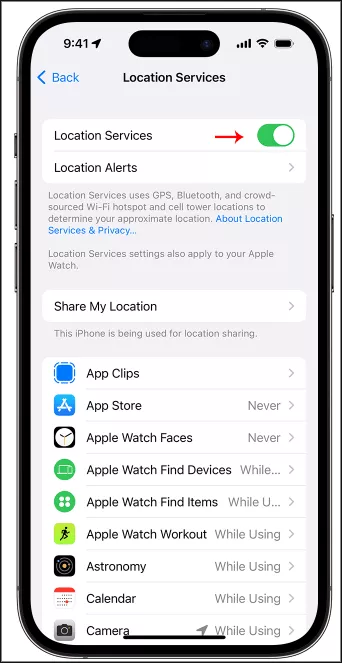
Step 1: Open the Settings app from your iPhone screen.
Step 2: Scroll down and tap on Privacy. Then tap on Location Services.
Step 3: Enable or disable Location Services by toggling the switch at the top.
Step 4: Customize App Permissions: Scroll through the list of apps that have access to your location. You can switch each app's location access to options like Never, While Using the App, or Always.
Note:
You can use the 'Share My Location' feature within Location Services to set which devices can see your location using Find My or other apps.
Method 2: Change Your IP Address with VPN
Using a Virtual Private Network (VPN) is a simple way to change your virtual location and access region-specific content, such as from Netflix or the App Store.
Step 1: Go to the App Store and download a trusted VPN, such as ExpressVPN, NordVPN, or CyberGhost.
Step 2: Open the VPN app and follow the setup instructions. This usually includes choosing a country to connect to.
Step 3: Choose a server located in the country you want to appear as if you're in. Once connected, your iPhone will use the selected server's IP address.
Note:
Even with a VPN, some apps that use GPS might still track your real physical location.
Method 3: Use a Third-Party iPhone Location Spoofer
For more advanced users, third-party iPhone location changers can simulate a different GPS location on your iPhone. This is useful for testing, gaming, or privacy purposes. iSunshare AnyLoca is one of the reliable iPhone location spoofers which make it super easy to change your real location on iPhone. It is available for both macOS and Windows and allows you to spoof your GPS location on your iPhone with a laptop.
Step 1: Install iSunshare AnyLoca on your computer. Then connect your iPhone to the computer with a USB cable.
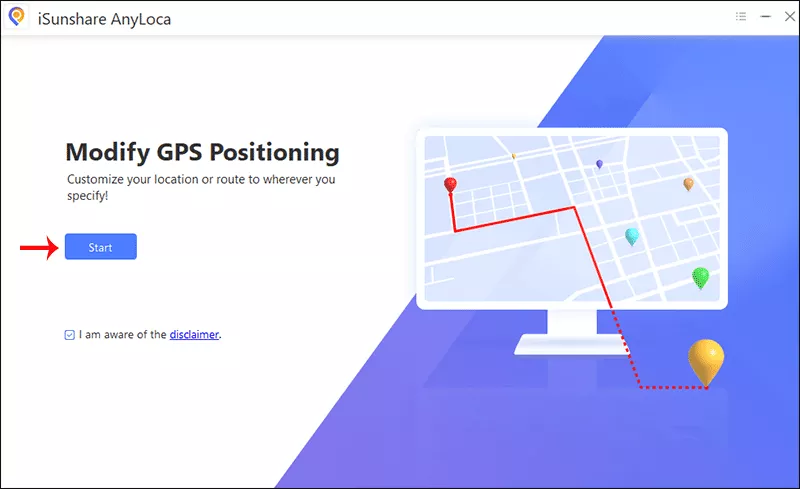
Step 2: Launch the app and click the Start button.
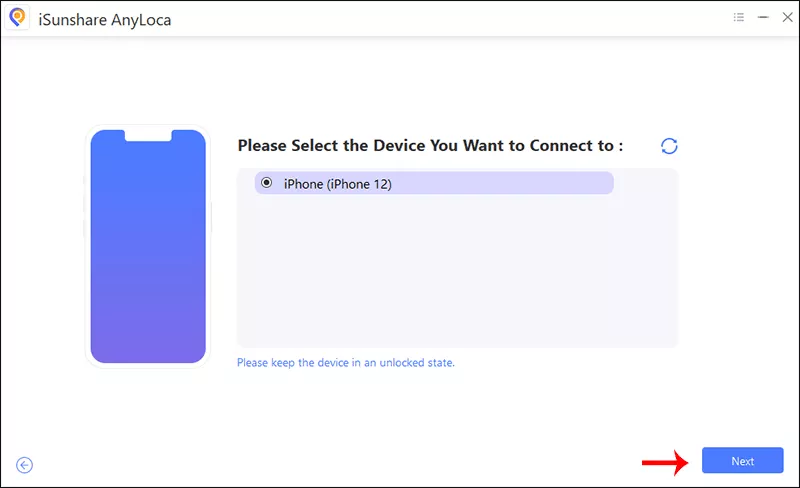
Step 3: Select your iPhone and hit the Next button to continue.
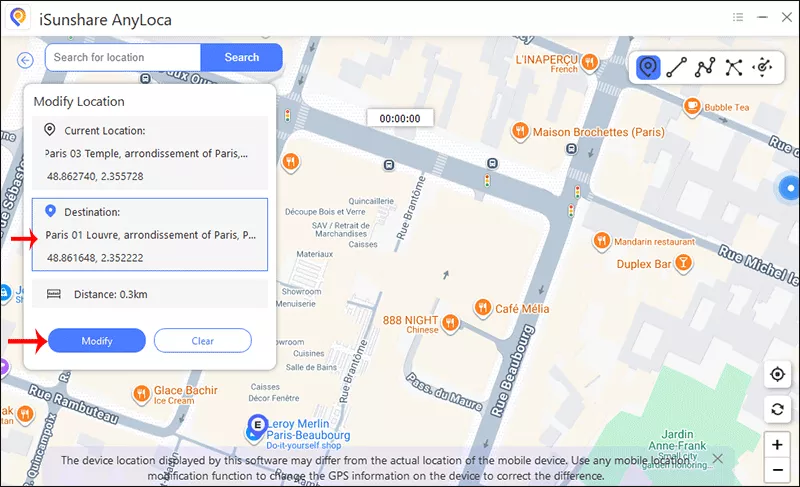
Step 4: The app will show your current GPS location. You can enter a location or use the map to pick a new one. After choosing the location, click the Modify button to simulate it on your iPhone.
Method 4: Modify App Store Region
If you want to access apps available only in different countries, you can change your App Store region.
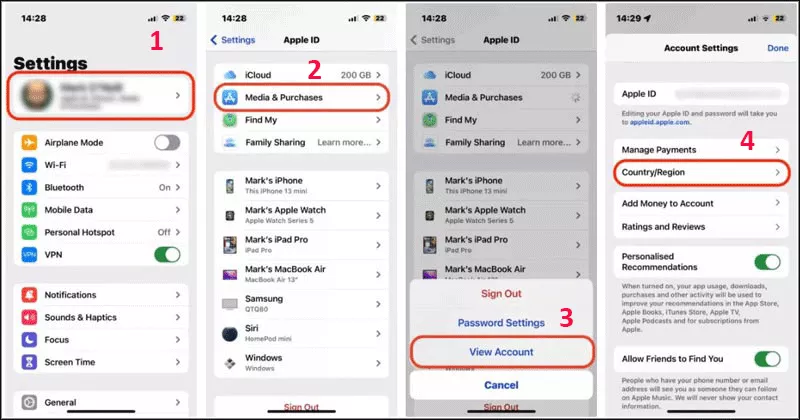
Step 1: Open the Settings app. Tap your name at the top to open your Apple ID settings.
Step 2: Select Media & Purchases and then View Account.
Step 3: Choose Country/Region and tap Change Country or Region.
Step 4: Select the new country or region you want to switch to. You may need to provide a valid payment method for that region.
FAQ about Changing Location on iPhone
Q1. Can I change my iPhone's physical location?
No, you cannot change your iPhone's actual physical location. However, you can alter how your device reports your location to apps and services using features like Location Services, VPNs, or location spoofing apps. These methods simulate a different location, but they don't affect your real-world GPS coordinates.
Q2. Will using a VPN on my iPhone change my GPS location?
No, using a VPN will only change your IP address and virtual location, not your physical GPS location.
Q3. Will changing my location affect my iCloud account?
No, changing your location via Location Services or using a VPN will not affect your iCloud account. Your iCloud settings, including data syncing, remain tied to your Apple ID and do not rely on your device's physical location.
Q4. How can I make sure my location is not tracked on my iPhone?
To ensure that your location is not being tracked, you can: Disable Location Services entirely from the Settings app; Turn off Share My Location in Find My; Disable Significant Locations in the Privacy settings under Location Services > System Services. These steps will minimize tracking, but keep in mind that certain apps (like emergency services or your carrier) may still track your location.
Conclusions
Changing your location on an iPhone can be beneficial for various purposes, such as enhancing privacy or accessing region-specific content. Whether you adjust location settings, use a VPN, or use a third-party app, there are many ways to simulate a different location on your device. However, be mindful of possible risks, especially with location spoofing and VPN services.