We use cookies for personalizing content and ads and providing social media features. Your usage information on our website will be used for social media, advertising, and traffic analytics, or shared with our partners. Clicking "Accept" means you agree to use our cookies .
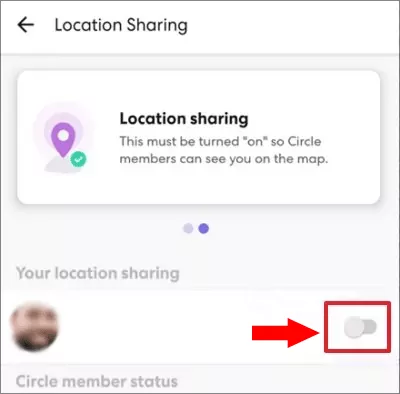
Life360 is a popular family safety app designed to share real-time location with trusted contacts. While it can be useful, there are times when you may want more privacy. Whether you need personal space, temporary freedom, or better control over your data, many users ask: how can I stop Life360 from tracking my location?
In this guide, you'll learn safe, effective, and practical methods to stop or limit Life360's location tracking on both iPhone and Android, along with tips to avoid unnecessary alerts.
Step 2: Tap Life360. Then select Never or While Using the App.
Step 3: Disable Precise Location.
On Android:
Step 1: Open Settings > Location.
Step 2: Tap App Location Permissions and choose Life360.
Step 3: Tap Deny.
3. Enable Airplane Mode (Temporary Solution)
Turning on Airplane Mode disables GPS, Wi-Fi, and mobile data. This method will instantly stop tracking. But you will get no calls, texts, or internet. Life360 may show "No Network" or "Location Paused".
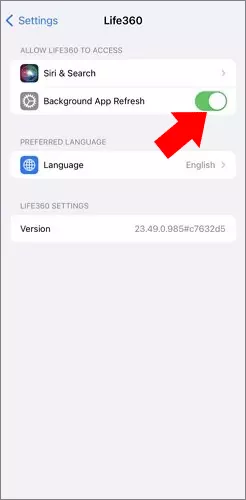
4. Turn Off Background App Refresh
Life360 relies on background activity to update location. This way can reduce tracking accuracy. At the same time, location may still update occasionally.
On iPhone: Go to Settings > General > Background App Refresh, then select Life360. And turn it off.
On Android: Open Settings > Apps > Life360. Then tap Battery and choose Restricted.
5. Use a Location Changer Tool (Advanced Option)
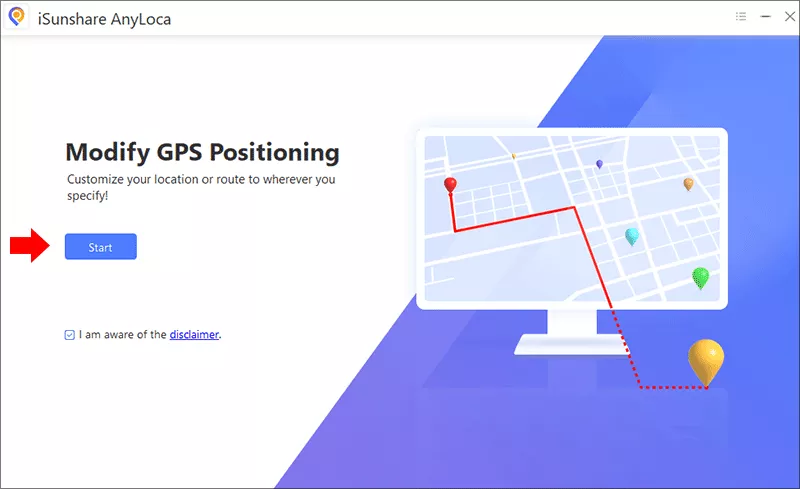
Some users prefer location changer tools that modify GPS data instead of disabling tracking entirely. This allows Life360 to show a static or custom location rather than your real one. iSunshare AnyLoca is one of the location changer tools which can help you quickly change the GPS location on iPhone. In this way, you can hide the real location so that the Life360 cannot track the real activities.
Step 1: Download iSunshare AnyLoca o your computer and install it. After that, make your iPhone connected.
Step 2: Launch the software and click the Start button on the main interface.
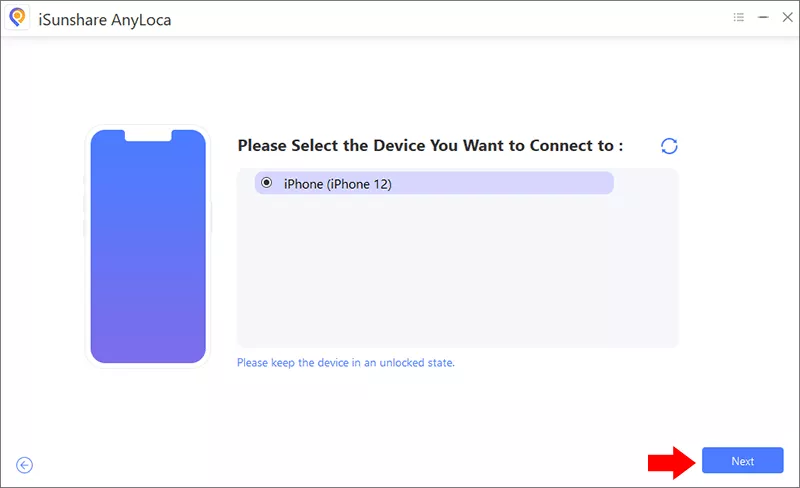
Step 3: Choose your iPhone from the list and hit the Next button.
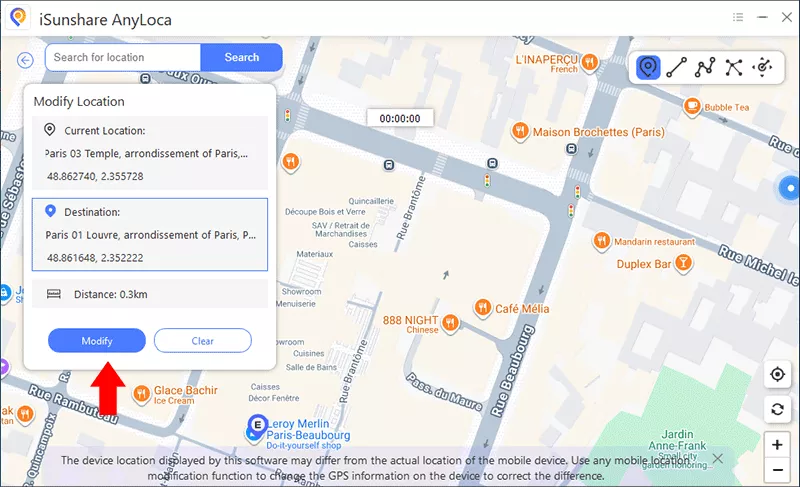
Step 4: Now you are in the Modify mode by default. You can see a map of your current location.
Step 5: To change your iPhone location, you can choose any spot on the Map or search on the top. After that, hit the Modify button and confirm it. Soon, your iPhone location is changed. And Life360 will track you new location.
FAQs about Stopping Life360 Location Tracking
1. Can I stop Life360 from tracking without anyone knowing?
Completely hiding it is difficult. Some methods (like background restrictions or GPS modifiers) are more discreet, but no method is 100% invisible.
2. Does turning off my phone stop Life360 tracking?
Yes. When your phone is powered off, Life360 cannot track your location.
3. Will Life360 notify others if I turn off location services?
In many cases, yes. The app may show alerts like "Location Sharing Paused" or "No Network".
4. Can Life360 track me if GPS is off?
No. Without GPS or location permissions, Life360 cannot access real-time location data.
Conclusions
Stopping Life360 from tracking your location is possible through app settings, phone permissions, network controls, or location management tools. Whether you need a temporary pause or full privacy, the key is choosing a method that fits your situation while minimizing unnecessary alerts.