We use cookies for personalizing content and ads and providing social media features. Your usage information on our website will be used for social media, advertising, and traffic analytics, or shared with our partners. Clicking "Accept" means you agree to use our cookies .
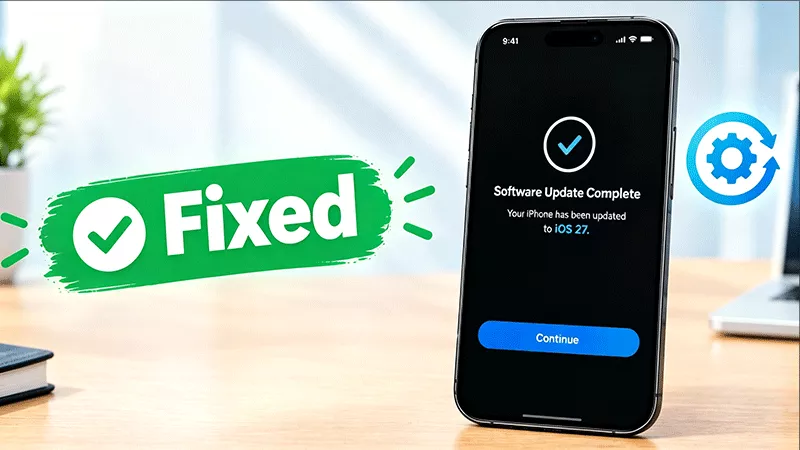
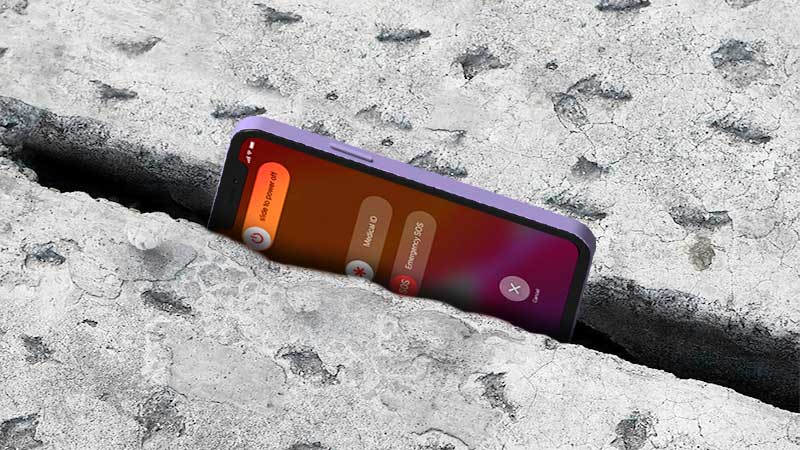
You've waited through the download, watched the progress bar creep to 100%, and finally seen the message: “Software Update Complete.” You tap Continue — and nothing happens. You tap it again. The screen stays frozen, and you're locked out of your own phone.
This is a common iOS glitch, not a sign that your iPhone is broken. In almost every case, the update itself finished successfully; a background process just failed to hand control back to the home screen. Your data is very likely intact, and the fixes below will get you moving again — starting with the ones that carry zero risk to your files.
Why Does iPhone Get Stuck on the Software Update Complete Screen?
The “Software Update Complete” screen is the handoff point between the installer and the main OS. A freeze here usually comes down to one of these:
Minor software glitch — a small hiccup in the firmware handoff during the final install step
Insufficient storage — the update barely fit, leaving no room for post-installation cleanup tasks
A bug in that specific iOS build — occasionally affects certain devices on a particular version
Connectivity drop — for OTA updates, a momentary Wi-Fi loss during final verification can cause a hang
Low battery or overheating — the device pauses finalization to protect itself
Part 2: Why iPhone Software Update Stuck on Preparing Update
Work through these in order. Most people get past the stuck screen within the first two or three steps.
1. Just Wait a Few More Minutes
Finalization can take longer than the progress bar suggests, especially on older devices or after a large iOS version jump. Give it 10–15 minutes before assuming it's truly stuck.
2. Check Your Network Connection
If you're on Wi-Fi, confirm the connection is stable. A dropped connection during the final verification step is a common cause of this exact freeze.
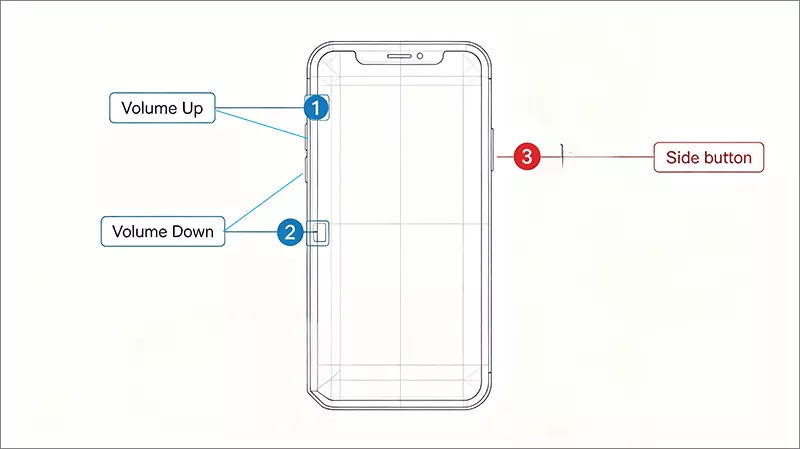
3. Force Restart Your iPhone
A force restart clears active memory without touching your data or settings, making it the safest first real fix.
Step 1: Press and immediately release the Volume Up button.
Step 2: Press and immediately release the Volume Down button.
Step 3: Press and hold the Side button until the Apple logo shows up.
Step 4: Release the Side button and let the iPhone reboot, then check if it moves past the update screen.
4. Free Up Storage Space
If storage was already tight before the update, there may not be enough room to complete post-install cleanup. If you can access Settings, check Settings > General > iPhone Storage and clear space where possible to free up iPhone storage.
5. Charge the Device
A low battery can cause the system to pause before finishing the handoff. Plug your iPhone into a wall charger and let it charge for at least 15–20 minutes before trying again.
6. Check Apple's System Status Page
Occasionally an Apple server-side issue affects activation or verification during setup. Check Apple's System Status page from another device to rule this out.
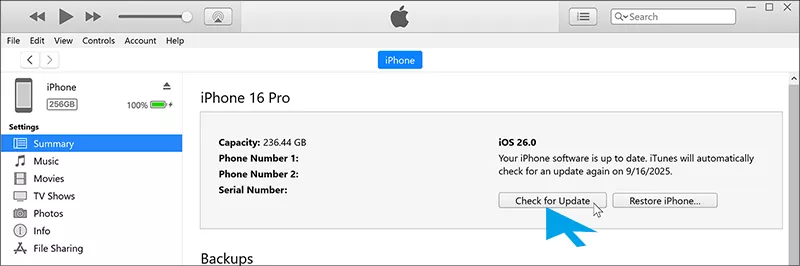
7. Update (Not Restore) via Finder or iTunes
Connect your iPhone to a computer and open Finder (or iTunes on older systems). Choose Update rather than Restore — this reinstalls iOS without erasing your data. Wait for the reinstall to finish, then disconnect and check the screen.
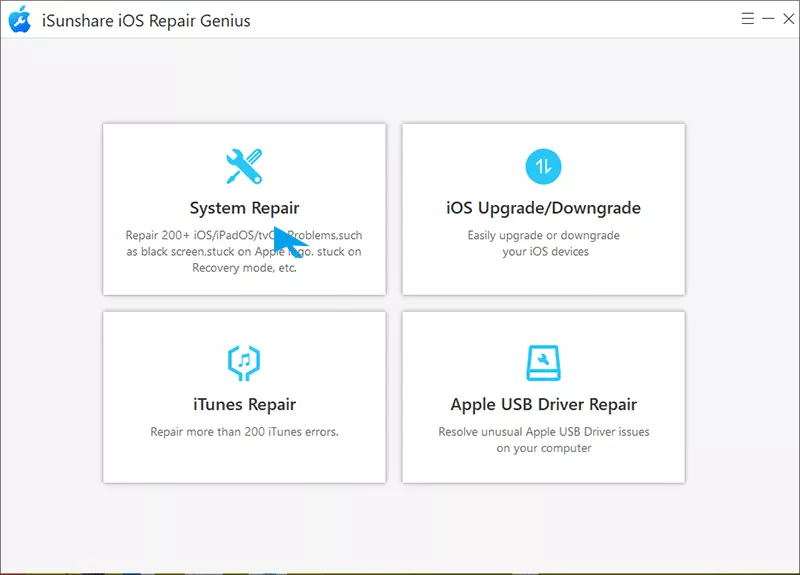
8. Fix with iSunshare iOS Repair Genius (No Data Loss)
If none of the steps above worked, the update likely left a deeper system inconsistency that a simple restart can't clear. This is where a dedicated iOS repair tool like iSunshare iOS Repair Genius helps — it repairs the iOS system in place, without the data loss risk of a full restore. This iOS system recovery software can quickly fix your iPhone stuck issues and update the iOS to newest version.
iSunshare Reliable iOS System Repair Software
Fix iPhone stuck on software update complete in clicks
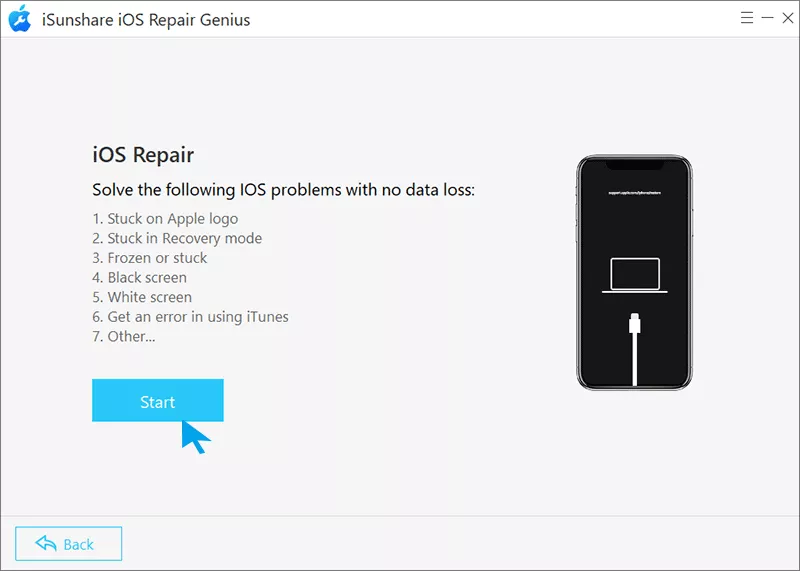
Step 1: Download and install iSunshare iOS Repair Genius on your computer, then launch it. Choose System Repair function and select Standard Mode to keep your data intact.
Step 2: Connect your iPhone to the computer with a USB cable and let the program detect it. Click Start and then the Next button to proceed.
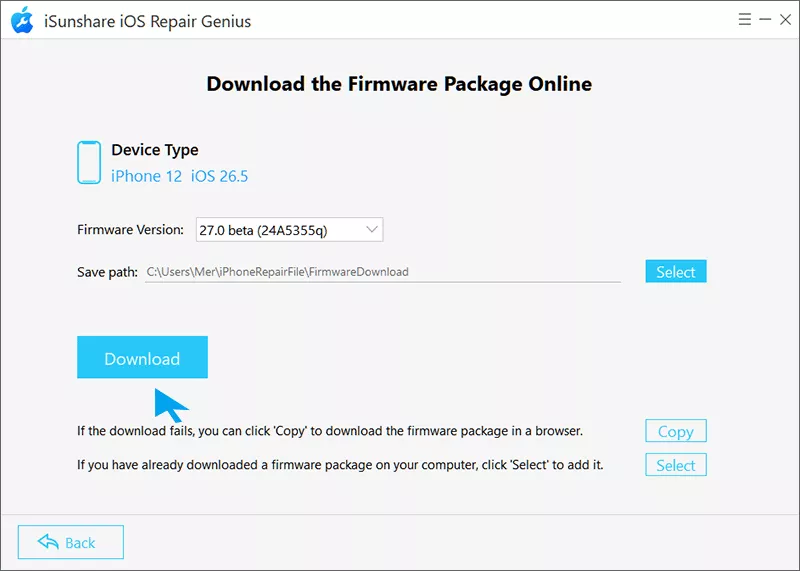
Step 3: Click Download when prompted to fetch the matching firmware package for your device.
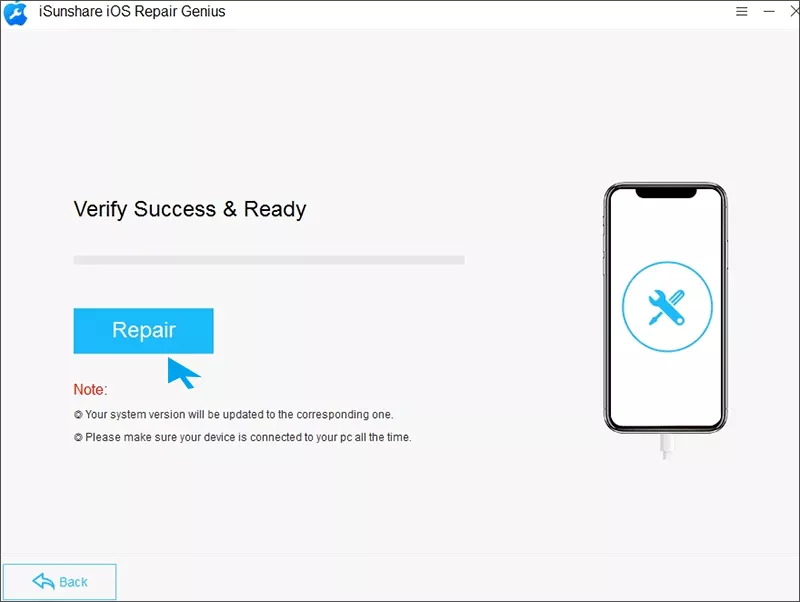
Step 4: Once the firmware finishes downloading, click Repair and keep your iPhone connected until the repair completes. Your iPhone will restart automatically and should boot past the update screen normally.
Troubleshooting by Symptom
If your iPhone is…
Try this first
Frozen right after tapping Continue
Force restart, then Update via Finder/iTunes
Looping back to the Hello or welcome screen
Force restart; if it repeats, use iOS Repair Genius
Stuck during new-device setup after a backup restore
Charge the device, then Update via Finder/iTunes
Unresponsive to any button or tap
Force restart; if no response, Recovery Mode restore
Repeatedly stuck after multiple restarts
iOS Repair Genius Standard Repair Mode
FAQs on iPhone Stuck on Software Update Complete
Q1: Will I lose data if my iPhone is stuck on the update complete screen?
No — waiting, force restarting, freeing up storage, charging, and updating via Finder/iTunes (using Update, not Restore) all preserve your data. Only Recovery Mode and DFU restores erase the device.
Q2: Why does my new iPhone keep looping back to the update or Hello screen?
This is usually caused by a stalled verification step during setup, often tied to a connectivity drop or low battery. Charging the device and retrying the update through Finder or iTunes typically resolves it.
Q3: Cannot get out of Software Update Complete, what to do?
You can try to force reboot the iPhone or recharge the iPhone. If this makes no sense, you can update the iPhone via iTunes or use iSunshare iOS Repair Genius to fix it.
Conclusion
A frozen Software Update Complete screen looks alarming, but it's almost always a stalled handoff, not a broken device or lost data. Start with the free, no-risk steps — waiting it out, a force restart, freeing up storage, charging, and updating through Finder or iTunes — since these resolve the issue for most people. If the freeze persists after those steps, iSunshare iOS Repair Genius fixes the underlying system glitch without erasing your data.