We use cookies for personalizing content and ads and providing social media features. Your usage information on our website will be used for social media, advertising, and traffic analytics, or shared with our partners. Clicking "Accept" means you agree to use our cookies .
LocaChange is a location-changing tool that runs from your computer. When it stops working, the symptoms are usually easy to spot: the iPhone is not detected, the map stays blank, the app crashes or asks you to log in again, or your fake location snaps back to the real one a few seconds after you set it.
The good news is that most of these problems come from a short list of causes: a connection hiccup, a setting that changed after a system update, a network or firewall block, or an outdated version of the app. This guide walks through the fixes in order, starting with the quickest and least disruptive. If nothing works, the last section shows a reliable alternative.
Before changing anything, match what you see to the most likely cause:
The phone is not detected: usually the cable, USB port, Trust prompt, or Developer Mode.
The map is blank or will not load: usually an unstable network, VPN, proxy, or firewall.
It broke after an update: a new iOS or Android version changed permissions or compatibility.
The location reverts: the connection dropped, or another setting overrode the simulated location.
The app crashes or login fails: corrupted files, an outdated build, antivirus interference, or an account issue.
Fix 1: Restart Everything and Reconnect
A stuck connection is the most common cause, and a clean restart clears it.
Step 1: Close LocaChange completely, including from the system tray or menu bar.
Step 2: Unplug the iPhone or Android phone from the computer.
Step 3: Restart the phone and, if possible, the computer.
Step 4: Reconnect the phone, then open LocaChange again.
Fix 2: Trust the Computer and Check the Cable
If the phone is not detected, the computer may not be trusted, or the cable may only be charging.
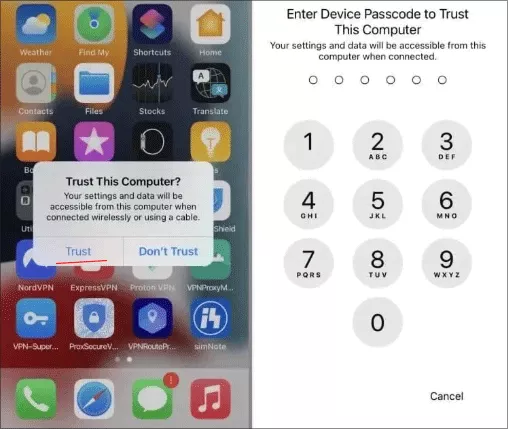
Step 1: Unlock the phone and keep the screen on while connecting. When the "Trust This Computer?" prompt appears, tap Trust and enter your passcode.
Step 2: Use an original or certified data cable, and try a different USB port directly on the computer instead of a hub.
Step 3: On Windows, make sure the Apple device drivers are installed if the computer still does not recognize the iPhone.
Fix 3: Turn On Developer Mode (iOS 16 and later)
On recent iOS versions, location tools that connect through a computer generally need Developer Mode enabled.
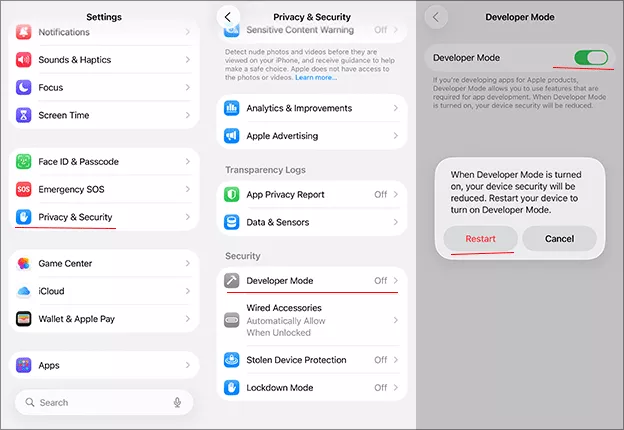
Step 1: Open Settings, then Privacy & Security.
Step 2: Scroll down and tap Developer Mode.
Step 3: Switch it on and tap Restart when prompted.
Step 4: After the phone restarts, confirm the prompt, enter your passcode, and reconnect to LocaChange.
Note:
If you do not see Developer Mode, connect the phone to the computer once and open LocaChange. The option can appear only after a computer has tried to connect.
Fix 4: Check Your Network, VPN, and Firewall
The map and location search both need a working internet connection. A blank map or a network error often points here.
Step 1: Switch to a stable Wi-Fi or wired connection and reload the map.
Step 2: Turn off any VPN or proxy on the computer and the phone, then try again.
Step 3: Allow LocaChange through Windows Firewall or your security software.
Step 4: Once the network is stable, reopen LocaChange and test again.
Fix 5: Update LocaChange and Check iOS or Android Compatibility
If LocaChange stopped working right after a phone update, the app may not support that system version yet.
Step 1: Open LocaChange and check for updates, or download the latest installer from the official site.
Step 2: Install it over the existing version and restart the program.
Step 3: If the newest version still does not support your system version, wait for a patch instead of installing beta system software.
Fix 6: Stop the Location from Reverting
On most computer-based location changers, the simulated location lasts only while the connection stays active. If your location jumps back, try the following:
• Keep the cable connected and stop the computer from going to sleep while you use the app.
• Set the new location first, then open the app or game that reads it.
• Make sure Location Services is turned on for the target app in your phone settings.
• Restart the phone to clear a stuck simulation, then set the location again.
Fix 7: Fix Crashes and Login Problems
If the LocaChange stops working because of crashes and login problems, you can try the below fixes:
Step 1: Close LocaChange completely and open it again, and run it as administrator on Windows.
Step 2: Add LocaChange to your antivirus or security exclusion list if it is being blocked.
Step 3: Check that you are signed in to the right account and that your subscription is still active.
Step 4: Uninstall LocaChange, restart the computer, and install a fresh copy.
Still Not Working? Use AnyLoca as an Alternative
If you have tried every fix and LocaChange still fails, switching tools is often faster than more troubleshooting. iSunshare AnyLoca is a computer-based location changer for iPhone that lets you set a new location and simulate movement along a route.
Step 1: Download and install AnyLoca on your Windows or Mac computer. Connect your iPhone with a USB cable, unlock it, and tap Trust when prompted.
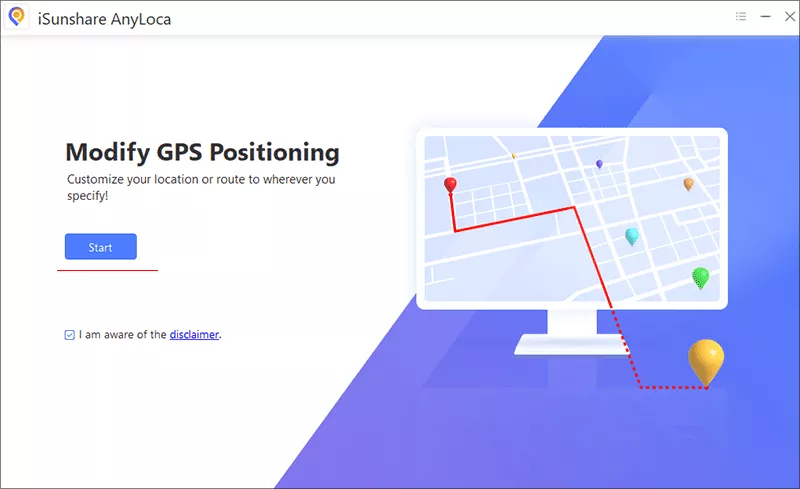
Step 2: Open AnyLoca and hit the Start button. Then choose your iPhone and click the Next button to continue.
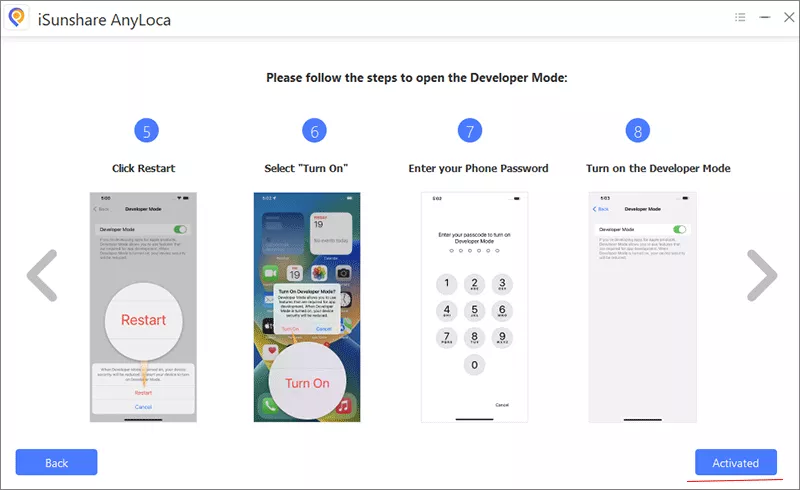
Step 3: Follow the steps to activate the Developer Mode on your iPhone. After that, click the Activated button on the software bottom corner.
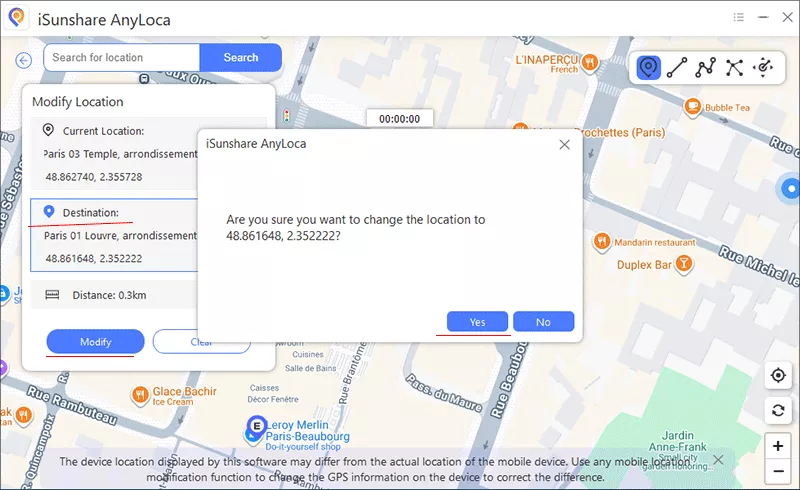
Step 4: Wait for the map to load. Then search for the place you want, or click it on the map.
Step 5: Hit the Modify button and make a confirmation. Then open the app you want to use and confirm the new location.
Troubleshooting Table for LocaChange not Working
Problem
Likely Cause
What to Do
Phone not detected
Cable, port, or Trust prompt
Use a data cable, change the port, and tap Trust (Fix 2).
Cannot enable location change on iPhone
Developer Mode is off
Turn on Developer Mode and restart (Fix 3).
Map is blank or will not load
Network, VPN, or firewall
Switch networks, disable VPN, and allow the app through the firewall (Fix 4).
Stopped working after an update
New system version
Update LocaChange or wait for a patch (Fix 5).
Location keeps reverting
Connection dropped or sleep mode
Keep the cable connected and set the location first (Fix 6).
App crashes or login fails
Corrupt files, antivirus, or account
Run as administrator, exclude the app from antivirus scanning if trusted, and reinstall (Fix 7).
FAQ About LocaChange Not Working
Q1: Why is LocaChange not connecting to my iPhone?
The most common causes are a missing Trust prompt, a faulty cable or USB port, Developer Mode being off on iOS 16 and later, or a computer that does not recognize the iPhone. Unlock the phone, tap Trust, switch to a different cable or port, enable Developer Mode, then restart both the iPhone and LocaChange.
Q2: Why does my location keep reverting to the real one?
On most computer-based location changers, the simulated location only lasts while the connection stays active. If the cable is unplugged, the computer sleeps, or the app closes, the iPhone returns to its real location. Keep the connection stable, set the location before opening the target app, and restart the iPhone if the location will not reset.
Q3: Does LocaChange stop working after an iOS update?
It can. A system update may change permissions, connection behavior, or compatibility requirements. Update LocaChange to the latest version, and if a fix has not been released for your iOS version yet, wait for one rather than installing beta software.
Q4: Do I need Developer Mode to change location on iPhone?
On iOS 16 and later, location tools that connect through a computer generally need Developer Mode turned on. Go to Settings, Privacy & Security, Developer Mode, switch it on, and restart the iPhone when prompted.
Q5: What is a good LocaChange alternative?
If you have tried every fix and LocaChange still fails, AnyLoca from iSunshare is an alternative that can change your iPhone location and simulate movement along a route from your computer.
Conclusions
Most LocaChange problems come down to the connection, Developer Mode, the network, or an outdated version. If the fixes above do not help, AnyLoca is a ready alternative.