We use cookies for personalizing content and ads and providing social media features. Your usage information on our website will be used for social media, advertising, and traffic analytics, or shared with our partners. Clicking "Accept" means you agree to use our cookies .
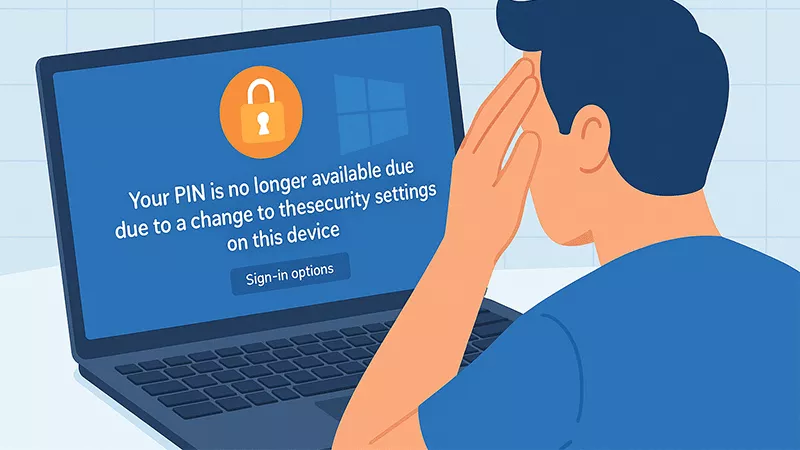
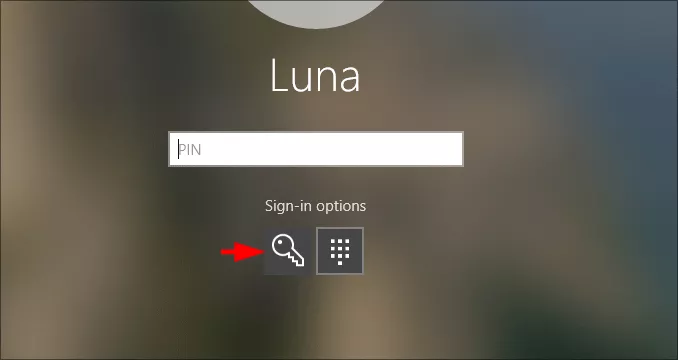
When you are going to access the Windows 11 computer with the PIN, and encounter the error message "Your PIN is no longer available due to a change in the security settings on this device" on the login screen, how can you fix this error? Don't worry, in this article, you can know why this happens and how to solve it quickly without losing your data.
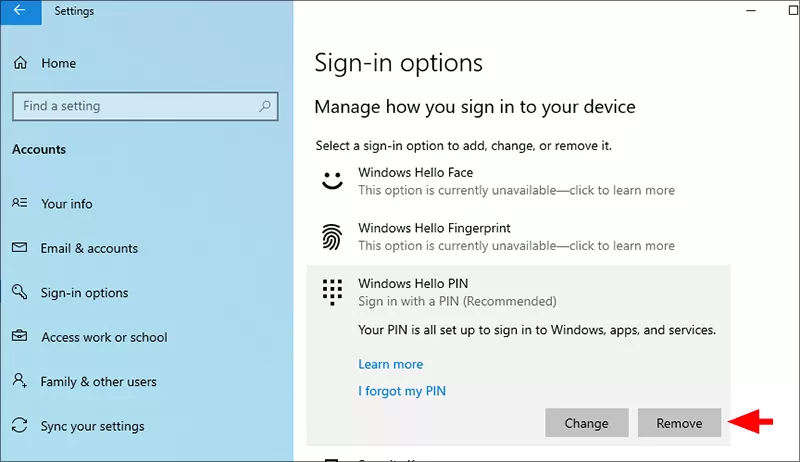
Step 4: Once logged in, go to Settings> Accounts > Sign-in Options > Windows Hello PIN. Then hit the Remove button to delete the unavailable PIN. After that, restart your computer and test whether you can sign in normally.
Solution 3: Delete Ngc Folder to Reset PIN Data
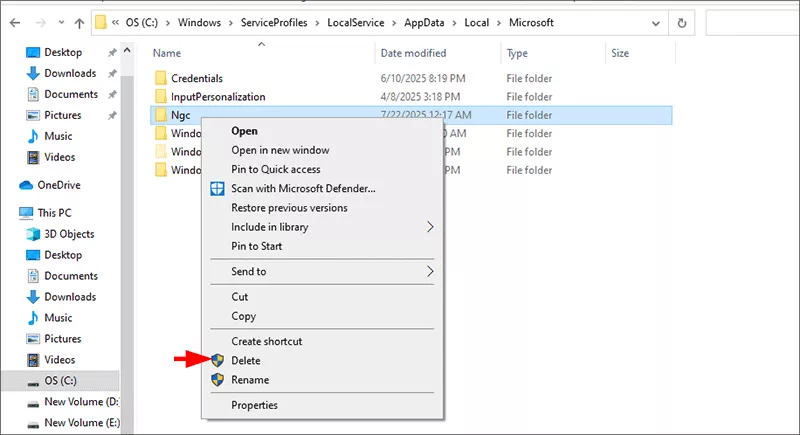
The Ngc folder stores encrypted PIN information. If there are corrupted files here, your PIN will become unavailable.
Step 2: Access C:\Windows\ServiceProfiles\LocalService\AppData\Local\Microsoft\ and right-click the Ngc folder. Then choose Delete from the context menu. It always requires the admin permission to delete this folder.
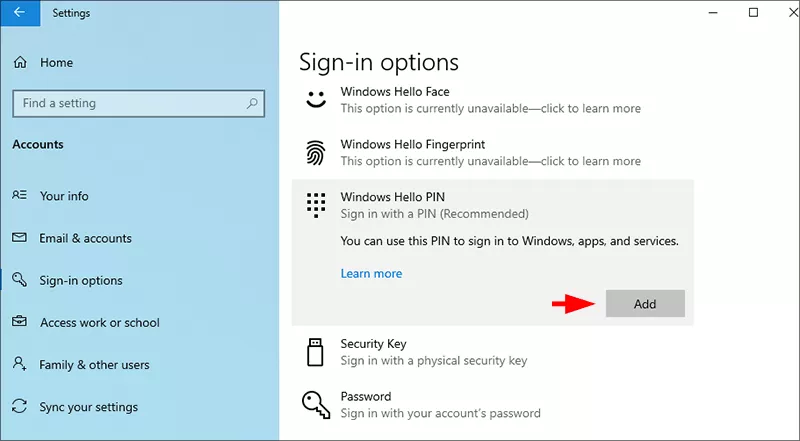
Step 3: Reboot your computer and try to set up a new PIN.
Solution 4: Clear TPM
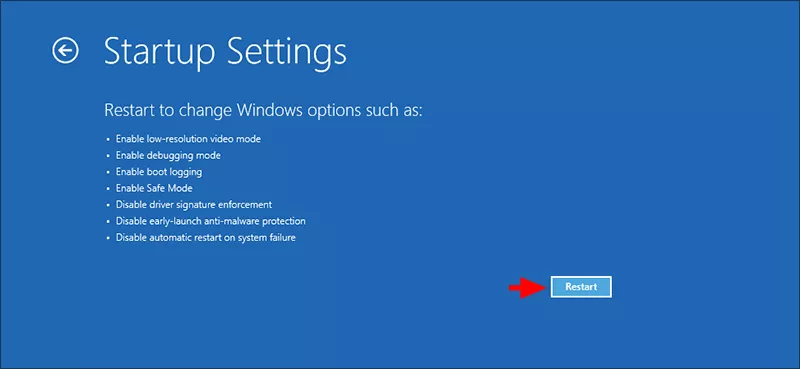
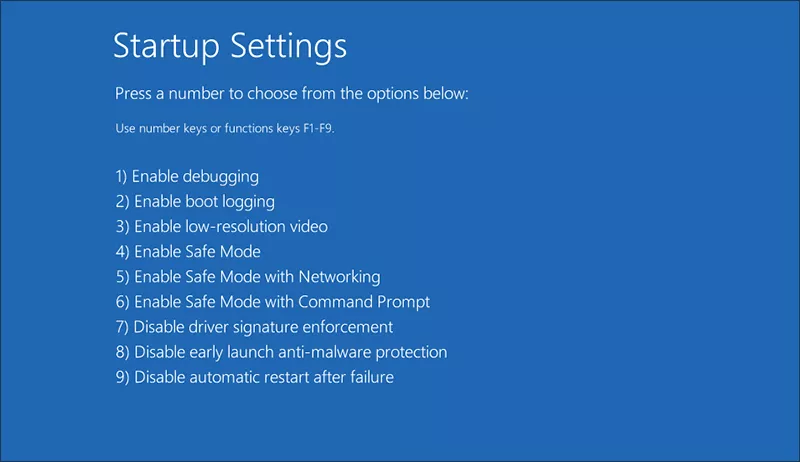
The Trusted Platform Module plays an essential part in Windows 11 security. If there are some changes in the TPM settings, your PIN might be unavailable, which makes the error message occurred on the login screen. In such situation, you can clear the TPM in Safe mode to fix the error.
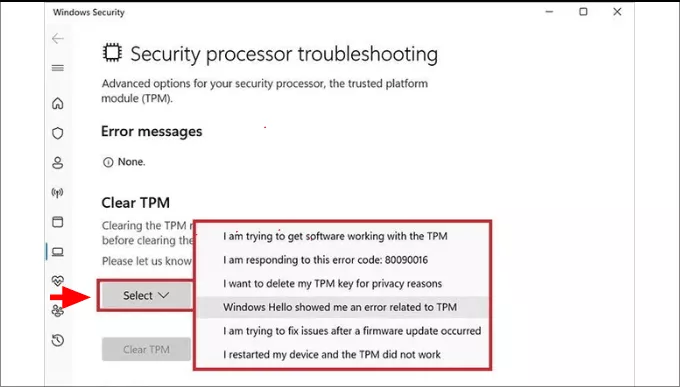
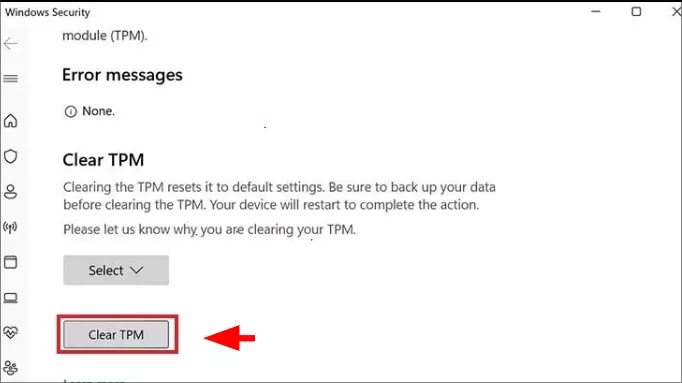
Step 2: Search "Security processor troubleshooting" with Windows search bar and choose to open Security processor troubleshooting from the result.
Step 3: Go to the Clear TPM section and choose the reason for clearing the TPM.
Step 4: Hit Clear TPM button to reset TPM to its default settings.
Solution 5: Reset Windows 11 Computer
If none of the above solutions fix the error, you can try to reset the Windows 11 computer. It will erase all your files on the computer. Think twice to go ahead.
Step 1: On the login screen, go to the lower right corner and click Power > Restart. At the same time, keep pressing the Shift key on your keyboard.
Step 2: When the Windows Recovery Environment screen shows, click Troubleshoot > Reset this PC > Remove Everything.
Step 3: Follow the onscreen instructions to reset your PC.
Tips: How to Access Your Windows 11 As Administrator When PIN is No Longer Available
If the login PIN is no longer available, is there any way to access your Windows 11 as administrator to remove the PIN without data loss? Yes, iSunshare Windows Password Genius can help you create an administrator account without login.
iSunshare Reliable Windows Lock Screen Unlocker
A reliable solution to bypass Windows login screen
Remove Windows 11 login password without logging in
Work smoothly on all kinds of Windows computer brands
Step 1: Get another working computer and run iSunshare Windows Password Genius.
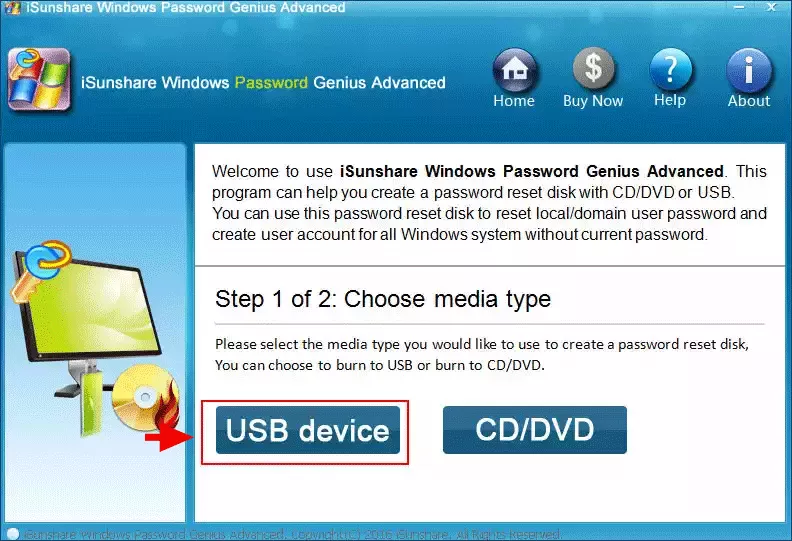
Step 2: Insert a USB disk into the computer and choose USB Device on the software interface.
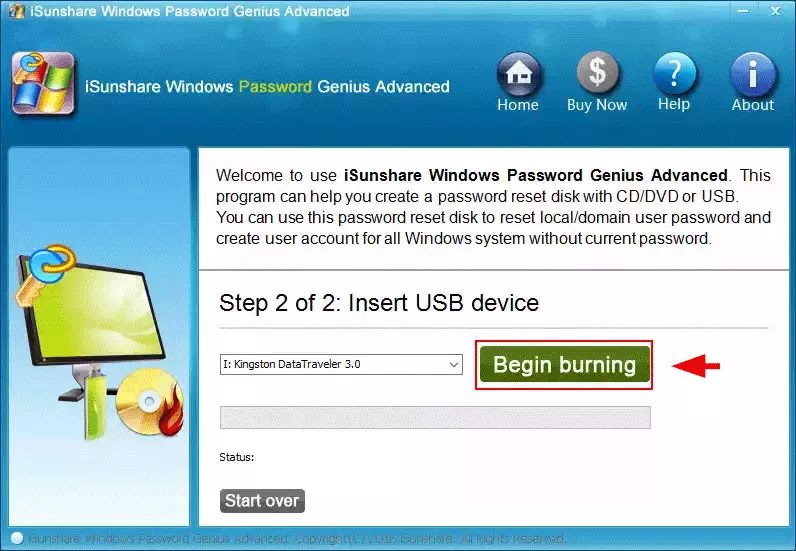
Step 3: Choose the USB flash drive and hit the Begin burning option. Then click Yes to confirm the erasing of USB data.
Step 4: Minutes later, the bootable USB disk is made successfully. You can connect it into the locked Windows 11 computer with PIN unavailable. Then restart Windows 11 and press Del or other boot keys to access the BIOS settings. After that, set to boot from the USB drive.
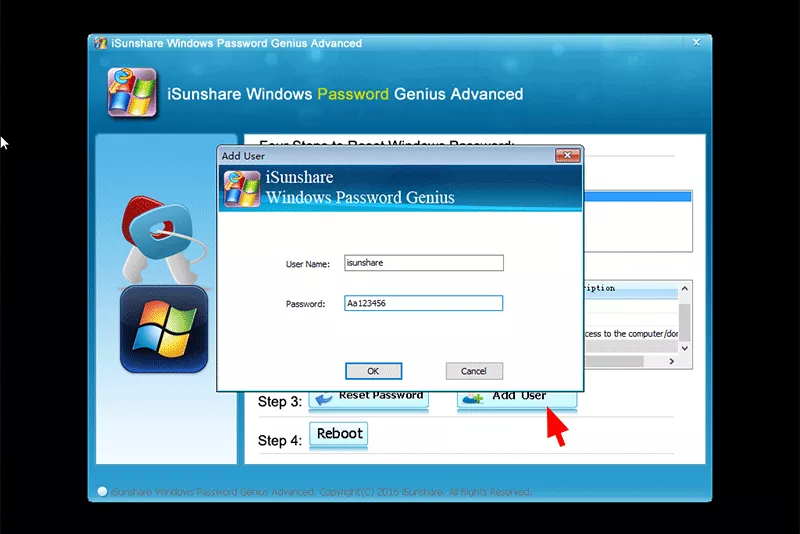
Step 5: Soon, you can see the iSunshare Windows Password Genius interface. Click the Add User button and then set the username and password.
Step 6: Hit the Reboot button and eject your USB drive. In no time, you will see the Windows 11 login screen again. Then go to change the user account and select your new administrator account to login.
Conclusions
With the above solutions, you can easily fix the "Your PIN is no longer available" error on Windows 11. If you want to access the Windows 11 as administrator instead of booting into safe mode for settings modification, iSunshare Windows Password Genius can be the great helper.